CSS Compressor
中文文档
An efficient CSS compression VS Code extension that removes whitespace, line breaks, and comments from CSS files, reducing file size and improving page load speed.
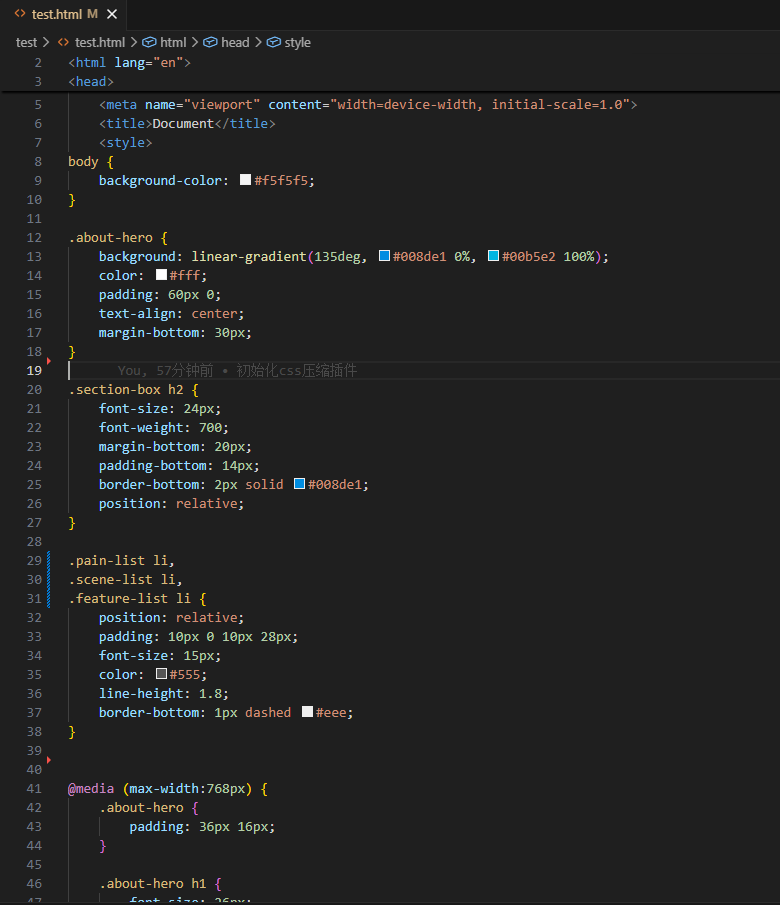
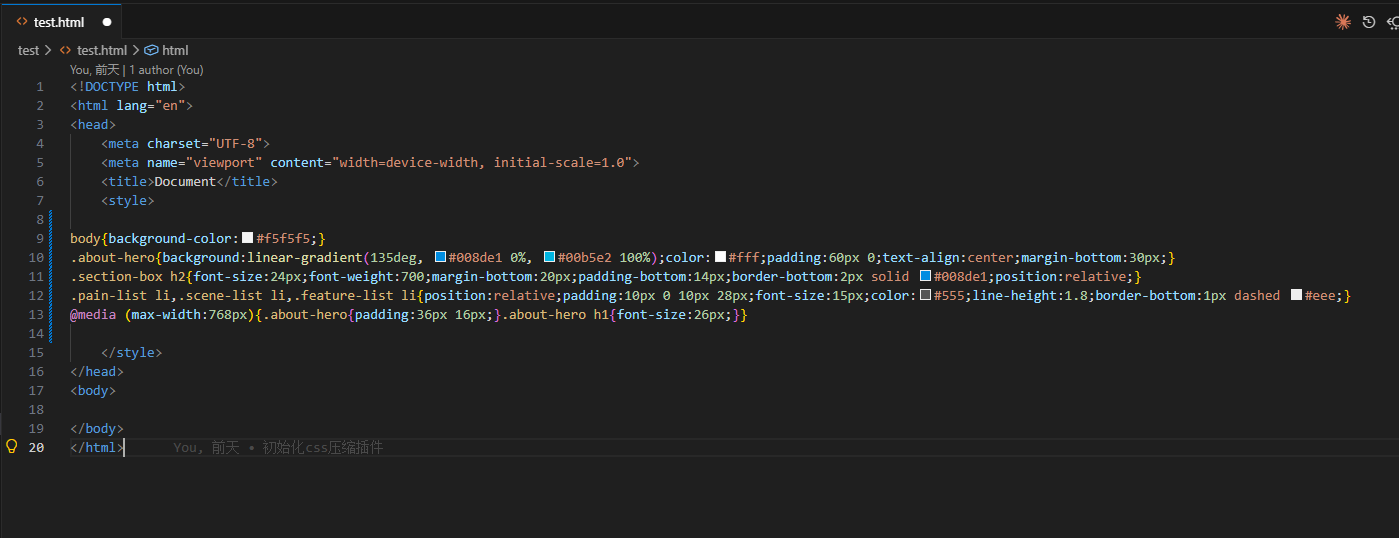
Supports compressing selected code snippets as well as entire .html, .css, .scss, .less, .sass, and .wxss files. For .html files, it automatically extracts and compresses the content within <style> tags.
Default shortcut after installation is Shift+Alt+C (Compact mode). You can customize the shortcut and compression mode in VS Code keyboard shortcut settings.
Requirements
- VS Code 1.95.0 or later
- Node.js 22.0.0 or later
Node.js Version management for nvm: https://www.nvmnode.com
Markdown: https://www.markdownlang.com
Supported Modes
| Mode |
Description |
Example |
| Compact |
Removes extra line breaks and spaces; no spaces between selectors and properties |
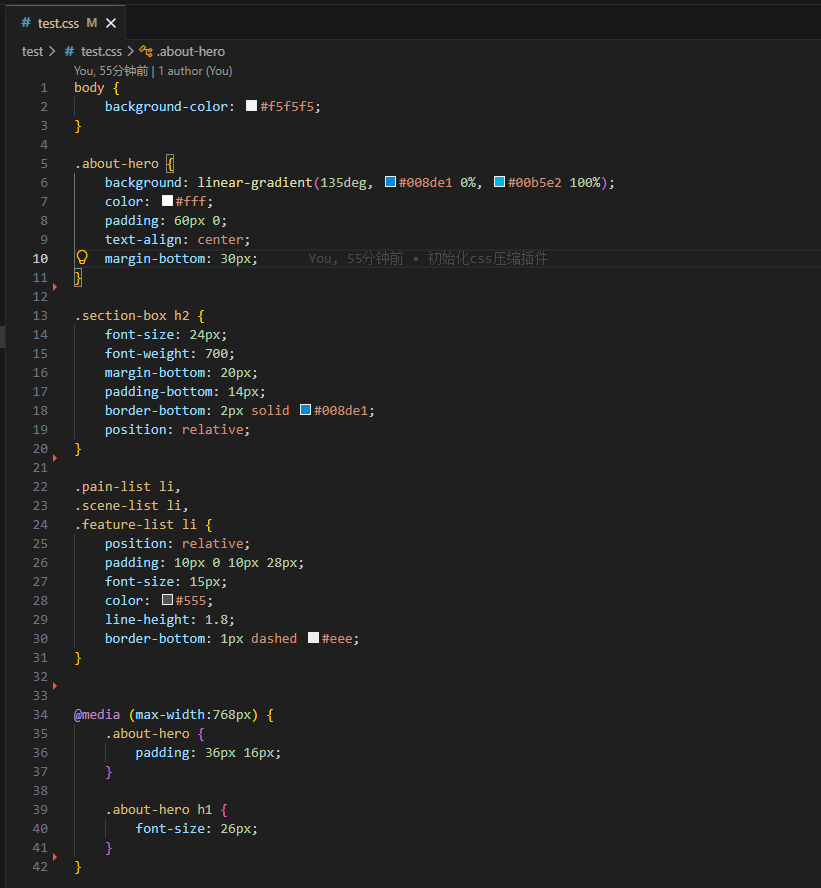
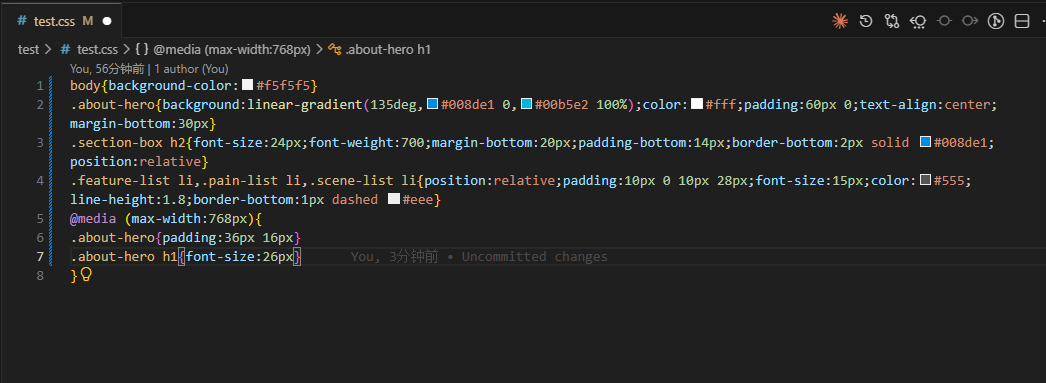
selector{prop:value;prop:value;} |
| Compact-Spaces |
Removes extra line breaks; single space between selectors and properties |
selector { prop: value; prop: value; } |
| Expanded |
Formats CSS styles, expands all properties — each on its own line for readability and debugging |
prop: value; (each property on its own line, indented) |
| Compressed |
Compresses all styles by removing spaces and line breaks; everything on one line, ideal for production |
selector{prop:value;prop:value;}@media{...} |
Different modes can be selected via the Command Palette, or you can bind different shortcuts to each mode in VS Code's Keyboard Shortcuts settings.
Features
- Removes extra whitespace and line breaks
- Removes CSS comments (configurable to preserve
/*! */ important comments)
- Supports compressing selected code snippets
- Supports compressing entire files
- Automatically detects
<style> tags in HTML files and compresses their content
- 4 compression/formatting modes available
- Supports SCSS/LESS/SASS nested syntax
- Default shortcut
Shift+Alt+C (Compact mode)
- Status bar quick-access button
- Context menu quick entry
Configuration
Search for cssCompressor in VS Code Settings to configure the following options:
| Setting |
Type |
Default |
Description |
cssCompressor.defaultMode |
string |
"compact" |
Default compression mode for shortcuts and status bar button: "expanded", "compact-spaces", "compact", "compressed" |
cssCompressor.removeComments |
boolean |
false |
Whether to remove all CSS comments |
cssCompressor.preserveImportantComments |
boolean |
true |
When removing comments, whether to preserve /*! */ important comments |
cssCompressor.indentSize |
number |
4 |
Number of indentation spaces for Expanded mode (1–8) |
Usage
Press Shift+Alt+C to format the CSS file (ensure the current file type is CSS).
Command Palette
Press Ctrl+Shift+P to open the Command Palette and search for:
- CSS Compressor: Compact — Use Compact mode (default shortcut
Shift+Alt+C)
- CSS Compressor: Compact-Spaces — Use Compact-Spaces mode
- CSS Compressor: Format (Expanded) — Use Expanded mode
- CSS Compressor: Compressed — Use Compressed mode
Keyboard Shortcuts
The default shortcut Shift+Alt+C is bound to Compact mode. You can bind custom shortcuts to other commands via VS Code's Keyboard Shortcuts settings (Ctrl+K Ctrl+S).
In supported CSS files, select some text, then right-click to reveal CSS Compressor: Compact in the context menu.
CSS Examples
Before Compression:
body{background-color: #f5f5f5;}

.about-hero {
    background: linear-gradient(135deg, #008de1 0%, #00b5e2 100%);
    color: #fff;
    padding: 60px 0;
    text-align: center;
    margin-bottom: 30px;
}
.about-hero h1 {
    font-size: 36px;
    font-weight: 700;
    margin-bottom: 12px;
}
Compact Mode:
.css - Compact before:
 .css - Compact after:
.html - Compact before:
 .html - Compact after:
Changelog
See CHANGELOG.md for details.
1.0.8 (2026-07-29)
- 修复保留注释时,注释与紧随其后的 CSS 规则被合并到同一行的问题,注释现在始终独占一行
- 修复 Compressed 模式下属性值中必要空格被错误删除的问题(如
2px solid → 2pxsolid)
- 排除
assets/ 目录,不再打包到 .vsix 安装包中
1.0.7 (2026-07-28)
- 重构代码结构,提取核心压缩逻辑为独立模块,提升可读性和可维护性
1.0.6 (2026-07-25)
1.0.0 (2026-07-24)
License
MIT

