guided-i18n
Internationalize your React app in a few clicks: no prompts, no surprises.
Review every string and key before anything changes, undo in one step, and only
your UI text ever leaves your machine.
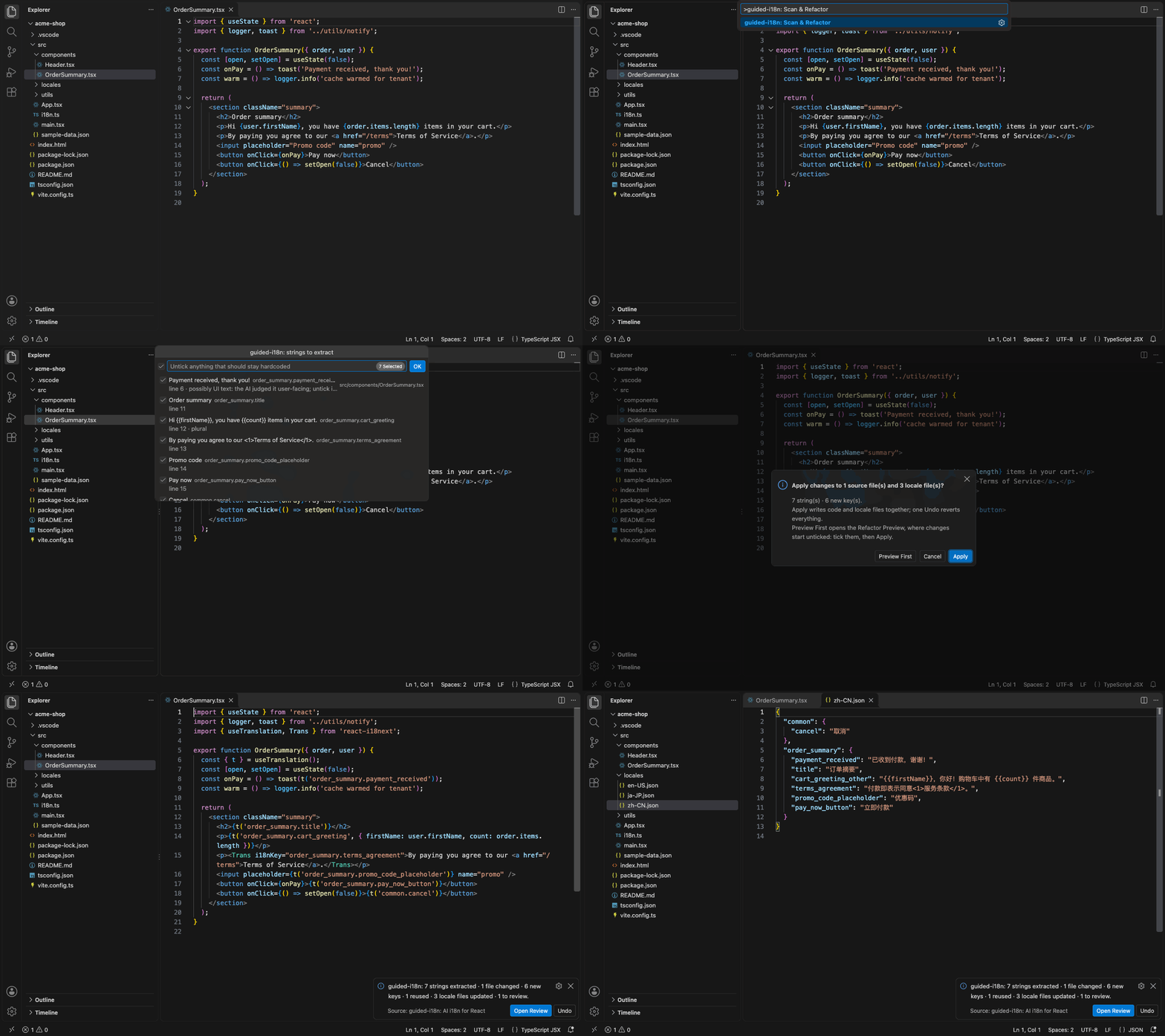
guided-i18n finds the hardcoded UI text in a React app, moves it into the
standard react-i18next setup with sensible keys, and translates it with the
AI provider you choose. You approve every string first.
Why guided-i18n
- The standard result, every time. Always react-i18next with JSON language
files, in the exact languages you pick, with your source language kept. The
extension asks what an AI agent would silently decide: which languages,
Simplified or Traditional Chinese, where the files go.
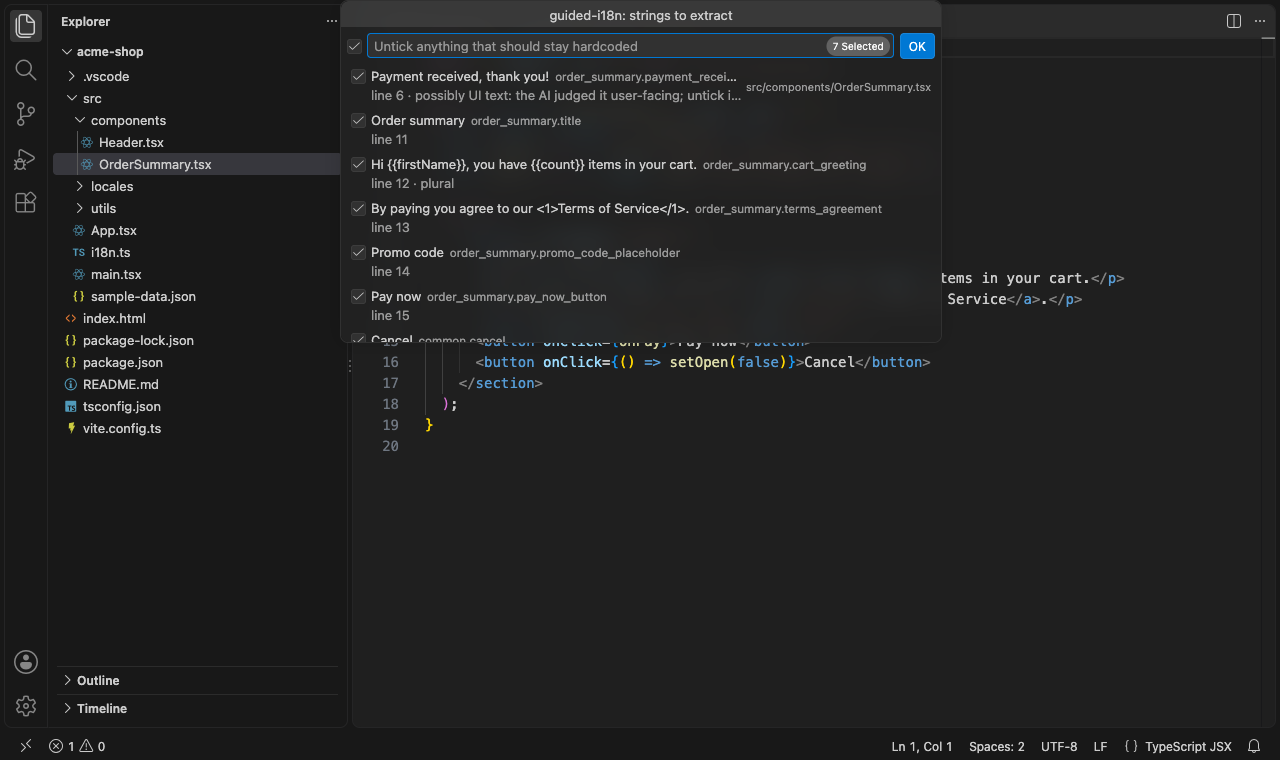
- Nothing changes until you approve. One checklist shows every string and
the key it will get. Uncertain strings are marked. Preview First shows
the full diff, and Undo reverts the whole run, code and language files
together.
- Your code stays on your machine. A code parser finds the strings locally.
Only the strings, their placeholder names and short context labels (file
path, component name, the HTML tag or attribute) go to the AI. Never whole
files.
Getting started
- Open your React project folder in VS Code.
- Run guided-i18n: Set Up i18next from the Command Palette
(Cmd/Ctrl+Shift+P). It creates the i18next
config and language files, imports it in your entry file and offers to
install
i18next and react-i18next. Skip this if the project already uses
react-i18next.
- Run guided-i18n: Choose Target Languages and pick the locales, e.g.
zh-CN, ja-JP, es-ES.
- Open a component and run guided-i18n: Scan & Refactor, or right-click a
folder and choose Scan & Refactor Folder. The first run asks for your
API key.
- Untick anything that should stay hardcoded, then choose Apply (or
Preview First).
What it handles
- JSX text, attributes (
placeholder, title, aria-label…), toasts and
other strings in components; strings outside components use i18n.t().
- Placeholders and plurals:
Hi {{name}}, you have {{count}} items gets
every plural form each language needs (Russian four, Arabic six, Chinese one).
- Markup inside a sentence: "Agree to our Terms." becomes
<Trans>
with numbered tags, so translators can reorder words.
- Your existing project: reuses keys you already have for the same text,
follows your key style (
snake_case, camelCase, or the text itself as the
key), nesting and quote style.
- What not to translate: CSS classes, URLs, log messages, product and
format names ("Markdown", "GitHub") are left alone.
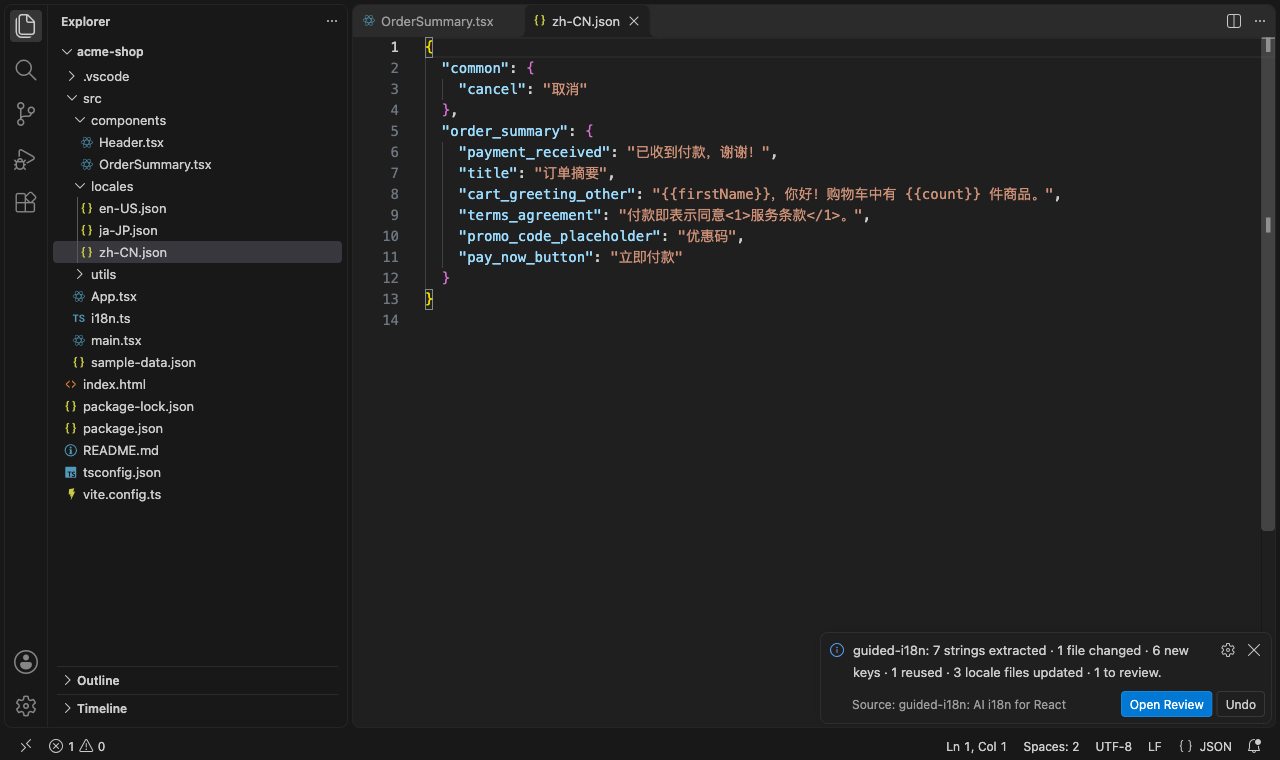
- Every translation is checked against the source: placeholders, tags and
plural forms must match, or it's retried once and then reported, never
written.
The Review panel lists what needs a person, with the reason and the fix:
uncertain strings you left unticked, text stored in state that won't follow a
language switch, keys the code uses but your files lack, and files skipped as
Next.js server components.
Keeping up as the app grows
Run guided-i18n: Translate Untranslated Strings after adding a language or
new features. It fills every language file that's missing keys, including keys
your code uses (t('key', 'Default text')) but the source-language file lacks.
Commands
| Command |
What it does |
| Set Up i18next |
Adds react-i18next, its config and language files to the project |
| Choose Target Languages |
Picks the locales to translate into |
| Scan & Refactor |
Scans the open file (also in the file's right-click menu) |
| Scan & Refactor Folder |
Scans every source file in a folder (right-click a folder) |
| Extract Selection |
Scans only the selected code (right-click in the editor) |
| Translate Untranslated Strings |
Fills in languages that are missing keys |
| Show Review Panel |
Reopens the last run's Review panel |
| Set API Key / Clear API Key |
Stores or removes your key in VS Code's secret storage |
| Select Model |
Picks a model from your provider account |
Your API key and privacy
- Bring your own key. guided-i18n is free; you pay your AI provider
directly for what you use. Only short strings are sent, so a single file
usually costs cents; in our tests a large project (about 840 files) cost a
few dollars.
- Providers: Anthropic (default model
claude-opus-5-5), or any
OpenAI-compatible API such as OpenAI or DeepSeek (set guided-i18n.provider,
guided-i18n.baseUrl and pick a model with Select Model).
- Your key is stored in VS Code's secret storage (the OS keychain), never in
settings files.
- What is sent: the UI strings to translate, their placeholder names and
short context labels. Folder scans over 50 files ask before sending anything.
Nothing is sent to us; requests go straight from VS Code to your provider.
Settings
| Setting |
Default |
Description |
guided-i18n.baseLocale |
en-US |
Language of the strings in your source code |
guided-i18n.targetLocales |
[] |
Languages to translate into; empty = those with language files already |
guided-i18n.localesPath |
auto |
Folder with your JSON language files (src/locales, public/locales… are detected) |
guided-i18n.keyStyle |
auto-detect |
Nested JSON or flat dotted keys |
guided-i18n.keyCase |
auto |
snake_case, camelCase, or the text itself as the key |
guided-i18n.interpolationFormat |
{{ }} |
Placeholder prefix and suffix |
guided-i18n.globalI18nImport |
auto |
Module exporting your i18n instance, for strings outside components |
guided-i18n.provider |
anthropic |
anthropic or openai-compatible |
guided-i18n.model |
|
Model ID (required for OpenAI-compatible providers) |
guided-i18n.baseUrl |
|
Endpoint for OpenAI-compatible providers |
guided-i18n.effort |
medium |
Anthropic reasoning effort |
guided-i18n.exclude |
tests, builds… |
Glob patterns skipped in folder scans |
Project settings can live in .vscode/settings.json, so the whole team uses the
same languages and paths.
Requirements and limitations
- VS Code 1.95 or later, a local project folder (remote workspaces aren't
supported yet).
- React with react-i18next and JSON language files. Vue, Angular and
other i18n libraries aren't supported yet.
- Next.js: the Pages Router and
'use client' components work. App Router
server components are skipped and listed in the Review panel, because
react-i18next's useTranslation() doesn't work in them.
- AI translations are a first draft. For important text, have them reviewed;
the JSON files import directly into translation platforms such as Lokalise,
Crowdin and Phrase.
- Some cases are flagged rather than rewritten: class components, strings in
default parameters, and sentences built from pieces.
Feedback
Questions, bug reports and ideas: use the Q & A tab on the Marketplace page.
License
Free to use; proprietary license (see the License link on this page).
| |

