Binder is a local-first knowledge base with bidirectional Markdown sync — edit in any editor, query via CLI and MCP, share with AI agents.
Language support for Binder workspaces in VS Code.
Features
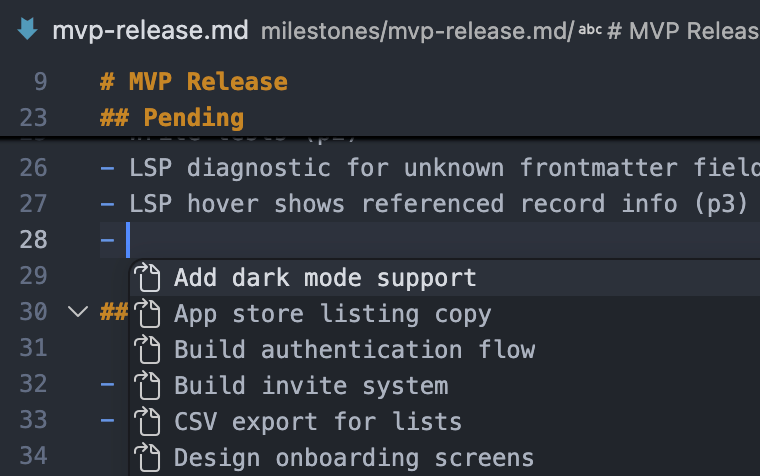
Autocomplete - links, field names, and valid values completed as you type.
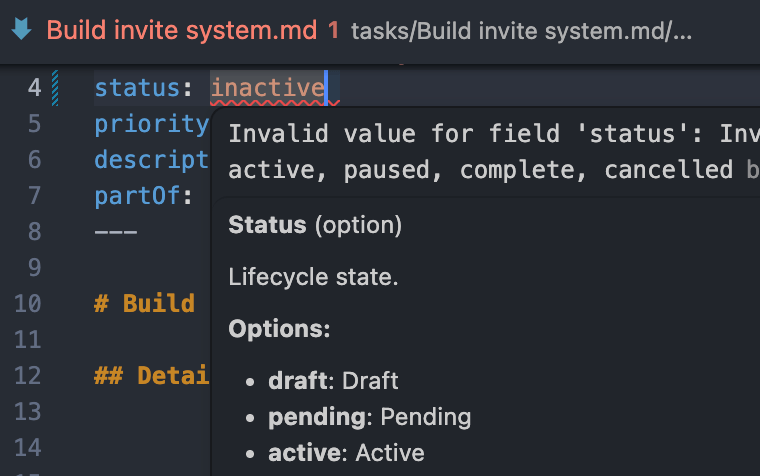
Validation - inline diagnostics with hover docs showing valid options and field descriptions.
Autocomplete - link references, field names, and valid option values as you type
Hover docs - field descriptions and allowed values on hover
Go to definition - jump to any referenced entity
Inlay hints - see referenced entity titles inline without leaving the file
Code actions - quick fixes for invalid field values
Diagnostics - real-time validation against your schema
Sync on save - Markdown and YAML files stay in sync with the knowledge graph automatically
Requirements
Binder CLI must be installed and accessible in your PATH
Your project must be a Binder workspace (contains a .binder directory)
To install the CLI and initialize a workspace:
npm install -g @binder.do/cli
binder init
Extension Settings
binder.command: Command to run the Binder CLI (default: "binder")
binder.logLevel: Log level for the Binder language server — "info" or "debug" (default: "info")
binder.workspaces: Explicit list of subdirectory paths containing binder workspaces. Bypasses automatic scanning when set (default: [])
binderLsp.trace.server: Traces the communication between VS Code and the language server — "off", "messages", or "verbose" (default: "off")
Usage
Open a folder that contains a .binder directory (or has subdirectories with .binder)
The extension activates automatically
Edit any .md or .yaml file — completions, diagnostics, and hints are live immediately
Save the file to sync changes to the knowledge graph
Multi-Root Workspaces
The extension automatically discovers binder workspaces in the root and immediate subdirectories of each VS Code workspace folder. This means you can open a parent folder containing multiple binder projects and all of them will be active simultaneously.
To limit which subdirectories are scanned, set binder.workspaces to an explicit list of relative paths: