Skip to content
| Marketplace
Sign in
Visual Studio Code>Snippets>BRAID - Browser Real-time Artificial Intelligent DebuggerNew to Visual Studio Code? Get it now.
BRAID - Browser Real-time Artificial Intelligent Debugger

BRAID - Browser Real-time Artificial Intelligent Debugger

Benjamin-RR

| (0) | Free
AI-powered debugging tool for all local browser development. Speed up your debugging process with automated inline fixes in your IDE.
Installation
Launch VS Code Quick Open (Ctrl+P), paste the following command, and press enter.
Copied to clipboard
More Info

BRAID - Browser Real-time Artificial Intelligent Debugger

© 2025 Benjamin-RR. All Rights Reserved.

An AI-powered debugging tool for all local browser development. Speed up your debugging process with automated inline fixes in your IDE.

Architecture Overview

BRAID uses a proxy server architecture that keeps your development environment clean while providing powerful AI-powered error detection:

User's Browser (localhost:3000) 
    ↓ (WebSocket/HTTP)
BRAID Proxy Server (localhost:3001)
    ↓ (HTTP API)
Benjamin-RR Server (AI Processing)
    ↓ (VS Code WebView)
VS Code Extension (BRAID)

Key Components

  1. VS Code Extension - Provides the user interface and IDE integration
  2. Local Proxy Server - Handles all communication and caching
  3. Client Script - Minimal script added to user's project
  4. Benjamin-RR Server - Manages AI models, authentication, and billing

Features

MVP Features

  • ✅ Error Detection - Captures console errors, warnings, and unhandled rejections
  • ✅ Smart Caching - Persistent cache that survives sessions and restarts
  • ✅ User Authentication - Secure login/registration system
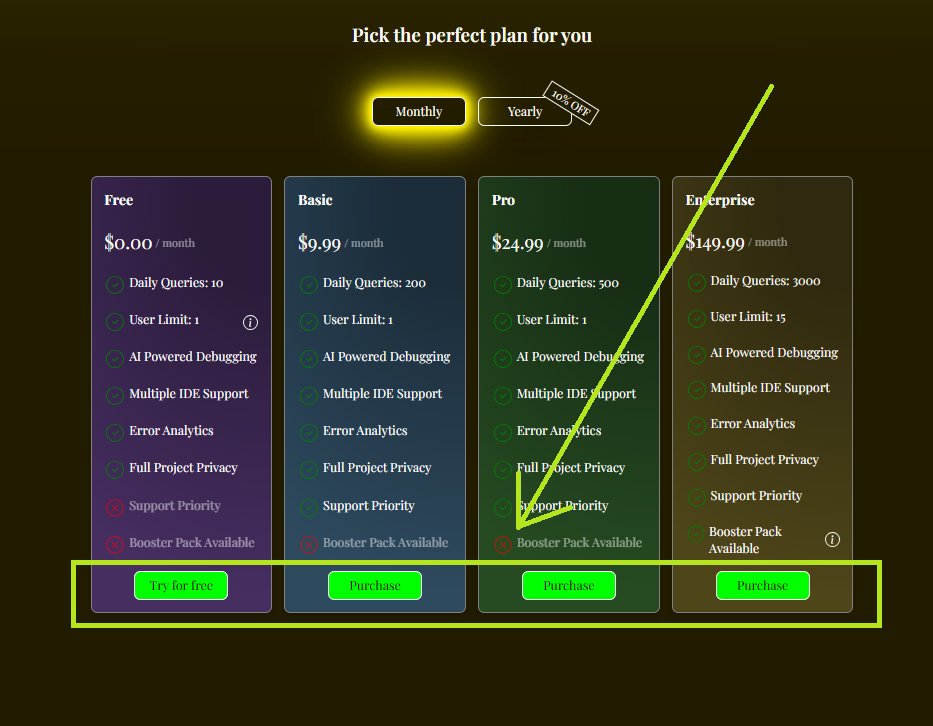
  • ✅ Plan Management - Free, Basic, Pro, and Enterprise tiers
  • ✅ Real-time Notifications - Instant error alerts with AI suggestions
  • ✅ Non-intrusive - Uses namespace window.braid to avoid conflicts

Advanced Features (Planned)

  • 🔄 Stack Trace Analysis - Enhanced error context for better AI responses
  • 🔄 Inline Fixes - Apply AI suggestions directly in your code
  • 🔄 Project Context - Include package.json, frameworks, etc. in analysis
  • 🔄 VS Code Debugger Integration - Seamless debugging experience

Quick Setup

1. Install the Extension

For VS Code:

# Clone the repository
git clone <your-repo>
cd braid

# Install dependencies
npm install

# Build the extension
npm run compile

# Package for distribution
npm run package

# Install in VS Code
code --install-extension braid-0.0.1.vsix

For Cursor:

# Clone the repository
git clone <your-repo>
cd braid

# Install dependencies
npm install

# Build the extension
npm run compile

# Package for distribution
npm run package

# Install in Cursor
cursor --install-extension braid-0.0.1.vsix

Note: This extension is compatible with both VS Code and Cursor. Cursor-specific optimizations are automatically applied when detected.

2. Add BRAID to Your Project

Add this single script to your HTML:

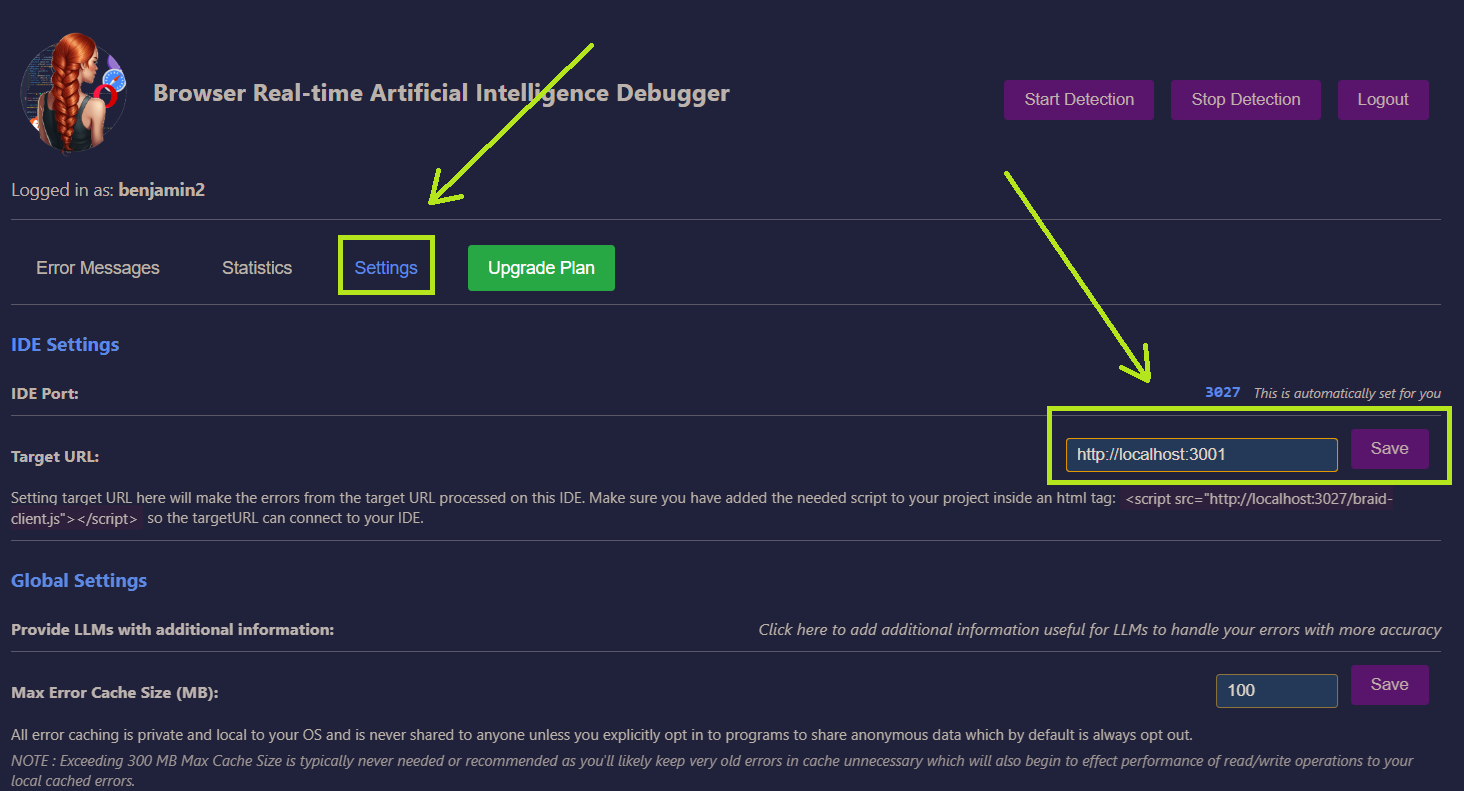
<script src="http://localhost:3027/braid-client.js"></script>

Or download and include locally:

<script src="./braid-client.js"></script>

3. Start the Proxy Server

From VS Code:

  1. Open Command Palette (Ctrl+Shift+P)
  2. Run "BRAID: Start Proxy Server"

Or manually:

npm run start-proxy

4. Configure Your Project (Optional)

Customize BRAID behavior in your project:

// Configure BRAID (optional)
window.braid.setConfig({
    proxyUrl: 'http://localhost:3001',
    enableConsoleCapture: true,
    enableErrorCapture: true,
    enableUnhandledRejectionCapture: true
});

How It Works

1. Error Capture

The client script automatically captures:

  • console.error() and console.warn() calls
  • Unhandled JavaScript errors
  • Unhandled Promise rejections
  • Custom errors via window.braid.sendError()

2. Proxy Server Processing

  • Receives errors via WebSocket (preferred) or HTTP
  • Checks persistent cache for duplicate errors
  • Sends new errors to Benjamin-RR for AI analysis
  • Broadcasts results to all connected clients

3. VS Code Integration

  • Real-time error notifications
  • Error history and statistics
  • AI-powered fix suggestions
  • Settings management

API Reference

Client Script API

// Send a custom error
window.braid.sendError({
    message: 'Custom error message',
    stack: new Error().stack,
    url: window.location.href,
    timestamp: Date.now()
});

// Check connection status
if (window.braid.isConnected()) {
    console.log('Connected to BRAID proxy server');
}

// Get current configuration
const config = window.braid.getConfig();

Proxy Server API

// Submit error via HTTP
fetch('http://localhost:3001/api/errors', {
    method: 'POST',
    headers: { 'Content-Type': 'application/json' },
    body: JSON.stringify(errorData)
});

// Get error history
fetch('http://localhost:3001/api/errors')
    .then(response => response.json())
    .then(data => console.log(data.errors));

// Get server status
fetch('http://localhost:3001/api/status')
    .then(response => response.json())
    .then(data => console.log(data));

Configuration

VS Code Extension Settings

{
    "braid.targetUrl": "http://localhost:3000",
    "braid.proxyPort": 3001,
    "braid.enableAutoFix": true,
    "braid.debug": false
}

Client Script Configuration

window.braid.setConfig({
    proxyUrl: 'http://localhost:3001',
    enableConsoleCapture: true,
    enableErrorCapture: true,
    enableUnhandledRejectionCapture: true,
    namespace: 'braid'
});

Development

Project Structure

braid/
├── src/                    # VS Code extension source
│   ├── extension.js       # Main extension entry point
│   ├── auth-manager.js    # Authentication management
│   ├── error-detector.js  # Error detection logic
│   └── webview-provider.js # UI components
├── proxy-server/          # Local proxy server
│   ├── index.js          # Main server logic
│   └── proxy-manager.js  # Server management
├── client-script/         # Client-side script
│   └── braid-client.js   # Browser integration
└── scripts/              # Build scripts
    ├── build.js          # Build process
    └── watch.js          # Development watch

Building

npm run compile    # Build extension
npm run watch      # Watch mode for development
npm run package    # Package for distribution

Running Proxy Server

npm run start-proxy  # Start proxy server

Security Considerations

  • Non-intrusive: Uses window.braid namespace to avoid conflicts
  • Data Sanitization: Automatically removes sensitive information (passwords, tokens)
  • Secure Storage: Credentials stored in VS Code's secure global state
  • HTTPS Communication: All external API calls use HTTPS
  • Local Processing: Proxy server runs locally, keeping data private

Troubleshooting

Common Issues

  1. Proxy Server Not Starting

    • Check if port 3001 is available
    • Ensure all dependencies are installed
    • Check console for error messages
  2. Client Script Not Connecting

    • Verify proxy server is running on correct port
    • Check browser console for connection errors
    • Ensure CORS is properly configured
  3. No Errors Detected

    • Verify client script is loaded
    • Check browser console for BRAID initialization messages
    • Ensure error capture is enabled in configuration

Debug Mode

Enable debug logging:

{
    "braid.debug": true
}

Contributing

  1. Fork the repository
  2. Create a feature branch
  3. Make your changes
  4. Add tests if applicable
  5. Submit a pull request

License

[Your License Here]

Support

For support, please contact [your contact information] or create an issue in the repository.

  • Contact us
  • Jobs
  • Privacy
  • Manage cookies
  • Terms of use
  • Trademarks
© 2026 Microsoft