Git Revision Graph
A TortoiseSVN-style revision graph for Git inside VS Code.
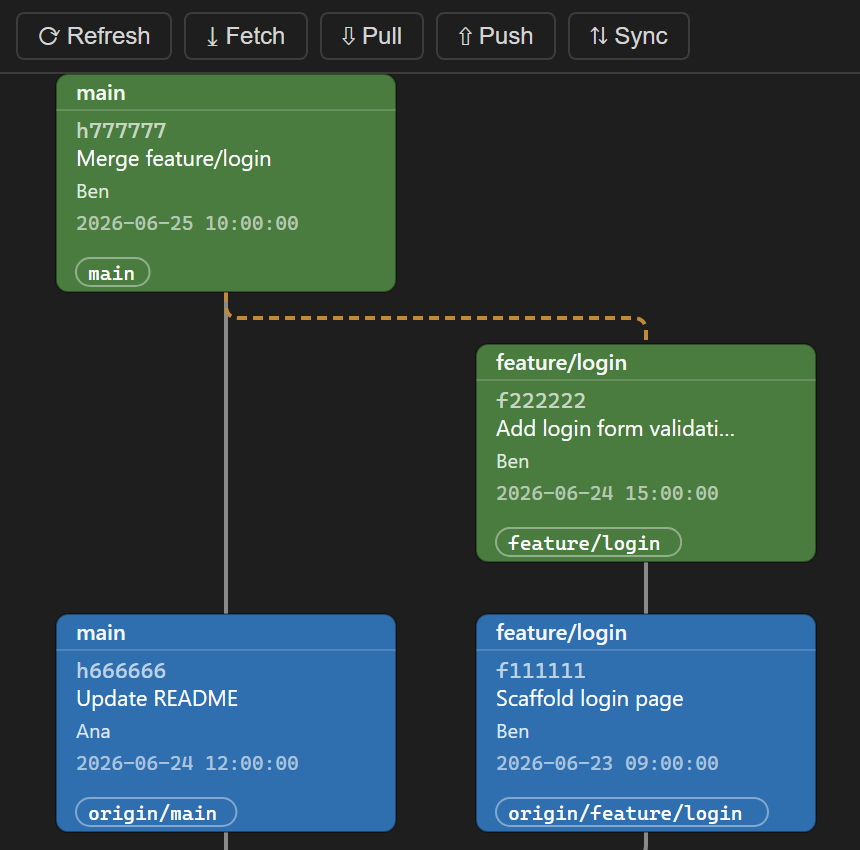
Commits, local & remote branches, tags, stashes and merges are displayed as connected, color-coded boxes.
▶ Try the live demo in your browser — no install required; runs the real renderer on a sample repository.
How to open
Open a folder or workspace that contains a Git repository, then either:
- Open the Command Palette (
Ctrl+Shift+P) and run "Git Revision Graph: Open Revision Graph", or
- Click the graph icon in the Source Control title bar (top-right of the SCM panel), or
- Use the keyboard shortcut
Ctrl+Alt+G.
Features
- DAG layout — commits in columns per branch with connecting lines; modern (free canvas) or classic (trunk-pinned) display modes.
- Color-coded nodes — HEAD/current branch (red), local branches (green), remote branches (blue), remote-only commits, tags (yellow), stashes, plain commits (grey), and commits merged into the branch that received them.
- Built-in legend — a panel spells out every color and every line: parent link, merge (arrow at the merge commit), fork-off point, stash tie, and the line threading merged-in commits back to the branch they were written on.
- Branch — create a branch from any commit via an SVN-style folder-tree dialog or VS Code's native branch UI; rename, delete or push a branch.
- Merge — merge or squash-merge one branch into another, with a schematic preview that shows the merge direction.
- Rewrite history — reword a commit message; undo a commit while keeping its changes.
- Inspect — a commit's changed files, file diffs with a minimap, and search inside a diff (
Ctrl/Cmd+F).
- Commit — stage and commit working-tree changes from the graph, with an optional review step.
- Stash — apply, pop or drop a stash.
- Remotes — fetch, pull, push and sync from the toolbar; search commit messages; jump to HEAD; zoom & pan.
- Localized — English, Magyar, 中文, Русский; light/dark themes; optional plain-language labels instead of git jargon.
Settings
| Setting |
Default |
Description |
revGraph.maxCommits |
1000 |
Maximum number of commits to load into the graph. |
Other hosts
Also available for Visual Studio 2022 / 2026, JetBrains IDEs (IntelliJ IDEA, Android Studio, DevEco Studio, WebStorm, PyCharm, GoLand, etc.), Eclipse and Apache NetBeans.
Source code & license
Git Revision Graph (Magyar)
Egy TortoiseSVN-stílusú revíziógraf Git-hez VS Code-on belül.
A commitok, helyi és távoli ágak, tagek, stash-ek és merge-ök összekötött, színkódolt dobozokként jelennek meg.
▶ Próbáld ki az élő demót a böngésződben — telepítés nélkül; a valódi megjelenítő fut egy minta-repozitóriummal.
Megnyitás
Nyiss meg egy mappát vagy munkaterületet, amely egy Git repozitóriumot tartalmaz, majd:
- Nyisd meg a Parancspalettát (
Ctrl+Shift+P) és futtasd a "Git Revision Graph: Open Revision Graph" parancsot, vagy
- Kattints a gráf ikonra a Forráskezelő panel fejlécében (jobb felső sarok), vagy
- Használd a
Ctrl+Alt+G billentyűparancsot.
Funkciók
- DAG elrendezés — commitok áganként oszlopokban, összekötő vonalakkal; modern (szabad vászon) vagy klasszikus (balra rögzített törzs) nézet.
- Színkódolt csomópontok — HEAD/aktuális ág (piros), helyi ágak (zöld), távoli ágak (kék), csak-távoli commitok, tagek (sárga), stash-ek, sima commitok (szürke), és a fogadó ágba merge-ölt commitok.
- Beépített jelmagyarázat — egy panel elmagyaráz minden színt és minden vonalat: szülő-kapcsolat, merge (nyíl a merge-commitnál), leágazási pont, stash-kötés, és a beolvasztott commitokon átfutó vonal vissza az ágra, ahol készültek.
- Ág — új ág bármely committól SVN-stílusú mappafa-párbeszéddel vagy a VS Code natív ág-ablakával; ág átnevezése, törlése, push-olása.
- Merge — egy ág merge-ölése vagy squash-merge-ölése egy másikba, a merge irányát mutató sematikus előnézettel.
- Történet átírása — commit üzenet átírása; commit visszavonása a változtatások megtartásával.
- Vizsgálat — egy commit módosított fájljai, fájl-diffek minimappel, és keresés a diffen belül (
Ctrl/Cmd+F).
- Commit — a munkakönyvtár változtatásainak stage-elése és commitolása a gráfból, opcionális átnézési lépéssel.
- Stash — stash alkalmazása, pop-olása vagy eldobása.
- Távoli — fetch, pull, push és sync az eszköztárból; commit üzenetek keresése; ugrás a HEAD-re; nagyítás és mozgatás.
- Honosított — English, Magyar, 中文, Русский; világos/sötét téma; opcionálisan közérthető feliratok a git szakzsargon helyett.
Beállítások
| Beállítás |
Alapértelmezett |
Leírás |
revGraph.maxCommits |
1000 |
A gráfba betöltendő commitok maximális száma. |
Más hosztokon
Elérhető Visual Studio 2022 / 2026-höz, JetBrains IDE-khez (IntelliJ IDEA, Android Studio, DevEco Studio, WebStorm, PyCharm, GoLand, stb.), Eclipse-hez és Apache NetBeans-hez is.
Forráskód és licenc
| |

