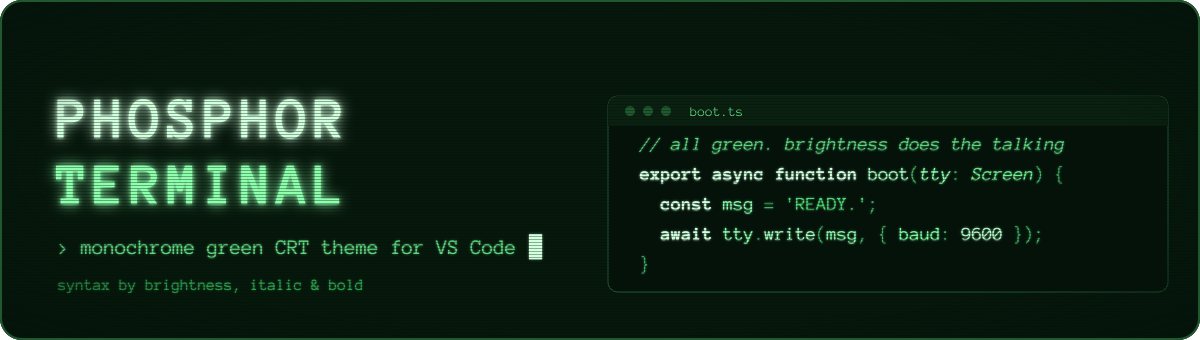
Phosphor Terminal
A monochrome green CRT-terminal colour theme for VS Code. Every colour is a shade of
green, so syntax is told apart by brightness, italic and bold rather than hue.
It matches the "Phosphor terminal" web theme and uses the same palette.
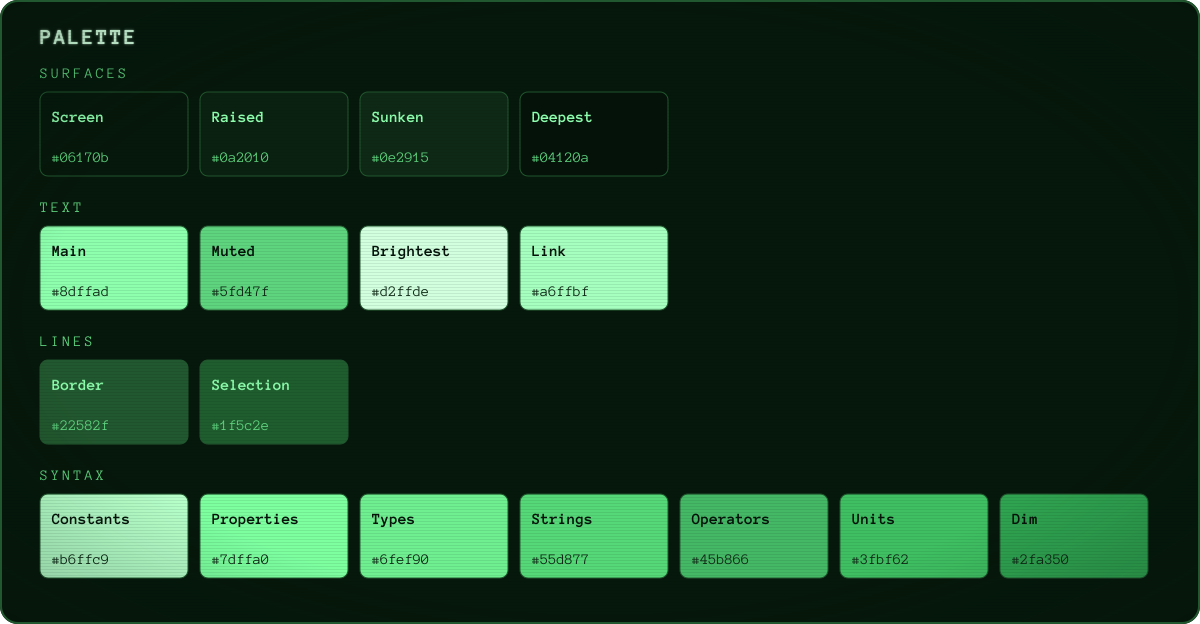
Palette as text (for copying)
| Role |
Colour |
| Screen background |
#06170b |
| Raised surfaces (sidebar, panels, tabs, widgets) |
#0a2010 |
| Sunken surfaces (inputs, inactive tabs, terminal) |
#0e2915 |
| Deepest / code block |
#04120a |
| Main text |
#8dffad |
| Muted text (comments, line numbers) |
#5fd47f |
| Brightest (keywords, active items, headings) |
#d2ffde |
| Links / function names |
#a6ffbf |
| Borders |
#22582f |
| Selection / find match |
#1f5c2e |
| Syntax greens |
#b6ffc9 #7dffa0 #6fef90 #55d877 #45b866 #3fbf62 #2fa350 |
How syntax is distinguished
| Element |
Treatment |
| Keywords, control flow, tags, headings |
brightest #d2ffde, bold |
| Constants, numbers, escapes, CSS values |
bright #b6ffc9 |
| Functions, CSS selectors, links |
#a6ffbf |
| Variables, plain code |
main #8dffad |
| Properties, object keys, JSON/YAML keys |
#7dffa0 |
| Types, classes, attributes, decorators |
#6fef90 italic |
| Parameters |
main #8dffad italic |
| Strings |
#55d877 (dimmer than code) |
| Operators, punctuation |
#45b866 (dim) |
| Comments |
#5fd47f italic |
| Errors / invalid |
brightest #d2ffde with underline |
| Deprecated |
strikethrough |
Covered languages: JavaScript, TypeScript, JSX/TSX, Vue SFCs, JSON, YAML, Markdown,
CSS/SCSS, HTML, shell, Python, Java and GraphQL. Semantic highlighting is turned on, and
semantic colours are set for TypeScript, Vue (Volar), Python (Pylance) and Java.
Install
Option A: install the packaged .vsix (recommended)
code --install-extension phosphor-terminal-theme-1.0.0.vsix
Or in VS Code: Extensions view → … menu → Install from VSIX… and pick the file.
Option B: copy the folder
cp -R ~/Development/phosphor-terminal-theme ~/.vscode/extensions/phosphor-terminal-theme
Restart VS Code after copying.
Activate
Cmd+K Cmd+T (or Command Palette → Preferences: Color Theme) → Phosphor Terminal.
Recommended settings
Themes can't set fonts, so paste these into your settings.json
(Command Palette → Preferences: Open User Settings (JSON)):
{
  "workbench.colorTheme": "Phosphor Terminal",

  // Fonts: monospace terminal feel
  "editor.fontFamily": "'Share Tech Mono', 'Noto Sans Mono', Menlo, monospace",
  "terminal.integrated.fontFamily": "'Share Tech Mono', 'Noto Sans Mono', Menlo, monospace",
  "editor.fontSize": 15,
  "editor.lineHeight": 1.6,
  "editor.letterSpacing": 0.3,
  "editor.fontLigatures": false,
  "terminal.integrated.fontSize": 14,
  "terminal.integrated.lineHeight": 1.25,

  // Block cursor like an old terminal
  "editor.cursorStyle": "block",
  "editor.cursorBlinking": "phase",
  "terminal.integrated.cursorStyle": "block",
  "terminal.integrated.cursorBlinking": true,

  // Use the theme's bold/italic for syntax
  "editor.semanticHighlighting.enabled": true,
  "editor.bracketPairColorization.enabled": true,
  "editor.guides.bracketPairs": "active",

  // Diffs: with no red available, +/- glyphs make added and removed lines
  // obvious alongside the brighter (added) and darker (removed) backgrounds
  "diffEditor.renderIndicators": true,
  "scm.diffDecorationsGutterPattern": { "added": false, "modified": true },

  // Keep the terminal's greens as designed (the theme already passes 4.5:1)
  "terminal.integrated.minimumContrastRatio": 1,
  "terminal.integrated.drawBoldTextInBrightColors": true,

  // Quieter minimap
  "editor.minimap.renderCharacters": false
}
Fonts must be installed on your Mac. Share Tech Mono
and Noto Sans Mono are free on
Google Fonts. Download each one, then double-click the .ttf files to install them with
Font Book. Restart VS Code afterwards. If they're missing, VS Code falls back to Menlo.
Share Tech Mono has no bold or italic styles, so macOS fakes them. If you want true bold
and italic syntax styling, put 'Noto Sans Mono' first instead.
Accessibility
Contrast is checked by a script (npm run check) that reads the built theme:
- main text ≥ 7:1 on every surface (actual: 12.65:1–15.55:1);
- comments and muted text ≥ 4.5:1 (actual: 8.32:1–10.23:1);
- every syntax colour ≥ 4.5:1 on the editor and the current-line background;
- every colour is confirmed to be a green from the palette.
Optional CRT effects (separate add-on)
VS Code can't do glow, scanlines or screen vignette natively. crt/phosphor-crt.css
adds them:
- a faint text glow on editor and terminal text;
- 3px repeating scanlines at low opacity;
- an edge vignette;
- a very subtle flicker that animates opacity only and is turned off when
macOS Reduce motion is on.
These effects follow strict performance rules: only opacity is animated, with no blend
modes, filters or fixed backgrounds.
⚠️ Read before using
This approach works by patching VS Code's own installation files:
- VS Code will show "Your Code installation appears to be corrupt". Choose
Don't Show Again. This is expected, and it means VS Code's integrity check
found modified files.
- The patch is removed by every VS Code update. You'll need to re-run
Reload Custom CSS and JS after each update.
- The loader extension needs write access to the VS Code app bundle. On macOS you may
need to move VS Code into
/Applications and give it permission.
- If anything misbehaves, run Disable Custom CSS and JS, then restart VS Code.
It's entirely optional, and the theme looks complete without it.
Setup (if you decide to use it)
Install the Custom CSS and JS Loader extension (be5invis.vscode-custom-css).
Find where the extension is installed. The stylesheet ships inside it:
ls -d ~/.vscode/extensions/*phosphor-terminal-theme*
Then add this to settings.json, using the absolute path from that command
(replace <you> with your username and match the folder name and version it prints):
"vscode_custom_css.imports": [
  "file:///Users/<you>/.vscode/extensions/bananagames.phosphor-terminal-theme-1.0.1/crt/phosphor-crt.css"
]
If you cloned this repo instead, point at your clone, for example
file:///Users/<you>/Development/phosphor-terminal-theme/crt/phosphor-crt.css.
The path must be absolute, and ~ is not expanded.
Command Palette → Enable Custom CSS and JS, then restart VS Code.
Tune the strength with the CSS variables at the top of the file.
Development
npm run build     # regenerate themes/phosphor-terminal-color-theme.json from scripts/palette.mjs
npm run check     # hue + contrast report
npm run package   # build, check, then create the .vsix with @vscode/vsce (via npx)
Edit colours in scripts/palette.mjs and role assignments in scripts/build-theme.mjs.
Don't hand-edit the generated JSON.

