BackSpin for VS Code
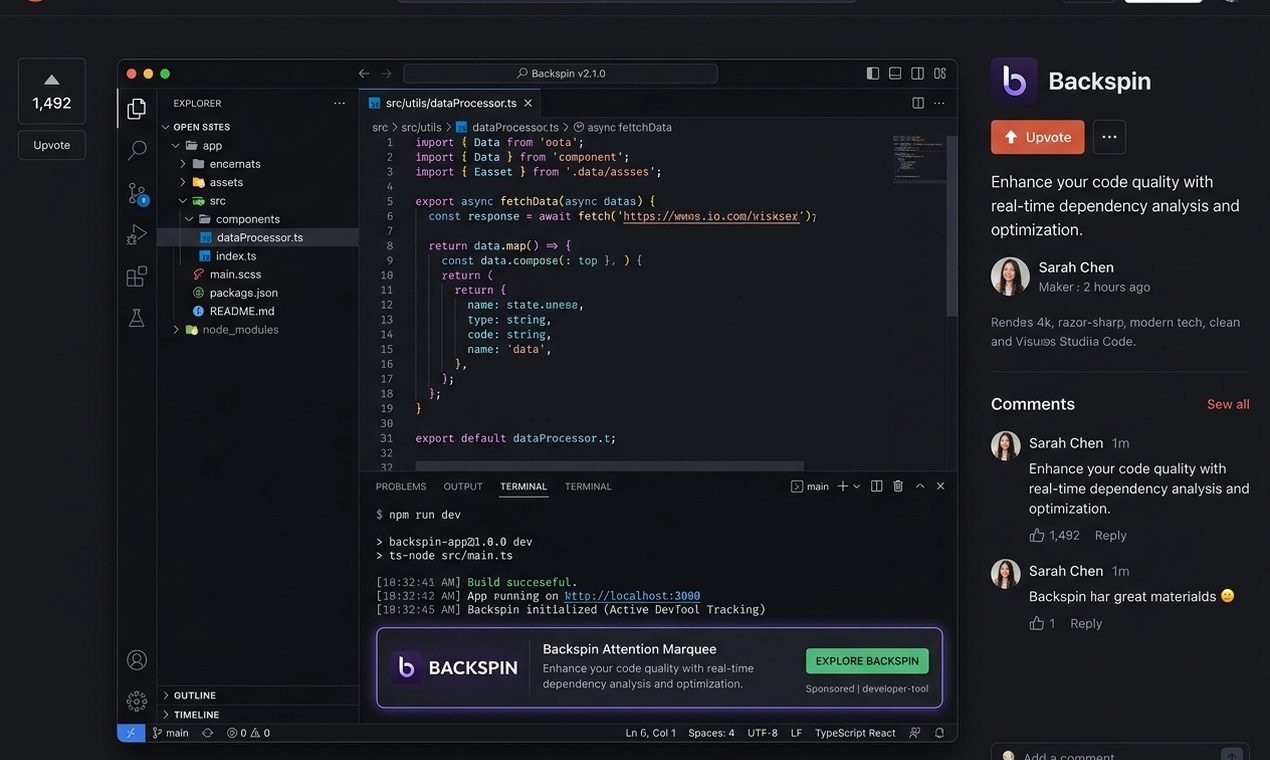
Get rewarded for the time your AI already makes you wait.
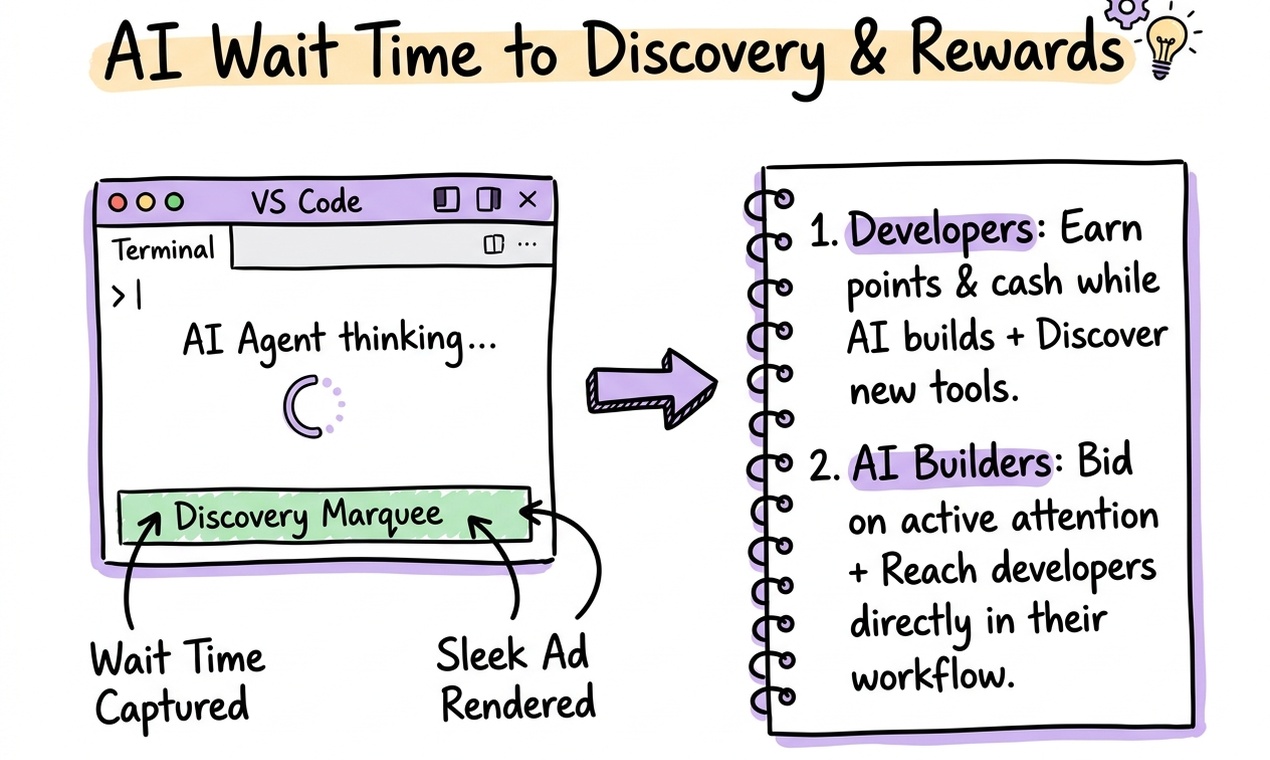
Your coding tools keep you waiting. While the model thinks, runs a command, or writes to your files, BackSpin quietly shows one relevant discovery in a side panel and a small readout in your status bar, and pays you attention credits for that moment. No pop-ups, no extra clicks, and it steps aside the second your AI is done.
To keep this free and to fund the rewards, that one discovery is a sponsored suggestion, and BackSpin reports anonymous attention windows (timing and focus only, never your code or prompts) so the moment can be credited to you. That is the whole trade, it is disclosed up front, and you can turn it off any time.
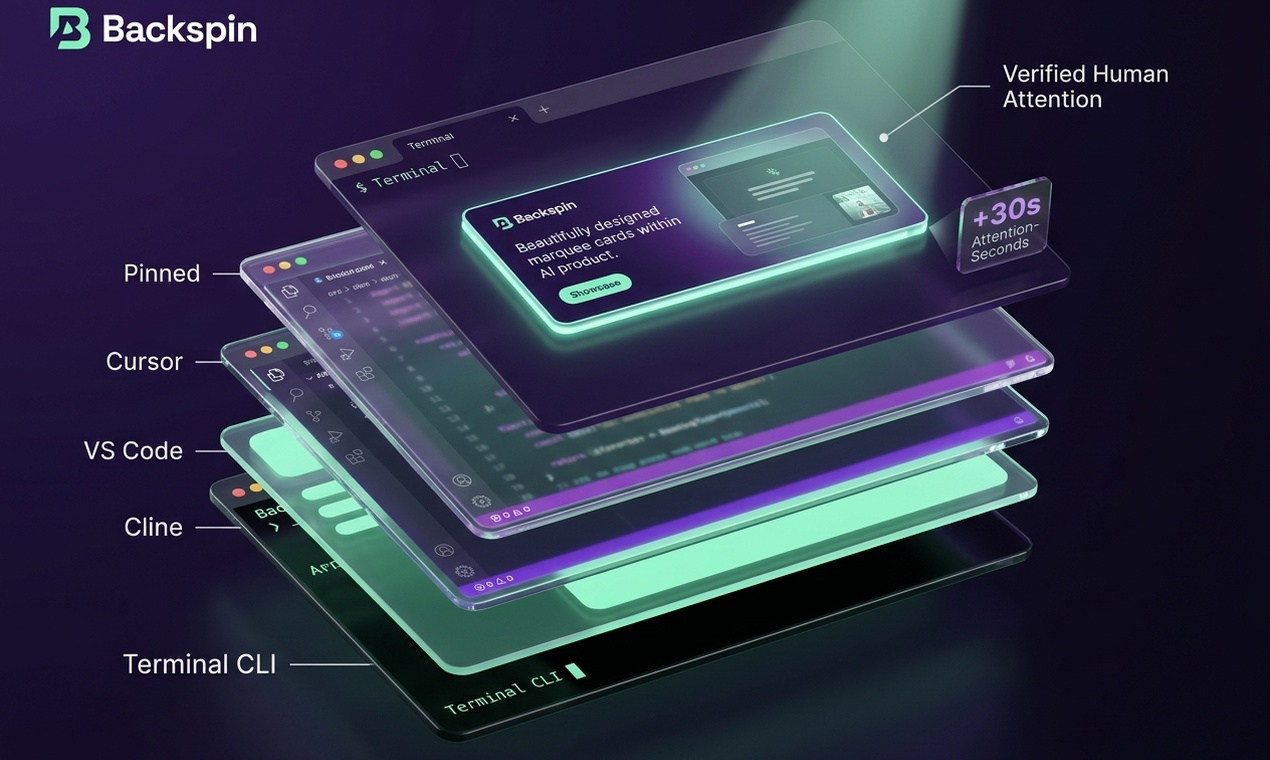
It works the same across VS Code, Cursor, Windsurf, Kiro, Devin, and VSCodium. Install it once and keep coding the way you already do.
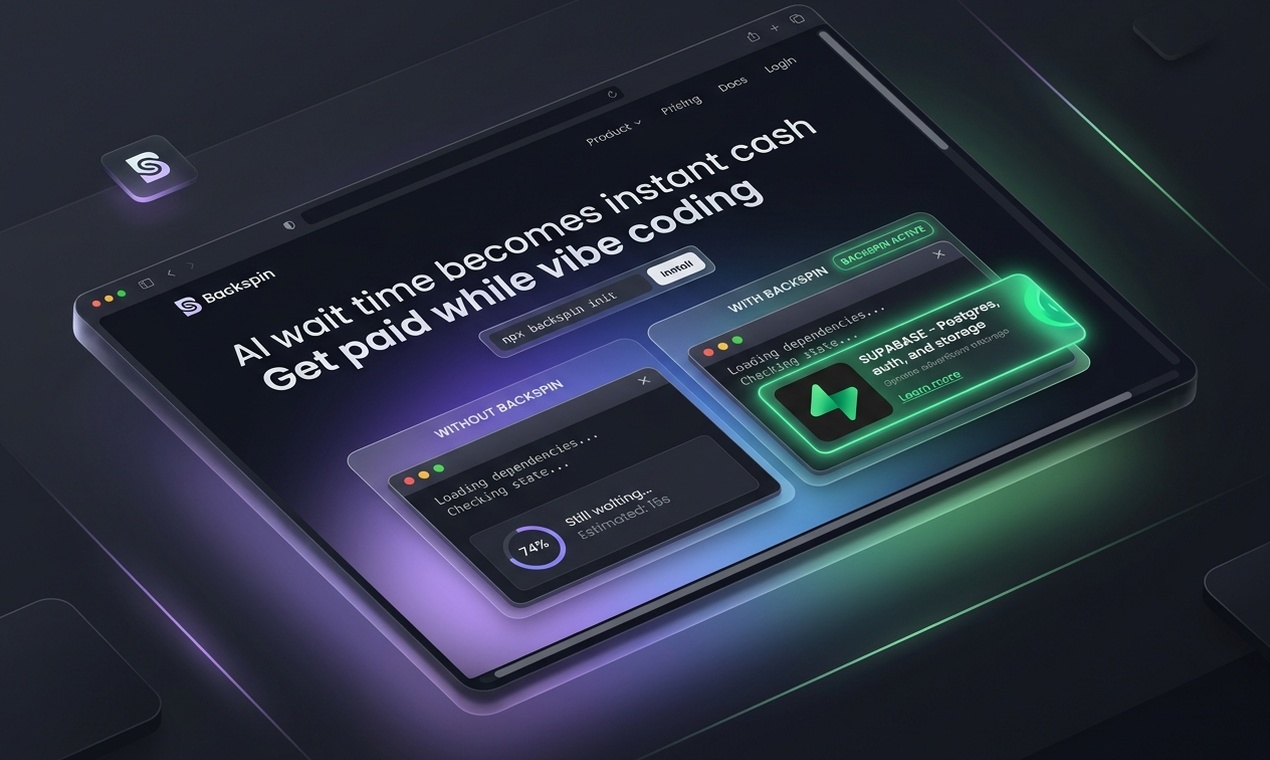
Why you sometimes earn and sometimes don't
BackSpin is upfront about what it can see. Editors do not let an extension watch another tool's private chat "spinner," and BackSpin never scrapes another company's software or reads what you and your AI say to each other. Nothing on your machine is modified unless you turn on an opt-in feature that says so and can be undone. Instead it notices the visible signs that your AI is busy:
- Commands running in the integrated terminal
- Build, test, and run tasks
- Fast, machine-paced edits to your open files
- Files being created, renamed, or deleted in your workspace
So BackSpin reliably catches real agent work. What it cannot catch on its own is a model that only chats inside its own panel with no terminal, task, or file activity. In editors where the whole AI experience lives in a private view (Kiro, Cursor, Windsurf, Devin), plain back-and-forth chat may not register a wait on its own. For exactly those editors, turn on deep detection (below): it notices the AI is working from local file timing only, so your wait time earns there too. BackSpin offers it to you once, automatically, the first time it runs in one of these editors.
Two things help you earn more:
- The BackSpin command-line tool hooks into AI CLIs directly, so it knows when they are working without having to infer it. It is the most reliable way to earn with terminal agents. Grab it at usebackspin.com.
- Deep detection (optional, described below) can also spot AI activity by watching a tool's local session files.
What you get
- Automatic detection of real AI work, from terminal, tasks, edits, and file changes.
- One good discovery at a time in a side panel, never a wall of ads.
- Attention credits for the time you choose to give.
- Save and rate cards you like, and tell BackSpin what is worth your time.
- One extension, every editor: VS Code and its popular forks.
- One account across your machine: the extension shares the same account code as the BackSpin command-line tool and every editor you install it into, so your earnings roll up in one place. If you ran the CLI first, the editor adopts that code automatically.
Deep detection (optional, off until you turn it on)
Some AI tools write to a local session file while the model works. Deep detection watches those files change and treats that as "the AI is busy," so more of your wait time can earn.
- It reads timing only. Just the file's last-changed time, never the contents. Your prompts, code, and AI replies are never read.
- It never touches your tools. Strictly read-only. It does not patch, inject into, or change the settings of any AI tool.
- You decide. It stays off until you turn it on, with a one-time confirmation. Flip it from the Command Palette (BackSpin: Enable deep detection), from the toggle on the idle panel, or in Settings.
Getting started
- Install BackSpin (see below).
- Keep working with your AI tools. When real work happens, a discovery card shows up on its own.
- Open the panel any time with BackSpin: Show discovery panel, or click the BackSpin item in the status bar.
The first time it runs, BackSpin asks once whether you want to opt in to anonymous attention reporting and sponsored cards. You stay in control, and you can change your mind any time.
Install
- VS Code: the Marketplace, or
code --install-extension backspin-vscode.vsix.
- Cursor: the in-app Extensions view, or
cursor --install-extension backspin-vscode.vsix.
- Windsurf: Open VSX (search "BackSpin"), or
windsurf --install-extension backspin-vscode.vsix.
- VSCodium: Open VSX, or install from the VSIX file.
You need VS Code 1.93.0 or newer, or an equivalent fork. The same package runs unchanged everywhere.
Commands
Open the Command Palette and type "BackSpin":
- Show discovery panel: open the side panel.
- Toggle discovery cards: show or hide a card on demand.
- Save the last card for later
- Rate the last card useful
- Rate the last card annoying
- Dismiss the last card
- Manage data consent: review or change your privacy choices.
- Enable deep detection: turn on read-only, timing-only detection.
- Show diagnostic logs: open the BackSpin output channel.
Settings
backspin.enabled (default true): show discovery cards during AI wait states.backspin.apiUrl (default https://usebackspin.com): the BackSpin service URL.backspin.telemetryConsent (default unset): opt in or out of anonymous attention reporting and sponsored cards. Left unset, you are asked once on first run.backspin.debug (default false): log each detected wait signal and its confidence to the BackSpin output channel. It never logs prompts, code, or AI replies.backspin.deepDetection (default false): turn on deep detection (see above). Asks for a one-time confirmation.backspin.deepDetectionPaths (default empty): extra folders for deep detection to watch, timing only.
Not earning anything?
If the panel sits at IDLE with 0 credits while you use AI tools:
- Check it is running. Look for a BackSpin item in the status bar. If it is missing, the extension did not start. Grant consent with BackSpin: Manage data consent and reload the window.
- Remember what is visible. If you are only chatting with an AI in its own panel (common in Kiro, Cursor, Windsurf, and Devin), there are no visible signs of work, so no wait is recorded. This is expected.
- Look for a "⚠" note in the status bar. If your account cannot earn right now, BackSpin shows the reason right there, such as "daily reward cap reached, resets tomorrow," "account under review," "claim your account to keep earning," or "slowing down to keep it fair." You still see discovery cards, and earning picks back up on its own when your daily quota resets or after you claim or appeal your account.
- Turn on diagnostics. Switch on
backspin.debug, reload, and run BackSpin: Show diagnostic logs to see exactly which signals fire as you work.
- Turn on deep detection to catch AI activity from local session files.
- Use the command-line tool for terminal agents. It is the most reliable way to earn.
The Toggle discovery cards command always shows a card, but it is low-confidence on purpose and does not count as verified attention, so it will not earn credits.
Your privacy
BackSpin looks only at the shape of your activity, meaning timing, focus, and which tools are active, to know when to show a card. It never reads your code, your prompts, your AI replies, your file names, your file contents, or your cursor position. Deep detection, when you enable it, reads only file modification times. You can review or change your choices any time with BackSpin: Manage data consent.
Questions?
Everything, including how earning works and how to claim your account, lives at usebackspin.com.

