Home Tab
VS Code hides the editor title bar when no file is open, so any icon on that bar disappears exactly when you might need it. Home Tab keeps one placeholder tab open so the bar never vanishes, and fills that tab with clickable buttons.
The placeholder opens when the last editor closes, and closes itself when any file opens.
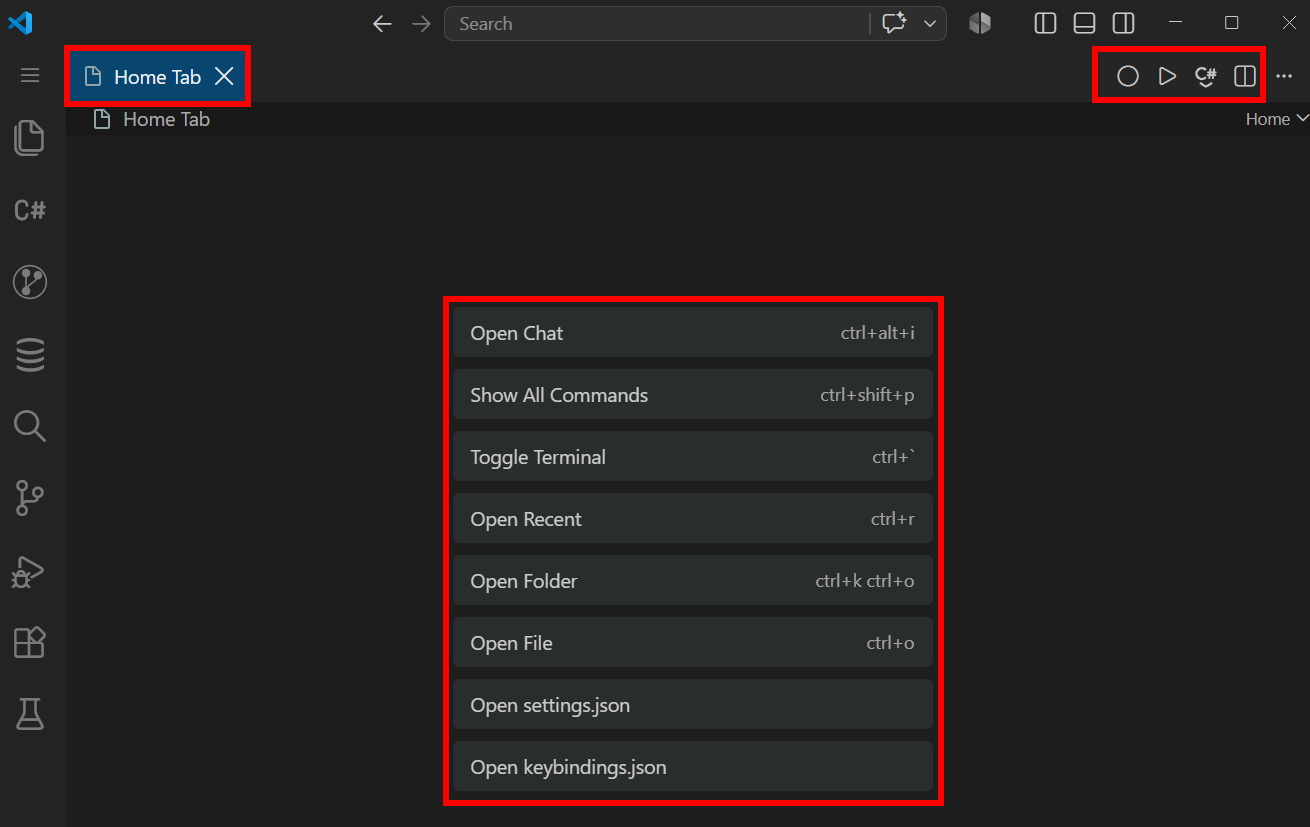
Pinning
Right-click the Home Tab and choose Pin Editor to keep it visible next to your open files instead of letting it disappear. Unpin returns it to automatic behaviour. Closing a pinned Home Tab by hand brings it back unpinned. VS Code remembers pinned tabs, so the pin survives a restart.
Settings
Turns the placeholder on or off. Default true. The same value is flipped by the command Home Tab: Toggle.
Closing the placeholder by hand does not remove it — it reopens immediately, because that is its whole job. Use this setting to actually get rid of it.
{
    "homeTab.enabled": false
}
The buttons drawn on the placeholder page. Each entry needs label and command; args and key are optional.
label — text on the buttoncommand — VS Code command id run on clickargs — arguments passed to that commandkey — grey hint text on the right of the button, display only
The default set:
{
    "homeTab.buttons": [
        { "label": "Open Chat", "command": "workbench.action.chat.toggle", "key": "ctrl+alt+i" },
        { "label": "Show All Commands", "command": "workbench.action.showCommands", "key": "ctrl+shift+p" },
        { "label": "Toggle Terminal", "command": "workbench.action.togglePanel", "key": "ctrl+`" },
        { "label": "Open Recent", "command": "workbench.action.openRecent", "key": "ctrl+r" },
        { "label": "Open Folder", "command": "workbench.action.files.openFolder", "key": "ctrl+k ctrl+o" },
        { "label": "Open File", "command": "workbench.action.files.openFile", "key": "ctrl+o" },
        { "label": "Open settings.json", "command": "workbench.action.openSettingsJson" },
        { "label": "Open keybindings.json", "command": "workbench.action.openGlobalKeybindingsFile" }
    ]
}
Replace it with anything you reach for often:
{
    "homeTab.buttons": [
        { "label": "Clone Repository", "command": "git.clone" },
        { "label": "New File", "command": "workbench.action.files.newUntitledFile", "key": "ctrl+n" },
        { "label": "Extensions", "command": "workbench.view.extensions", "key": "ctrl+shift+x" }
    ]
}
args lets one button carry a fixed payload, so you can open a specific file or run a specific task:
{
    "homeTab.buttons": [
        { "label": "Open Notes", "command": "vscode.open", "args": ["file:///home/bachi/notes.md"] },
        { "label": "Build", "command": "workbench.action.tasks.runTask", "args": ["build"] },
        { "label": "Start Dev Server", "command": "workbench.action.terminal.sendSequence", "args": [{ "text": "npm run dev\n" }] }
    ]
}
Any command id from the command palette works, including ones contributed by other extensions. Open Keyboard Shortcuts, find the command, then use Copy Command ID.
Pick commands that toggle rather than only open, otherwise a second click does nothing visible. workbench.action.chat.toggle hides chat on the second click while workbench.action.chat.open does not, and workbench.action.togglePanel hides the terminal regardless of focus while workbench.action.terminal.toggleTerminal only does so when the terminal is focused.
key is text only. VS Code exposes no API for reading the real binding of a command, so rebinding a shortcut does not update the hint — edit it here by hand.
Limitation
The placeholder renders HTML, which makes it a webview rather than a text editor. Title bar icons whose when clause requires editorTextFocus therefore do not appear on it. Icons gated on the file resource, and icons from extensions using their own context keys, work normally.

