Skip to content
| Marketplace
Sign in
Visual Studio Code>Other>C# Multi RunNew to Visual Studio Code? Get it now.
C# Multi Run

C# Multi Run

Bachi Mjavanadze

| (0) | Free
Adds a single dropdown button to the editor title bar for the run, debug and startup selection commands of C# Dev Tools.
Installation
Launch VS Code Quick Open (Ctrl+P), paste the following command, and press enter.
Copied to clipboard
More Info

C# Multi Run

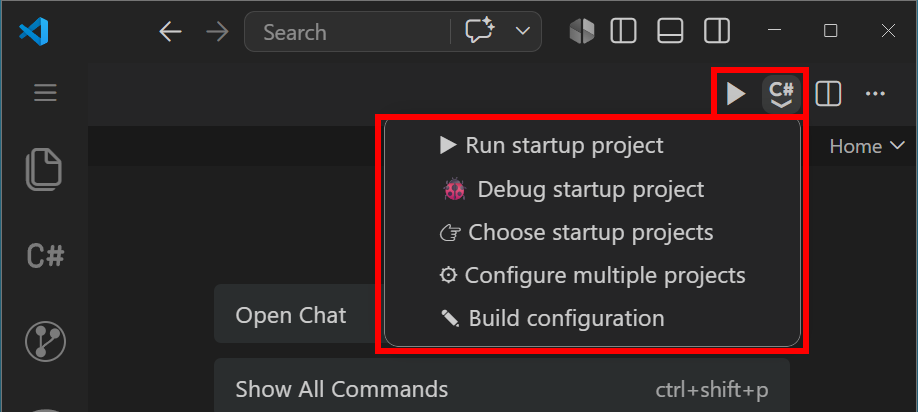
Add-on for C# Dev Tools. It does not replace it and does not work without it. It gathers the run, debug and startup selection commands into one dropdown button in the editor title bar, the way Visual Studio IDE keeps them together on its toolbar.

Why

C# Dev Tools spreads these commands across the status bar and the editor title bar. Choosing a startup project sits at the bottom of the window, launching sits at the top, and the launch configurations editor is buried inside a settings page. Reaching all of them means crossing the whole screen.

Usage

Click the button to repeat the last action. Click the arrow next to it to open the list:

▶   Run startup project
🐞  Debug startup project
🚀  Choose startup project or configuration
⚙️  Configure multiple projects
🔧  Build configuration

Choose a launch configuration through 🚀 and the list follows the change, exactly as C# Dev Tools does:

⏩  Run startup configuration
🚀  Choose startup project or configuration
⚙️  Configure multiple projects
🔧  Build configuration

The button on the left always shows the entry used last.

Every entry forwards to the matching command of C# Dev Tools. Nothing is reimplemented, no setting is written, and .vscode/settings.json is never touched. Startup selection, launch profiles and the status bar of C# Dev Tools keep working as before.

Requirements

  • C# Dev Tools
  • A folder containing a solution or a project, so that C# Dev Tools activates
  • VS Code 1.90 or later

License

MIT

  • Contact us
  • Jobs
  • Privacy
  • Manage cookies
  • Terms of use
  • Trademarks
© 2026 Microsoft