
BI Connector for Oracle Fusion SQL DeveloperQuery Oracle Fusion data directly from VS Code — write, run, version-control, and publish SQL queries without leaving your editor. Installation Launch VS Code Quick Open ( Ctrl+P), paste the following command, and press enter.Copied to clipboard |

BI Connector for Oracle Fusion SQL Developer — VS Code ExtensionQuery Oracle Fusion data directly from Visual Studio Code. BI Connector for VS Code brings the full Fusion query development workflow into your editor. Connect to your Fusion application database to browse tables, columns, indexes, and constraints; write and run SQL with the editor tooling you already use; and publish finished queries as Oracle Fusion Data Models without switching tools. The extension also integrates with AI agents like GitHub Copilot and Claude Code, letting them generate accurate Fusion SQL against your real table definitions — so you spend less time on boilerplate and more time on query development.
Table of Contents
Requirements
Getting Started1. Install the ExtensionSearch for BI Connector for Oracle Fusion SQL Developer in the VS Code Extensions Marketplace and click Install. 2. Install BI Connector DesktopThe extension requires BI Connector Desktop. If it is not installed, or if an outdated version is detected, you will be prompted to download and install the latest version on first use. Follow the on-screen instructions to complete the setup. 3. Create a Connection
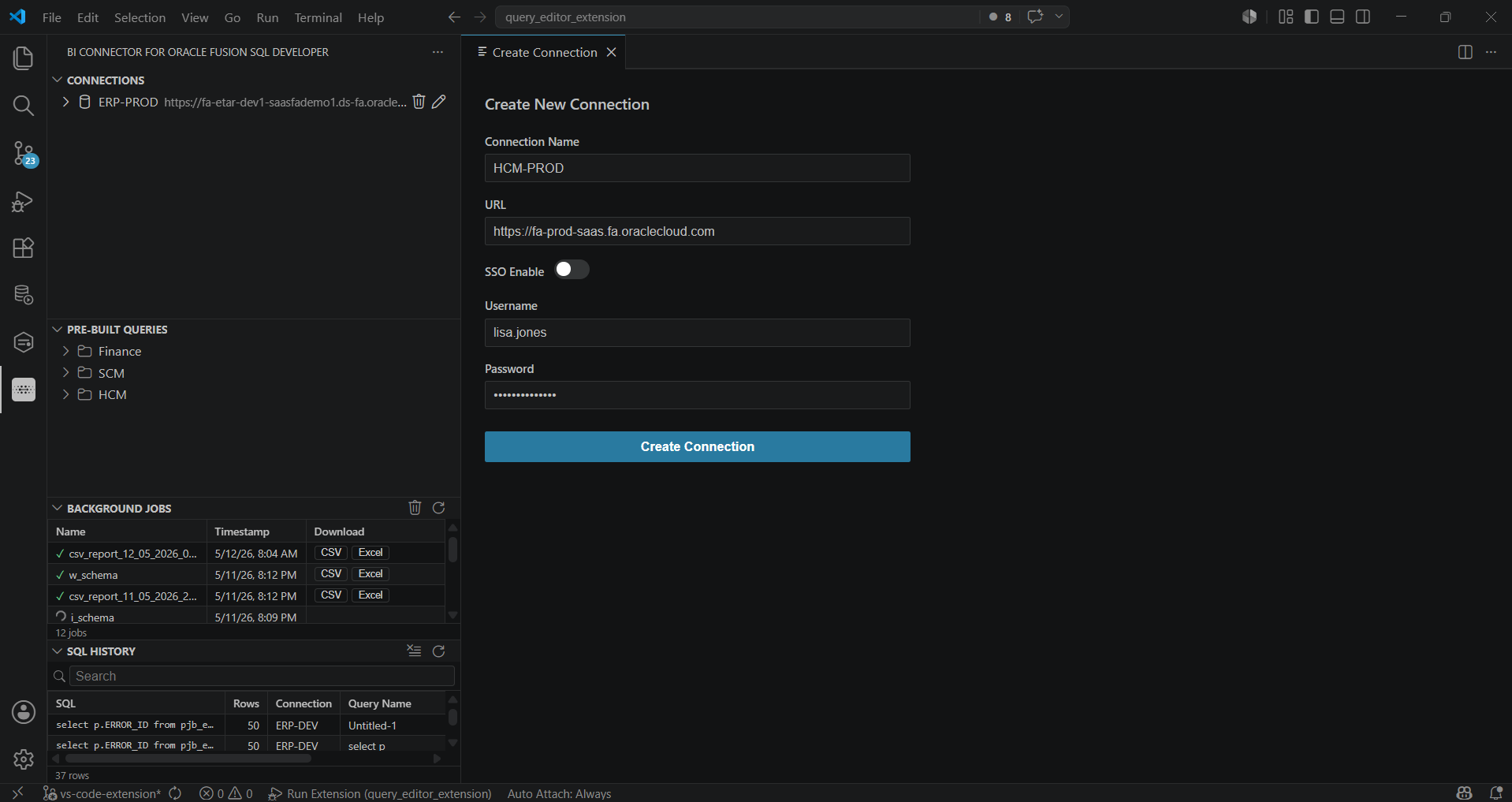
4. Activate Your LicenseA 14-day trial license is activated automatically on first launch. To use an existing subscription:
5. Explore Table Schema, Indexes, and ConstraintsExpand a connection in the Connections panel to view all available tables and views. Double-click any table to open a detailed schema view — no query required. The schema explorer gives you a full picture of the table's structure directly inside VS Code. Each table view includes three tabs:
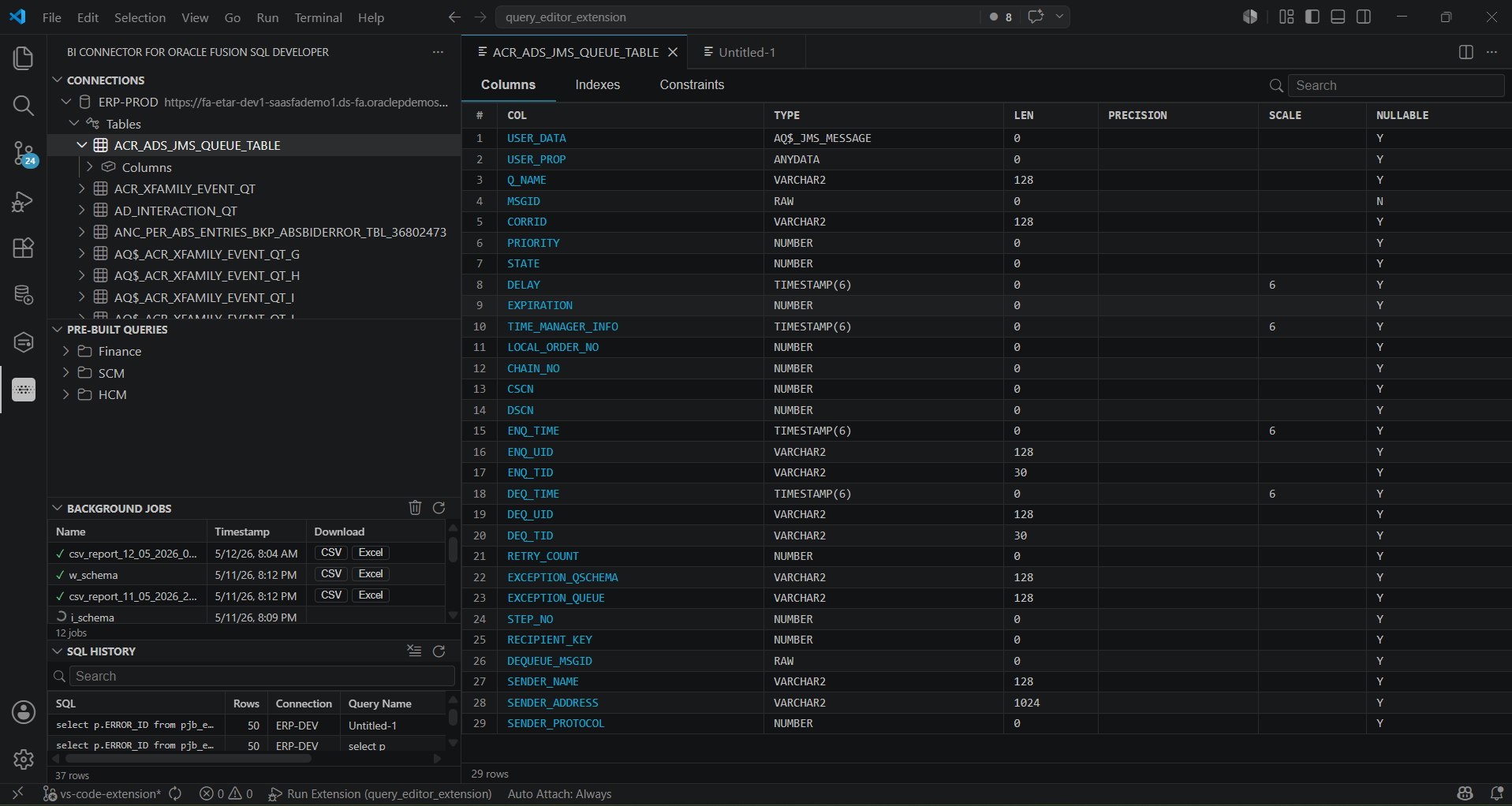
6. Write and Run Your First QueryOpen a new AI-Assisted Query GenerationIf you use GitHub Copilot, Claude Code, or any other VS Code-integrated AI assistant, you can have it draft BI Connector queries for you — then run, verify, and publish them without leaving the editor. For better results, give the agent two pieces of context:
To get started:
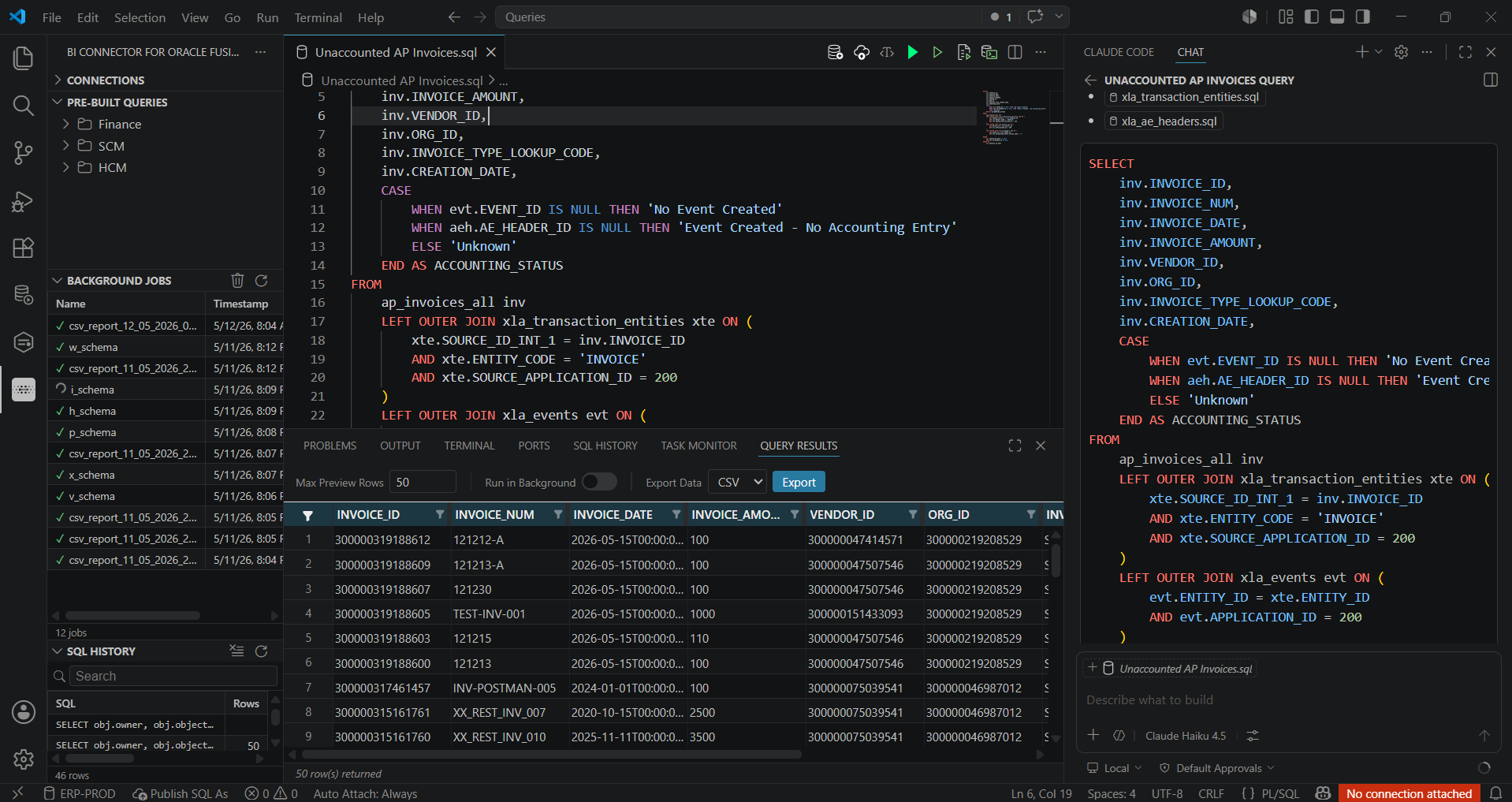
Writing Queries ManuallyYou can also write queries directly in the editor. Example — simple query: Example — query with bind parameters: 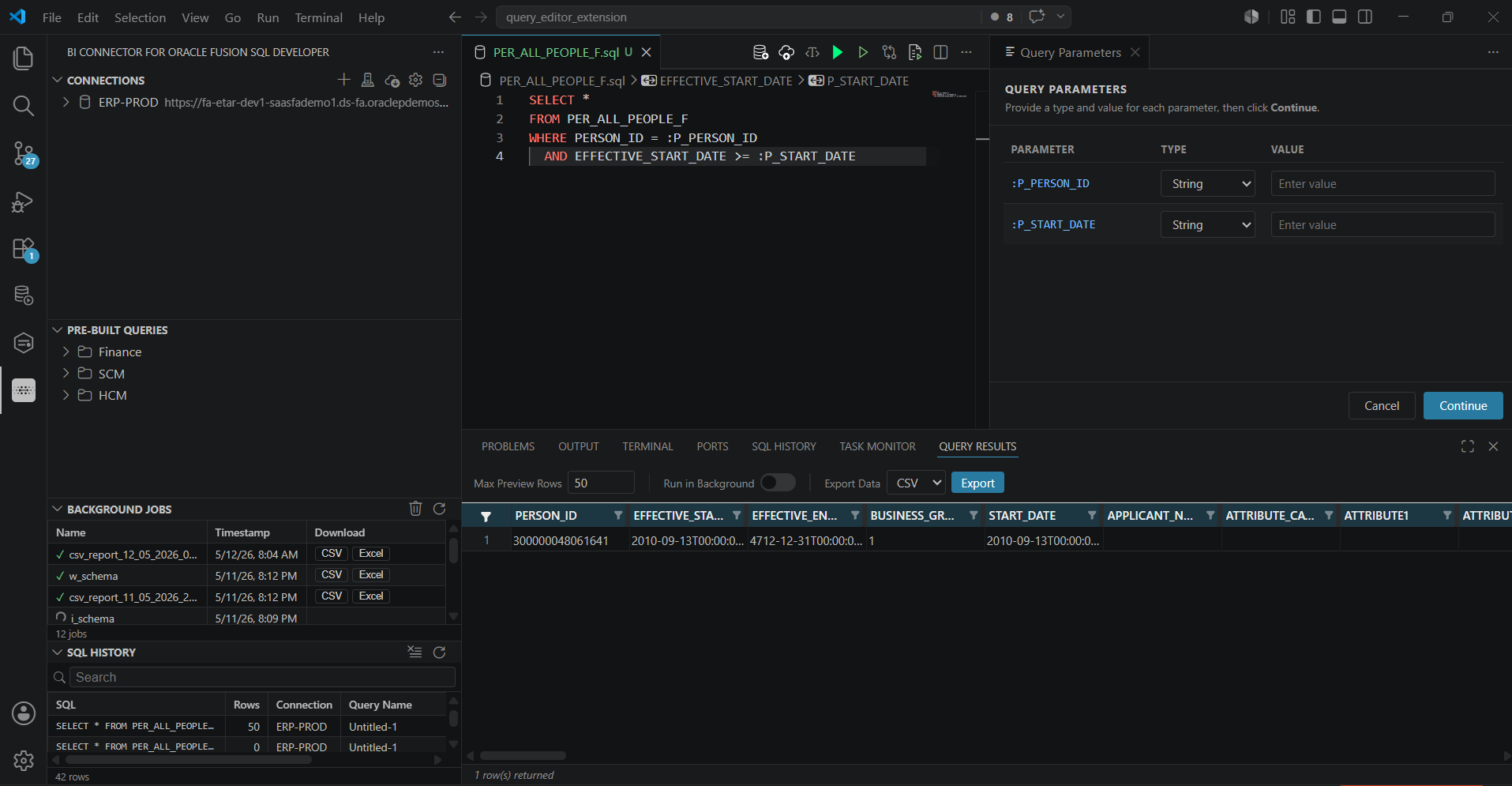
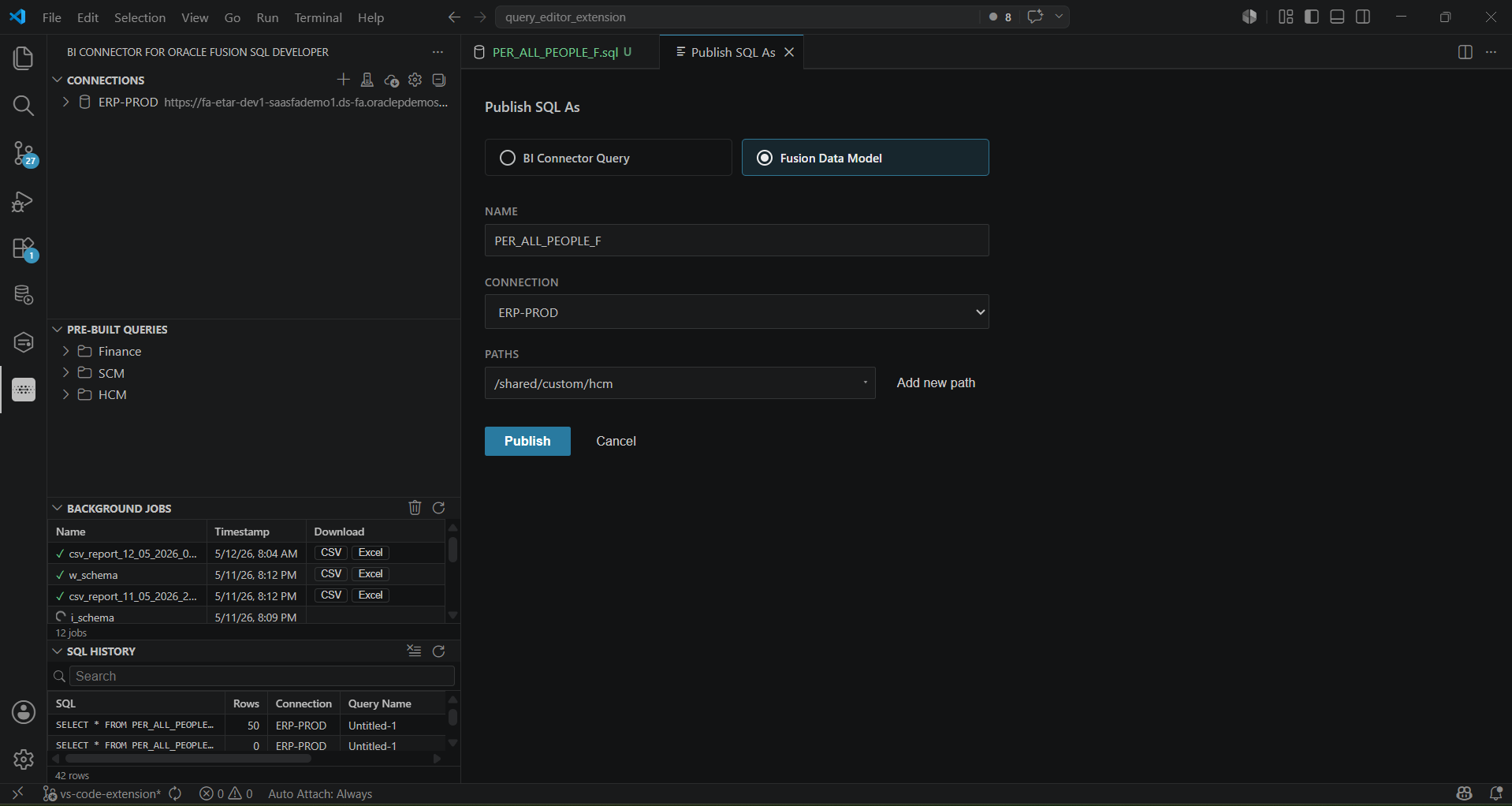
7. Version Control for QueriesSave SQL files in your local workspace or repository and track changes with Git, Bitbucket, or any other source control platform — just like application code. Already have queries in BI Connector? See Pull Existing Queries from a BI Connector Instance to bring them into your local file system and begin versioning them immediately. 8. Publish a Query as an Oracle Fusion Data ModelPublish queries from your local workspace directly to Oracle Fusion as a Data Model:
Managing Queries with BI Connector InstancesAdd a BI Connector Server InstanceBI Connector Server instances are the source and destination for query sync — pull existing queries from them into your workspace, or publish queries from your workspace to them. Add an instance before you pull from or publish to it:
Pull Existing Queries from a BI Connector InstancePull existing queries from BI Connector Desktop, or from a BI Connector Server running on Power BI Gateway or Tableau Server:
Publish a Query to a BI Connector Instance
To publish automatically on every save, enable Auto-Sync in the extension settings. This removes the manual publish step entirely. Extension Settings
Support and FeedbackHave a question, issue, or feature request? Email us at support@biconnector.com. About BI ConnectorBI Connector by Guidanz Inc. is the leading connectivity solution for Oracle Fusion and Oracle Analytics. It helps companies connect Power BI/Fabric/ADF/Azure Synapse to Oracle Fusion ERP, SCM, HCM, CX, OTM, Utilities Cloud applications. Learn more at biconnector.com. LicenseUse of this extension requires a valid BI Connector subscription. A 14-day free trial is available on first launch. |