TestScribe for VS Code
Describe a browser test in Chat and get a checked result without leaving VS Code. TestScribe shows the verdict, assertions, browser actions, and links to screenshots and reports. It uses the same Python CLI as the main project.
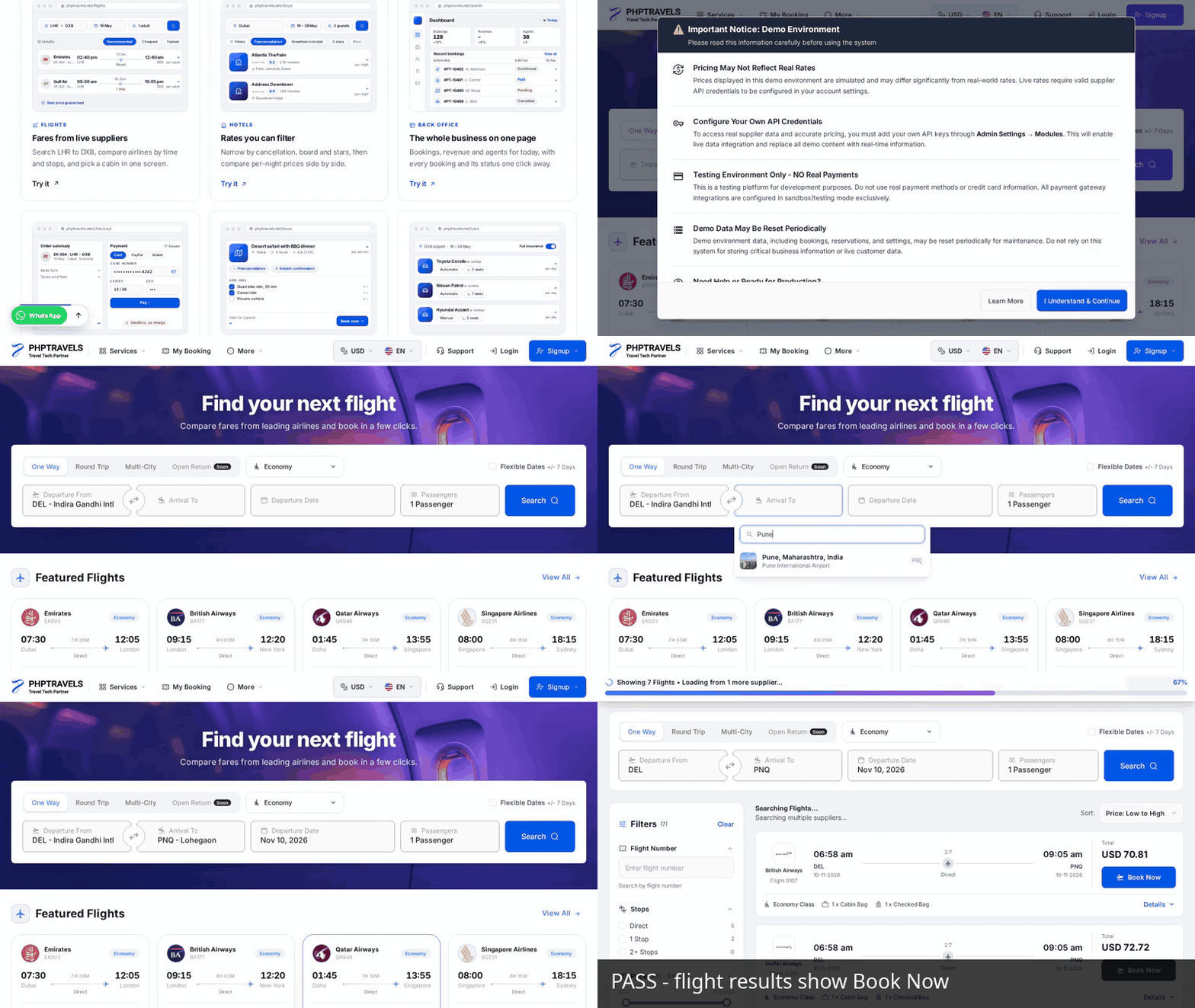
A live TestScribe run on PHPTravels: search DEL to PNQ and verify a visible “Book Now” button in the flight results.
Set up in your web project
The extension needs Python 3.10+, cURL, Playwright Chromium, and a model API key. It does not bundle them. Open your web project in VS Code and create a .venv there:
python3 -m venv .venv
source .venv/bin/activate
python -m pip install "git+https://github.com/Tchaikovsky29/TestScribe.git"
python -m playwright install chromium
On Windows, use py -3 -m venv .venv and .venv\Scripts\activate. If Chromium reports missing Linux system libraries, run python -m playwright install --with-deps chromium. TestScribe finds testscribe in the workspace .venv automatically. If you installed it elsewhere, set testscribe.cliPath to the executable path.
Install the TestScribe extension from the VS Code Marketplace, or use Extensions: Install from VSIX... with a preview release while the Marketplace listing is being prepared. Then:
- Open Settings → Extensions → TestScribe and choose TestScribe: Provider: BharatCode, Gemini, Groq, or Custom.
- Add the matching API key to your web project's
.env (BHARATCODE_API_KEY, GEMINI_API_KEY, or GROQ_API_KEY), or run TestScribe: Set API Key to keep it in VS Code Secret Storage. The extension never sends a stored key to its chat webview.
- Open the TestScribe activity bar icon. Choose a model, enter a full
http:// or https:// URL, and write a test that includes the expected result. Press Run or Enter.
When a key is available, the model picker loads IDs from the provider's /models endpoint. If the list cannot load, the preset's default model remains available. For Custom, set testscribe.baseUrl in Settings and type the model ID in Chat. testscribe.apiKeyEnv can override the key name.
Try this case on a public form:
URL:  https://www.selenium.dev/selenium/web/web-form.html
Test: Enter TestScribe into the Text input field, submit the form, and verify that Received! appears.
The chat shows PASS only when Playwright verifies the requested result. FAIL means an action or check failed; BLOCKED means the run could not be completed reliably. Use Open full report for the plan, steps, checks, and evidence paths.
Save and review cases
Use Save in Chat to create .testscribe/<name>.json in your web project. Run it again with TestScribe: Run Test Case from its editor or Explorer context menu. This is a simple JSON case:
{
  "url": "https://www.selenium.dev/selenium/web/web-form.html",
  "test": "Enter TestScribe into the Text input field, submit the form, and verify that Received! appears."
}
Reports and artifacts are kept in VS Code's extension storage, outside your workspace. Passing runs save a screenshot by default; turn off testscribe.passScreenshot to skip it. Set testscribe.headed to watch Chromium while a run executes.
A case may reference an ignored vars_file for credentials. Prefix sensitive variable names with _; the Python runner substitutes those values locally, redacts exact matches in model requests and reports, and skips screenshots, traces, and video for those runs unless you opt in. See the main README for the format and limits.
Build from source
cd vscode-extension
npm ci
npm run package
The generated .vsix can be installed with Extensions: Install from VSIX.... For the CLI and complete execution flow, see the main README and approach and limitations.

