ScriptPilot — npm Script Runner
Run, stop and manage your package.json scripts with one click — no more typing npm run ... in the terminal.
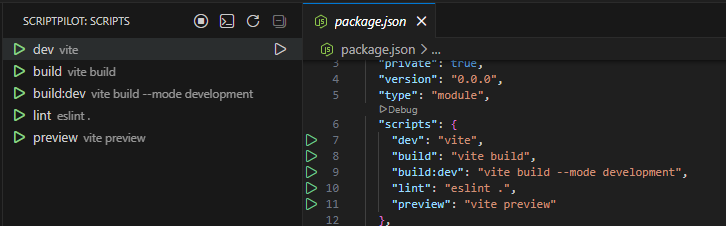
ScriptPilot adds a panel to VS Code's Activity Bar that lists every script from every package.json in your workspace. Each script gets a ▶ run button; each running script gets a ■ stop button and a ↻ restart button. Every script runs in its own dedicated terminal, so you can start, watch, and kill them independently — or stop everything at once.
Screenshots
Script explorer in the Activity Bar — every script from package.json, one click to run:
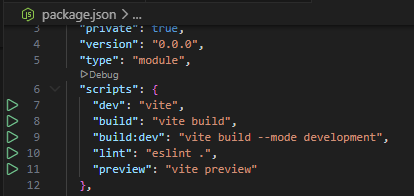
Inline gutter run buttons — run a script straight from package.json:
Features
| Feature |
Description |
| 🗂 Script explorer |
Sidebar tree listing every script from every package.json in the workspace. Monorepo-aware: multiple packages appear as expandable groups. node_modules is always excluded. |
| ▶ One-click run |
Click the play icon (or the script row itself) to run a script. Each script gets its own terminal named ▶ <script> — <package>. |
| ■ Stop individual scripts |
A running script shows a green spinning icon and an inline stop button. Stopping disposes only that script's terminal, killing its process tree. |
| ⏹ Stop All |
One button in the panel's title bar kills every running script at once. |
| ↻ Restart |
Stop + relaunch a running script with one click. |
| 🖥 Terminal profile picker |
Choose which terminal ScriptPilot uses: PowerShell, CMD, Git Bash, pwsh, or any custom profile from your terminal.integrated.profiles settings — or just use the workspace default. |
| 📦 Package manager auto-detection |
Detects npm / yarn / pnpm / bun from the lockfile, walking up parent folders for monorepos. Can be overridden in settings. |
| ⌨ Run with arguments |
Right-click a script → Run Script With Arguments... to append extra args. |
| 📊 Status bar indicator |
Shows ▶ N scripts running. Click it to focus a script's terminal, stop one, or stop all from a quick-pick menu. |
| 📋 Copy command |
Right-click → copy the exact shell command (e.g. pnpm run dev) to the clipboard. |
| 🔄 Live refresh |
The tree updates automatically whenever any package.json is created, changed, or deleted. |
| 🛡 Double-start protection |
Running an already-running script focuses its terminal and asks whether to restart, instead of silently starting a duplicate. |
Getting Started
- Install ScriptPilot from the Extensions view (
Ctrl+Shift+X, search "ScriptPilot").
- Open a workspace that contains a
package.json.
- Click the ScriptPilot icon in the Activity Bar to see all your scripts.
- Click ▶ next to any script to run it in its own terminal.
Commands
All commands are available via the Command Palette (Ctrl+Shift+P) under the ScriptPilot: prefix.
| Command |
Description |
ScriptPilot: Stop All Running Scripts |
Kill every running script |
ScriptPilot: Select Terminal Profile |
Choose the shell scripts run in |
ScriptPilot: Refresh Scripts |
Rescan the workspace for package.json files |
ScriptPilot: Show Running Scripts |
Quick-pick to focus/stop running scripts |
Settings
| Setting |
Type |
Default |
Description |
scriptpilot.packageManager |
auto | npm | yarn | pnpm | bun |
auto |
Which package manager runs scripts. auto detects from the lockfile. |
scriptpilot.terminalProfile |
string |
"" |
Terminal profile name (must match a name in terminal.integrated.profiles). Empty = workspace default. |
scriptpilot.codeLens |
boolean |
false |
Show Run / Stop / Restart CodeLens buttons above each script in package.json files. |
scriptpilot.clearBeforeRun |
boolean |
false |
Clear the terminal before running a script. |
scriptpilot.exclude |
string[] |
[] |
Glob patterns of package.json paths to hide from the tree, e.g. ["examples/**"]. |
Example settings.json:
{
  "scriptpilot.packageManager": "pnpm",
  "scriptpilot.terminalProfile": "Git Bash",
  "scriptpilot.clearBeforeRun": true,
  "scriptpilot.exclude": ["e2e/**", "docs/**"]
}
Requirements
- VS Code 1.85 or later
- Node.js and a package manager (npm / yarn / pnpm / bun) in your project
Troubleshooting
The ScriptPilot icon doesn't appear.
The extension activates when the workspace contains a package.json. Open a folder that has one, or run ScriptPilot: Refresh Scripts.
The panel says "No package.json scripts found".
Your package.json has no scripts section, or it matches a scriptpilot.exclude pattern.
Scripts run with the wrong package manager.
Detection is lockfile-based. If there's no lockfile it defaults to npm — set scriptpilot.packageManager explicitly.
Stop doesn't kill the process.
Stop disposes the terminal, which kills its process tree. Rarely, a detached child process can survive; kill it from Task Manager.
Release Notes
1.0.0
Initial release: script explorer, run/stop/restart, terminal profile picker, package manager auto-detection, status bar indicator, run with arguments, copy command.
License
MIT

