Visual Markdown
A Notion-like WYSIWYG editor for Markdown files in VS Code and Cursor.
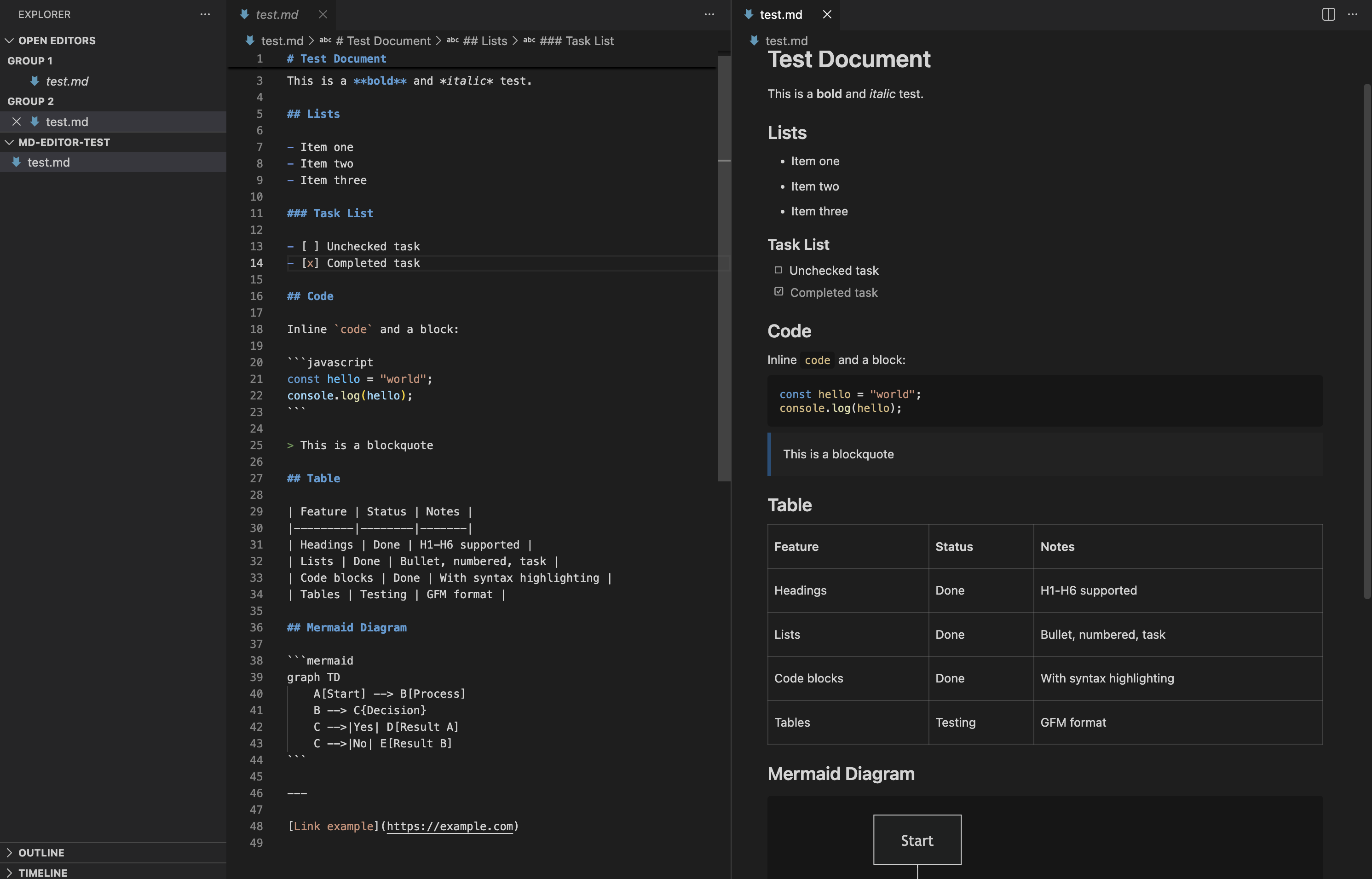
Getting Started
Opening Files with Visual Markdown
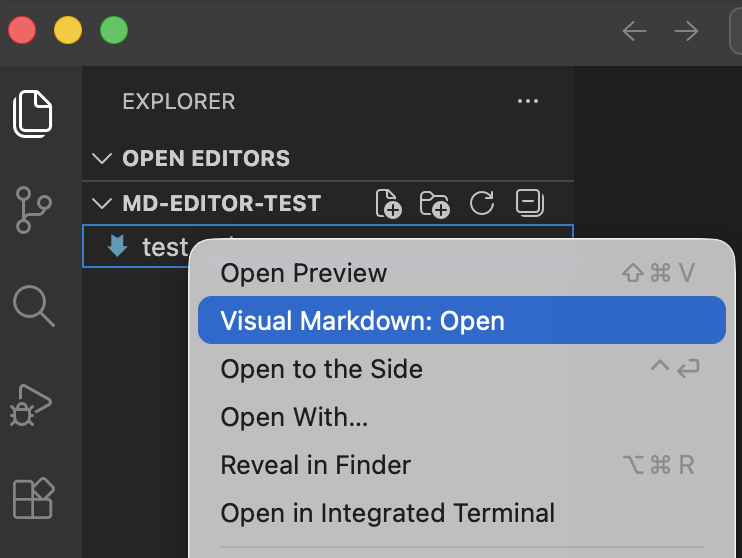
Option 1: Right-click in Explorer
Right-click any .md file and select "Visual Markdown: Open"
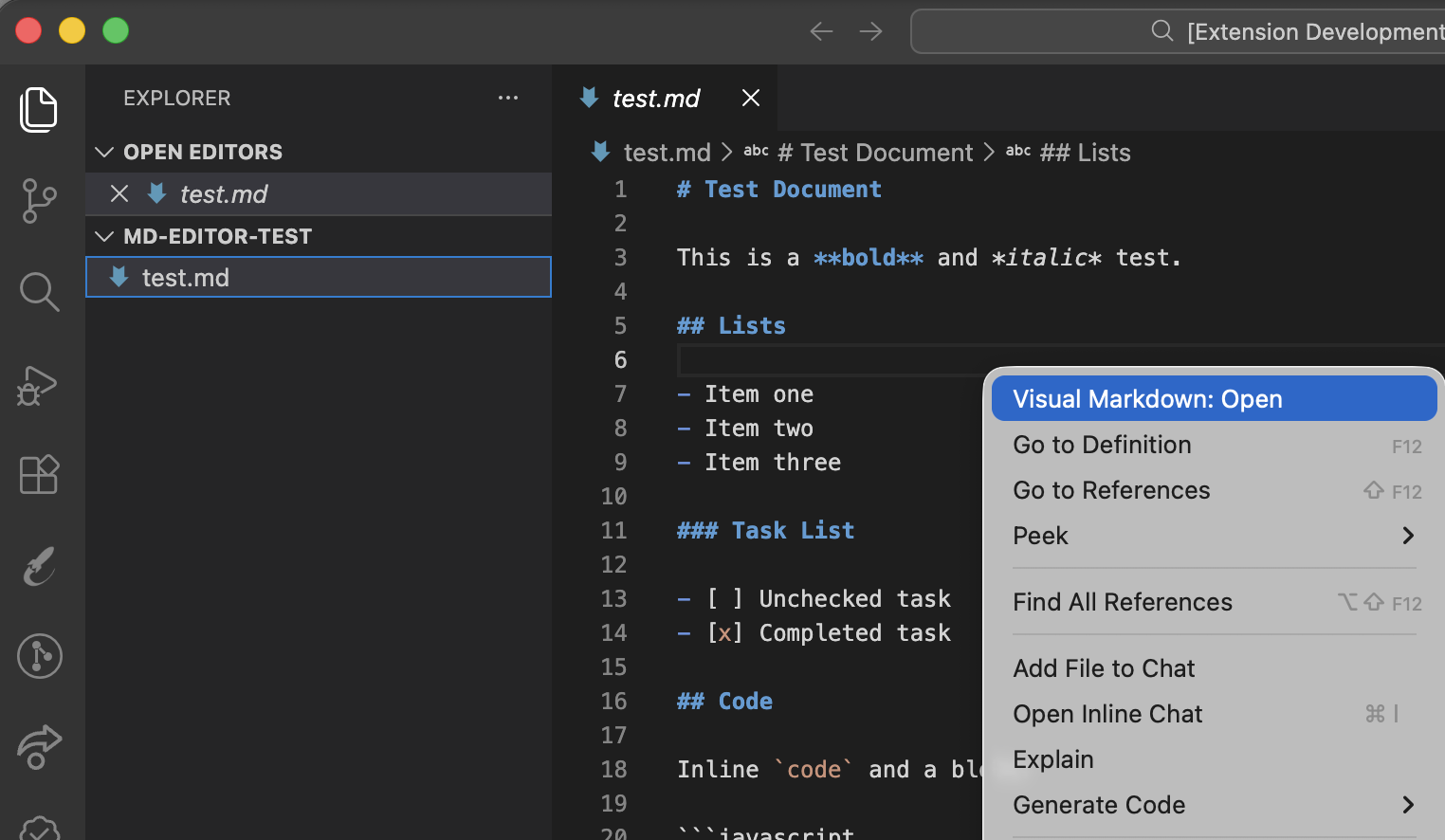
Option 2: Right-click inside an open file
Open a .md file, right-click in the editor, and select "Visual Markdown: Open"
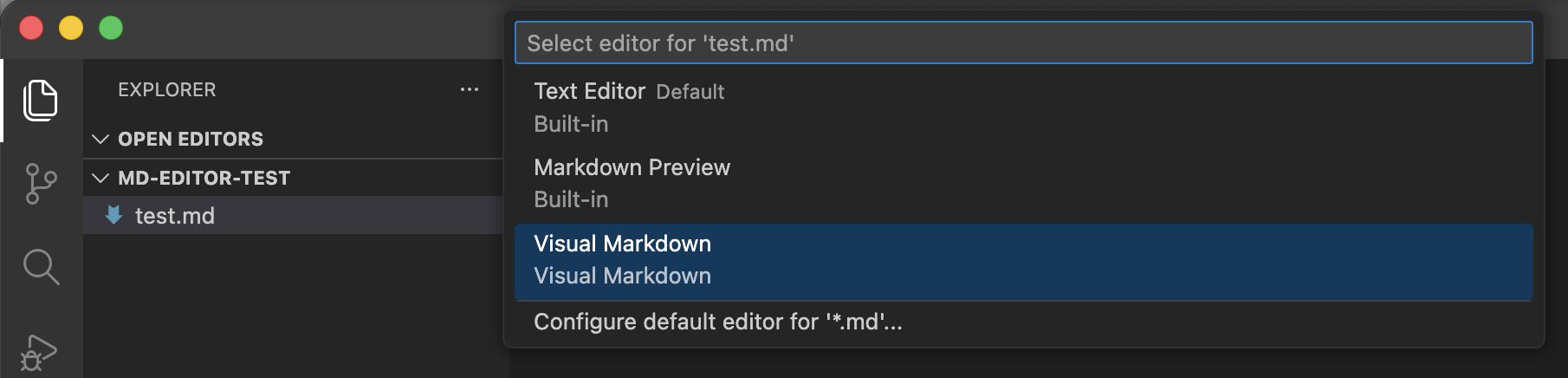
Option 3: Use "Open With..."
Click the dropdown arrow next to the file tab and select "Visual Markdown"
Setting as Default Editor
To always open Markdown files with Visual Markdown:
- Right-click any
.md file
- Select "Open With..."
- Choose "Visual Markdown"
- Click "Configure default editor for '*.md'..."
- Select "Visual Markdown"
Features
Rich Text Editing
Edit Markdown with a clean, distraction-free WYSIWYG interface. What you see is what you get - no more switching between preview and edit modes.
Images
Full image support with paste, insert, and resize:
- Inline display: Images in your markdown render directly in the editor
- Paste from clipboard: Paste screenshots or copied images — they're automatically saved to your project
- Insert by URL: Type
/image to insert an image from any web URL
- Click to select: Click an image to select it, then Delete to remove or arrow keys to navigate
- Drag to resize: Grab the corner handle to resize any image — your chosen size persists in the markdown file
- Configurable save location: Set where pasted images are stored in VS Code settings (default:
./images)
Resized images use portable HTML (<img width="...">) that renders correctly on GitHub, GitLab, and other platforms.
Slash Commands
Type / anywhere to access quick insert commands:
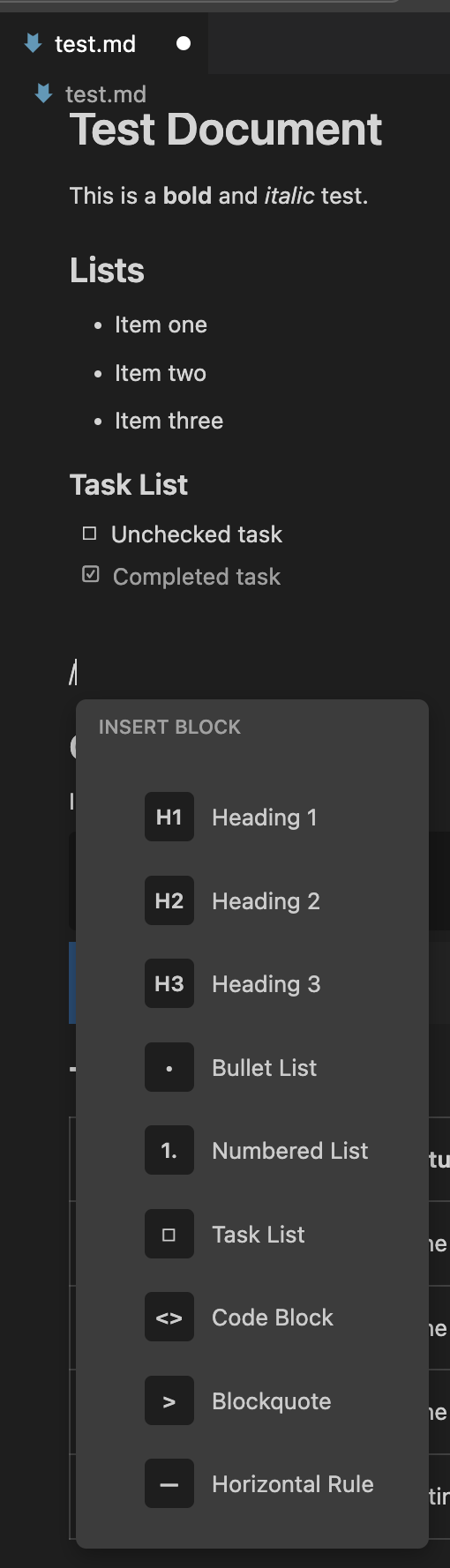
Available commands:
/h1 through /h6 - Insert headings/bullet - Bullet list/numbered - Numbered list/task - Task list with checkboxes/code - Code block/quote - Blockquote/hr - Horizontal rule/image - Insert image by URL
Select any text to reveal the formatting toolbar:
- Bold (
Cmd/Ctrl+B)
- Italic (
Cmd/Ctrl+I)
- ~~Strikethrough~~
Inline code- Links
Syntax Highlighting
Code blocks automatically highlight syntax for 20+ languages including JavaScript, TypeScript, Python, CSS, HTML, JSON, Go, Rust, and more. Common aliases are supported (e.g., js, ts, py, rb, sh).
Mermaid Diagrams
Create flowcharts, sequence diagrams, and more using Mermaid syntax:
graph TD
    A[Start] --> B[Process]
    B --> C{Decision}
    C -->|Yes| D[Result A]
    C -->|No| E[Result B]
Task Lists
Clickable checkboxes for task management:
- [ ] Unchecked task
- [x] Completed task
Empty Line Preservation
Unlike most markdown editors, Visual Markdown preserves multiple blank lines exactly as you write them. What you see is what you get - no collapsing of whitespace.
Undo/Redo
Full undo/redo support with intelligent change grouping:
- Undo:
Cmd+Z (Mac) / Ctrl+Z (Windows)
- Redo:
Cmd+Shift+Z (Mac) / Ctrl+Shift+Z (Windows)
Smart Paste
Paste content from websites and other applications - HTML is automatically converted to proper markdown formatting.
Find / Search
Press Cmd+F (Mac) / Ctrl+F (Windows) to open the search bar inside the visual editor. Quickly find text within your document without switching to the raw markdown view.
Text Size Control
Adjust the editor text size to your preference with four options: S, M, L, and XL.
- Click the size button in the bottom-right corner of the editor
- Or use the Command Palette: "Visual Markdown: Set Text Size"
- Your choice persists globally via VS Code settings
Tables
Full GFM table support with inline editing:
| Feature |
Status |
| Tables |
Supported |
| Editing |
Inline |
Supported Elements
| Element |
Support |
| Headings (H1-H6) |
Full |
| Bold, Italic, Strikethrough |
Full |
| Links |
Full |
| Blockquotes |
Full |
| Horizontal Rules |
Full |
| Bullet Lists |
Full |
| Numbered Lists |
Full |
| Task Lists |
Full (clickable) |
| Code Blocks |
Full (syntax highlighted, language selector) |
| Inline Code |
Full |
| Tables |
Full (GFM) |
| Images |
Full (display, paste, insert, resize) |
| Mermaid Diagrams |
Full |
| Empty Lines |
Full (preserved) |
| Undo/Redo |
Full (with grouping) |
| Paste from Web |
Full (HTML → Markdown) |
Requirements
- VS Code 1.85.0 or higher
- Cursor (any recent version)
Known Issues
- Very large Markdown files (>10,000 lines) may experience performance slowdowns
- Some complex nested Markdown structures may not render identically to GitHub
Release Notes
0.4.0
- List Fix: Task lists and bullet lists no longer double-space after typing in the editor
0.3.0
- Images: Full image support — paste from clipboard, insert by URL with
/image, click to select, drag to resize
- Image Resize: Drag the corner handle to resize images; your chosen size persists in the markdown file
- Configurable Save Location: Choose where pasted images are saved via VS Code settings
0.2.1
- Stability: Fixed cursor jumping when clicking back into the editor or switching windows
- Slash Commands: Slash command block transformations are now more reliable
- Visual Polish: Horizontal rules now have a softer, subtler appearance
0.2.0
- Sync Reliability: Checkbox state, blank lines, and task list formatting now sync correctly between the visual editor and raw markdown
- Format Preservation: The editor detects and preserves your file's existing markdown style (bullet characters, fence style, heading style, list markers)
0.1.9
- Slash Menu Keyboard Navigation: Arrow keys, Enter, and Escape now work correctly in the slash menu and language dropdown
0.1.8
- Text Size Control: S/M/L/XL size picker in the editor and Command Palette
0.1.7
- Find/Search: Ctrl+F / Cmd+F now works in the visual editor
0.1.6
- Empty Line Fix: Line count now matches exactly between raw markdown and visual editor
0.1.4
- Slash Menu Fix: Menu no longer gets cut off in small editor windows
- Cursor Plugin: Improved cursor visibility
0.1.3
- Empty Line Preservation: Multiple blank lines are now preserved in the visual editor (custom remark plugin)
- Improved Undo/Redo: Proper history with intelligent change grouping (Cmd+Z / Cmd+Shift+Z)
- Better Clipboard: Rich content paste support - HTML is automatically converted to markdown
- List Exit Behavior: Pressing Enter on an empty list item now properly exits the list
- Code Block Language Selector: Click the language badge to change syntax highlighting
0.1.1
- Added "Visual Markdown: Open" to explorer context menu
- Added "Visual Markdown: Open" to editor context menu
- Added documentation with screenshots
0.1.0
Initial release with:
- WYSIWYG Markdown editing
- Syntax highlighting for code blocks
- Mermaid diagram rendering
- Slash commands and formatting toolbar
- GFM tables and task lists
License
MIT
Credits
Built with Milkdown, PrismJS, and Mermaid.
Publisher: AppDesignGeeks
Issues: GitHub Issues

