StockEnvView and protect .env files as a table with per-column masking. Hide keys and values independently, reveal individual rows, edit inline. Installation Launch VS Code Quick Open ( Ctrl+P), paste the following command, and press enter.Copied to clipboard |

StockEnvProtect your environment variables directly in VS Code. StockEnv replaces the default text editor for No data leaves your machine. No network requests. Everything stays local. Full privacy modeWhen you open a
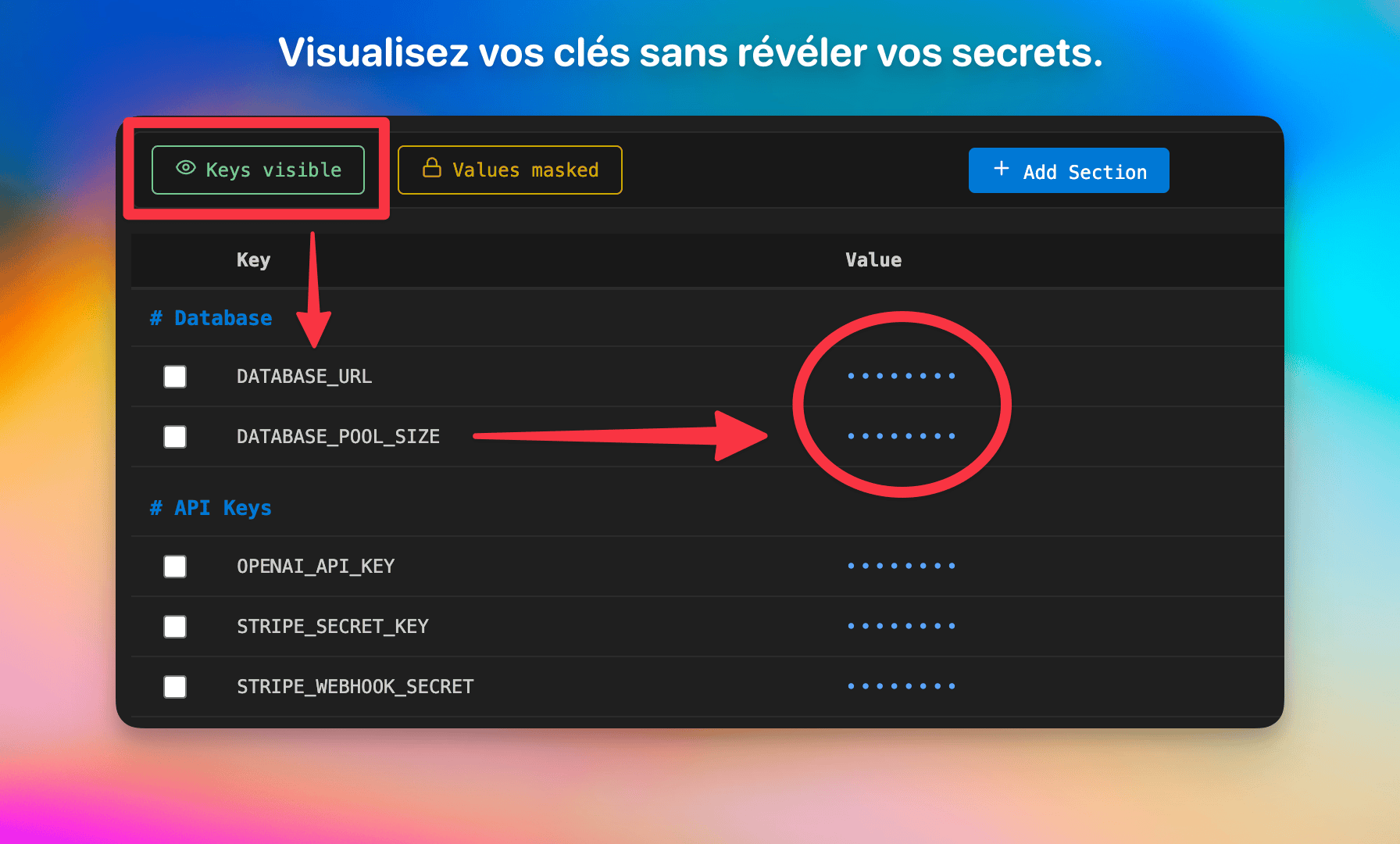
Reveal keys onlyClick Keys masked to reveal the variable names while keeping all values hidden. Useful to navigate your file without exposing sensitive data.
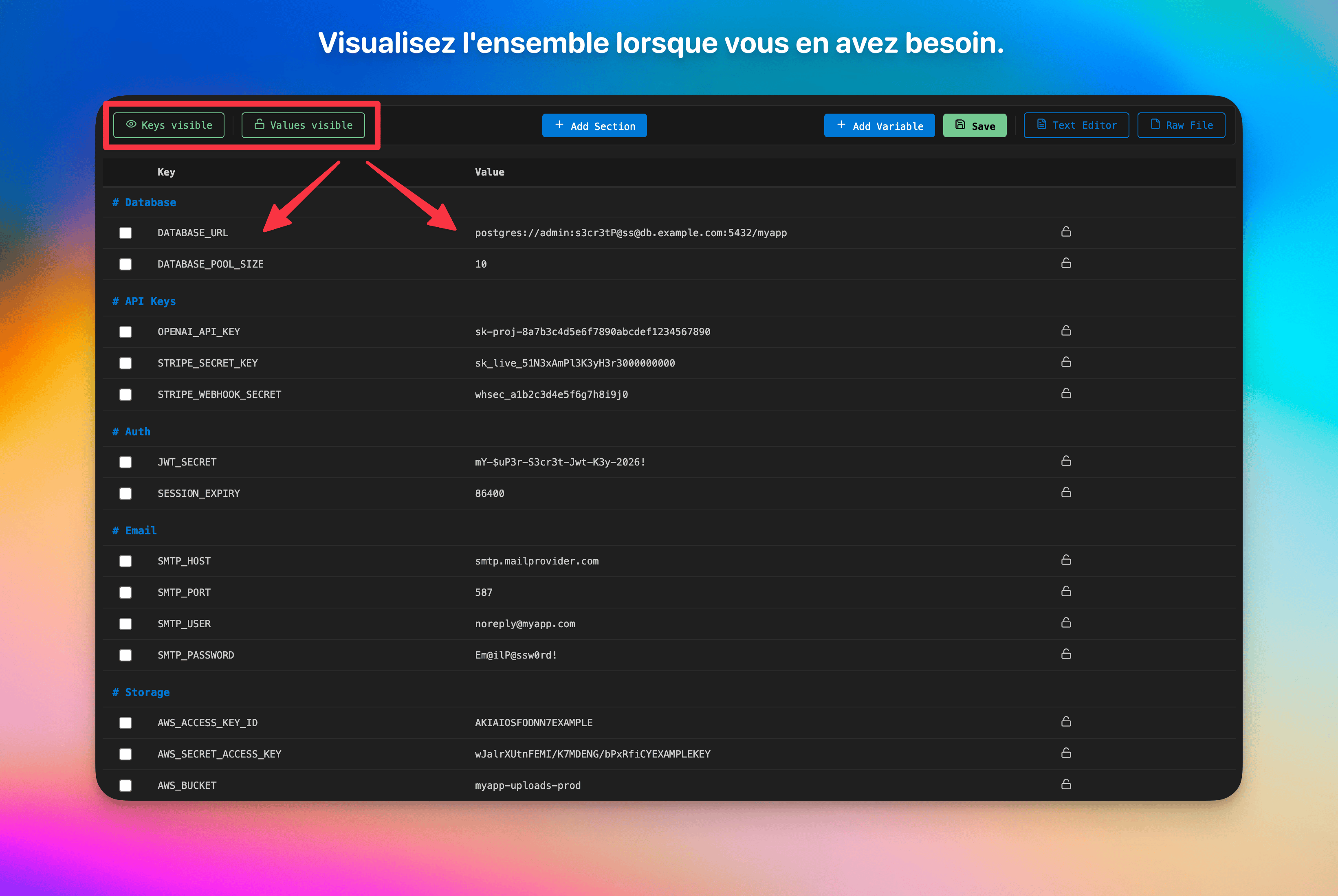
Reveal everythingClick both toggle buttons to show keys and values. All lock icons switch to unlocked. You're in full editing mode.
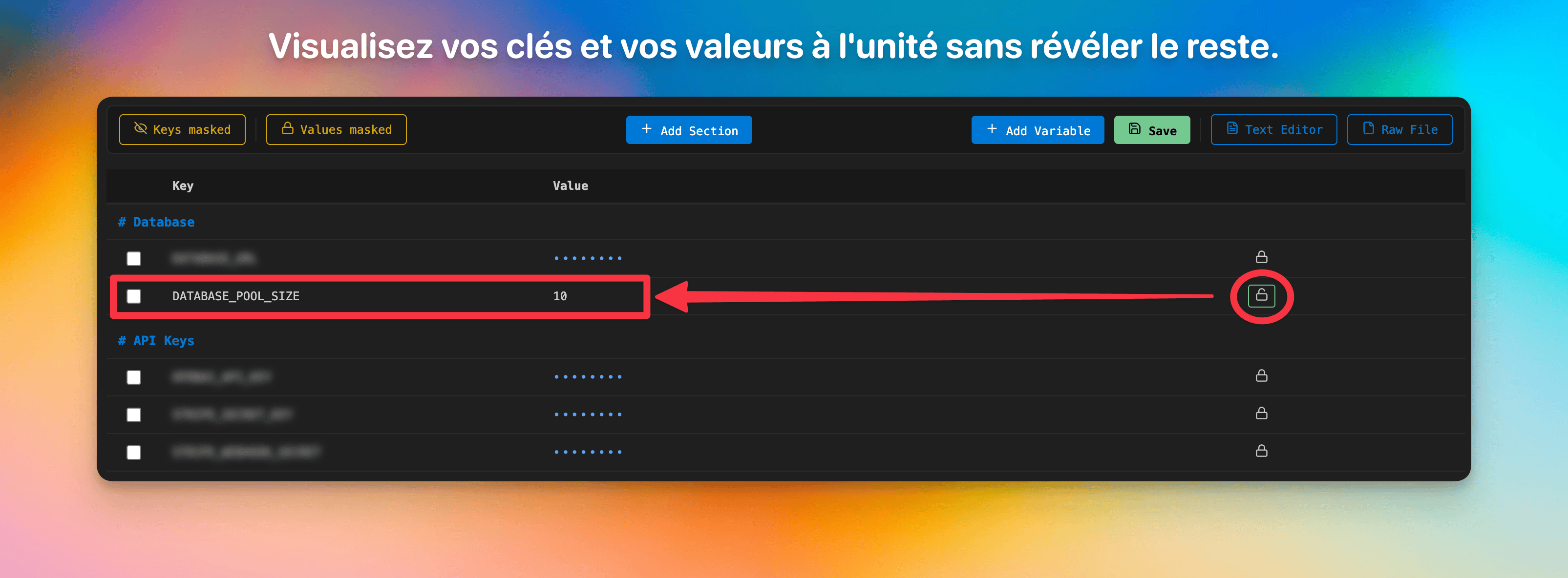
Per-row revealClick the lock icon on any row to reveal that specific key and value while keeping all others masked. No need to unmask the entire file.
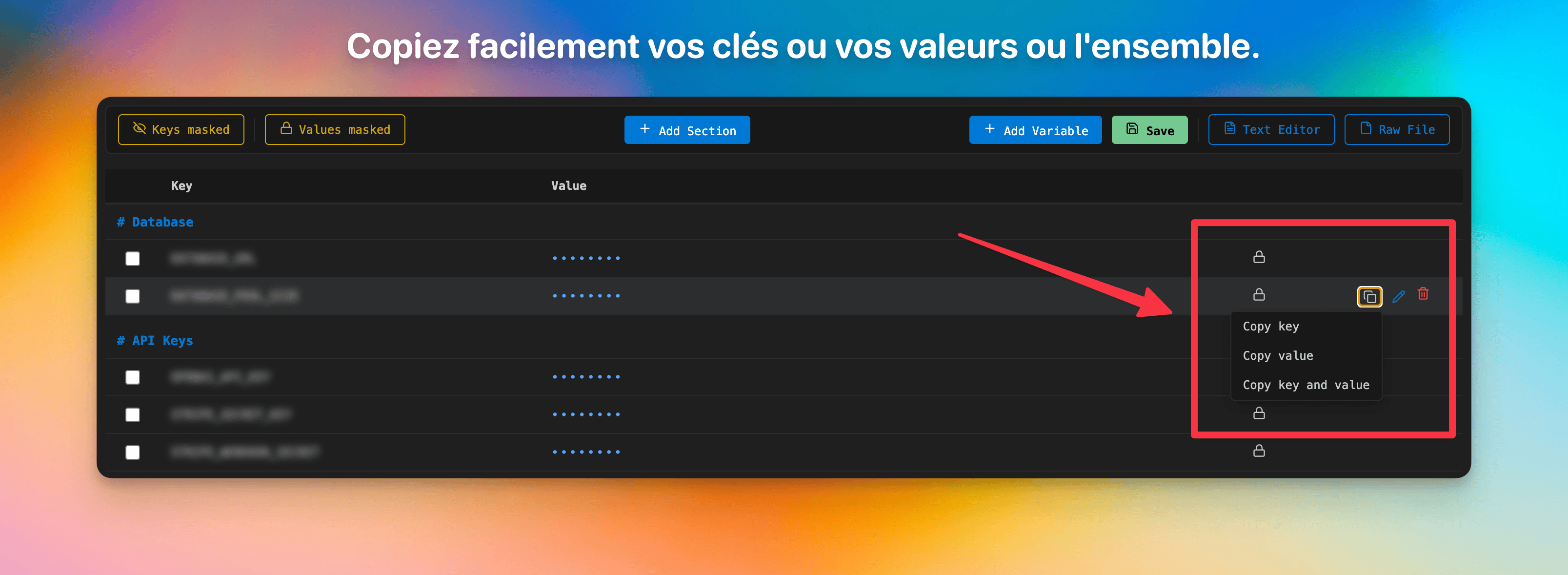
Copy key, value, or bothClick the copy icon on any row to open a dropdown with three options: Copy key, Copy value, or Copy key and value. Values are copied without surrounding quotes. When copying both, the format is
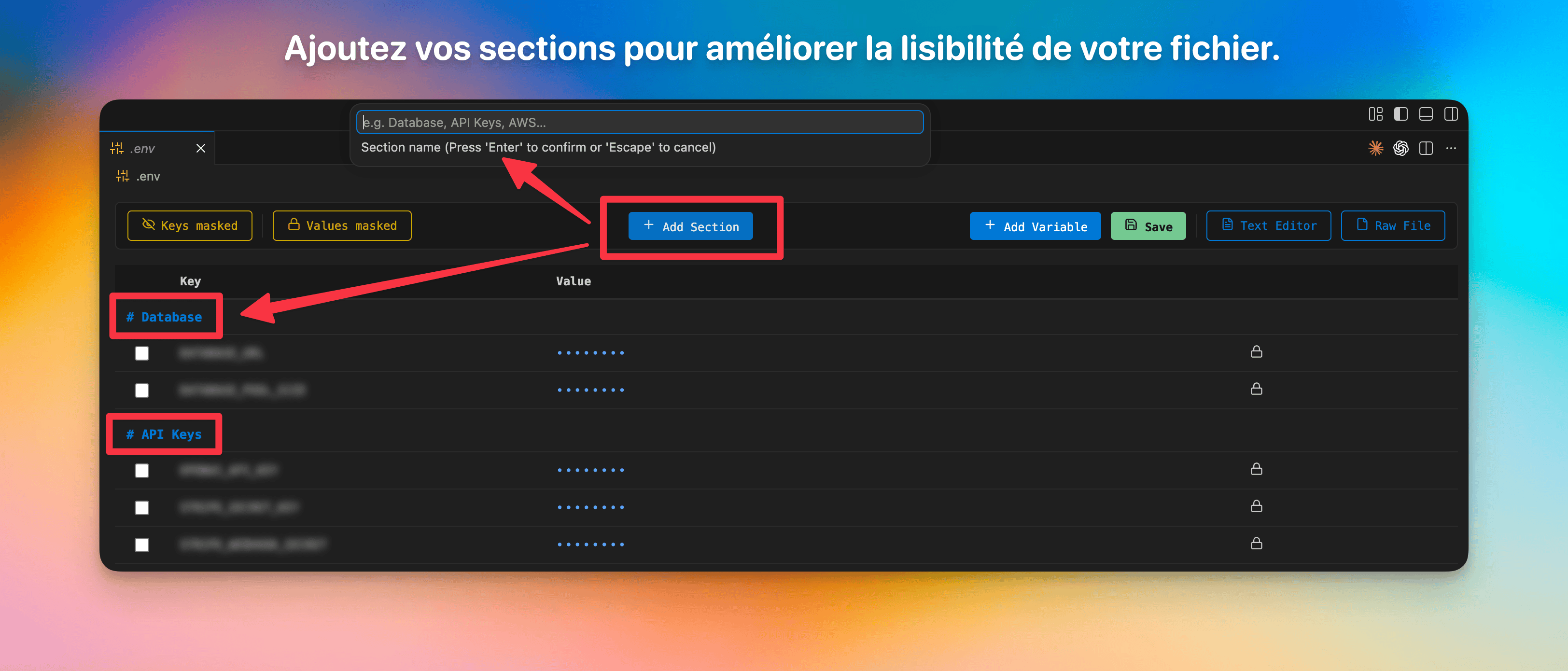
Add a sectionClick + Add Section in the toolbar to create a new section. A dialog appears where you can type the section name, then press Enter to confirm or Escape to cancel.
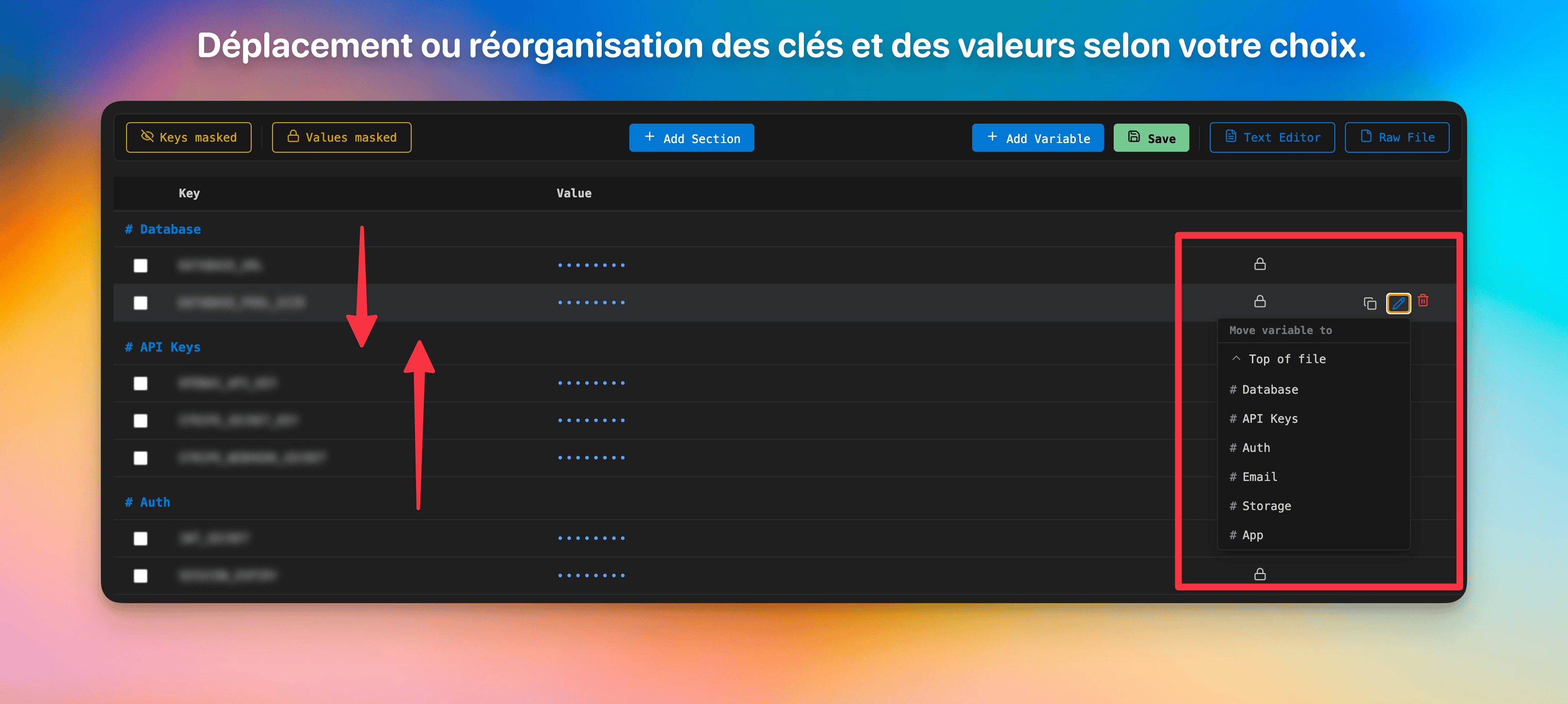
Move & reorganizeSelect one or more variables with checkboxes, then click Move to section to relocate them. You can also hover a single row and click the pen icon to move just that variable. Section headers have up/down chevrons to reorder entire sections.
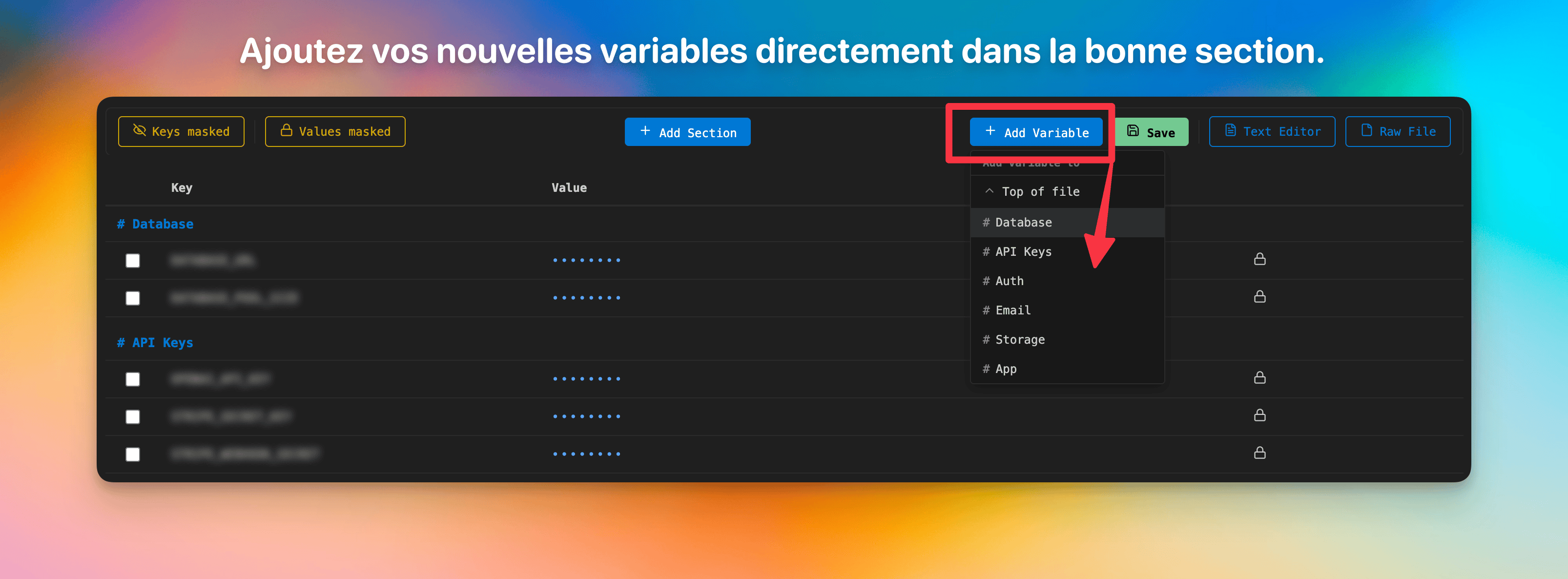
Add a variable to any sectionClick + Add Variable in the toolbar to choose where to insert the new variable: at the top of the file or inside any existing section.
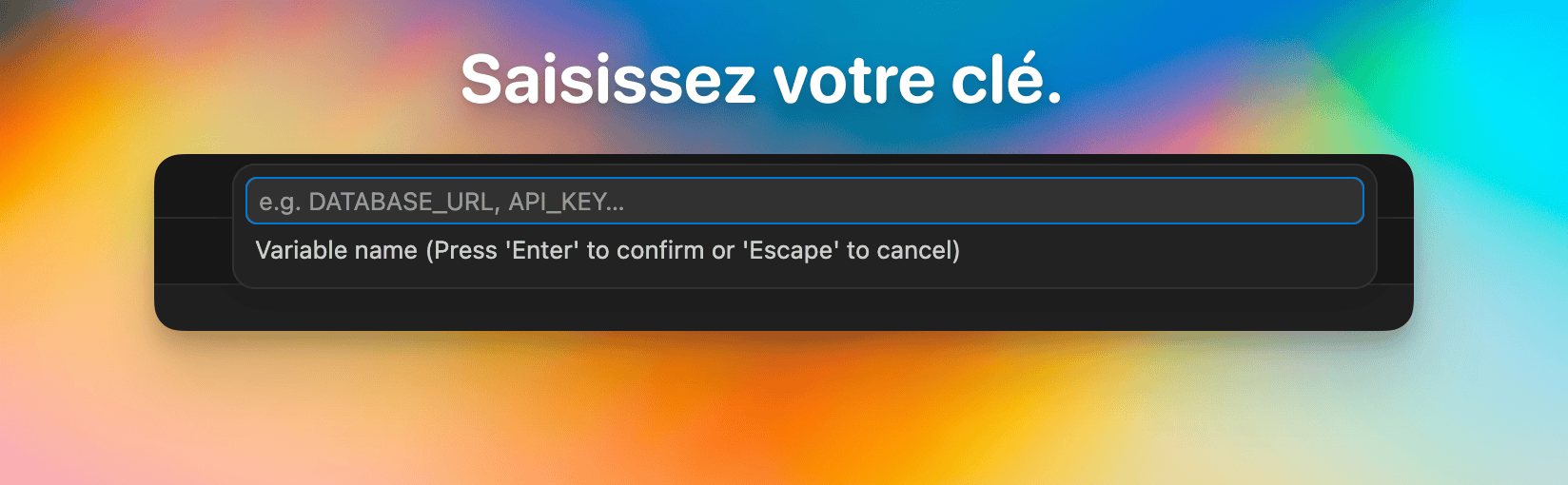
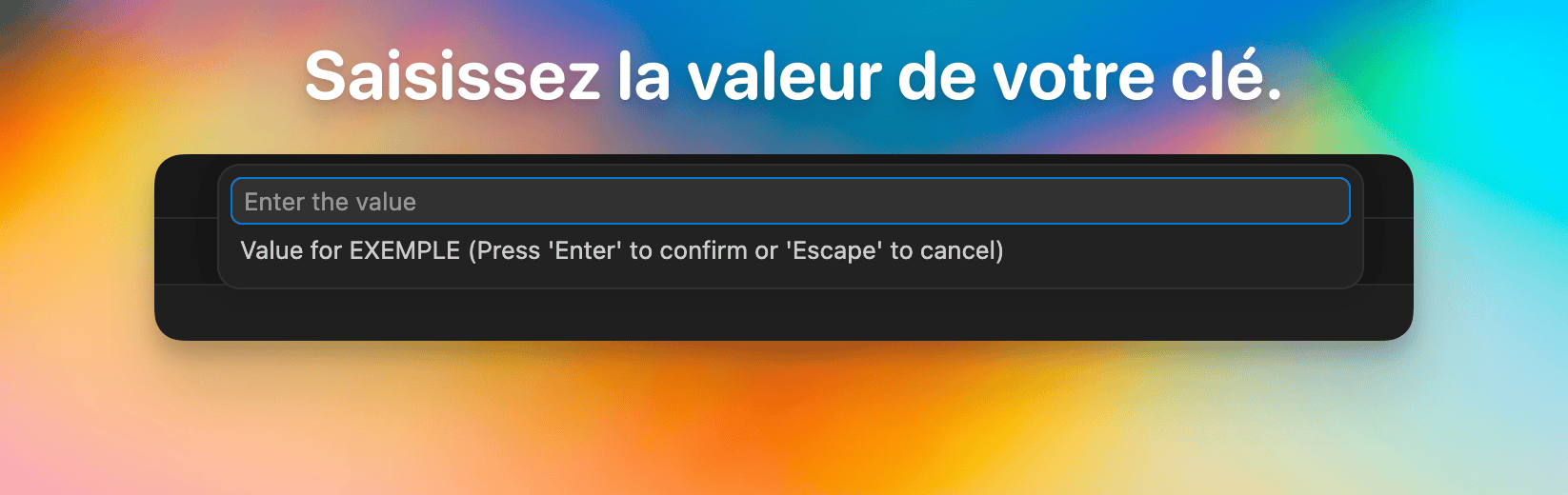
Guided variable creationAfter choosing the target section, two dialogs appear in sequence: first the variable name, then its value. Keys are automatically converted to UPPERCASE.
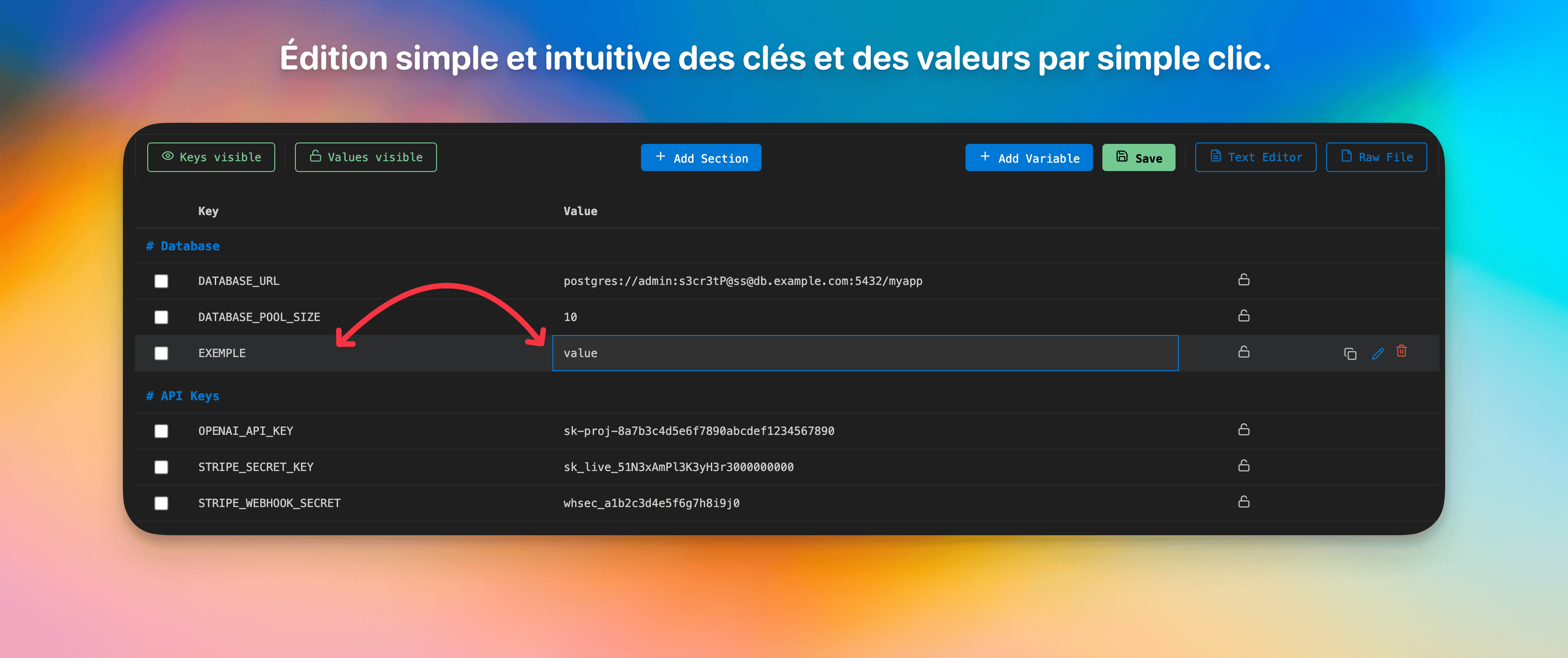
Inline editingClick on any visible key or value to edit it directly in the table. Press Enter to confirm, Escape to cancel. Keys are automatically converted to UPPERCASE. Masked cells cannot be edited — reveal them first.
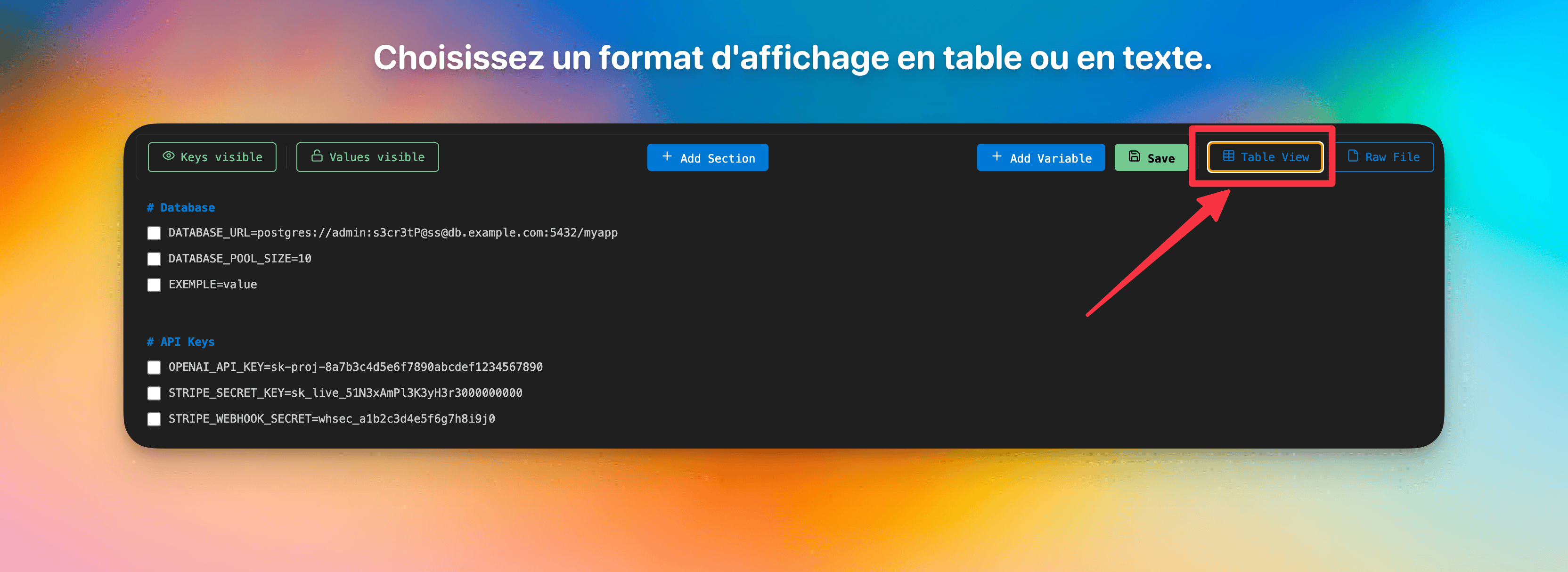
Text editor viewClick Text Editor in the toolbar to switch to an integrated text view. Variables are displayed as
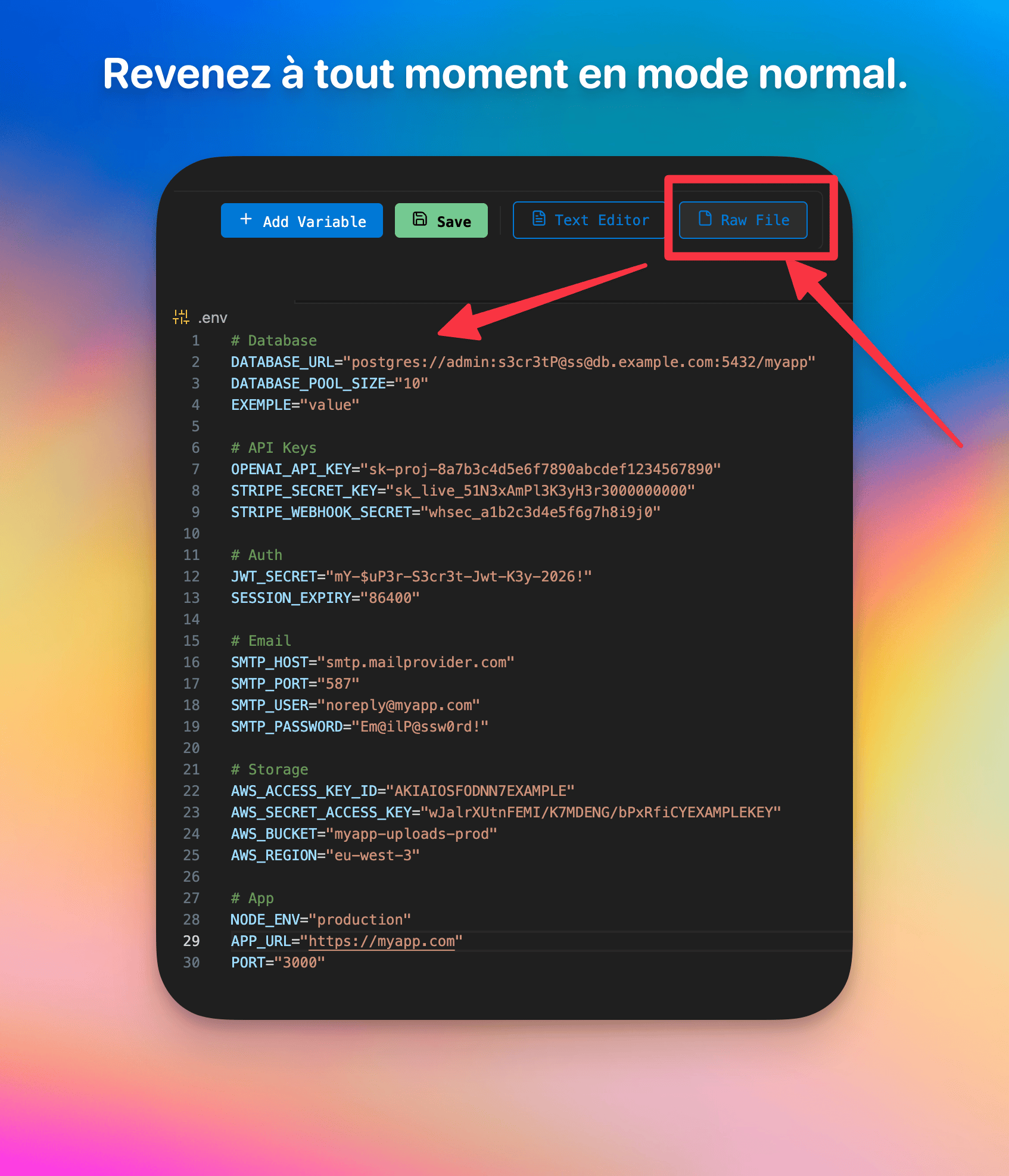
Raw fileClick Raw File to open the
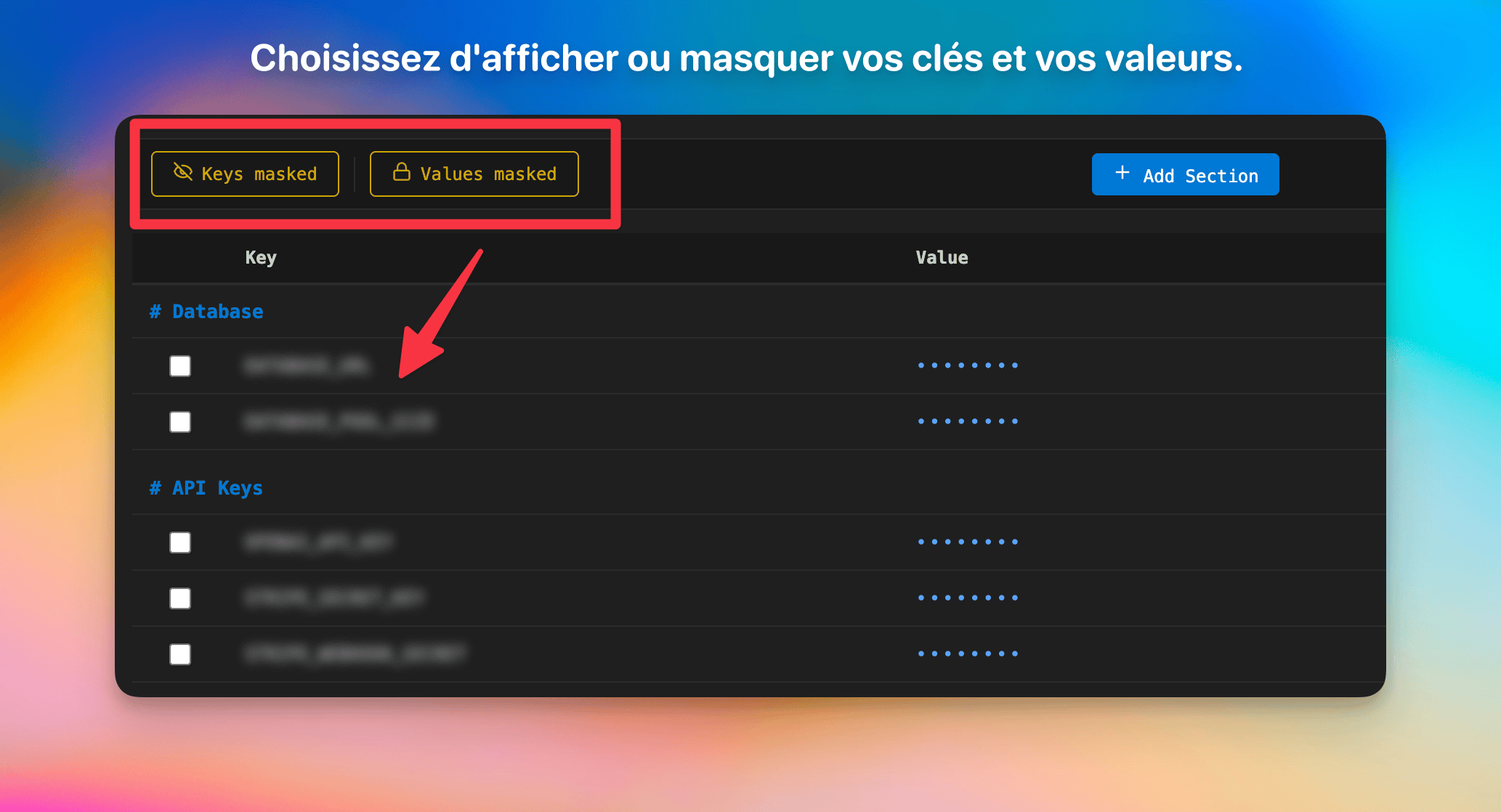
FeaturesTable viewEvery Masking by defaultBoth keys and values are hidden when you open a file:
Per-column toggleTwo buttons in the toolbar let you control visibility independently:
Per-row revealClick the lock icon on any row to unmask that key and value while keeping all others hidden. Copy to clipboardClick the copy icon on any row to choose between:
Inline editingClick on any visible key or value cell to edit it directly. Press Enter to confirm, Escape to cancel. Keys are automatically converted to UPPERCASE. Masked cells are protected — you must reveal them before editing. Surrounding quotes ( SectionsComments starting with
Add variable with section pickerClick + Add Variable in the toolbar to choose where to insert the new variable: at the top of the file or inside any existing section. Two dialogs then prompt for the key name and value. Keys are automatically converted to UPPERCASE. Multi-select & moveEach variable row has a checkbox. Select one or more variables, then use the Move to section button in the selection bar to move them all at once. You can also hover a single row and click the pen icon to move just that variable. Works in both table and text views. Bulk deleteSelect one or more variables with checkboxes, then click Delete in the selection bar. A confirmation step prevents accidental deletions — the button turns red and asks "Confirm?" before proceeding. Individual rows also have a delete button with the same confirmation behavior. Sticky toolbarThe toolbar, selection bar, and column headers all remain visible when scrolling through long files. Switch between viewsA Text Editor button in the toolbar lets you switch to an integrated text view that displays the A Raw File button opens the file in VS Code's native text editor, bypassing the extension entirely. When you reopen the file later, the custom editor view is restored automatically. Save buttonA Save button in the toolbar lets you save without keyboard shortcuts. It shows a brief confirmation after saving. Supported filesStockEnv activates on all files matching these patterns:
How to use
To switch between views:
Security
Requirements
License |