Salesforce Assist BuddySalesforce developer tools for VS Code: inspect Apex logs, manage user trace flags, and run saved SOQL queries across authenticated orgs. Tools and Views
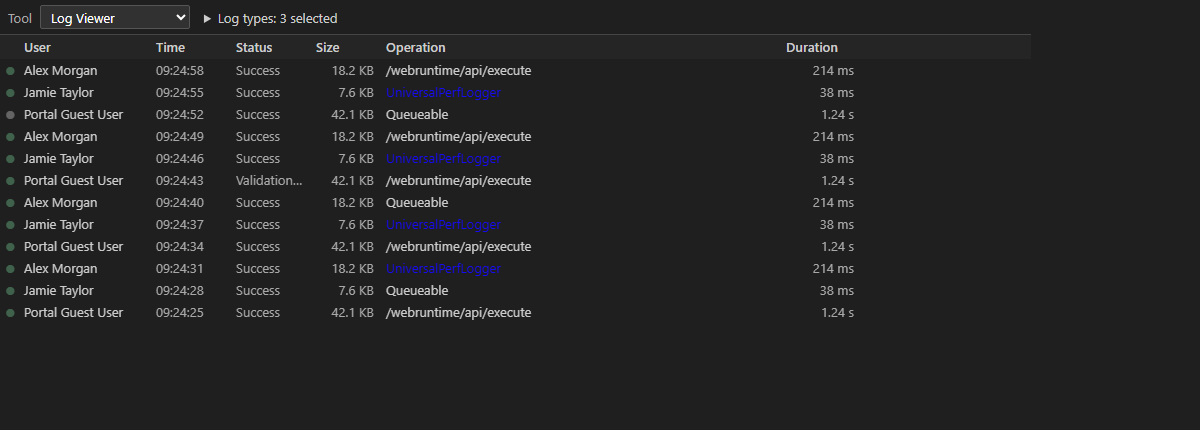
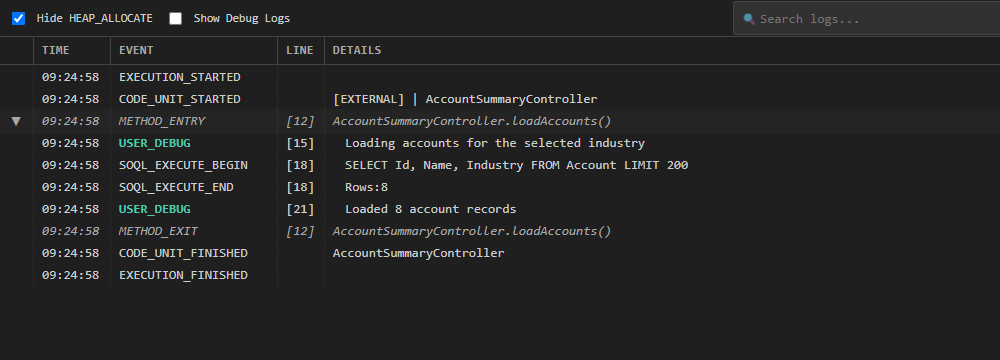
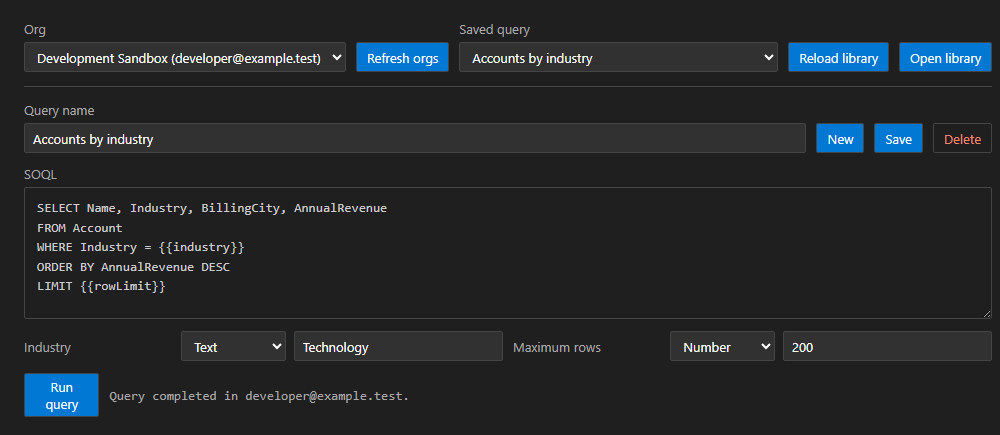
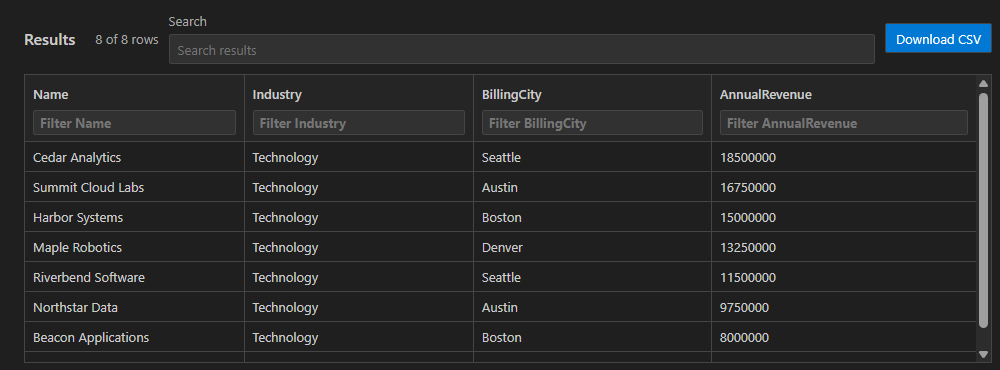
The screenshots below show the extension's webviews rendered with fictional sample data and a VS Code-style dark theme. They omit VS Code's surrounding tabs and title-bar actions; no live org data or credentials are shown. Requirements
Install Locally
The GitHub repository is configured for documentation links; Marketplace publication is not configured. Apex Log Workflow
Log Viewer filters and title-bar actions follow the panel's selected tool and visibility. Opening SOQL Query Runner or Experience Login in an editor leaves the panel picker on Log Viewer, so its controls remain available. Focusing a separate editor does not hide them or change the org or trace flags.
Log DetailsOpen a downloaded
Trace FlagsThe flag-icon command, Set TraceFlag for User, opens a searchable list of up to 100 active users. Typing any part of a name or a username prefix queries the org after a 300 ms pause rather than downloading every user. The person-add command, Set TraceFlag by Username or Email, first prompts for a keyword. Press Enter to search using Both commands exclude the current user from the picker and check trace-flag status only for displayed users. Choosing a user enables their trace flag, or disables it when an active flag already exists. Enabled flags are renewed automatically. The current user's trace flag is initialized separately. Log Viewer identifies the current user before querying, but sets up their trace flag in the background so existing logs can appear without waiting for trace-flag creation. Initial log retrieval starts once the webview is ready. The trace-flag cleanup command removes expired flags for other users. Its existing command ID is SOQL Query RunnerSelect SOQL Query Runner in the panel's tool selector to open a separate editor. It lists authenticated orgs from Salesforce CLI and defaults to the CLI-selected org when available. The list is cached for the editor session and refreshed only when requested. Queries run through a cached Salesforce Core connection for the selected username, independently of the default org used by Log Viewer.
Saved queries are stored under Query results are shown in a sortable table with global search and per-column filters. Download CSV exports the complete result set.
Experience Login URLSelect Experience Login URL from the tool dropdown to open its editor. Choose an authenticated Salesforce org, enter the Contact email, and choose Find contacts. Select a matching Contact / Experience user, choose an Experience network loaded from that org, and select Generate login URL. The org dropdown initially uses the default authenticated org and remembers your selection within the editor. Refresh orgs reloads CLI authentication entries; Refresh networks reloads the selected org's networks. Switching orgs clears contact selections and generated URLs, reloads networks, and uses an explicitly username-scoped connection for every lookup and URL generation. It never changes the configured default org or the Log Viewer's connection and trace flags. The contact picker shows full names, account names when available, active usernames, and contact IDs to distinguish contacts sharing an email. Contacts without an active Experience user remain listed but cannot be selected for login. Changing the email clears the previous search and selection. The lookup is bounded to 100 contacts and 200 linked active users, with an explicit error if either limit is exceeded. The tool performs Contact, Network, User, and Organization lookups directly through Salesforce APIs, revalidating that the selected active user belongs to the chosen contact and still matches the email before generating the URL. The authenticated admin must have permission to query these records and use Salesforce's Login As functionality. Network membership, session restrictions, and Login As permissions remain enforced by Salesforce. Copy URL copies the result explicitly; Open in browser asks for confirmation before opening it. The generated frontdoor URL contains the authenticated session credential. It is held only in extension memory, never written to logs, query libraries, or webview state, and cleared when inputs change or the editor closes. Treat the clipboard and browser history as sensitive. Browser login may be refused by org session policies or API-only sessions; generation does not bypass those restrictions. SettingsSearch VS Code settings for Salesforce Assist Buddy.
DiagnosticsOpen View > Output > Salesforce Assist Buddy. Normal output contains lifecycle milestones, failures, recovery attempts, and one warning when a tracked operation is still pending after 15 seconds. Pending warnings do not cancel work. Use Developer: Set Log Level... to select Debug for operation breadcrumbs and timings. Return to Info after reproducing the issue. Identical warnings and errors are suppressed for 60 seconds, and known credential formats are redacted. Review diagnostics before sharing them. The extension removes files older than 48 hours from its extension-specific log directory. SOQL query failures include full error details in the Output channel, with credential redaction applied. The editor shows a concise failure message directing you to those logs. DevelopmentOn other platforms, use The VSIX includes TypeScript sources, build inputs, license, and notices. The configured GitHub repository URL lets VSCE resolve relative documentation links. Dependency advisories should be reviewed before distribution; do not apply breaking upgrades without regression testing. Repository Identity
ReleasesSee CHANGELOG.md for this repository's release notes. License and AttributionDistributed under GNU GPL version 3 only ( |