Add Any Template



A powerful Visual Studio extension that revolutionizes file creation with customizable templates and parameter substitution. Perfect for maintaining consistent code patterns and accelerating development across your projects.
Download this extension from the VS Marketplace or get the CI build.
✨ Why Use This Extension?
- 🚀 Lightning-fast file creation with custom templates (just press ALT + Q)
- 📝 Parameter-based templates with powerful placeholders (@Name@, @Namespace@, @Type@, etc.)
- 🎯 Smart template matching - by name, convention, or extension
- 📁 Automatic folder creation - nested structures made easy
- 🔧 Project-specific templates - maintain team coding standards
- 🎨 Create custom templates with a single shortcut
- 💼 Perfect for DDD, CQRS, and enterprise patterns
🎮 Quick Start
Keyboard Shortcuts: ALT + Q or Ctrl + Alt + N
💡 Tip: If ALT + Q conflicts with another extension, you can:
- Use Ctrl + Alt + N (alternative shortcut - N for New template)
- Customize shortcuts: Tools → Options → Keyboard → search for "AddEmptyFile"
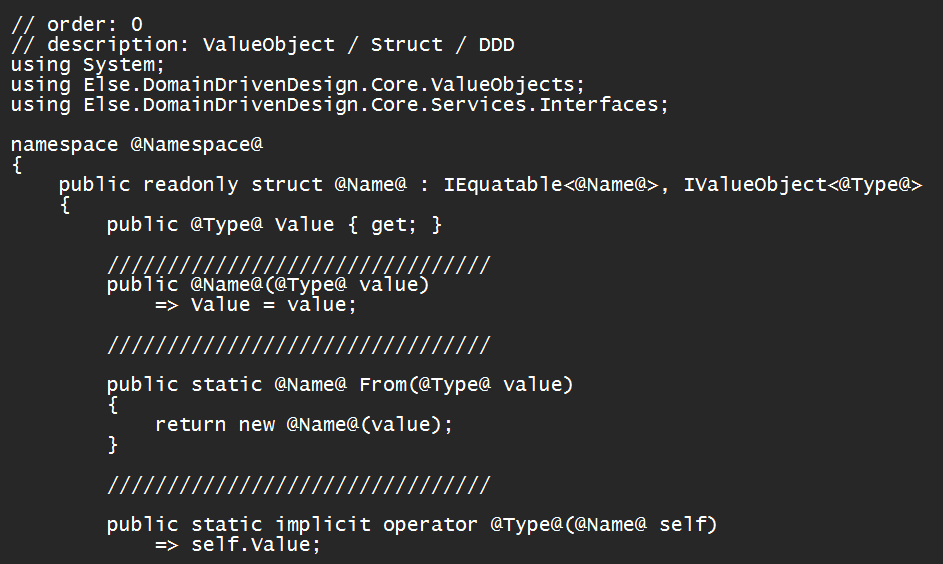
Step 1: Create Your First Template
Press ALT + Q and use the + option to create a new template:
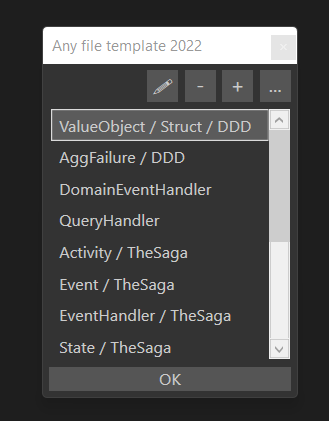
Step 2: Select and Use Your Template
Press ALT + Q again to select from available templates:
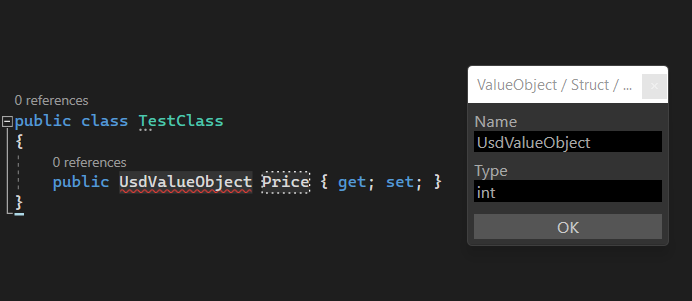
Step 3: Fill in Parameters
Complete the custom fields you defined in your template:
📚 Features
🎯 Three Types of Template Matching
1. Exact Match
Template name matches file name exactly.
Example:
- Creating
Dockerfile → uses dockerfile.txt template
- Creating
.gitignore → uses gitignore.txt template
2. Convention Match (Pattern-based)
Template matches file name pattern - perfect for architectural patterns!
Example:
- Creating
UserRepository.cs → uses repository.txt template
- Creating
OrderRepository.cs → uses repository.txt template
- Any file ending with "Repository" will automatically use this template
3. Extension Match
Template matches file extension.
Example:
- Creating
MyClass.cs → uses cs.txt template
- Creating
styles.css → uses css.txt template
🔧 Template Parameters
Use powerful placeholders in your templates:
| Placeholder |
Description |
Example |
@Name@ |
File name without extension |
UserRepository |
@Namespace@ |
Current namespace based on project structure |
MyApp.Services.Users |
@Type@ |
Custom parameter for type definitions |
string, int, Guid |
$ |
Cursor position after file creation |
Places cursor here |
Add metadata at the top of your templates:
// order: 100           // Display order in template list (lower = higher priority)
// description: Class   // Friendly name shown in template selector
// filter-folder: Models // Only show this template when creating files in specific folders
📦 Default Templates Included
This extension comes with 4 built-in templates for C# development:
1. Class Template (Class.cs)
// order: 100
// description: Class
using System;

namespace @Namespace@
{
    public class @Name@
    {
        public @Name@()
        {
            $
        }
    }
}
2. Interface Template (Interface.cs)
// order: 100
// description: Interface
using System;

namespace @Namespace@
{
    public interface @Name@
    {
        $
    }
}
3. Value Object Template (ValueObject.cs)
// order: 0
// description: &ValueObject
// filter-folder: ValueObjects
using System;

namespace @Namespace@
{
    public class @Name@
    {
        public @Type@ Value { get; set; }

        public @Name@(@Type@ value)
        {
            this.Value = value;
        }
    }
}
🎨 Creating Project-Specific Templates
Method 1: Using the Extension (Recommended)
- Press ALT + Q
- Click the + button
- Define your template with parameters
- Save to
.templates folder
Method 2: Manual Setup
Create a .templates folder at the root of your project:
YourProject/
├── .templates/
│   ├── cs.txt              # For all .cs files (extension match)
│   ├── repository.txt      # For *Repository.cs files (convention match)
│   ├── controller.txt      # For *Controller.cs files (convention match)
│   ├── Dockerfile.txt      # For exact "Dockerfile" match
│   └── .gitignore.txt      # For exact ".gitignore" match
└── src/
    └── YourCode/
Example: Repository Template (.templates/repository.txt):
// order: 10
// description: Repository Pattern
using System;
using System.Collections.Generic;
using System.Threading.Tasks;

namespace @Namespace@
{
    public interface I@Name@
    {
        Task<@EntityType@> GetByIdAsync(@IdType@ id);
        Task<IEnumerable<@EntityType@>> GetAllAsync();
        Task AddAsync(@EntityType@ entity);
        Task UpdateAsync(@EntityType@ entity);
        Task DeleteAsync(@IdType@ id);
    }

    public class @Name@ : I@Name@
    {
        $
    }
}
When you create UserRepository.cs, you'll be prompted to fill:
@EntityType@ → User@IdType@ → Guid
🚀 Advanced Features
📁 Create Nested Folder Structures
Use forward slashes to create files in nested folders (auto-creates missing folders):
Example:
models/entities/User.cs
Creates: models/ → entities/ → User.cs
📂 Create Empty Folders
End the name with / to create a folder:
Example:
services/api/
Creates nested folders without files.
🌟 Dot Files Support
Easily create configuration files starting with a dot:
Examples:
.gitignore.editorconfig.dockerignore.env
🎯 Usage Examples
Example 1: Repository Pattern
- Press ALT + Q
- Type
UserRepository
- Select "Repository Pattern" template
- Fill parameters:
- Entity Type:
User
- ID Type:
Guid
- Done! Consistent repository created instantly.
Example 2: Quick Class Creation
- Press ALT + Q
- Type
models/dto/UserDto.cs
- Select "Class" template
- Extension auto-creates folders and namespace
💡 Pro Tips
🎨 Organize Templates by Domain
.templates/
├── domain/
│   ├── entity.txt
│   ├── valueobject.txt
│   └── aggregate.txt
├── application/
│   ├── handler.txt
│   ├── query.txt
│   └── handler.txt
└── infrastructure/
    ├── repository.txt
    └── service.txt
🔥 Use Filter-Folder for Context-Aware Templates
// filter-folder: Controllers
// Only show this template when creating files in "Controllers" folder
⚡ Template Priority with Order
// order: 0   // High priority - shown first
// order: 50  // Medium priority
// order: 100 // Low priority - shown last
🖥️ Compatibility
| Visual Studio Version |
Status |
| Visual Studio 2022 (Community, Pro, Enterprise) |
✅ Fully Supported |
| Visual Studio 2026 (Community, Pro, Enterprise) |
✅ Fully Supported |
Minimum Requirements:
- Visual Studio 2022 version 17.0 or later
- .NET Framework 4.7.2 or later
🤝 Contributing
Contributions are welcome! If you enjoy using this extension:
📝 License
This project is licensed under the MIT License - see the LICENSE file for details.
🙏 Acknowledgments
Based on the original "Add Any File" extension by Mads Kristensen.
Enhanced with:
- ✨ Custom template parameters
- 🎨 Template metadata support
- 📁 Advanced folder filtering
- 🚀 DDD/CQRS pattern support
📚 Additional Resources
Made with ❤️ for the Visual Studio community

