Theme Switcher+
Use shortcuts or commands to switch VS Code themes.
You can configure shortcuts to:
- cycle through all installed themes
- cycle through installed themes within one of VS Code's built-in groups: light, dark, or high contrast
- cycle through a specific list of themes configured in your
settings.json
- pick a random installed theme
- pick a random theme from a specific list
- switch to a specific theme
- apply any of the above either globally or only in the current workspace
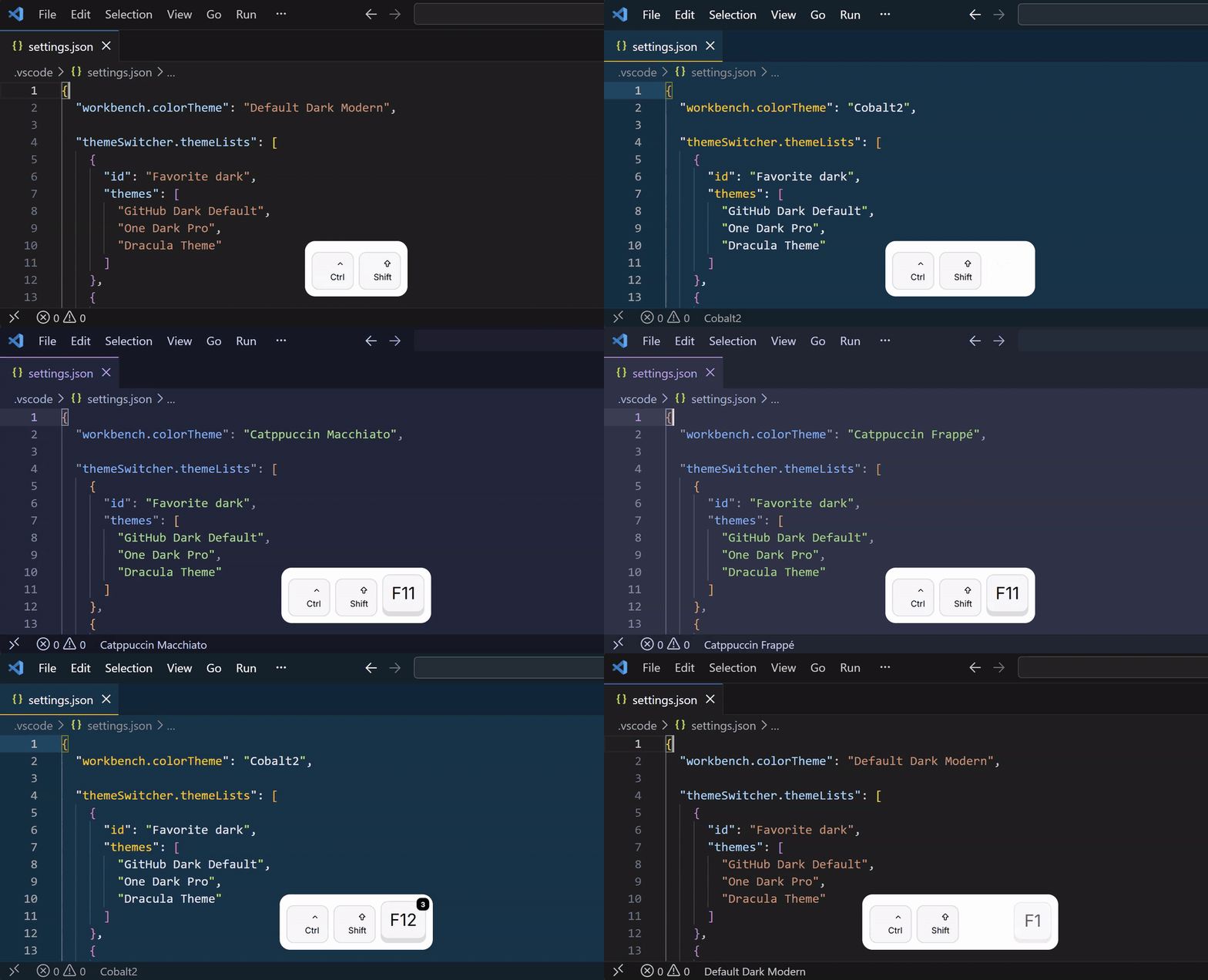
Quick start
- Add theme lists to your user or workspace VS Code
settings.json:
"themeSwitcher.themeLists": [
  {
    "id": "Favorite dark", // any name you want; used in keybindings
    "themes": [
      "GitHub Dark Default", // Theme names must match the names shown in "Preferences: Color Theme"
      "One Dark Pro",
      "Dracula Theme"
    ]
  },
  {
    "id": "Favorite light",
    "themes": [
      "Slack Theme Hoth",
      "Atom One Light"
    ]
  }
]
If you define themeSwitcher.themeLists in both user settings and workspace settings, the lists are merged. Workspace lists override user lists with the same id.
- Add shortcuts in
keybindings.json:
// Cycle through a configured list:
{
  "key": "ctrl+shift+f9",
  "command": "themeSwitcher.nextThemeInList",
  "args": {
    "listId": "Favorite dark", // list id defined in settings.json
    "scope": "global" // settings target. Default is "auto"; see below.
  }
},
{
  "key": "ctrl+shift+f8",
  "command": "themeSwitcher.previousThemeInList",
  "args": {
    "listId": "Favorite dark",
    "scope": "global"
  }
},

// Switch directly to a specific theme:
{
  "key": "ctrl+shift+f1",
  "command": "themeSwitcher.setTheme",
  "args": { "theme": "Default Dark Modern" }
},

// Cycle through installed themes:
{
  "key": "ctrl+shift+f4",
  "command": "themeSwitcher.nextInstalledTheme",
  "args": { "group": "dark" } // omit "group" to cycle through all installed themes
},
{
  "key": "ctrl+shift+f3",
  "command": "themeSwitcher.previousInstalledTheme",
  "args": { "group": "dark" }
},

// Pick a random theme from installed themes
{
  "key": "ctrl+shift+f2",
  "command": "themeSwitcher.randomInstalledTheme",
  "args": { "group": "dark" } // omit "group" to pick from all installed themes
},

// Pick a random theme from a configured list:
{
  "key": "ctrl+shift+f7",
  "command": "themeSwitcher.randomThemeInList",
  "args": { "listId": "Favorite dark" }
},
The selected theme name is shown briefly in the status bar.
Default shortcuts
Default shortcuts are intentionally minimal. Most shortcuts in this extension are meant to be user-defined so they can match your own theme lists and workflow.
- Previous installed theme -
Ctrl+Shift+F11
- Next installed theme -
Ctrl+Shift+F12
Installed-theme cycling is sorted alphabetically within each group: light, dark, high contrast, then any remaining themes. Theme-list cycling follows the order you define in themeSwitcher.themeLists.
Command args
When you define a shortcut in keybindings.json, you can pass command arguments.
For themeSwitcher.nextThemeInList / themeSwitcher.previousThemeInList / themeSwitcher.randomThemeInList:
listId: the list id defined in themeSwitcher.themeLists[].id in settings.json. Omit it to pick a list from the Command Palette.scope: auto, global, workspace
For themeSwitcher.nextInstalledTheme / themeSwitcher.previousInstalledTheme / themeSwitcher.randomInstalledTheme:
group: light, dark, highContrast. Omit it to cycle through all installed themes.scope: auto, global, workspace
For themeSwitcher.setTheme:
theme: the exact theme name to switch toscope: auto, global, workspace
How scope: "auto" works:
- if
workbench.colorTheme is already set in workspace settings, update workspace settings
- if it is already set in global settings, update global settings
- if it is unset, use workspace settings when a workspace is open; otherwise use global settings
Development
pnpm install
pnpm run check
Package the extension with:
pnpm run package
Package and install the current VSIX into local VS Code with:
pnpm run install-local

