AWS CloudView
AWS CloudView brings AWS exploration and resource management directly into Visual Studio Code, so you can stay in the editor instead of bouncing to the AWS Management Console.
Explore services, browse regions and profiles, and open rich HTML webviews for each resource (and for whole services)—plus dependency graphs, CloudWatch logs, and common actions—all from the CloudView activity bar.
Key features
- Activity bar integration — Dedicated CloudView sidebar with Services, Region, and AWS Profile views.
- Multi-profile & multi-region — Select AWS profiles and regions; discovery respects your choices.
- Resource discovery — Cached discovery with configurable TTL and concurrency for AWS API calls.
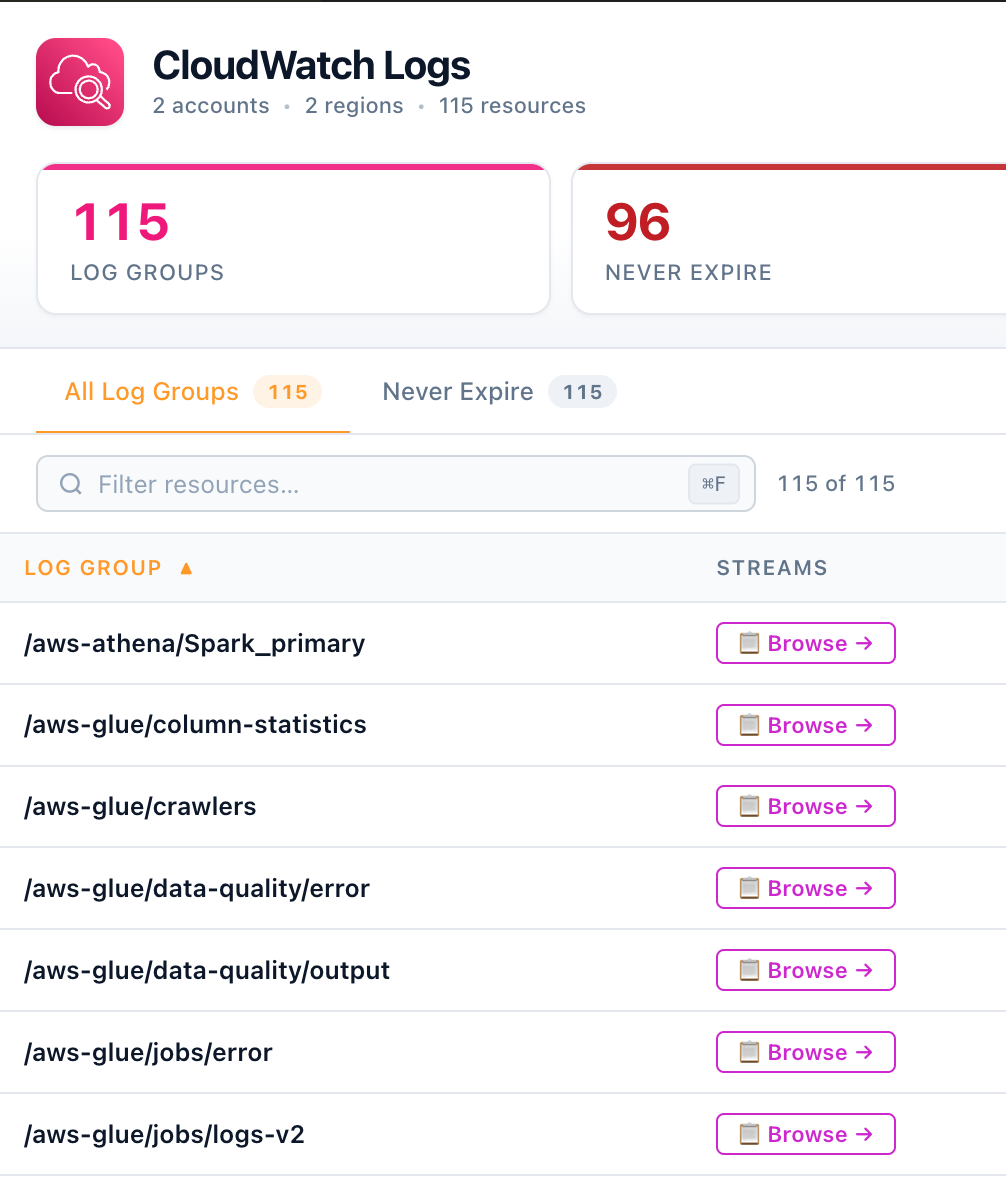
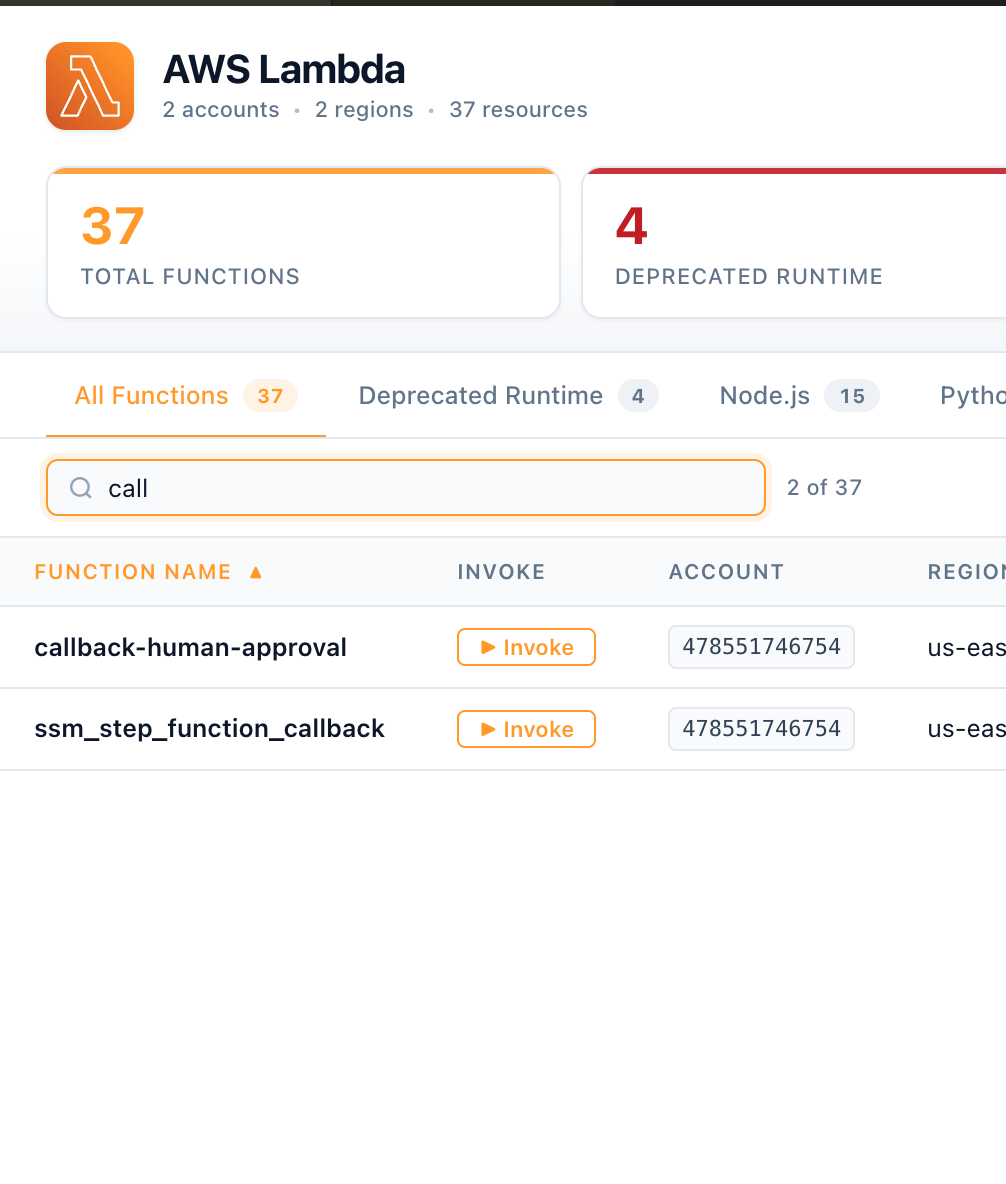
- Rich web UI per resource — Each resource can open in a dedicated webview with a tailored layout: tables, key fields, related data, and contextual actions instead of only tree labels.
- Service dashboards & graphs — Service-wide dashboards and interactive graph visualizations for how resources connect.
- CloudWatch Logs — Browse log groups/streams and view logs from the tree.
- Operational shortcuts — Invoke Lambda, browse S3 prefixes and upload, inspect ECR image tags, view ECS task definitions, and run a public-exposure check (where supported).
- Local cache — SQLite-backed cache for discovered resources, with manual refresh to get updated data from AWS so we can balance freshness with API rate limits and performance.
- Keyboard shortcut — Refresh resources from the Services view: Cmd+Shift+R (macOS) / Ctrl+Shift+R (Windows/Linux).
Web views
Requirements
- Visual Studio Code
^1.85.0 (see engines.vscode in this repo).
- AWS credentials — Standard shared config/credentials (for example
~/.aws/config and ~/.aws/credentials) or other mechanisms supported by the AWS SDK for JavaScript v3 credential providers.
Installation
- Open VS Code.
- Go to Extensions (
Ctrl+Shift+X / Cmd+Shift+X).
- Search for AWS CloudView (or install from a
.vsix produced by npm run package).
After install, open the CloudView icon in the activity bar. If no profiles appear, configure AWS credentials and use CloudView: Open Welcome Guide from the Command Palette (Ctrl+Shift+P / Cmd+Shift+P).
Usage
Getting started
- Select profiles — Command Palette → CloudView: Select AWS Profiles, or use the welcome actions in the sidebar.
- Choose regions — Use the Region view or settings (
cloudView.aws.regions).
- Refresh — CloudView: Refresh Resources or the refresh button on the Services view title bar.
- Explore — Expand services in the Services tree; open a resource to get its rich webview UI, or use context actions for dashboards, graphs, logs, and other tools.
Useful commands
| Command |
Purpose |
| CloudView: Select AWS Profiles |
Choose which profiles to use |
| CloudView: Refresh Resources |
Re-run discovery for the current scope |
| CloudView: Open Service Dashboard |
Open detail view for a service node |
| CloudView: Open Graph View / Open Service Graph |
Open relationship graphs |
| CloudView: View CloudWatch Logs |
Logs integration |
| CloudView: Browse Log Streams |
Pick streams within a log group |
| CloudView: Invoke Lambda Function |
Trigger a function from the UI |
| CloudView: Browse S3 Prefixes & Upload |
S3 prefix navigation and upload |
| CloudView: View ECR Image Tags |
ECR tag listing |
| CloudView: View ECS Task Definition |
Inspect ECS task definitions |
| CloudView: Check Public Exposure |
Security-oriented check where applicable |
| CloudView: Clear Local Database |
Reset cached discovery data |
| CloudView: Open Welcome Guide |
Onboarding and tips |
Run any command via View → Command Palette… and type CloudView:.
Configuration
Settings are under Settings → Extensions → CloudView (or edit settings.json).
| Setting |
Type |
Default |
Description |
cloudView.aws.regions |
string[] |
["us-east-1","us-west-2"] |
Regions to browse. A logical global scope is still used for services such as IAM and S3 where applicable. |
cloudView.cache.defaultTtlSeconds |
number |
300 |
Cache lifetime for discovered resources (30–3600 seconds). |
cloudView.scheduler.globalConcurrency |
number |
8 |
Max concurrent AWS API calls across services (1–32). |
cloudView.scheduler.serviceConcurrency |
object |
Per-service map (e.g. ec2, iam, s3, sts) |
Per-service API concurrency caps. |
cloudView.graph.defaultExpandDepth |
number |
1 |
Default BFS depth when expanding nodes in the graph (1–5). |
Proxy settings
This extension uses the AWS SDK for JavaScript v3 inside the VS Code extension host. There is no separate “CloudView proxy” setting; proxies are typically honored via environment variables and your OS/IDE configuration:
HTTPS_PROXY / HTTP_PROXY — Standard proxy URL for outbound HTTPS/HTTP.NO_PROXY — Optional comma-separated hosts to bypass the proxy.
VS Code: You can set http.proxy in user settings for the editor’s own HTTP client; extension hosts often inherit the same environment as your shell when VS Code is launched. If you rely on a corporate proxy, configure it in the environment used to start VS Code (or your system proxy), and ensure AWS endpoints are allowed.
For SSO or custom credential flows behind a proxy, follow AWS documentation for your credential source in addition to the variables above.
Troubleshooting
Common issues
No AWS profiles in the sidebar
- Confirm
~/.aws/config and/or ~/.aws/credentials exist and contain valid profiles.
- Restart VS Code after changing credential files.
- Run CloudView: Open Welcome Guide for setup hints.
Empty Services tree after refresh
- Verify the selected profile has permissions for the services you expect in the chosen regions.
- Try CloudView: Clear Local Database, then refresh.
- Check the Output panel for extension logs if your build surfaces them there.
Throttling or slow discovery
- Lower
cloudView.scheduler.globalConcurrency or per-service limits in cloudView.scheduler.serviceConcurrency.
- Increase
cloudView.cache.defaultTtlSeconds if stale data is acceptable for your workflow.
SSL or connection errors behind a proxy
- Set
HTTPS_PROXY / NO_PROXY appropriately and restart VS Code from a shell where those variables are defined.
- Confirm firewall rules allow
*.amazonaws.com (and regional endpoints) as required by your organization.
Graph or webview panels not loading
- Ensure VS Code is not blocking webviews; try disabling conflicting security software temporarily to test.
- Update to a supported VS Code version per
package.json engines.vscode.
Contributing & support
- Repository: See
repository, bugs, and homepage in package.json for links.

