Harmonia Zen
An immersive, distraction-free coding environment for Visual Studio Code with customizable Zen Mode and integrated Pomodoro timer.
Why Harmonia Zen?
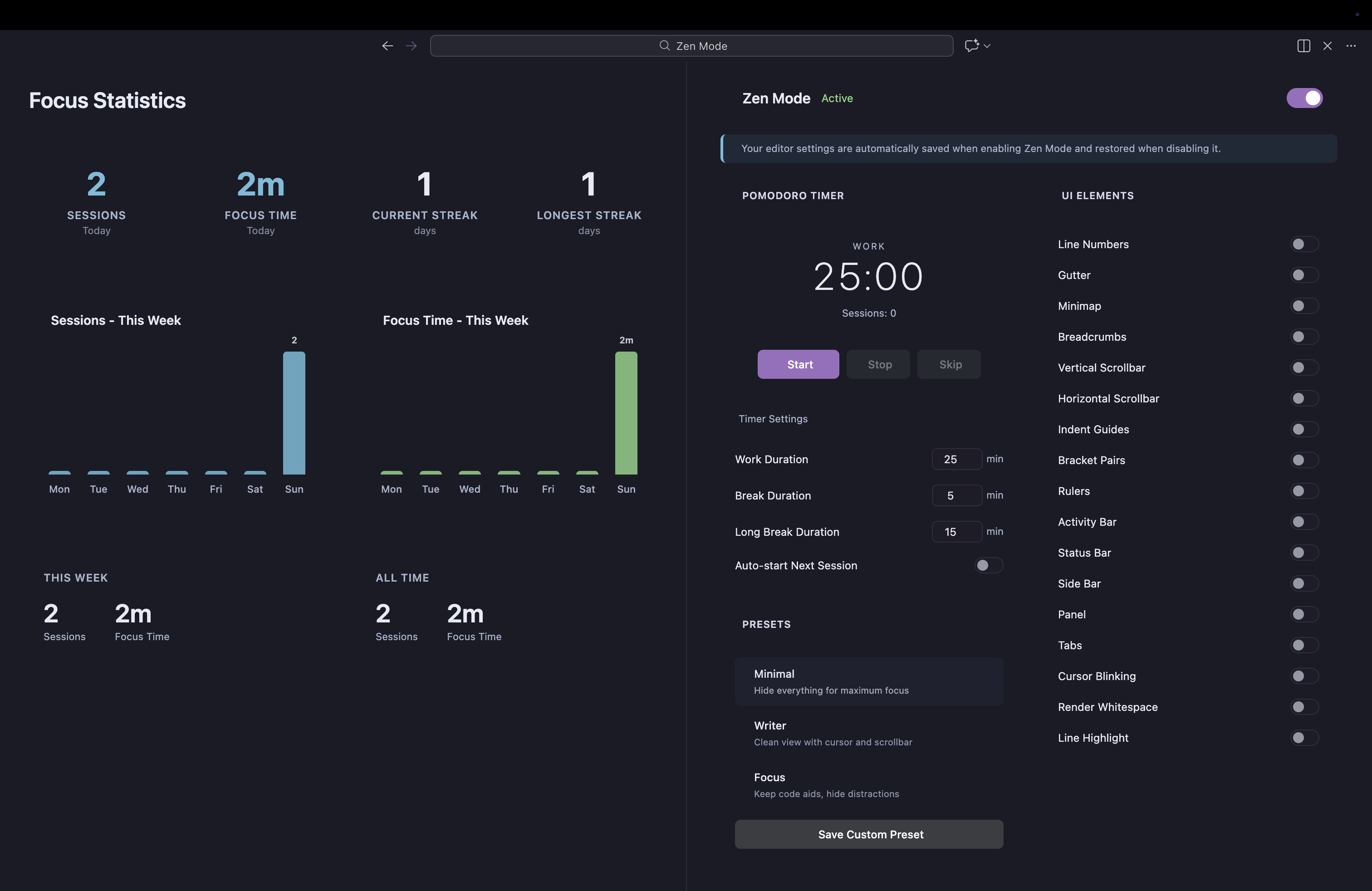
VS Code includes a built-in Zen Mode that hides UI elements for distraction-free coding. Harmonia Zen builds on this concept by giving you granular control over exactly what stays and what goes, paired with productivity tools to help structure your focus sessions.
What Harmonia Zen adds:
- Selective UI control - Choose exactly which 17 UI elements to show or hide, rather than an all-or-nothing approach
- Settings preservation - Your original settings are automatically saved and restored when toggling Zen Mode
- Preset profiles - Switch between different configurations instantly (Minimal, Writer, Focus, or your own custom presets)
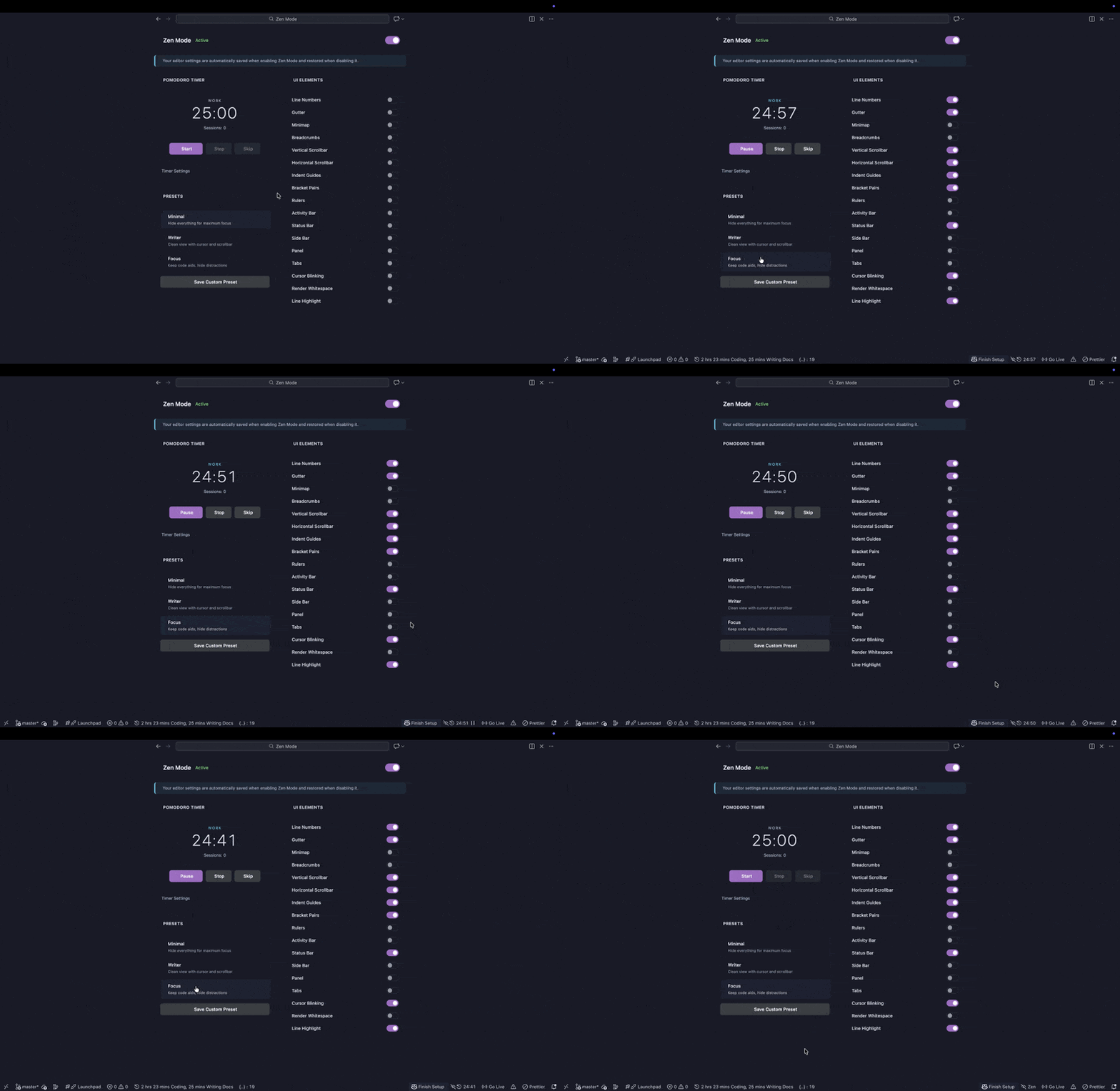
- Integrated Pomodoro timer - Structure your work with timed focus sessions and breaks
- Focus statistics - Track your productivity with daily, weekly, and all-time metrics
- Visual feedback - See your progress with charts and streak tracking
Features
Zen Mode Panel
A sleek control panel where you configure your distraction-free environment. Toggle individual UI elements on or off to create your perfect workspace.
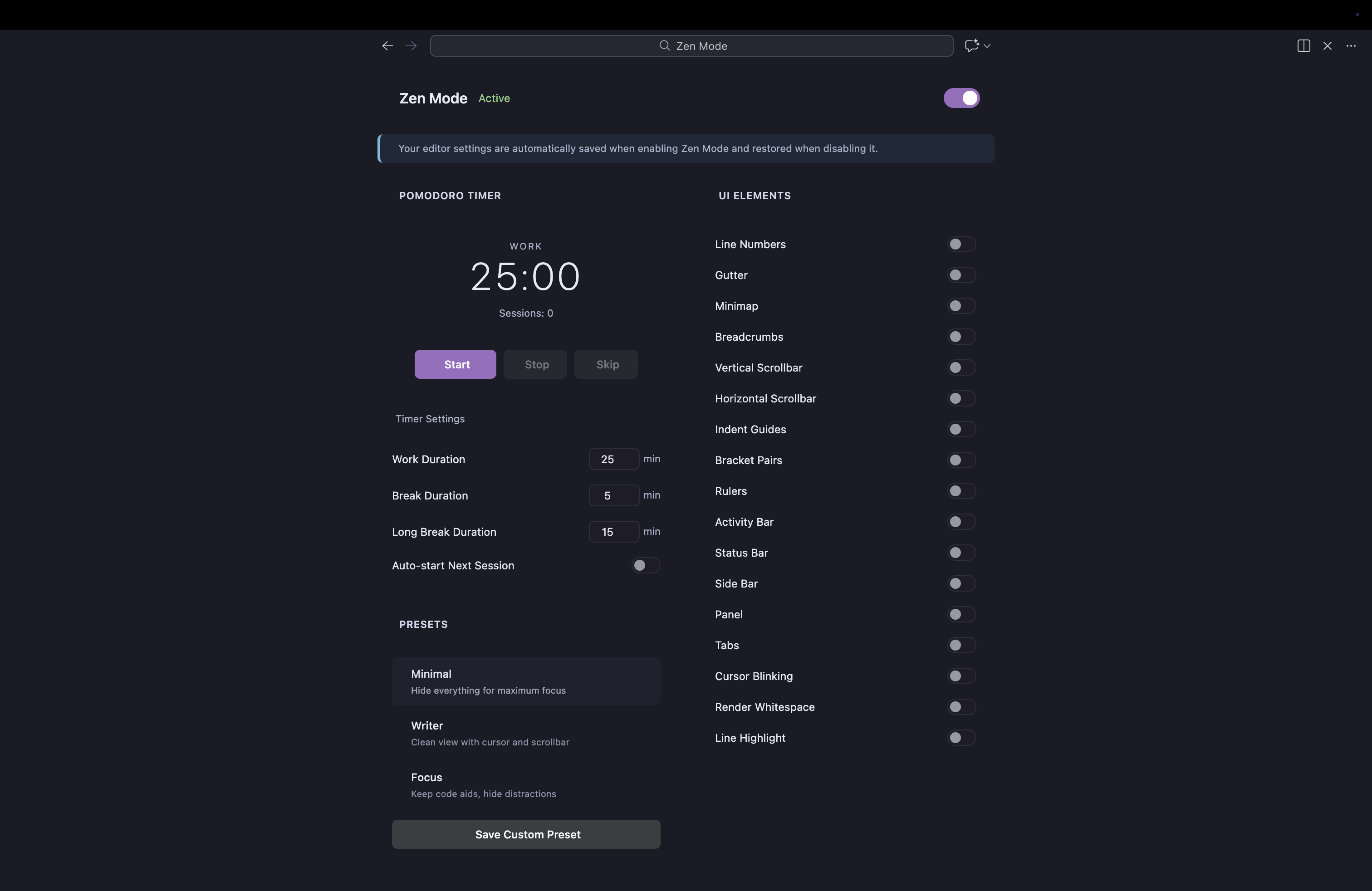
Controllable elements:
- Editor: Line Numbers, Gutter, Minimap, Breadcrumbs, Indent Guides, Bracket Pairs, Rulers
- Scrollbars: Vertical and Horizontal
- Workbench: Activity Bar, Status Bar, Side Bar, Panel, Tabs
- Behavior: Cursor Blinking, Render Whitespace, Line Highlight
Preset Profiles
Quickly switch between different configurations:
| Preset |
Description |
| Minimal |
Hide everything for maximum focus |
| Writer |
Clean view with cursor and scrollbar |
| Focus |
Keep code aids, hide distractions |
| Custom |
Save your own configurations |
Pomodoro Timer
Structure your work with the Pomodoro Technique:
- Work sessions (default 25 minutes)
- Short breaks (default 5 minutes)
- Long breaks (default 15 minutes, after 4 sessions)
- Customizable durations
- Auto-start option for continuous flow
- Session counter to track completed pomodoros
- Status bar integration for quick access
Focus Statistics
Track your productivity journey with detailed statistics:
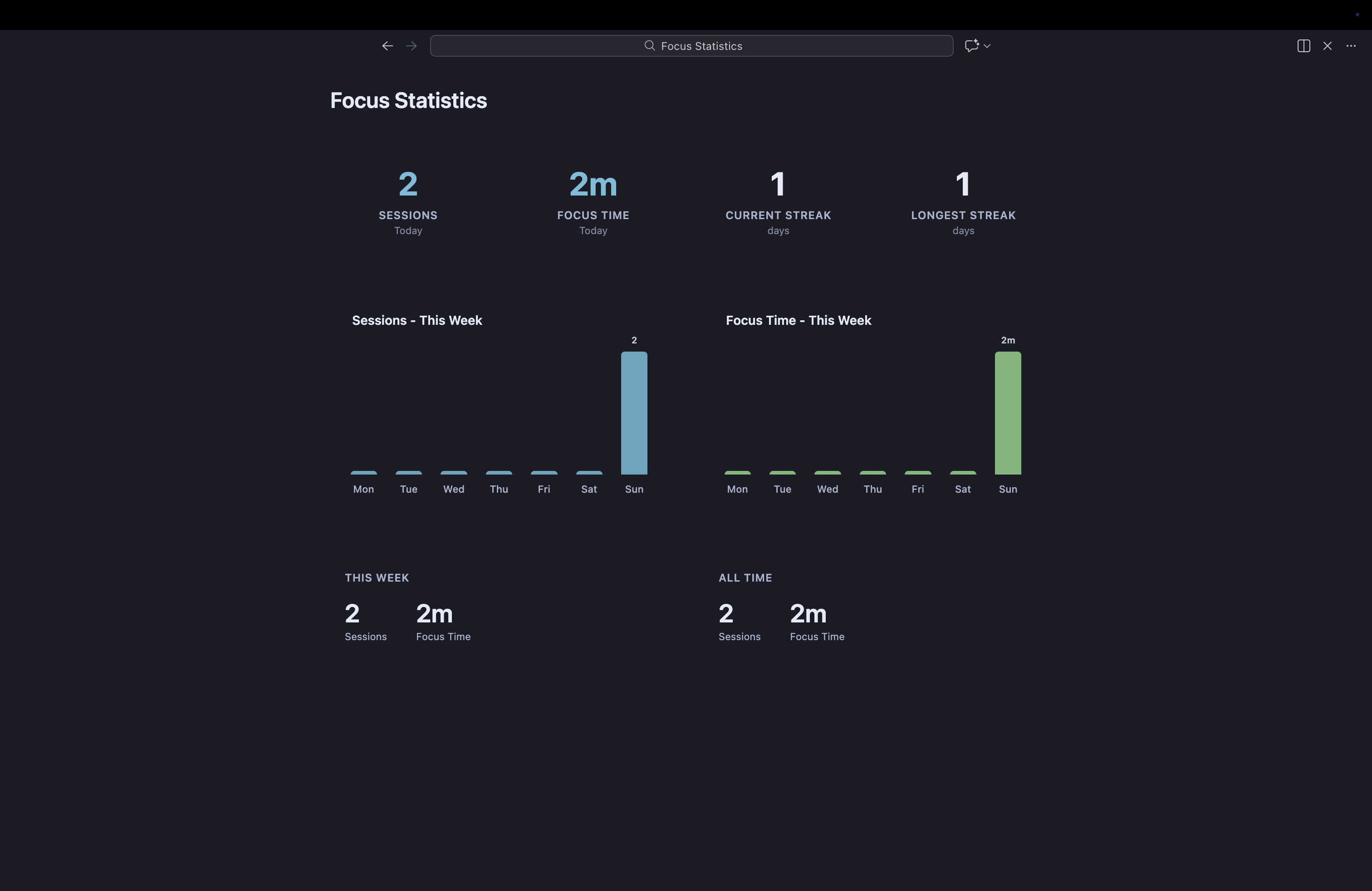
- Today's progress - Sessions and focus time
- Streak tracking - Current and longest streaks
- Weekly overview - Visual bar charts of your last 7 days
- All-time totals - Cumulative statistics
- Data stored locally (no cloud, no telemetry)
Installation
- Open VS Code
- Go to Extensions (
Cmd+Shift+X / Ctrl+Shift+X)
- Search for "Harmonia Zen"
- Click Install
Usage
Quick Start
- Open the Zen Mode Panel: Press
Cmd+Alt+Shift+Z (Mac) or Ctrl+Alt+Shift+Z (Windows/Linux)
- Toggle Zen Mode: Click the toggle switch or press
Cmd+Alt+Z / Ctrl+Alt+Z
- Customize: Adjust individual UI element toggles to your preference
- Save a preset: Click "Save Custom Preset" to save your configuration
Pomodoro Timer
- Start: Click the Start button or press
Cmd+Alt+P / Ctrl+Alt+P
- Pause/Resume: Click again or use the same shortcut
- Stop: Press
Cmd+Alt+S / Ctrl+Alt+S
- Skip session: Press
Cmd+Alt+N / Ctrl+Alt+N
The timer also appears in the status bar for quick access. Click it to open the Zen Panel.
Status Bar Visibility
Control when the timer appears in the status bar via harmoniaZen.statusBar.timerVisibility:
| Option |
Behavior |
always |
Always show the status bar item |
auto (default) |
Show only when timer is running |
hidden |
Never show the status bar item |
Using with Harmonia Focus? Both extensions default to auto mode. When both timers are running, Zen Pomodoro takes priority and Focus Eye Break hides its status bar item to avoid clutter.
View Statistics
Open the Command Palette (Cmd+Shift+P / Ctrl+Shift+P) and run:
Harmonia Zen: Show Focus Statistics
Keyboard Shortcuts
| Action |
Mac |
Windows/Linux |
| Toggle Zen Mode |
Cmd+Alt+Z |
Ctrl+Alt+Z |
| Open Panel |
Cmd+Alt+Shift+Z |
Ctrl+Alt+Shift+Z |
| Toggle Timer |
Cmd+Alt+P |
Ctrl+Alt+P |
| Stop Timer |
Cmd+Alt+S |
Ctrl+Alt+S |
| Skip Session |
Cmd+Alt+N |
Ctrl+Alt+N |
Commands
All commands are available in the Command Palette under the "Harmonia Zen" category:
Open Zen Mode PanelToggle Zen ModeStart Pomodoro TimerPause Pomodoro TimerStop Pomodoro TimerToggle Pomodoro Timer (Start/Pause)Reset Pomodoro TimerSkip Current SessionApply PresetShow Focus Statistics
Languages
Harmonia Zen supports:
- English (default)
- Spanish
The language is automatically detected from your VS Code settings.
Privacy
Harmonia Zen respects your privacy:
- No telemetry - Zero data collection or transmission
- Local storage only - All settings and statistics are stored locally
- No cloud sync - The extension does not communicate externally
- Transparent - You can see exactly what settings are changed
Contributing
Contributions are welcome! Please visit the GitHub repository to report issues or submit pull requests.
License
MIT License - see LICENSE for details.
Remember: The best productivity tool is one that disappears when in use. Focus on your work, not your tools.
Demo