AGL Agent ManagerRun a team of Claude Code, Codex and Kimi agents from VS Code: isolated worktree folders, one sidebar with teams, an agent portal for status and messages, and Gemini voice. Installation Launch VS Code Quick Open ( Ctrl+P), paste the following command, and press enter.Copied to clipboard |

AGL Agent Manager
Run a team of AI coding agents from VS Code. Claude Code, Codex and Kimi Code agents each get their own folder of git worktrees, appear together in one sidebar, and talk to each other and to you through a shared agent portal. You see at a glance who is working, who is idle and who needs you, and you can listen to replies or talk back by voice.
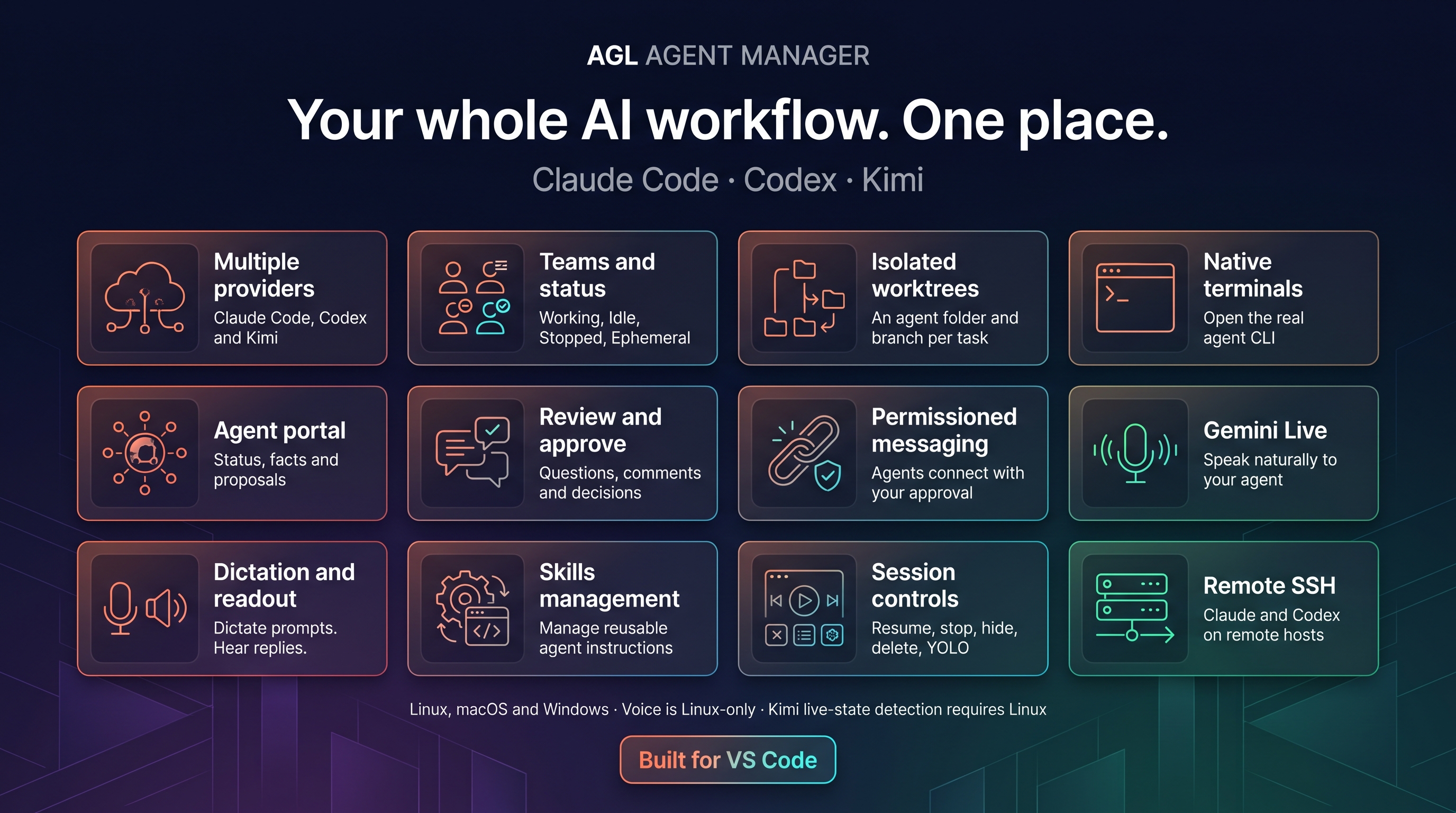
The full workflow
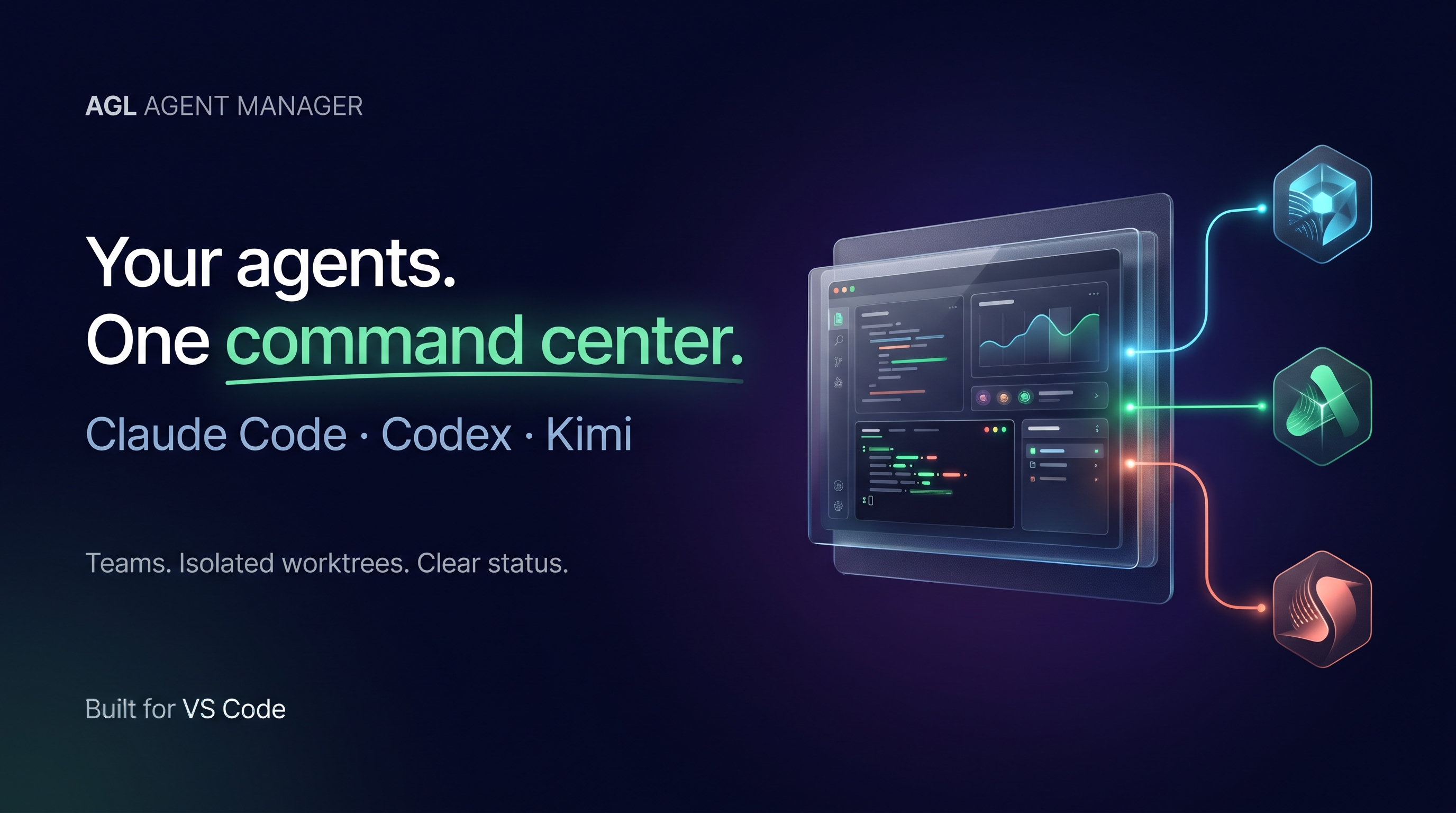
The two pitch images are promotional artwork generated with Google Nano Banana Pro. The screenshots below show the actual interfaces with sample data.
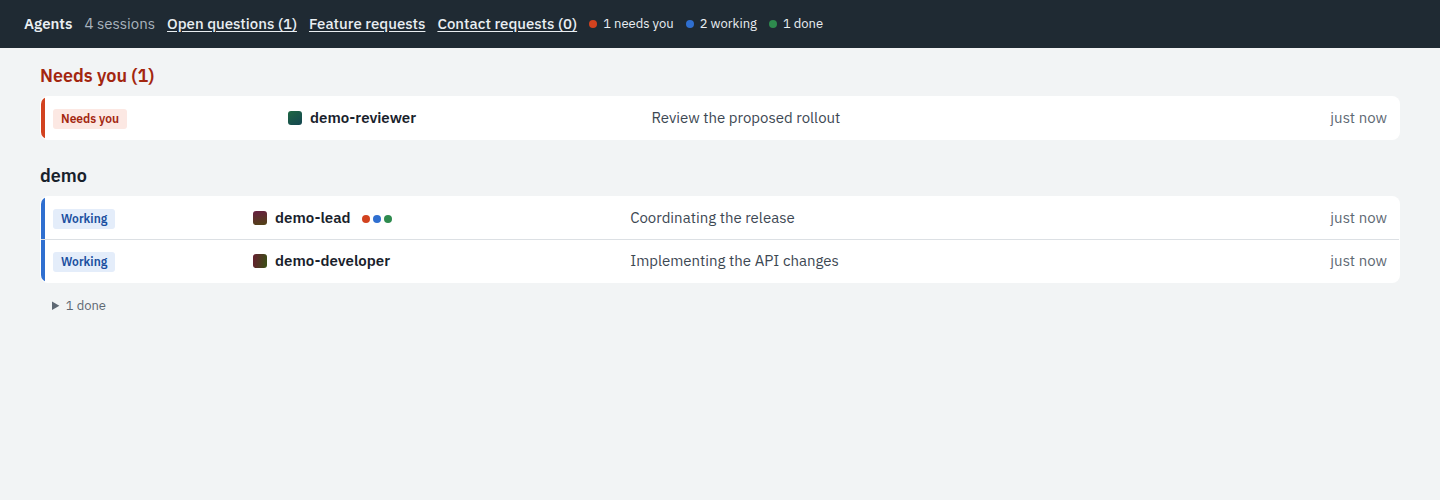
The core extension supports Linux, macOS and Windows. Voice is Linux-only. Kimi live-state detection requires Linux; Kimi SSH is not supported. ScreenshotsThese screenshots show the actual product interfaces with sample agents and sample conversations. They contain no private workspace data. Team overview in the agent portalSee who is working, who finished, and who needs your attention.
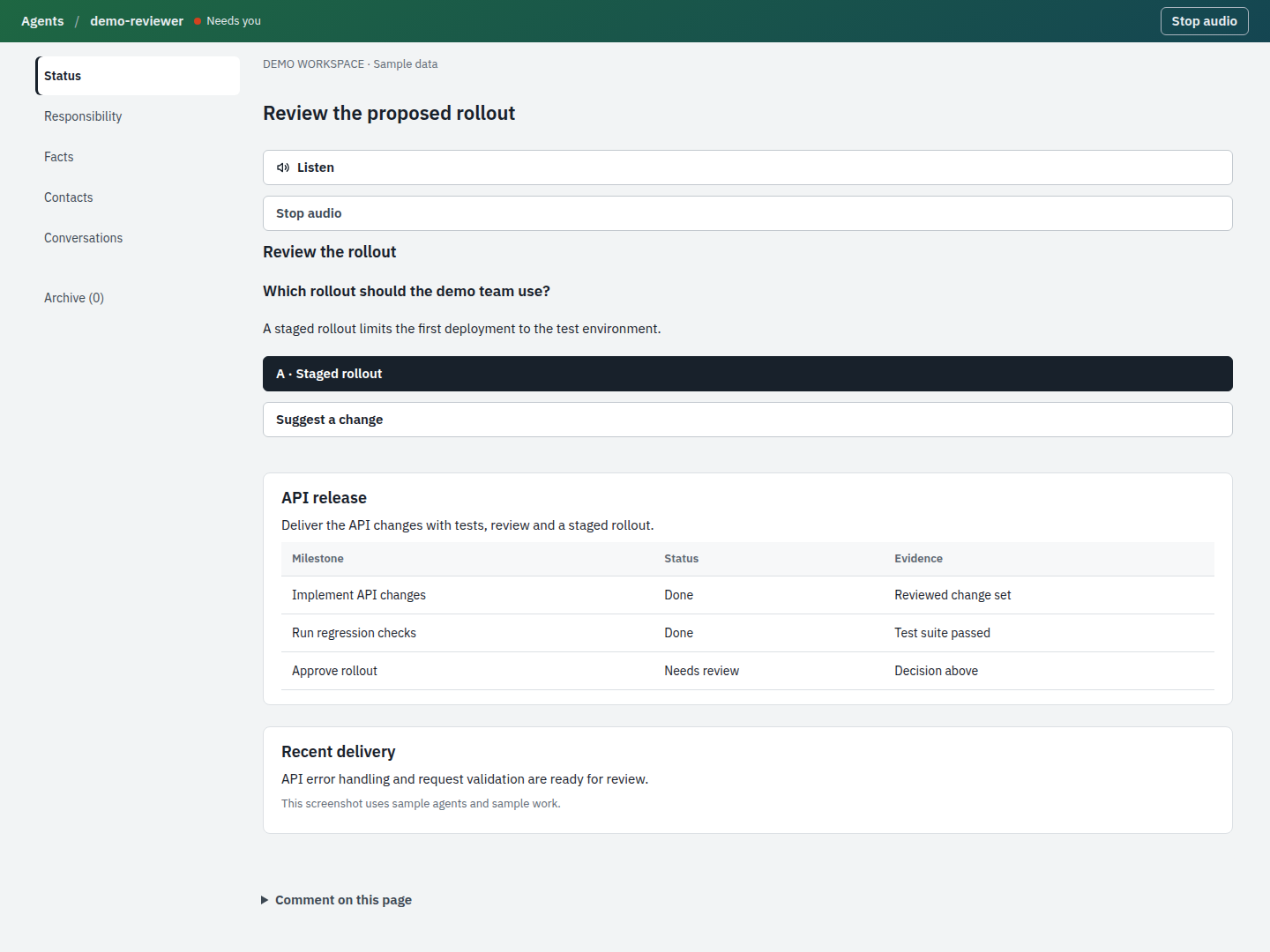
Review status and decisionsRead each agent’s progress, inspect evidence, and approve or comment on proposed work.
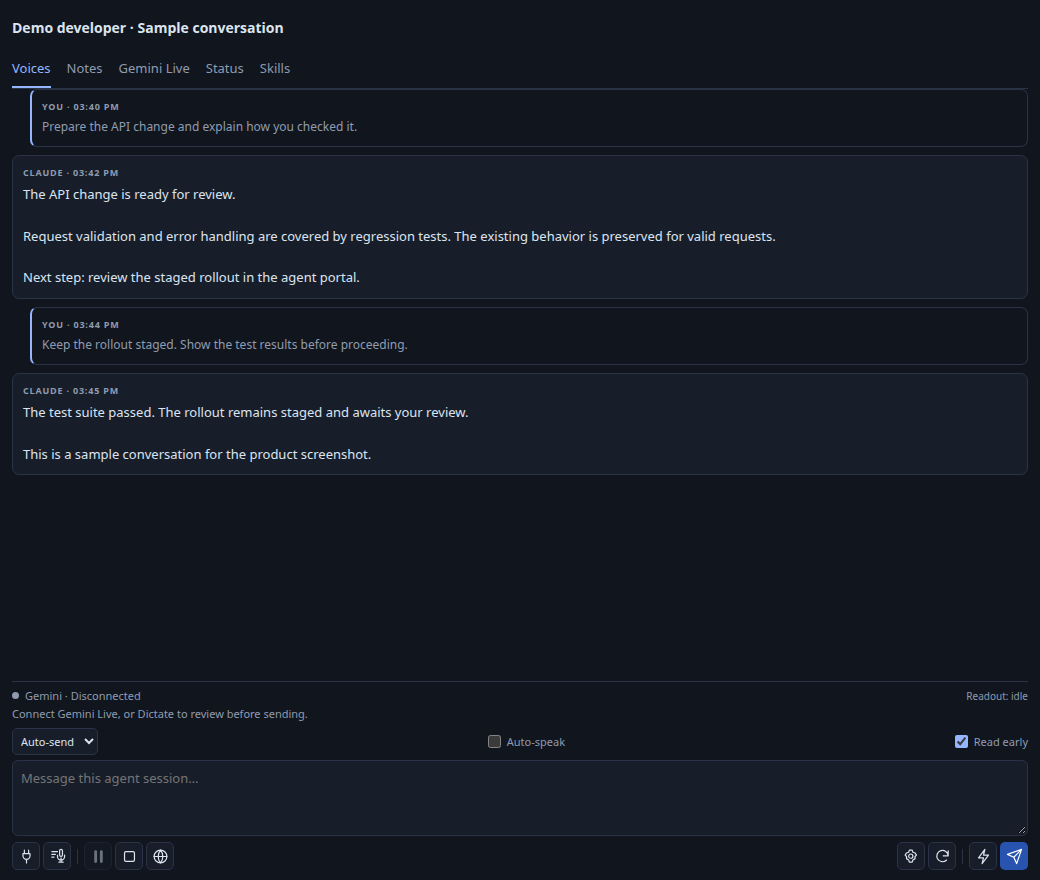
Replies and voice controlsRead full replies and compose the next prompt. Voice controls require your own API keys and currently support Linux. The screenshot uses the extension’s voice renderer with a sample message bridge; Gemini is disconnected.
What changed in 0.14.16Stopped managed agents remain visible by default. Existing team members stay assigned when a newer transcript copy exists. Agent providers populate the list independently, and a failed refresh keeps the previous list visible with a warning. Explicit sidebar filters remain respected. Select All to include stopped agents. Quick start
Needs Python 3 ( Platforms
The automated tests run on all three systems for every change. Day-to-day use has been on Linux; please report anything that misbehaves on macOS or Windows. The prompt hooks call InstallInstall AGL Agent Manager (publisher Agentlabs) from the Visual Studio Marketplace, or download a VSIX from GitHub Releases as below. What it changes outside VS Code. On activation it installs and keeps current, in your home folder:
Moving from a VSIX installed before 0.14.12 (ID Download the latest VSIX from GitHub Releases. For Remote SSH, install the VSIX locally in VS Code. Voice playback runs on the local computer.
Terminal alternative:
Claude workspace trustRun AGL Agent Manager: Trust This Workspace for Claude from the Command Palette or the … menu in either agent sidebar. If a launch reports missing trust, select Trust Workspace and Retry to approve the parent and continue automatically. The action approves the canonical parent workspace, even when invoked from an agent folder. It merges the trust flag into Claude’s configuration on the machine running the agents; SSH workspaces update the remote configuration. Other configuration entries are kept. No agent is started or interrupted. Ordinary session subfolders inherit parent trust. Nested Git repositories and some project permissions can still require their own approval. This action does not enable YOLO mode. Codex sessionsClaude, Codex and Kimi appear together in AGL Agent Manager, limited to managed .sessions folders and their descendants. Providers in extension settings can show either provider alone. A missing provider does not hide sessions from the other one. Open a Codex row to launch Use + → Codex, AGL Agent Manager: New Codex Session, or New Codex Session (YOLO) to create a session.
Use Restart Session in YOLO Mode to interrupt the selected active turn and resume the same session with YOLO permissions. Ordinary opening attaches to a running session without interrupting it.
Codex YOLO uses The local or SSH host needs Codex with the shared daemon API (verified with 0.166.0). New Codex sessions start the daemon when necessary. AGL Agent Manager: Start Codex Daemon starts it explicitly for discovery. The microphone and Gemini key stay on the local VS Code computer. Codex history and native terminal traffic use SSH for remote folders. Official Codex app-server documentation. Workspace sessionsAGL Agent Folders uses the AgentLabs logo for each agent folder and creates isolated folders of repository worktrees. Workspace isolation itself needs no skill; the
The default base is main, using origin/main when origin exists. Set Workspace Base Branch for another branch. When adding a worktree, its canonical clone must be clean and on that branch; canonical working trees are not switched, edited or built. The helper discovers repositories dynamically. Adding a worktree fetches the configured base branch and updates the session manifest. Failed additions roll back only newly created worktrees and preserve existing edits; retained paths are reported. Each new session contains .agl-session.json, AGENTS.md, CLAUDE.md, and the portable .agl/workspace.cjs helper. The instructions tell the agent how to discover repositories and run add [repo-name...] with the recorded Node runtime. The manifest starts with an empty repository list and records worktrees as the agent adds them. The manifest records native conversation IDs after launch for later resume. Existing .sessions// directories are recognized even without a manifest. Worktree metadata is discovered from their canonical clones; no skill or manual migration is needed. For example, VS Code remains open at workspace-eb, while Claude agent eb-dev runs in workspace-eb/.sessions/claude/eb-dev/ and appears in that same window’s manager. Multiple agents remain visible there together. Existing older folders with ID suffixes remain supported and are not renamed. Working directory and history are separate. A new agent starts in the specific session folder. Its conversation history stays in the native agent data directory on the machine running it, rather than being copied into the workspace folder. Existing agents are not moved, stopped, or deleted. The agent list excludes agents outside .sessions, including those started directly in the canonical workspace. Closed histories remain visible while their workspace folder still exists. Select an agent-folder row to start or resume its agent in the same window. Repeating New Agent with an existing agent type and name opens that folder, including after a failed first launch. Repeated clicks share the same pending launch. Reveal Agent Folder expands the folder in the existing Explorer. Creating or reopening agents never calls Open Folder or opens another VS Code window. Native launchers currently support Claude and Codex. Remove Agent Folder… checks all repositories before removing the first worktree. Running agents, dirty/untracked work, symbolic-link escapes, and unexpected files outside the repositories block removal. After confirmation, clean worktrees and ignored build outputs are removed; branches and native conversation history are kept. A later Git failure reports partial removal and preserves the remaining worktrees and metadata. Project skills or notes in the session must be moved or removed before cleanup. The workspace and skill engines use Node APIs and Git argument arrays, without Bash. SSH jobs use Node on PATH or VS Code Server’s bundled Node; Windows SSH runtime discovery uses PowerShell and the Remote SSH platform setting. The existing microphone and playback requirements are separate below. Linux and real SSH integration were tested; Windows and macOS host runs have not yet been performed. Skills GUISelect the Manage Skills book icon in the main manager toolbar, or run AGL Agent Manager: Manage Skills. AGL Skills manages folder-based skills separately from workspace isolation. It groups workspace and personal sources for Claude, Codex/shared AGENTS skills, and legacy Codex locations on the selected local or SSH host.
Save or discard unsaved skill edits before disabling or removing a skill. Changes affect future skill discovery; a running agent may need to reload or restart. Project skills are scoped to the selected workspace folder; personal skills apply on that host. Skills supplied by plugin catalogs and GitHub installation are not managed by this first GUI version. Skills for one agentThe Skills tab in a Claude session’s Voice pane lists the skills that agent can load: skills in its own folder, skills inherited from parent folders, personal skills and installed plugins. Switches apply to that agent only. They are saved as Source discovery follows Codex skills and Claude skills. Session instructions follow Codex AGENTS.md and Claude memory. Agent portal (status pages)Each session keeps its pages in
Delivery on every update. On start (so after every update) the extension installs its skills as whole folders stamped with its version into The Status tab in the Voice pane shows the same status for that agent. Local workspaces only for now; SSH sessions are not shown. Notes in Teams and groupsThe list splits into your teams and Ephemeral. Each has three groups: Working (in a turn, waiting on a permission prompt, or with a question for you), Idle (running between turns; open one to go straight to its terminal) and Stopped (no running process; open one to start it again). Rows are sorted by name inside each group, so a refresh never reshuffles the list. Every conversation starts as Ephemeral: copies, one-off runs and new agents alike. Right-click one and choose Add to Team… to put it in a team you pick or a new one. Right-click a team to Rename Team or Delete Team (its agents go back to Ephemeral). A conversation is in one team at a time. Teams are saved per workspace in Right-click a running agent for Stop Agent. It asks first, ends the current turn and process, and keeps the conversation to resume later. Closed and hidden sessionsThe default All sessions filter includes running sessions, saved Claude conversations, and closed or archived Codex conversations under existing .sessions workspace folders. The extension cannot recover history already removed by the agent. Use the Filter Sessions funnel in the view title to choose All, Running, Closed, or Hidden sessions. Right-click a session for Hide Session. This changes only this extension's view and keeps the conversation and any running task. Choose Hidden sessions, then right-click Restore Hidden Session to show it again. Delete Session… permanently removes the selected conversation after confirmation. A running agent is stopped first. For Codex, native deletion also removes spawned child sessions. For Claude background agents, native deletion may remove its managed worktree; the confirmation explains this before deletion. Saved interactive Claude conversations delete their transcripts while keeping project files. Opening an archived Codex conversation restores that same thread before opening its terminal. Folder scopeThe default scope is the active editor's workspace folder, or the first open folder. Right-click a canonical workspace or session folder and select Show AGL Agent Manager. AGL Agent Manager: Show Sessions in Workspace Folders restores the default scope. Canonical workspace paths resolve symbolic links. Managed session paths themselves must not be symbolic links. The list includes only agents whose working directories are inside a recognized .sessions folder; it includes descendant repository directories and excludes canonical clones. TerminalsThe extension reads native agent inventories and saved conversations, then applies .sessions directory boundaries before displaying or attaching them.
It attaches native background sessions with A live interactive session in tmux opens through a separate grouped tmux client. The extension checks the process ancestry before it attaches. A live session in another ordinary terminal cannot be attached. The extension reports this limitation and prevents a duplicate resume. YOLO modeRun AGL Agent Manager: New Agent Session (YOLO) to create a named agent folder and start it in the current window.
This starts Claude with VoiceReplies populate both Voices and Gemini Live even when auto-speak is off or an audio helper fails. The pane shows the full published reply. Speech skips paths, URLs, filenames, and fenced code. Click a reply in either tab to hear it with the selected Gemini TTS voice. Auto-speak queues new replies without interrupting audio already playing. Pause, Resume, and Stop speech control playback. Connection status, microphone controls, settings, playback controls, and the composer are grouped at the bottom. Action buttons use compact icons. Hover for a tooltip; each button also has an accessible label. Dictate (optional) is plain speech-to-text with Deepgram. It needs the separate agentlabs-voice speech tools ( Gemini configurationClick ⚙ in the voice pane or AGL Agent Manager toolbar, or run AGL Agent Manager: Configure Gemini Voice. Choose the TTS model, one of 30 voices or a custom voice ID, speaking style, Live model, pause timing, prompt polishing, microphone behavior, or Python executable. For Indian female voices, choose TTS voice → Indian English · Female or Hindi · Female. Browse voice catalog… offers Indian languages and gender filters. The catalog uses the voices available to your Gemini API key. Each result shows its name, language, accent, gender, pitch, and description. Search matches these details. Select a voice, then Preview voice to hear it or Use this voice to save it. Stop preview stops the sample. Preview does not change your saved voice. Catalog previews use your Gemini TTS quota. TTS changes apply on the next readout. Reconnect Live after changing its key, Live model, pause timing, prompt polishing, or Python executable. Set Gemini API key saves the key in VS Code secure storage on the local computer. It takes priority over environment and keys.env values for both TTS and Live. The key is passed only to local voice helpers, not to the webview, command arguments, repository settings, or SSH host. Remove saved API key restores the environment or keys.env fallback. Gemini LiveAll microphone input uses the conversational gemini-3.8-live model. No Deepgram or external speech hooks are used.
Prompts are typed into the agent terminal and Enter is pressed separately, so long dictation is submitted instead of being treated as a paste. The default minimum silence window is 3 seconds. In settings, choose Pause before sending to use 3, 5, or a custom 1–10 seconds. Gemini can continue waiting if the thought is incomplete. Fillers such as “right” and “or rather” are not submitted on their own. After 3 minutes without microphone activity, Live disconnects automatically. Unfinished dictation is preserved in the composer, and reply readout stays available. Remove spoken redundancy removes only repeated wording and hesitation sounds. It keeps all distinct requirements, self-corrections, numbers, paths, and technical details. Unsafe edits fall back to the complete original dictation. Failed submissions stay visible as a draft. Disable it to preserve the original wording. Reconnect after changing Live settings. Gemini is a voice companion, not the coding agent. Claude or Codex performs the task.
While Live is connected, Gemini Live speaks replies (set The connection icon stays green while connected; click it to disconnect. Live transcription appears above the composer on every tab. All action icons share one bottom toolbar. Pause and Resume share a position. Hover an icon for its label. Mute mic mutes input. Review places spoken prompts in the composer instead of submitting them. The microphone pauses during reply playback by default to prevent speaker echo. With a headset, Live Barge In keeps it active during playback. The Gemini key comes from VS Code secure storage, the environment, or ~/.config/agentlabs/keys.env. The Live Python environment needs websockets, and the local computer needs arecord and aplay. Speech starts after the agent publishes reply text, so the agent’s own response time still affects readout latency. Gemini Live documentation. Gemini TTS documentation. Remote sessionsRun AGL Agent Manager: Open Remote Working Directory over SSH. Enter your SSH host and an absolute working directory on that host. The list then shows agents only under that workspace’s .sessions folders. Show Sessions in Workspace Folders returns to the local workspace. The extension sends its Python helper over SSH stdin without installing it remotely. The remote machine needs Python 3, native Claude Code, and working SSH authentication. Terminal attachment also uses SSH, launched explicitly on the local computer to avoid a second SSH connection from the remote workspace. The extension decodes VS Code SSH connection details and uses the configured Remote.SSH: Path and Remote.SSH: Config File, including custom user and port settings. The microphone and speech playback run on this computer. Remote transcript summaries travel over SSH to the voice pane. No global remote-machine or agent list is shown. This extension runs locally in VS Code, including when the workspace uses Remote-SSH. A phone or browser client does not stream its microphone to the extension. Requirements
AGL Agent Manager: Claude Path sets the local CLI executable. Show Saved includes completed native background sessions. DevelopmentRun Open this directory in VS Code and press F5.
|