Skip to content
| Marketplace
Sign in
Visual Studio Code>Themes>Tears of the Kingdom ThemeNew to Visual Studio Code? Get it now.
Tears of the Kingdom Theme

Tears of the Kingdom Theme

Adrian Kamulegeya

|
6 installs
| (0) | Free
A minimal, material-inspired VS Code dark theme based on The Legend of Zelda: Tears of the Kingdom
Installation
Launch VS Code Quick Open (Ctrl+P), paste the following command, and press enter.
Copied to clipboard
More Info

TOTK Logo

Tears of the Kingdom Theme for VS Code

A minimal, material-inspired VS Code dark theme based on **The Legend of Zelda: Tears of the Kingdom**.

Designed for long coding sessions, this theme uses muted greens, ancient teals, stone blues, and soft golds inspired by Zonai technology — without harsh contrast or blinding colours.
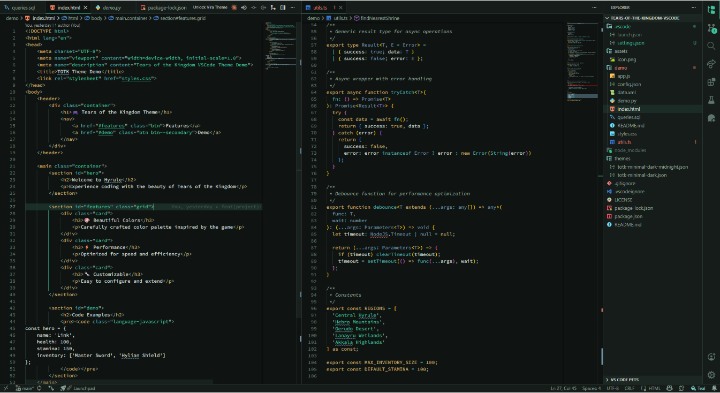
image

✨ Features

  • 🌿 Material-style dark palette (no pure black, no neon)
  • 🌙 Two variants
    • Standard – balanced and atmospheric
    • Midnight – slightly dimmer for late-night coding
  • 👁️ Low eye strain for long sessions
  • 🎮 Inspired by Tears of the Kingdom without using copyrighted assets
  • 🧘 Clean, minimal UI that stays out of your way

🎨 Theme Variants

Standard

A balanced dark theme with subtle contrast and a calm Zonai aesthetic.

Midnight

A deeper, dimmer variant tuned for late-night or low-light environments.


📦 Installation

VS Code Marketplace

  1. Open Extensions in VS Code
  2. Search for Tears of the Kingdom – Minimal Dark
  3. Click Install
  4. Open the Command Palette
    Ctrl / Cmd + Shift + P
  5. Select Preferences: Color Theme
  6. Choose TOTK Minimal Dark or TOTK Minimal Dark – Midnight

Manual

  1. Clone or download this repository
  2. Copy it into your VS Code extensions folder:
    • Windows: %USERPROFILE%\.vscode\extensions
    • macOS/Linux: ~/.vscode/extensions
  3. Restart VS Code

🧪 Recommended Settings

{
  "editor.fontLigatures": true,
  "editor.cursorSmoothCaretAnimation": "on",
  "editor.renderLineHighlight": "all",
  "editor.minimap.enabled": false,
  "workbench.tree.indent": 12
}
  • Contact us
  • Jobs
  • Privacy
  • Manage cookies
  • Terms of use
  • Trademarks
© 2026 Microsoft