Overview Version History Q & A Rating & Review
RoExplorer Live
Overview
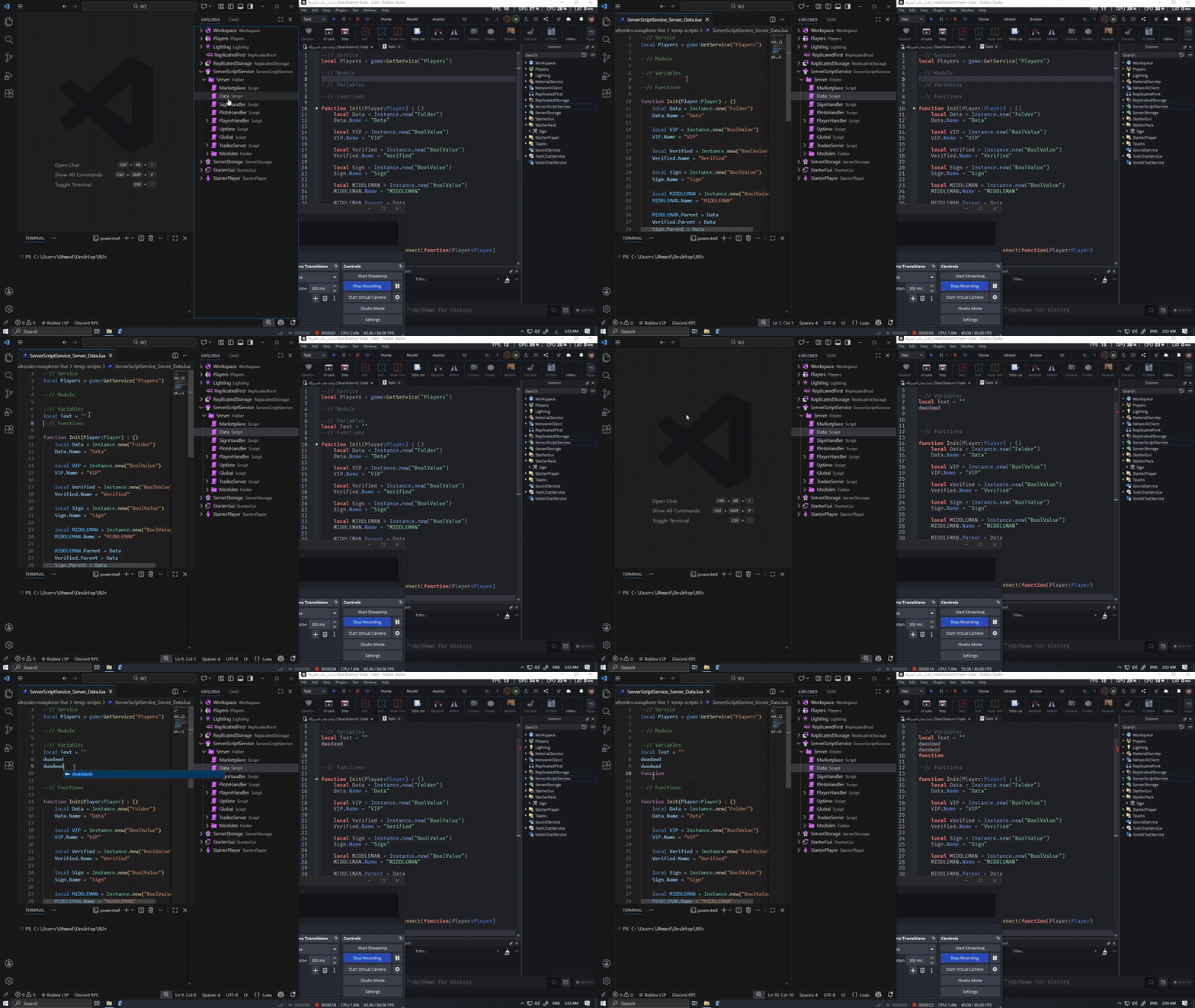
RoExplorer Live is a VS Code extension that syncs the Roblox Studio Explorer in real-time.
View your project structure (Services, Folders, Scripts...) directly in VS Code with live updates as changes happen in Roblox Studio.
devforum
You can get the Roblox plugin here: RoExplorer Plugin on Roblox
How to Use
1. Start Sync
Add the RoExplorer Live plugin Roblox Studio .
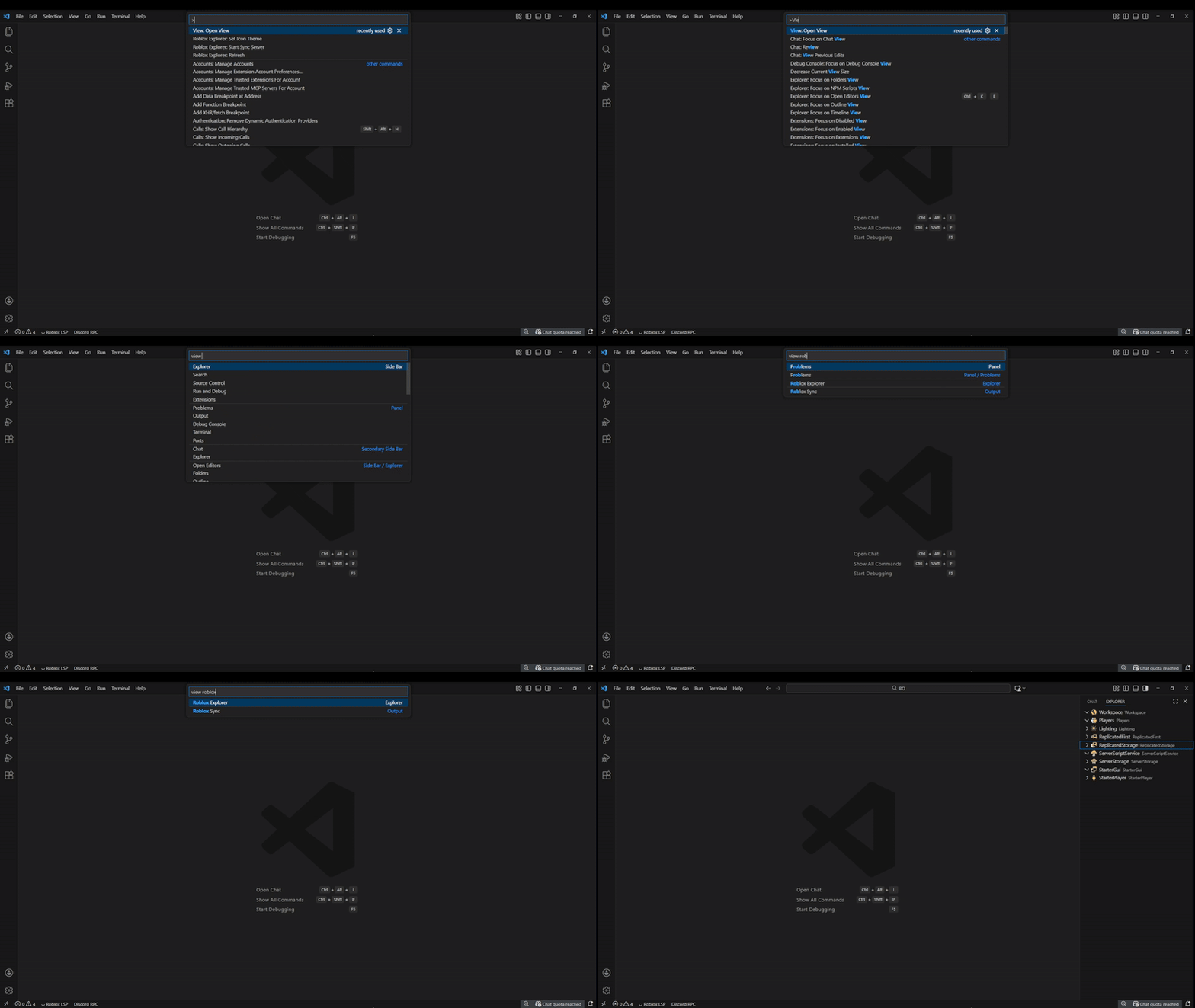
In VS Code, run "Roblox Explorer: Start Sync Server" from the Command Palette (Ctrl+Shift+P).
Click the sync button in Roblox Studio to start synchronization.
2. View Explorer in VS Code
After syncing, all Services (Workspace, ReplicatedFirst, ReplicatedStorage, etc.) appear in VS Code.
Any changes in Roblox Studio (add/remove/rename) are reflected live in the VS Code Explorer.
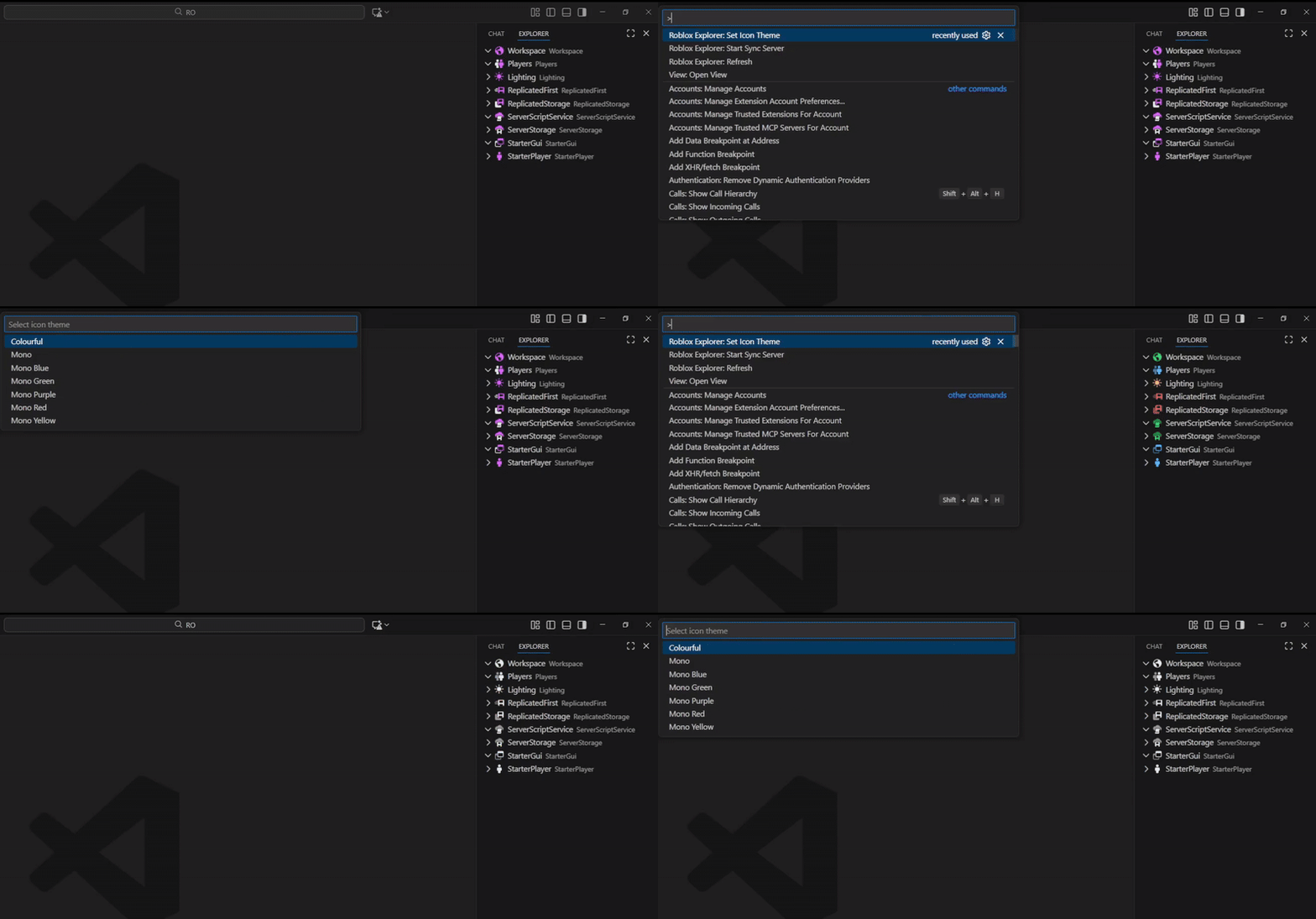
3. Change Icon Theme
Run "Roblox Explorer: Set Icon Theme" from the Command Palette.
Pick your desired theme from the list.
Available Commands
Command
Description
Roblox Explorer: Start Sync Server
Start the local sync server
Roblox Explorer: Stop Sync Server
Stop the local sync server
Roblox Explorer: Refresh
Refresh the explorer manually
Roblox Explorer: Set Icon Theme
Change the icon theme
You can access commands from Command Palette (Ctrl+Shift+P).