RunBoxSave and organize your terminal commands, then run them in one click, with reusable variables, favorites, and AI-powered generation and explanations. Installation Launch VS Code Quick Open ( Ctrl+P), paste the following command, and press enter.Copied to clipboard |

RunBoxYour terminal command library inside VS Code: store, organize, and launch your everyday commands in one click, with reusable variables, favorites, automatic shell matching, and AI that writes and explains commands for you.
RunBox gives you a central panel inside VS Code for the terminal commands you use again and again. Store them once, organize them by category and group, fill in their changing parts with variables, and run them in the right shell and folder with a single click, in every project you open. Why RunBox?
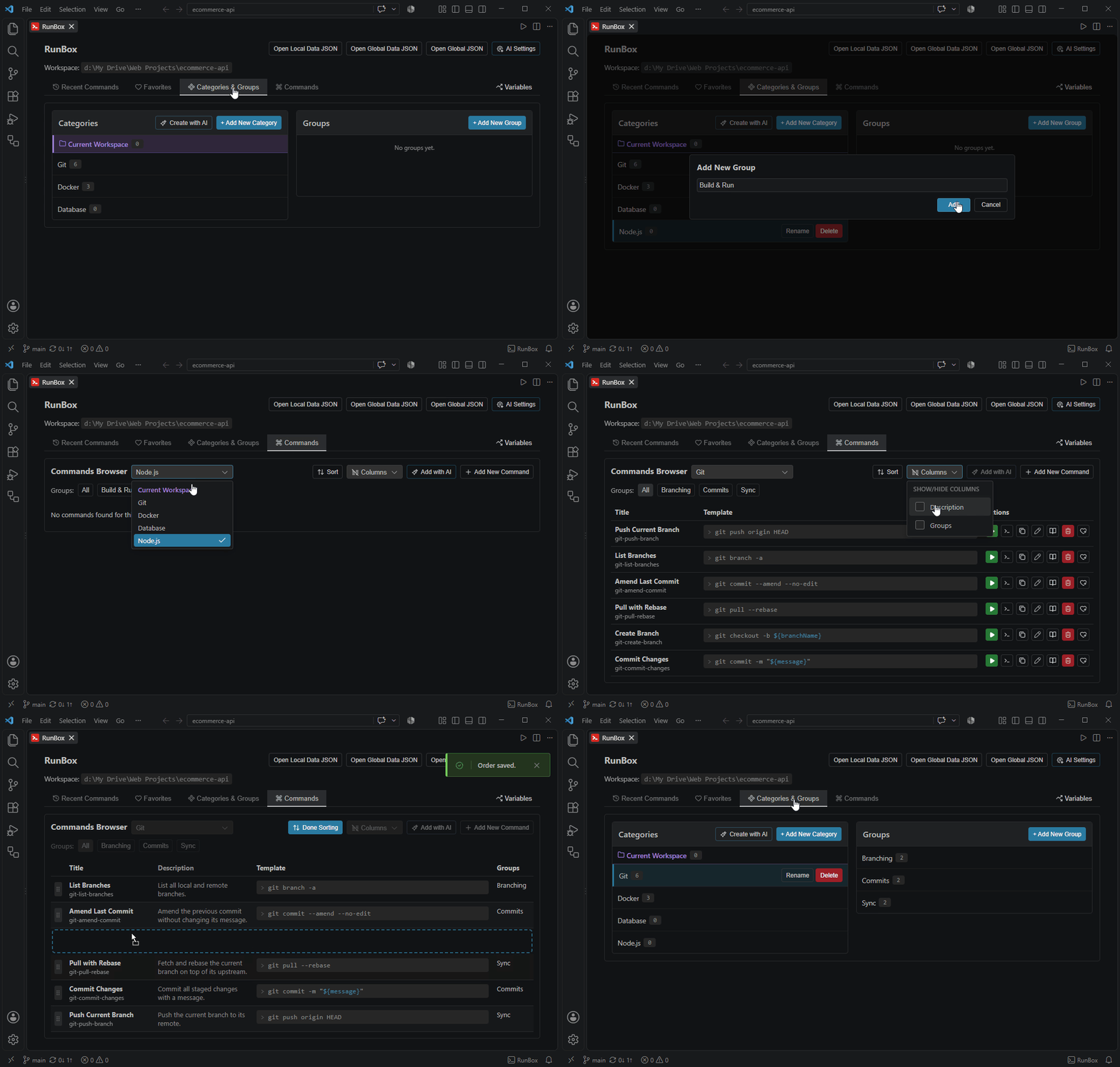
Key Features📂 Categories & GroupsOrganize commands into categories and groups (for example, MySQL → Setup, Build, Deploy). Create, rename, and delete both. Filter the command table by category and group, toggle visible columns, and drag rows to reorder them within a group.
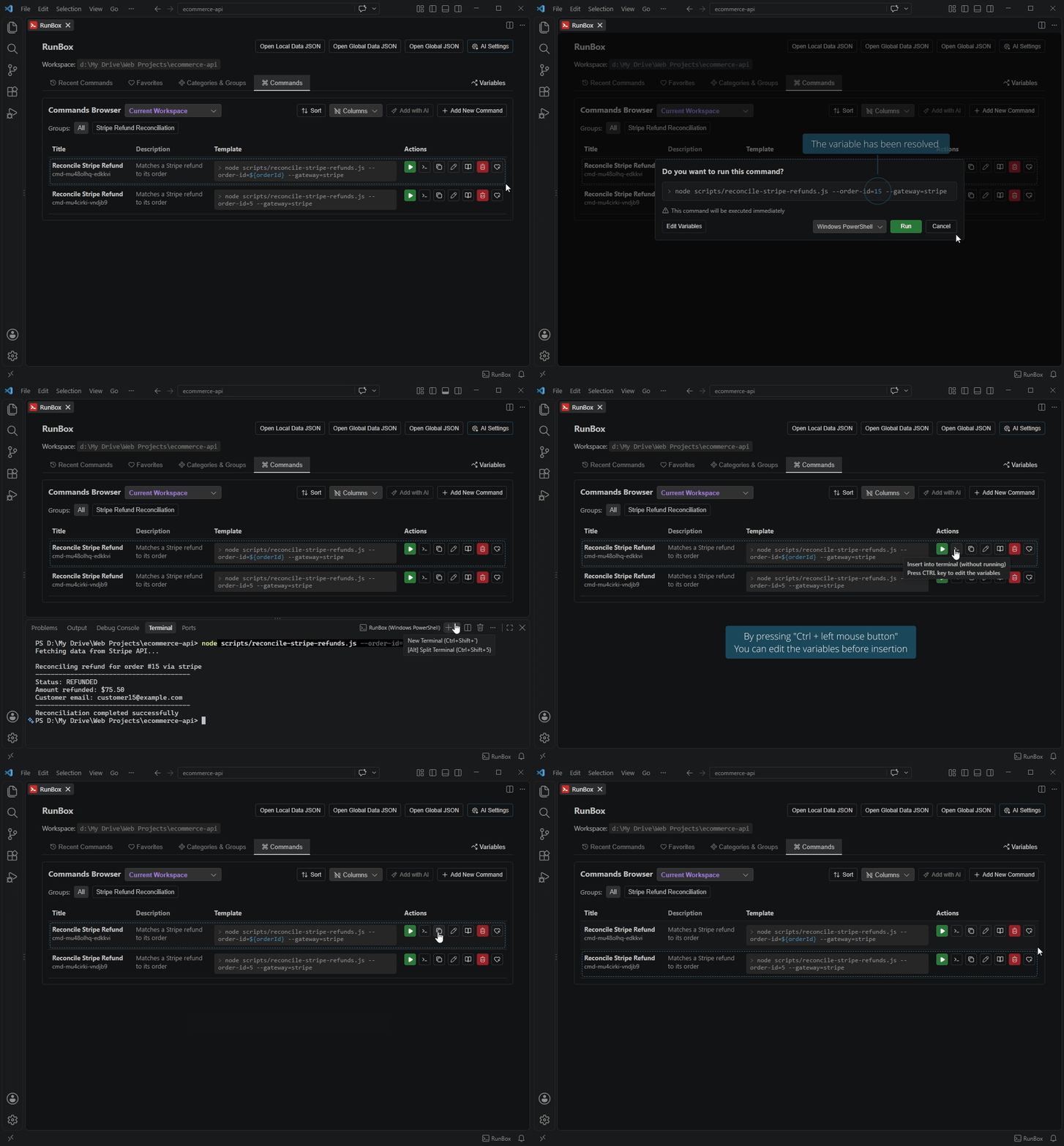
⚡ Run, Use, or Copy
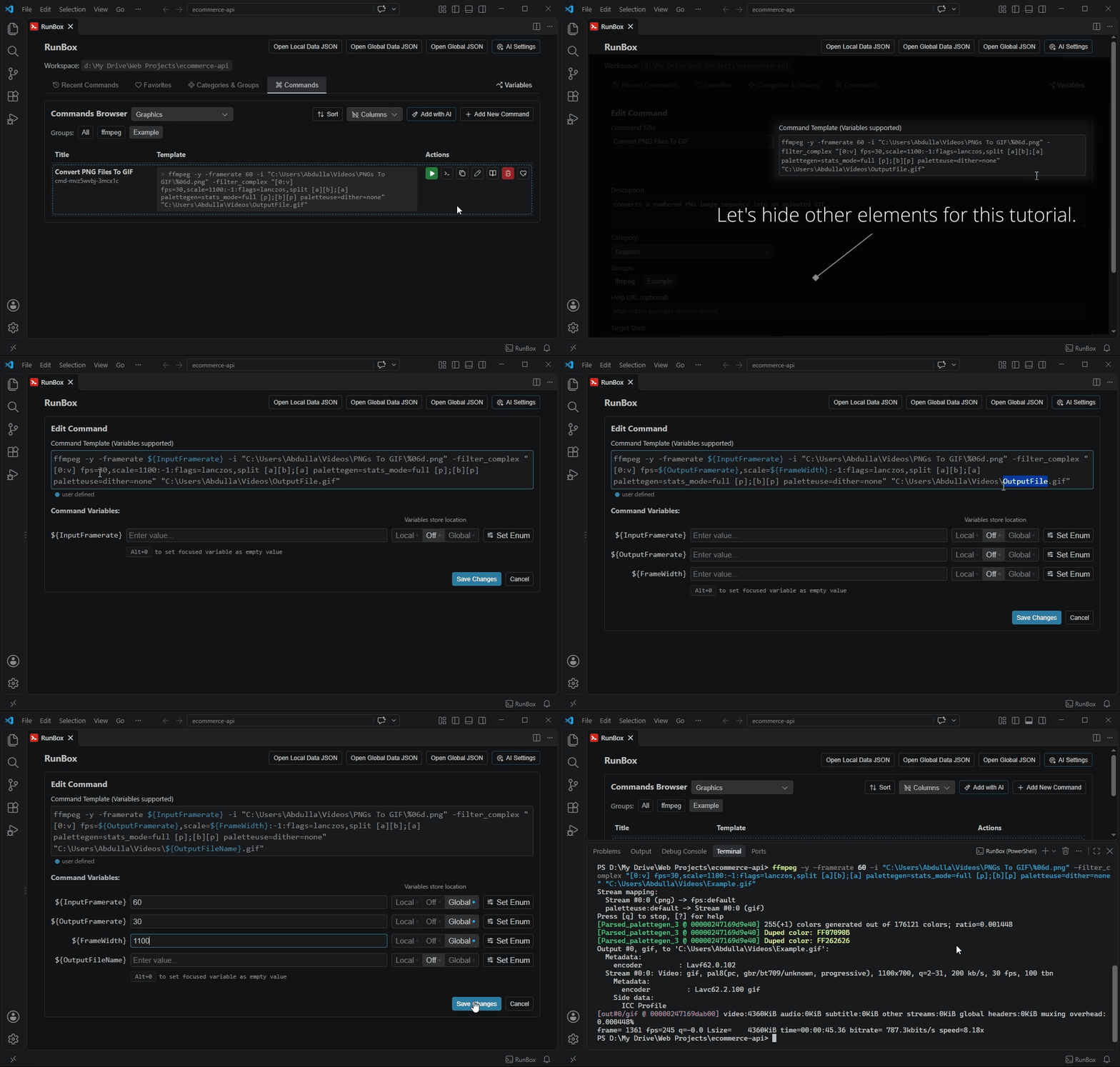
🔤 VariablesAdd Three Independent ScopesEach variable value can be saved in one of three independent scopes:
Switching the scope toggle never deletes the value stored in the other scopes.
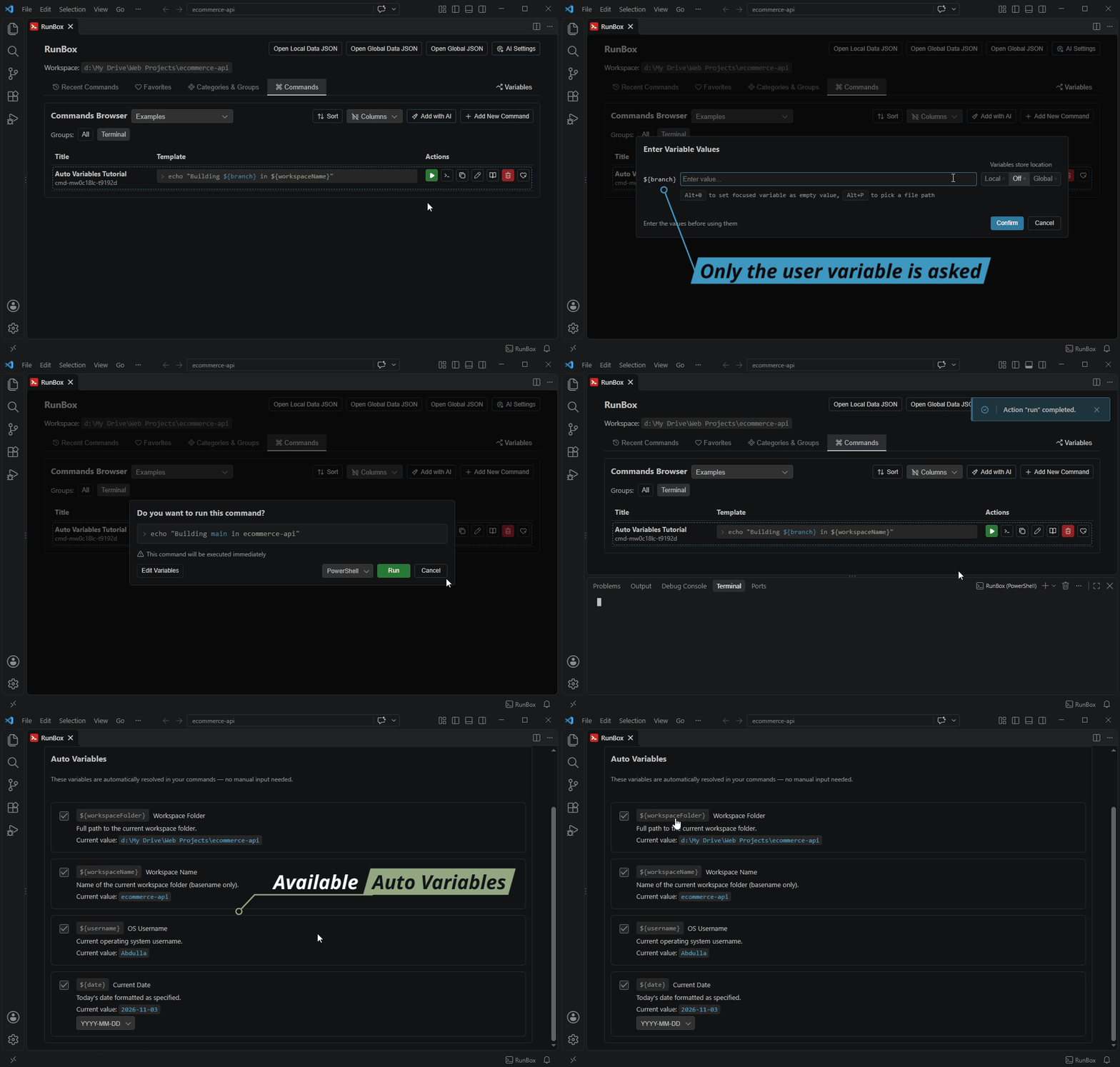
Auto Variables
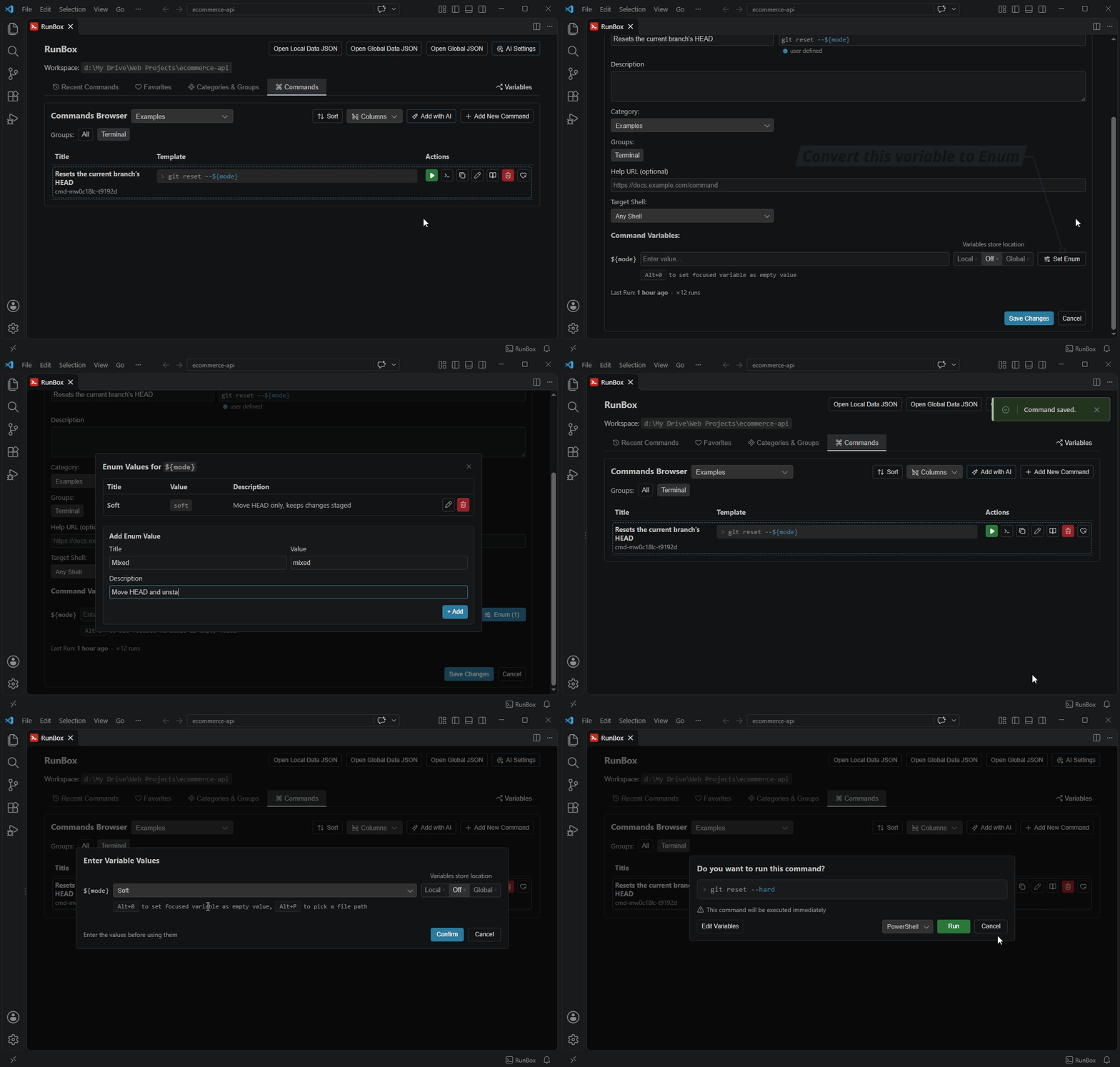
Enum VariablesPredefine a fixed list of options for a variable and pick one from a dropdown when you run the command, for example
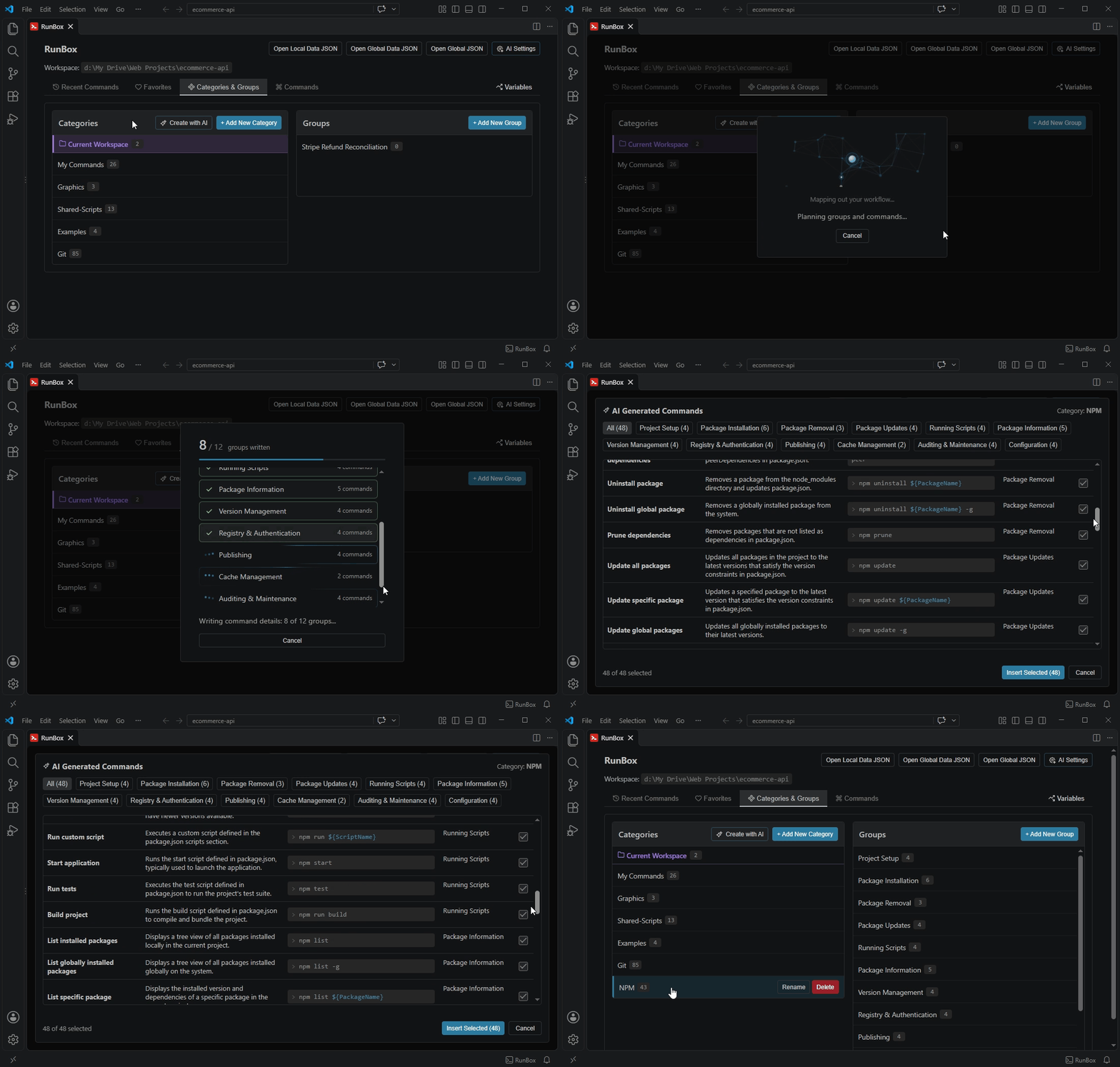
Keyboard Shortcuts for Variable FieldsWhile a variable field is focused in the variables dialog, press Ctrl+Shift+E (⌘⇧E on macOS) to set it to an empty value, or Ctrl+Shift+O (⌘⇧O) to pick a file path with the native file dialog. These shortcuts only take over from VS Code's own shortcuts while a variable field has focus. ✨ Generate Commands with AIDescribe what you need in plain language (for example, "commands to manage a MySQL database"). Use Create with AI to generate a complete category with groups and commands, or Add with AI to generate a single command for the selected group. Review the results, select the ones you want, and insert them.
8 AI providers supported: Google Gemini · OpenAI · Anthropic Claude · DeepSeek · Groq · Mistral AI · Cohere · StepFun
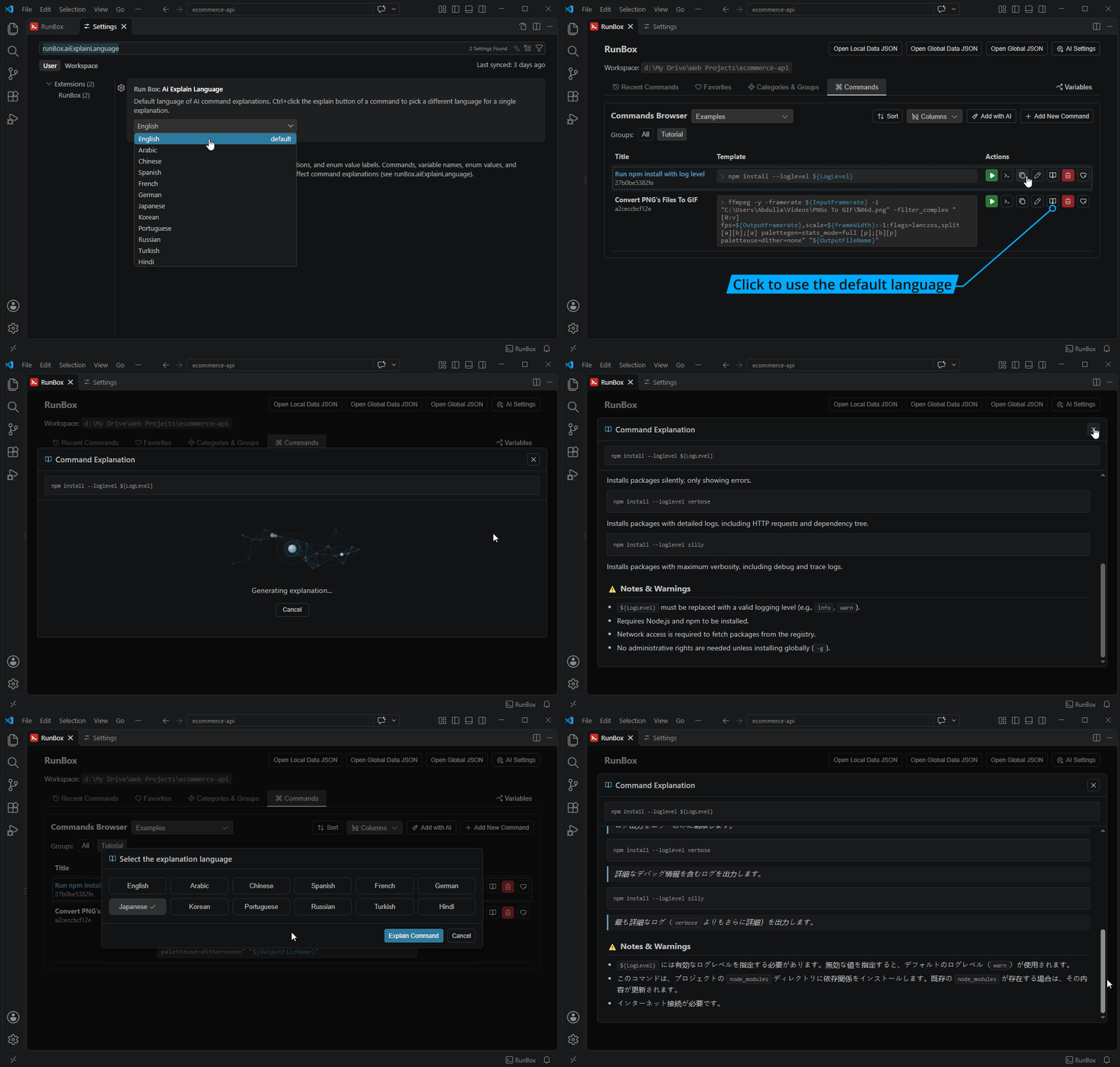
📖 Explain Commands with AIClick the Explain button on any command to get a structured breakdown: what it does, what each part means, practical examples, and warnings. The result is rendered directly inside the panel. Ctrl/Cmd+click the button to choose a different language for a single explanation.
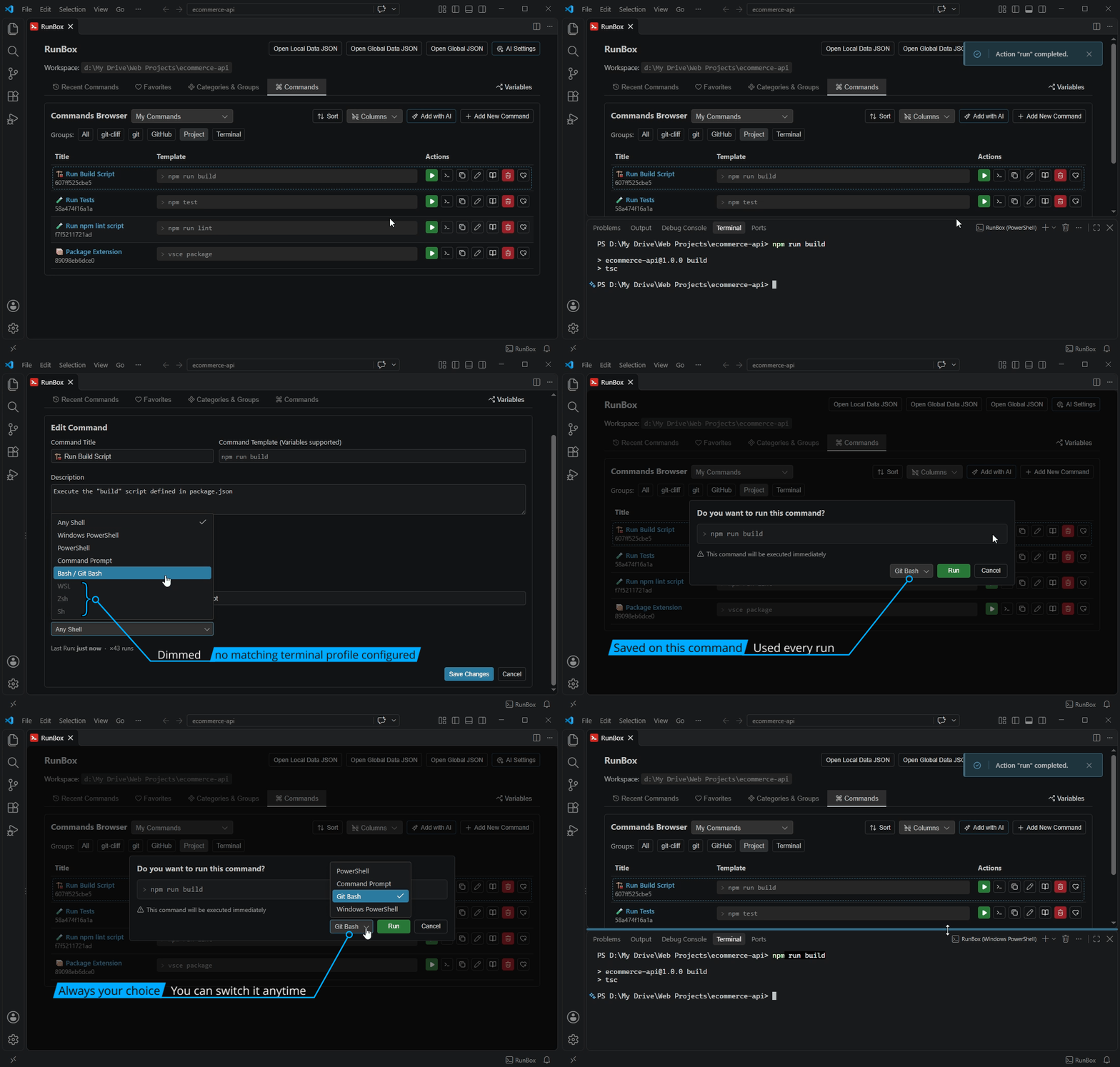
⭐ FavoritesAdd any command to Global favorites (available in every project), Local Workspace favorites (this project only), or both. Click the favorite button to choose, or use the shortcuts: Ctrl/Cmd+click adds to Global, Shift+click adds to Local, and Ctrl/Cmd+Shift+click adds to both. From the Favorites tab, you can jump back to the original command at any time. 🕘 Recent CommandsEvery command you run or use is tracked with its last run time and run count. Revisit or re-run recent commands from the Recent tab without searching the full list, and clear the history whenever you like. 🖥️ Target ShellAssign a target shell (Windows PowerShell, PowerShell 7+, Command Prompt, Bash / Git Bash, WSL, Zsh, or Sh) to any command from the Add/Edit form. When you click Run, RunBox pre-selects a terminal profile on your machine that matches it, and you can still pick any other profile before confirming. A small indicator below the field shows whether your selection matches a configured profile. Commands generated by AI are tagged with the shell you generate them for, so their syntax matches it.
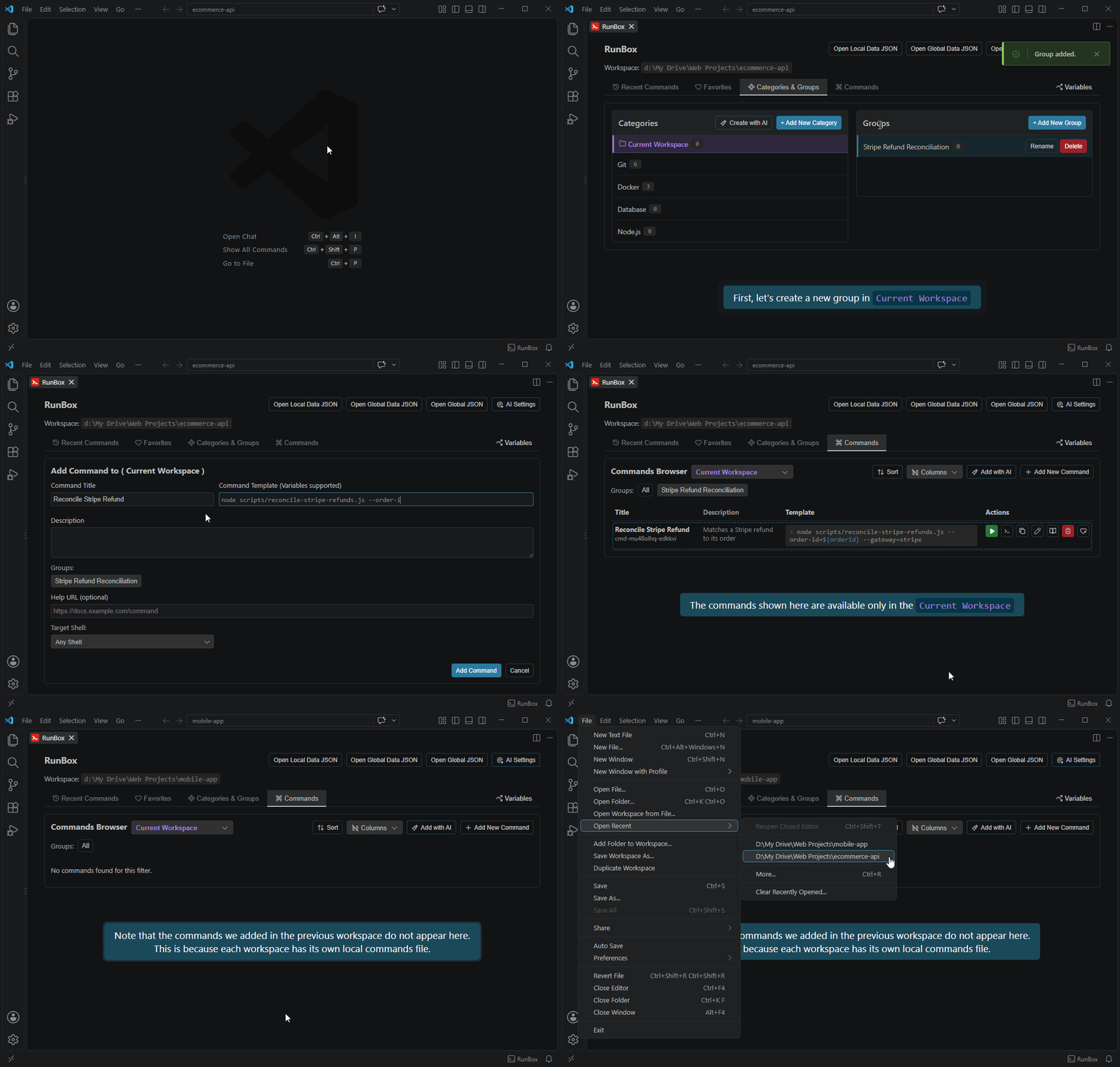
🗂️ Current WorkspaceA special category that always appears first whenever a workspace folder is open. Commands and groups added under Current Workspace are stored privately in
This is useful for commands that only make sense for one specific project, such as a project-specific build script, that you never want showing up when you open a different project.
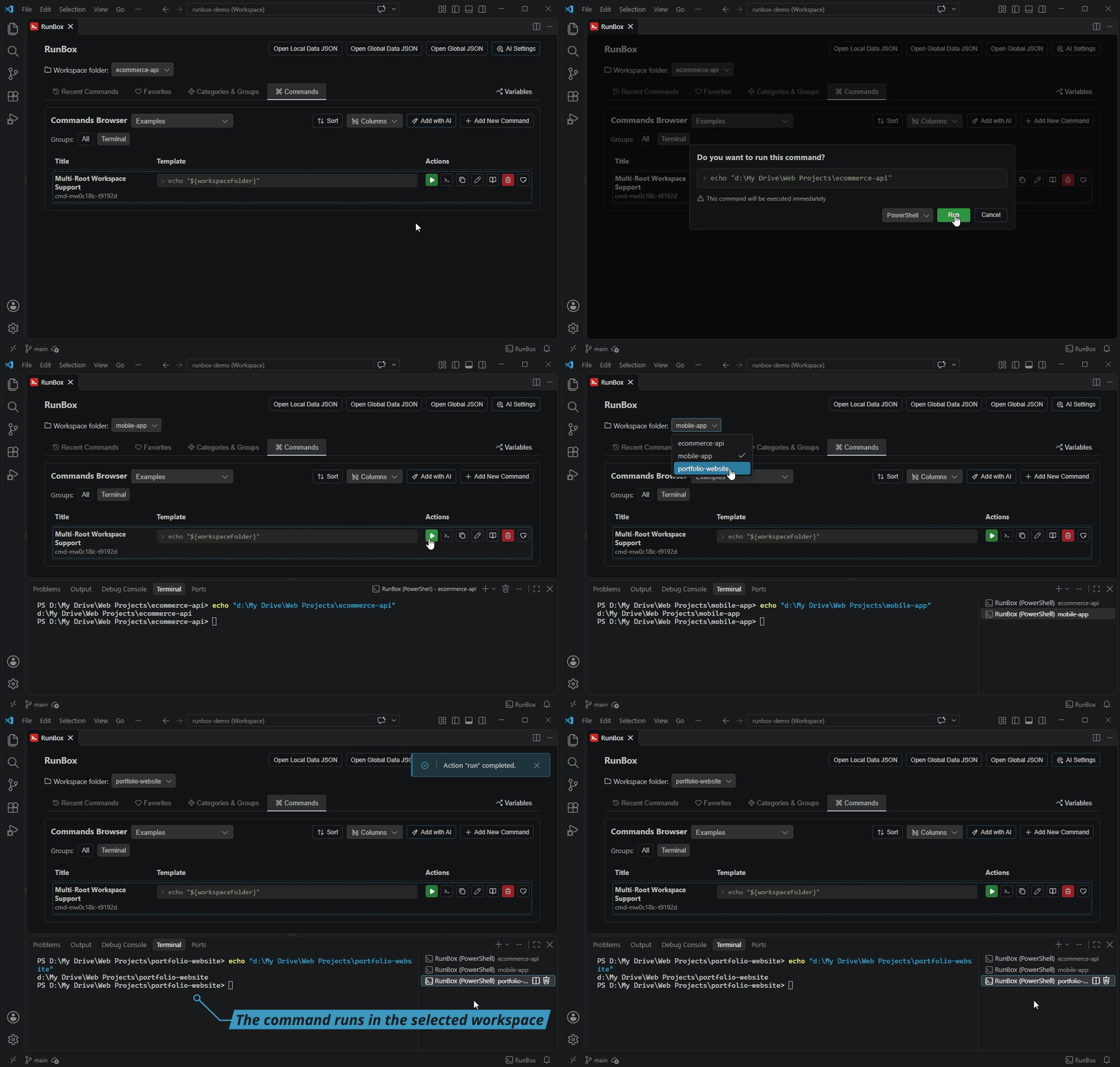
🗃️ Multi-Root Workspace SupportA workspace folder selector appears in the panel when you work in a multi-root workspace. Local variables, local favorites, and auto variables such as
How the folder is chosen when the panel opens is controlled by the 🛡️ Safe Across Multiple WindowsOpen RunBox in as many VS Code windows as you like, whether they show different projects or the same project (opened again with File > Duplicate Workspace). Every save is written atomically, and saving a command, a favorite, or a variable value in one window never erases what another window just saved. Every open window also updates live to reflect changes made elsewhere. If two windows edit the exact same command at the same time, a dialog lets you choose which version to keep. Data Storage, Backup & SharingRunBox stores everything in plain JSON files that you can open, back up, or share:
To back up your command library or share it with your team, copy Privacy & Security
Requirements
Getting Started
Documentation
License |