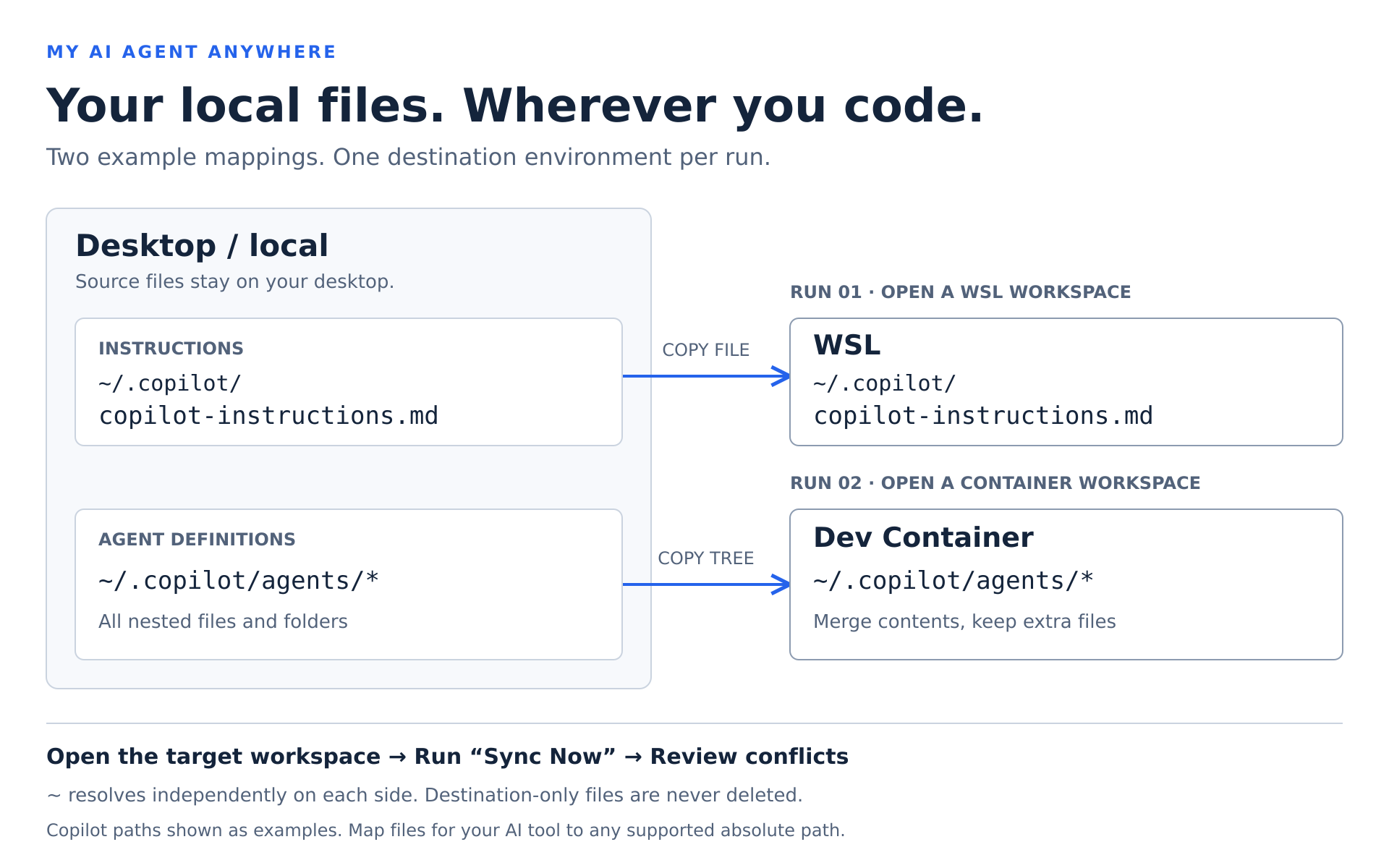
My AI Agent AnywhereSync your local AI configuration files to WSL and Dev Containers.
Example paths for Copilot; use mappings for your AI tool. Each arrow is a separate
Sync Now run in the corresponding editor environment, not simultaneous delivery.
Manually copy personal AI instructions, agent definitions, skills and other files from desktop VS Code to the current local, WSL or Dev Container environment. Keep desktop files as the source of truth, without per-project bind mounts. Configure once, then run My AI Agent Anywhere: Sync Now in the editor window you want to use. Destination edits are protected by file-level conflict detection, and destination-only files are never deleted. This is not an official GitHub or Microsoft product. Documentation is available in English, Japanese and Simplified Chinese; commands and messages currently use English. Who is this for?For developers who keep personal instructions, agents or skills on their desktop and want selected files available in the environment they are currently editing, without adding personal files or mount configuration to every project.
You may not need this extension if VS Code already makes all your customizations available in your workflow, or your existing mounts/dotfiles setup works well. It does not replace Settings Sync, manage AI service accounts, or run AI agents. Choose destinations that your AI tool recognizes; copying files does not guarantee that a tool discovers or uses them. Install from Marketplace
Use desktop VS Code 1.100 or later and a trusted folder. For remote environments, connect using the WSL or Dev Containers extension. First sync
Standalone Agents window sessions, SSH and unknown remote types are unsupported. They are not silently treated as local workspaces. Use across multiple projectsOne personal configuration can serve multiple projects. Open a project in local VS Code, WSL or a Dev Container and run My AI Agent Anywhere: Sync Now. Sources always refer to the desktop; destinations refer to that editor window's environment. You do not need to register each project or add a configuration file to its repository.
Two projects using the same WSL home and destination file share the same file and synchronization history. Different containers/connections or destination paths have separate histories. Environment filters let you choose which mappings apply; a run copies only to the current environment, not to all projects at once. Configuration is personal, not selected per project. Recreating a container may change its connection identity. If previous history is unavailable, an existing unequal destination is treated as a conflict rather than overwritten automatically. Opening a project does not trigger synchronization; run the command when needed. ConfigurationPersonal
Filters select mappings; they do not establish connections or copy to several environments in one run. Excluded sources are not scanned. Different destinations per environment can use separate, non-overlapping filtered mappings. Unknown fields/values and duplicate filters are errors. Paths and home directories
Files and directory mergingA file mapping names the exact target file, so renaming is possible.
Directory mappings recursively merge their contents, file by file.
For example, Missing directories and parents are created, including empty source directories. Directories are never replaced as a whole. Destination-only files and directories are never deleted, even after their source counterpart is removed. File/directory type mismatches stop the batch during preflight without deleting the blocking path. In local workspaces, identical resolved source/destination paths (and files with the same inode, such as hardlinks) are skipped. Recursive self-copy, cross-mapping source/destination overlap and overlapping destination roots are rejected. Other local hardlinked destination files are rejected to protect their aliases. Symlinks in selected source or destination paths are unsupported. Never select the entire home or all Conflicts and overwrite safetyEach file compares source, destination and the last common SHA-256 baseline. Baselines are isolated by environment, resolved source path and destination URI (including remote authority).
Show diff compares read-only snapshots, desktop left and destination right. Skip this file preserves the destination and leaves the conflict unresolved. Force overwrite with desktop version requires another confirmation and uses the reviewed source snapshot, not subsequent edits. Stop sync does not undo previously copied files or created directories. To resolve manually, incorporate desired changes into the desktop source; identical bytes establish a baseline on the next sync. No backups are created, and the extension cannot restore overwritten content. Batch and force-overwrite confirmations explicitly warn about this. Create your own copy beforehand if the destination must be recoverable. Files are rechecked before writes and read back for byte verification. A failed write/verification does not record success, but does not restore the previous content either. Limits and troubleshooting
Next milestonePlanned, not implemented: opt-in automatic synchronization when an editor workspace opens, for local, WSL and Dev Container environments.
Destination accessibility does not guarantee that every Dev Container lifecycle command has finished. Timing alongside container initialization needs validation. Synchronization also cannot guarantee that an already-started AI session reloads configuration. Start a new session after synchronization completes. This is a roadmap direction, not a release-date commitment. PrivacyMy AI Agent Anywhere reads selected desktop files, writes to the current environment and stores configuration and hashes on the desktop. It sends no files to an additional cloud service and adds no telemetry. Remote transfers use VS Code's existing connection, which may involve network traffic. It does not change your AI tools' own data handling. Additional informationConfiguration and history storageUse My AI Agent Anywhere: Open Sync Configuration to edit your settings; you do not need to find the storage directory manually. The configuration is Optional: install from a VSIXIf you have a VSIX file, run Extensions: Install from VSIX... in desktop VS Code, select it and reload if requested. Double-clicking the file is not the installation method. LanguagesUse the language links at the top for the Japanese and Simplified Chinese guides; VS Code does not automatically choose the README language. |