A11yResolver: AI Accessibility AgentPreviewFind and fix WCAG accessibility issues with AI, verified in a real browser. Free plan, no credit card. Installation Launch VS Code Quick Open ( Ctrl+P), paste the following command, and press enter.Copied to clipboard |

A11yResolverAI accessibility agent for VS CodeShip accessible UI without leaving your editor. A11yResolver finds, fixes, and verifies WCAG issues in a real browser — without late audits, rework, or switching tools. Free plan · No credit card
Get started in a minute
A typical fix takes 1–5 minutes: the agent tests its changes in the browser before it reports back. The free plan includes 150 credits per month (up to 30 per day) with the Fast agent, no credit card required. Paid plans unlock the Expert agent and more credits (see Plans). As you type, A11yResolver flags common accessibility problems in your HTML and components — such as buttons without an accessible name and invalid ARIA roles. Open Detected Issues to see them all, and choose Analyze & Fix with Agent from the quick fix menu to fix any of them. Why it mattersAccessibility issues usually surface late, during audits or after launch, when they cost the most: rework, delayed releases, failed compliance reviews (WCAG 2.2, ADA, Section 508, the European Accessibility Act), and legal risk. A11yResolver makes accessibility part of your daily workflow instead of a final step. Real impact50–70% faster resolution, from day one.
Parallel sessions multiply the impact: you can work on 2, 3, or 4 issues at once, in the same session or across several. What makes it differentMost tools and AI assistants stop at "here's a suggestion". A11yResolver checks its own work:
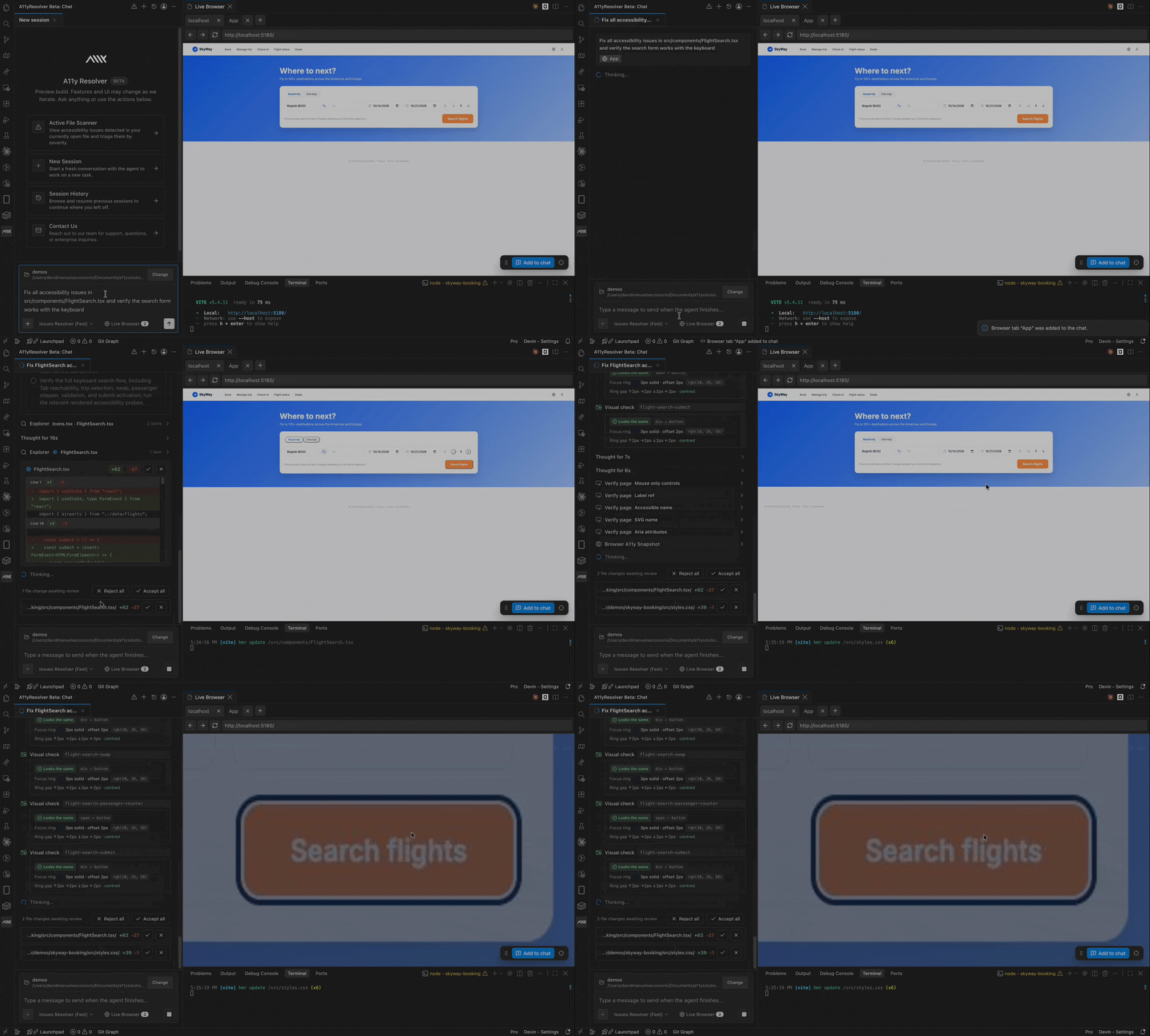
One command, real results"Fix all accessibility issues in this component" A11yResolver detects, fixes, and validates:
More examples:
Features
Works with your stackHTML, React (JSX/TSX), Vue, Svelte, Astro, Angular templates, PHP, Handlebars, and HTL. Available on the Visual Studio Marketplace and on Open VSX, so it runs in VS Code and in VS Code-based editors such as Cursor and Windsurf. What automation can and cannot doAutomated checks, including ours, find and fix many accessibility issues, but not all of them. Using A11yResolver does not by itself make a product WCAG conformant or legally compliant. Keep testing with a keyboard and with screen readers, and involve people with disabilities where you can. When you need a formal conformance audit or a VPAT, A11ySolutions' accessibility experts can help. Agents
Tip: start with Fast and switch to Expert when you need more reasoning power. Plans
Current prices are shown in the extension's Account panel, where you can subscribe, change plan, cancel, or buy a top-up. For Enterprise, talk to us. FAQWhich AI models does it use? A11yResolver runs on leading large language models, selected and tuned by our team for accessibility work. We update them as better models become available, so you get improvements without changing anything on your side. Does my code leave my machine? The editor diagnostics run locally. When you use the AI agent, the files, page snapshots, and messages it needs for your task are sent to our service and to the AI model provider to process the request. Your code is never used to train AI models, and requests only go to model providers with zero data retention: they process the request and do not store it. See the privacy policy for details. How are credits used? Each agent task consumes credits based on the work it does. Larger requests and the Expert agent use more. The Account panel shows your remaining monthly and daily credits and when they reset. Does it work in Cursor or Windsurf? Yes. The extension is published on Open VSX, which these editors use. Can I cancel anytime? Yes. Change or cancel your plan from the Account panel. Top-up credits stay available for a year, even if you downgrade. Requirements
Privacy & telemetryYour code is never used to train AI models. AI requests are not stored at the model provider. The extension sends anonymous usage events (activation, chat, Live Browser, Detected Issues, fix requests, selected agent, sign-in steps, task outcomes, upgrade clicks, and whether the bundled backend failed to start) to help us improve the product. Telemetry never includes prompts, chat contents, source code, file paths, API keys, error messages, or personal identifiers. It uses an anonymous identifier stored locally, which is never linked to your account. It follows VS Code's telemetry setting ( PreviewA11yResolver is in active development and ships improvements frequently. |