#VS blue Theme
Features
- Error & Warning Visibility: Clearly marked problems with colored borders
- Terminal Integration: Matching terminal colors for consistency
- Git Integration: Clear status indicators for version control
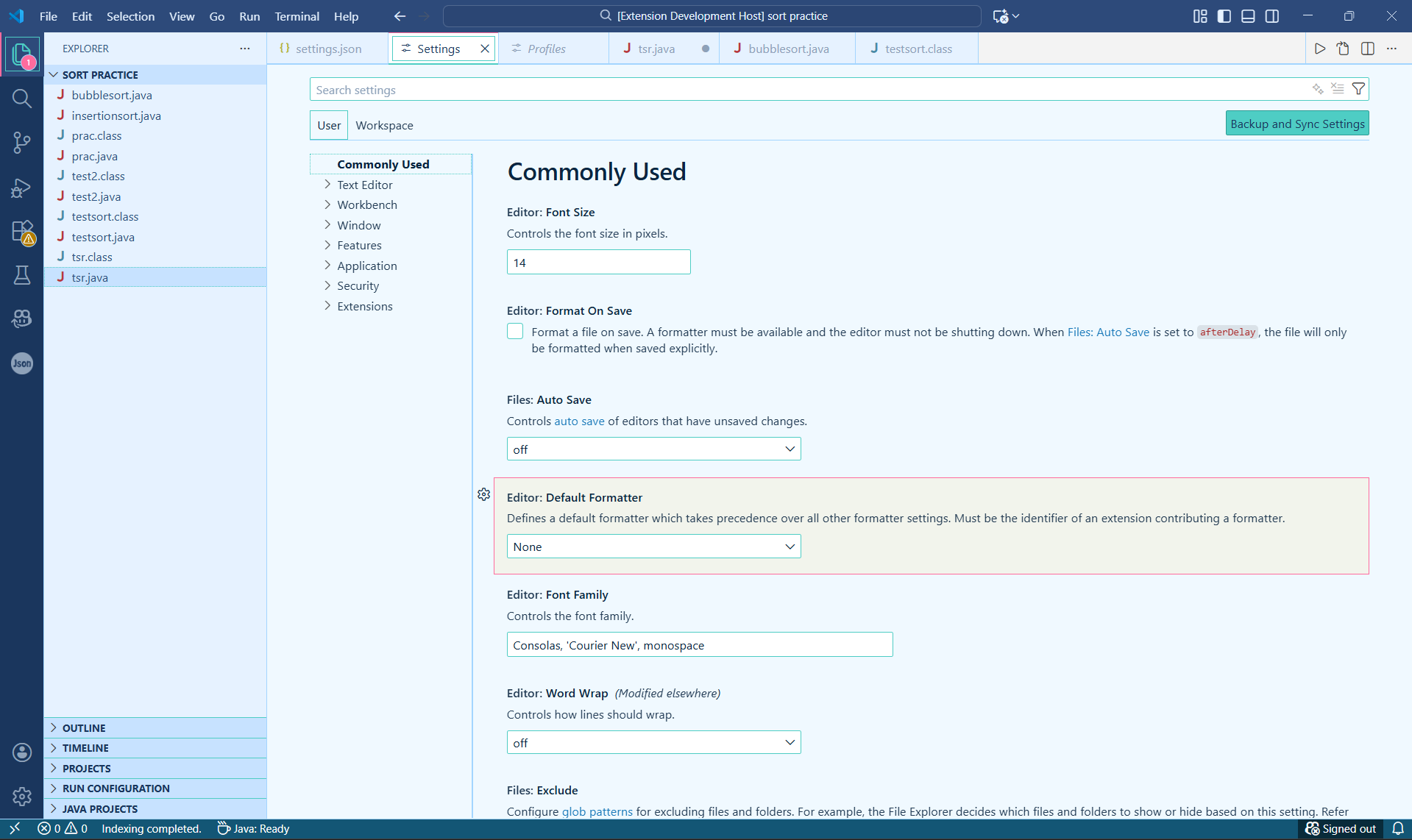
Installation
- Open Extensions sidebar panel in VS Code (
Ctrl+Shift+X or Cmd+Shift+X)
- Search for
VS Blue Theme
- Click Install
- Open the Command Palette with
Ctrl+Shift+P or Cmd+Shift+P
- Type
Preferences: Color Theme and select SkyBlue Theme
Language Support
JavaScript/TypeScript - Full ES2022+ support
Python - Decorators, type hints, f-strings
Java - Annotations, generics, streams
C/C++ - Macros, pointers, templates
HTML/CSS - Tags, properties, pseudo-classes
React/JSX - Components, props, hooks
JSON/XML/YAML - Clear key/value distinction
Markdown - Headers, code blocks, links
Shell Script - Commands, variables, pipes
Recommended Settings
For the best experience, add these to your settings.json:
{
  // === TYPOGRAPHY ===
  "editor.fontFamily": "'Cascadia Code', 'JetBrains Mono', 'Fira Code', monospace",
  "editor.fontSize": 14,
  "editor.lineHeight": 1.7,
  "editor.fontLigatures": true,

  // === EDITOR ENHANCEMENTS ===
  "editor.smoothScrolling": true,
  "editor.cursorSmoothCaretAnimation": "on",
  "editor.bracketPairColorization.enabled": true,

  // === TERMINAL ===
  "terminal.integrated.fontFamily": "'Cascadia Code', monospace",

  // === OTHER ===
  "window.zoomLevel": 0,
  "editor.formatOnSave": true
}

