Overview Version History Q & A Rating & Review
🌟 Neovide Cursor
A Neovide-like Cursor Animation Plugin for VSCode
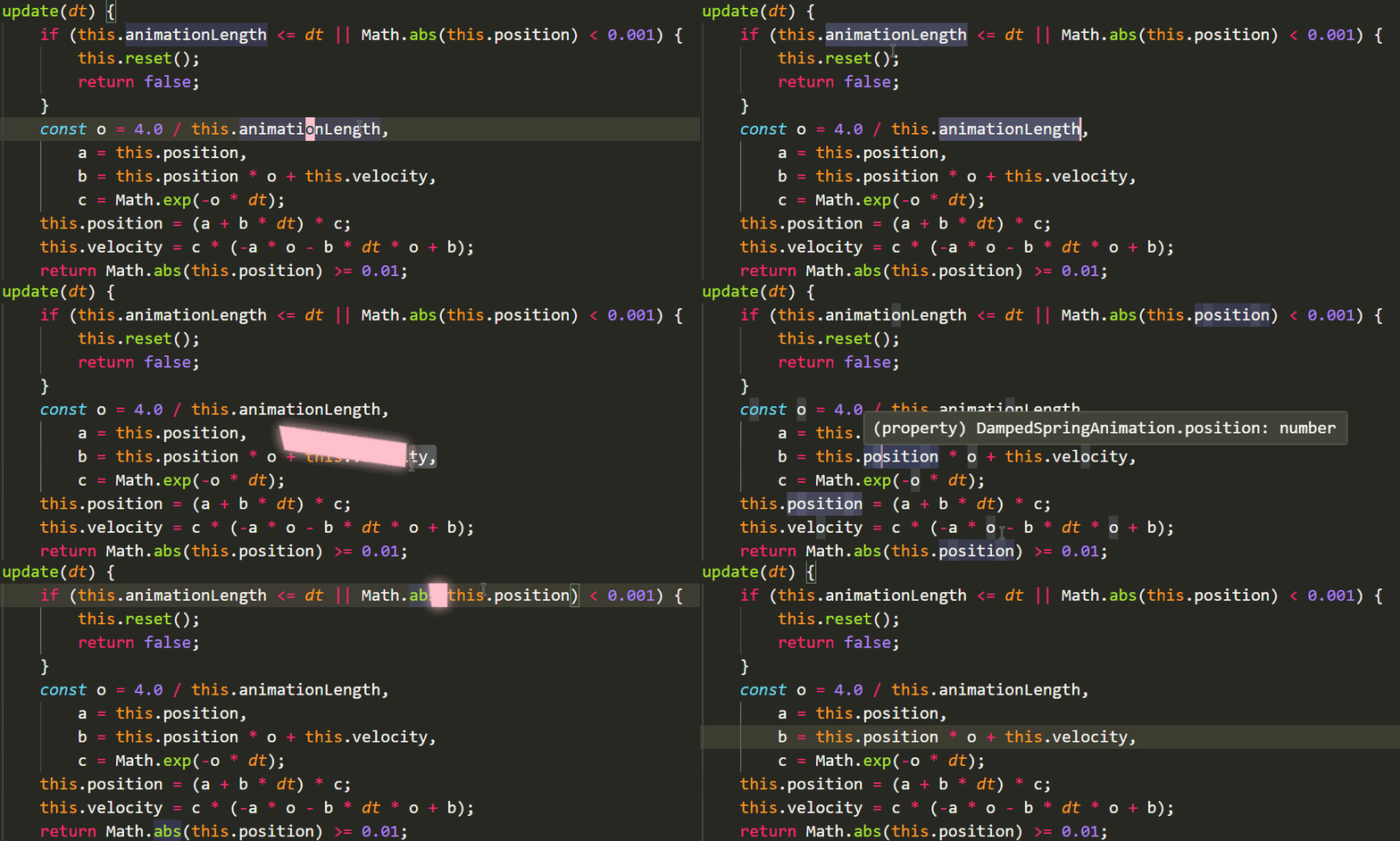
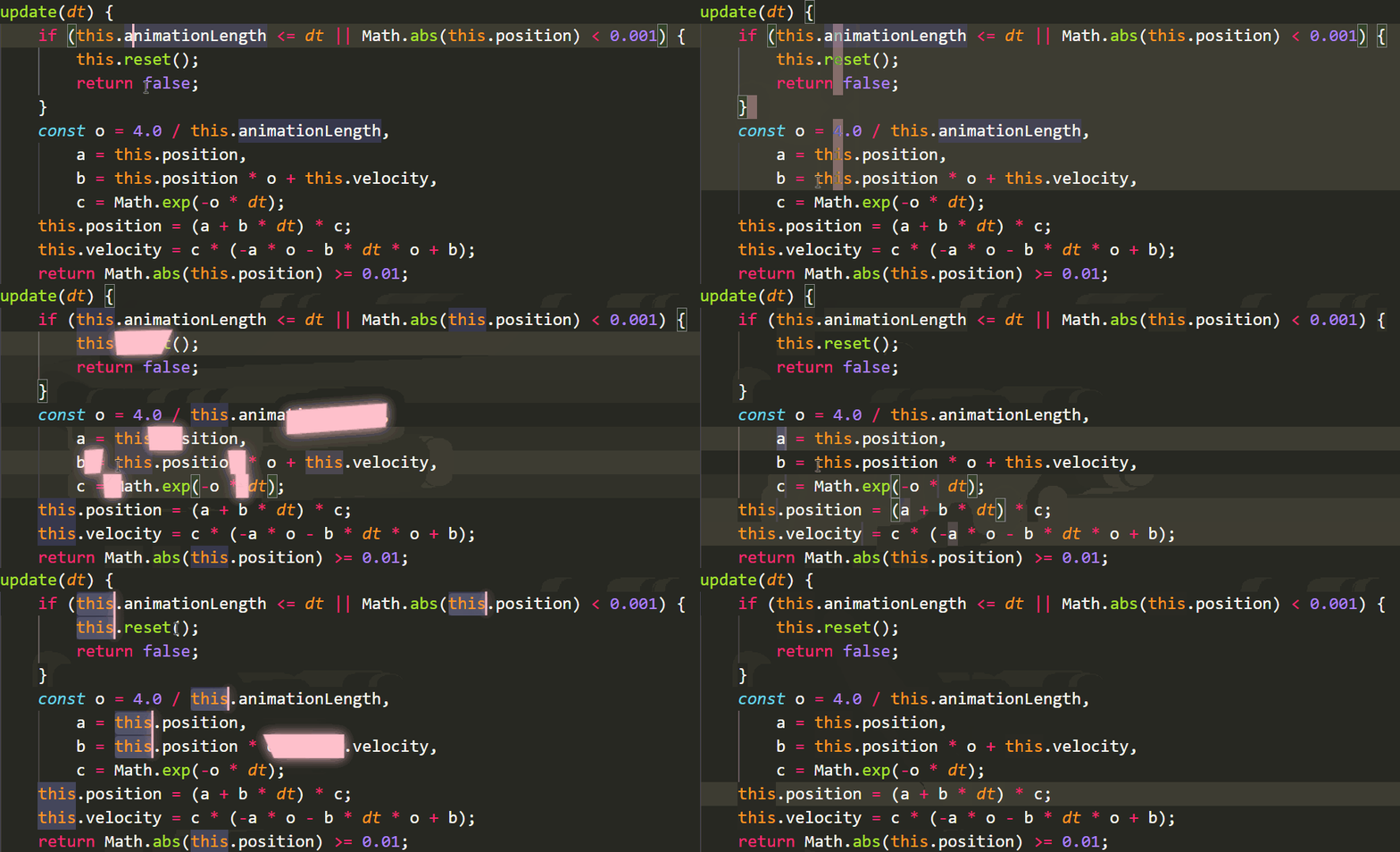
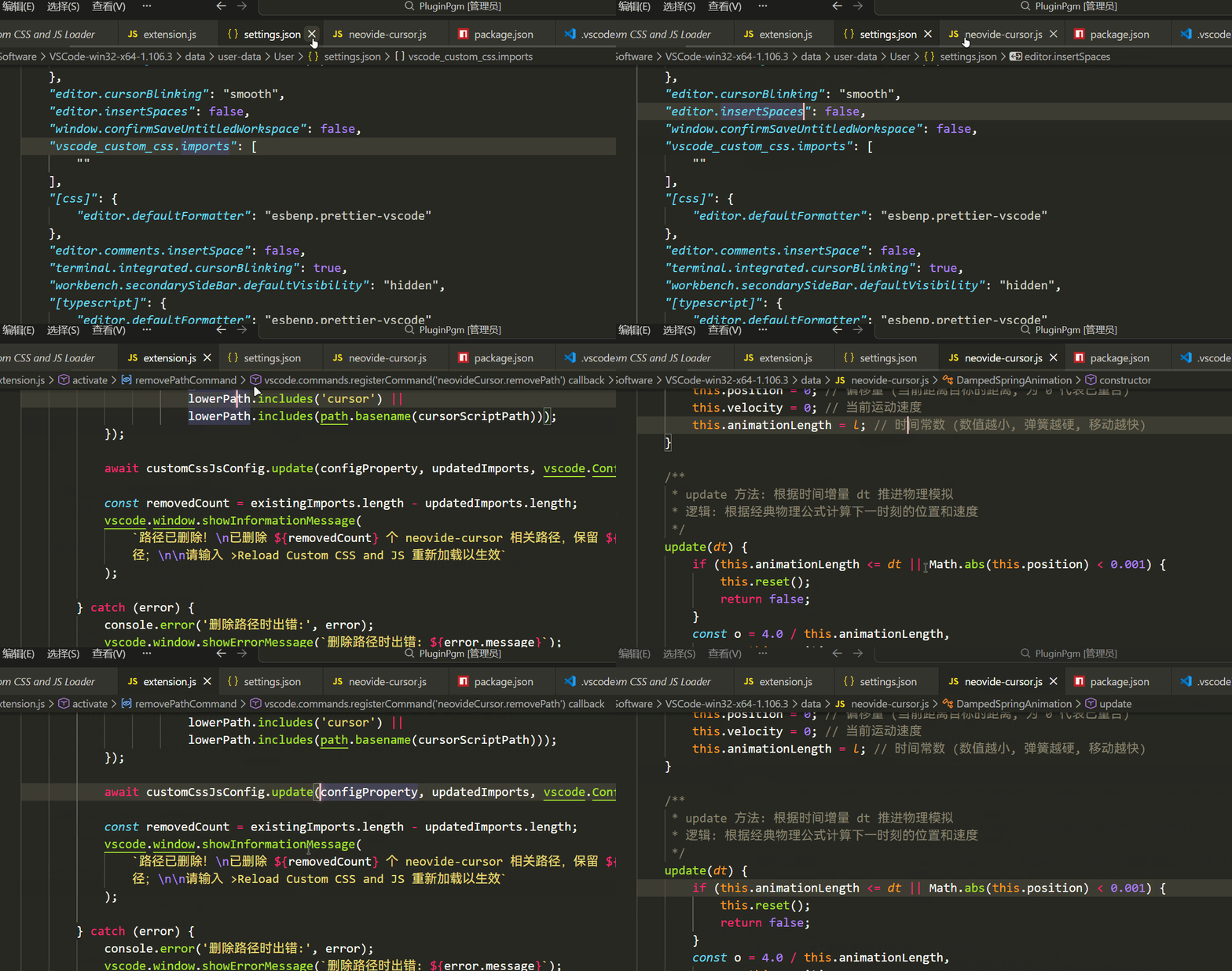
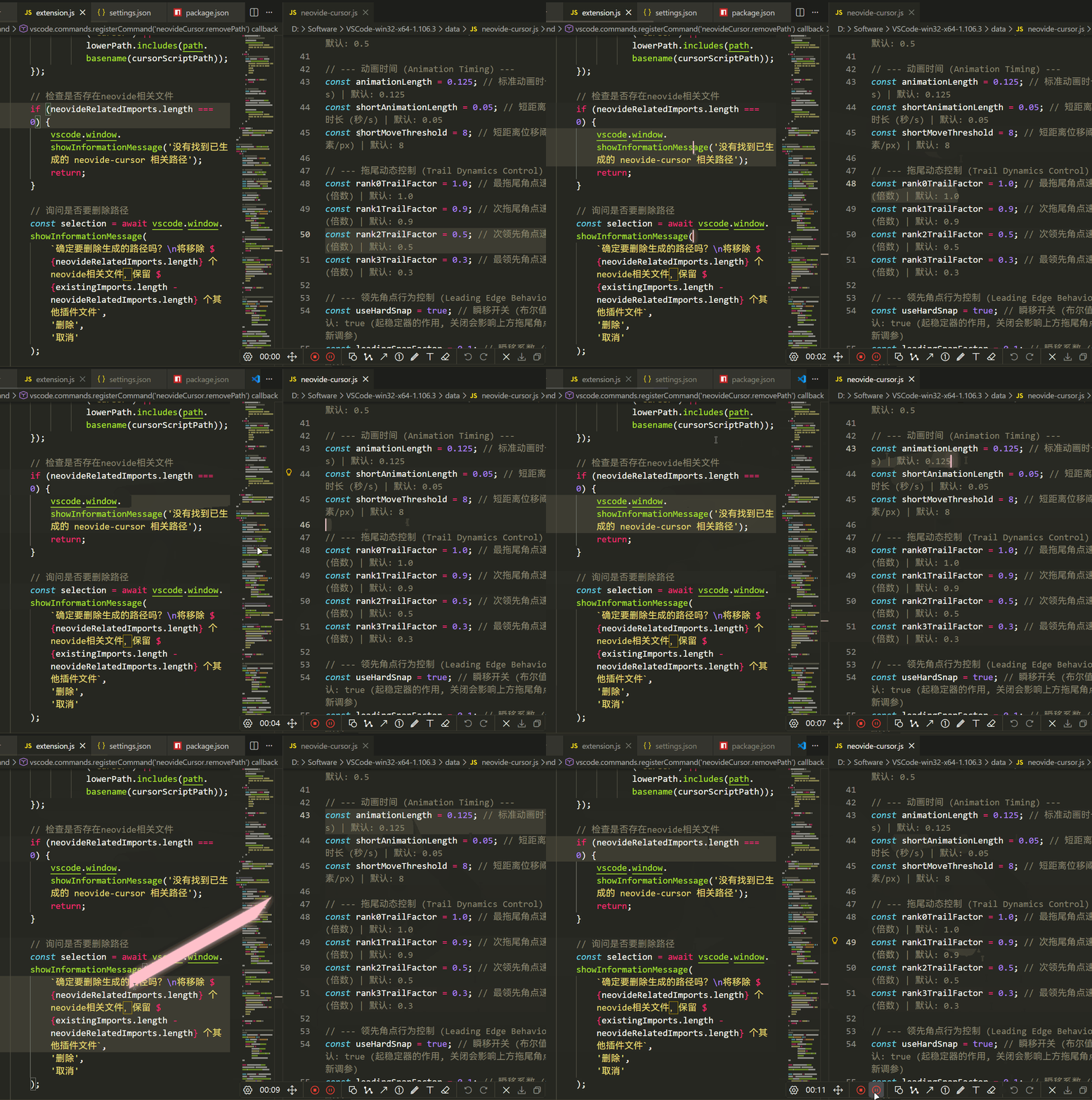
✨ 特性 (Features)
📢 重要说明 (Important Notices)
此插件会带来较为严重的性能负担 与电量消耗 ,请酌情使用,不建议在您的设备未连接电源 时开启
This plugin may cause significant performance burden and power consumption . Please use it discretionally; it is not recommended to enable it when your device is NOT connected to a power source.
此插件需要配合 Custom CSS and JS Loader 插件使用
This plugin requires the Custom CSS and JS Loader plugin to function properly.
插件目前并不完善,可能会出现意外Bug (如闪烁、不规则形变等)
The plugin is not yet fully polished and may have unexpected bugs (such as flickering, irregular deformation, etc.).
🛠️ 安装步骤 (Installation Steps)
方法一:通过 VSCode 市场安装 (推荐) | Method 1: Install via VSCode Marketplace (Recommended)
在 VSCode 中打开扩展 面板 (Ctrl+Shift+X) | Open the Extensions panel in VSCode (Ctrl+Shift+X)
搜索 "Neovide Cursor" | Search for "Neovide Cursor"
点击 "安装" | Click "Install"
方法二:手动安装 | Method 2: Manual Installation
下载 .vsix 文件 | Download .vsix file
在 VSCode 中打开命令 面板 (Ctrl+Shift+P 或 F1) | Open the Command Palette in VS Code (Ctrl+Shift+P or F1)
输入命令 (Type) Extensions: Install from VSIX...
选择下载的 .vsix 文件 | Select the downloaded .vsix file
🤔 使用方法 (How to Use)
⚠️ 前置条件:已安装本插件和 Custom CSS and JS Loader | ⚠️ Prerequisite: This plugin and Custom CSS and JS Loader have been installed
输入命令 Neovide Cursor: Generate Path 生成文件引入路径 | Type the command Neovide Cursor: Generate Path to generate the file import path
(可选) 在设置文件中添加如下配置以覆盖主题光标色: | (Optional) Add the following configuration in the settings file to override the theme cursor color:
"workbench.colorCustomizations": {
	"editorCursor.foreground": "#FFC0CB",
},
输入命令 Reload Custom CSS and JS 重新载入 | Type the command Reload Custom CSS and JS to reload the configuration
现在你可以看到效果了 | Now you can see the effect
⚙️ 配置选项 (Configurations)
输入命令 Neovide Cursor: Open User Configurations 打开插件文件 | Type the command Neovide Cursor: Open User Configurations to open the user configuration file
根据文件注释自行设置 | Set the configurations as needed according to the file comments
⚠️ 注意:修改文件的其他部分可能会导致无法预料的问题 | ⚠️ Note: Modifying the other parts of the file may cause unexpected issues.
如果你遇到性能问题,可以尝试: | If you encounter performance issues, try the following:
增大 cursorUpdatePollingRate 的值 (降低扫描频率) | Increase cursorUpdatePollingRate (reduce the polling frequency)
关闭 useShadow (禁用辉光效果) | Disable useShadow (turn off the glow effect)
❓ 常见问题 (FAQ)
Q: 安装后没有效果?
A: 请确保:
已安装 Custom CSS and JS Loader
在 settings.json 中正确配置了脚本路径 (执行了 Neovide Cursor: Generate Path 命令)
执行了 Enable Custom CSS and JS 和 Reload Custom CSS and JS 命令
完全重启了 VSCode
Q: Why isn't it working after installation?
A: Please ensure:
The Custom CSS and JS Loader plugin is installed
The script path is correctly configured in settings.json (executed the Neovide Cursor: Generate Path command)
You have executed the Enable Custom CSS and JS and Reload Custom CSS and JS commands
VSCode has been restarted completely
Q: VSCode 提示 "已损坏" ?
A: 这是因为 Custom CSS and JS Loader 修改了 VSCode 的文件。这是正常现象,不会影响使用。如果想关闭提示,可以:
点击 "不再提示"
阅读 Custom CSS and JS Loader 文档寻求帮助
Q: Why does VSCode show a "corrupted" warning?
A: This is because Custom CSS and JS Loader modifies VSCode's internal files. This is normal behavior and won't affect usage. To dismiss the warning:
Click "Don't show again"
Refer to the Custom CSS and JS Loader documentation for assistance
Q: 🗑️ 如何完全卸载?
A:
执行 Remove Generated Path 命令
执行 Reload Custom CSS and JS 命令
重启 VSCode
卸载 Neovide Cursor 插件
Q: 🗑️ How to completely uninstall it?
A:
Run the Remove Generated Path command
Run the Reload Custom CSS and JS command
Restart VSCode
Uninstall the Neovide Cursor plugin
📃 许可证 (License)
🤝 鸣谢 (Credits)