MarkKit
【EN】Manipulate, visualize, navigate and organize text/code structure: list markers ⇄ ASCII Tree ⇄ Mermaid flowchart, File Outline navigation & edit & drag move, Tab Groups working context 【like Edge/Google tag groups】 — all without learning Mermaid.
【CN】操作、可视化、导航与治理文本/代码结构:列表标记 ⇄ ASCII 树 ⇄ Mermaid 流程图, File Outline 大纲导航&拖拽移动, Tab Groups 工作上下文分组标签【像Edge/Google标签页分组功能】 —— 无需学 Mermaid 语言。
🌟 Turn Markdown into well-structured content in seconds — Marker + Structure + Outline + Context.
-
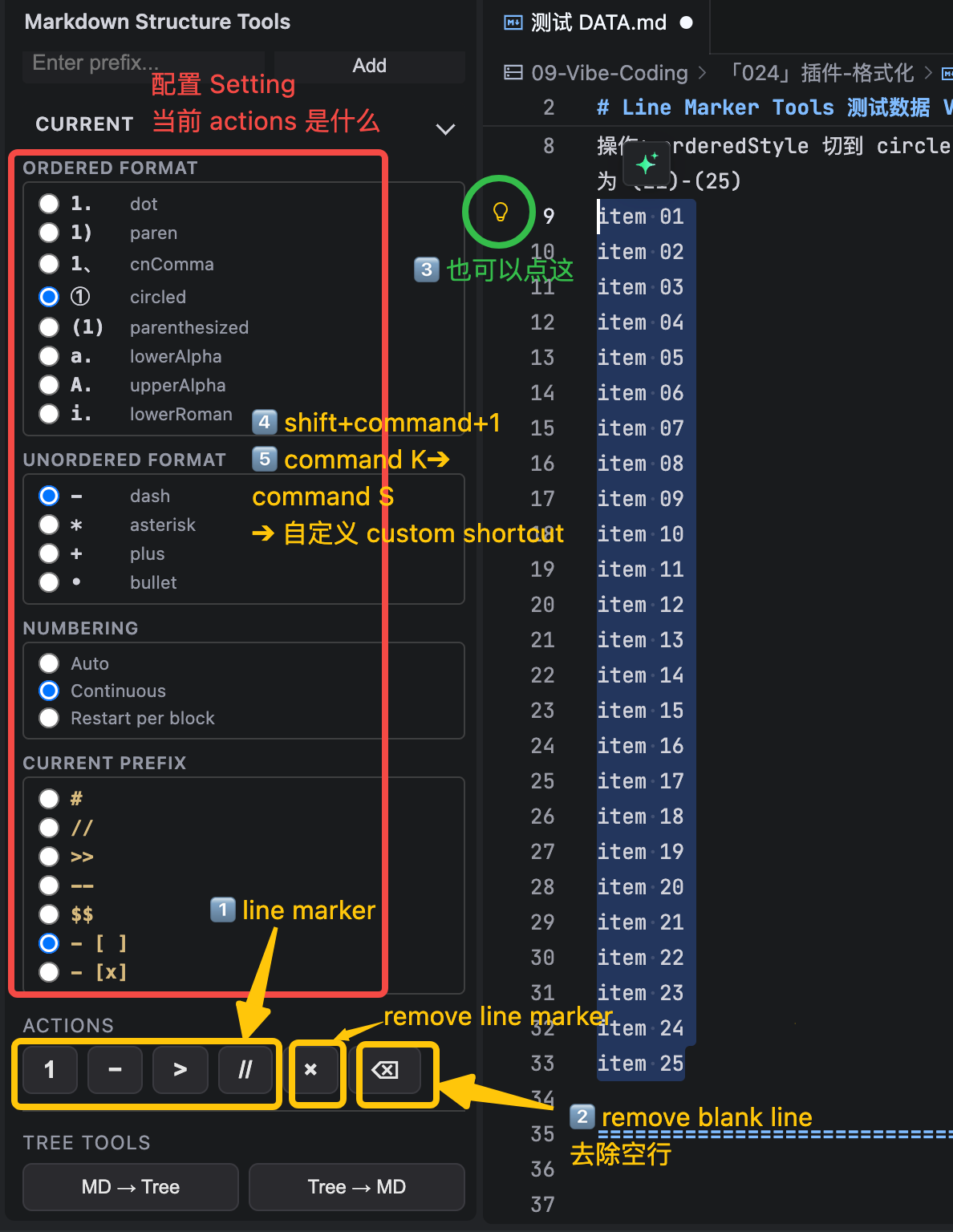
- Marker Tools: add / toggle / strip list markers (ordered, unordered, quote, custom prefix) on any selection — even in SQL / JS / TXT.
-
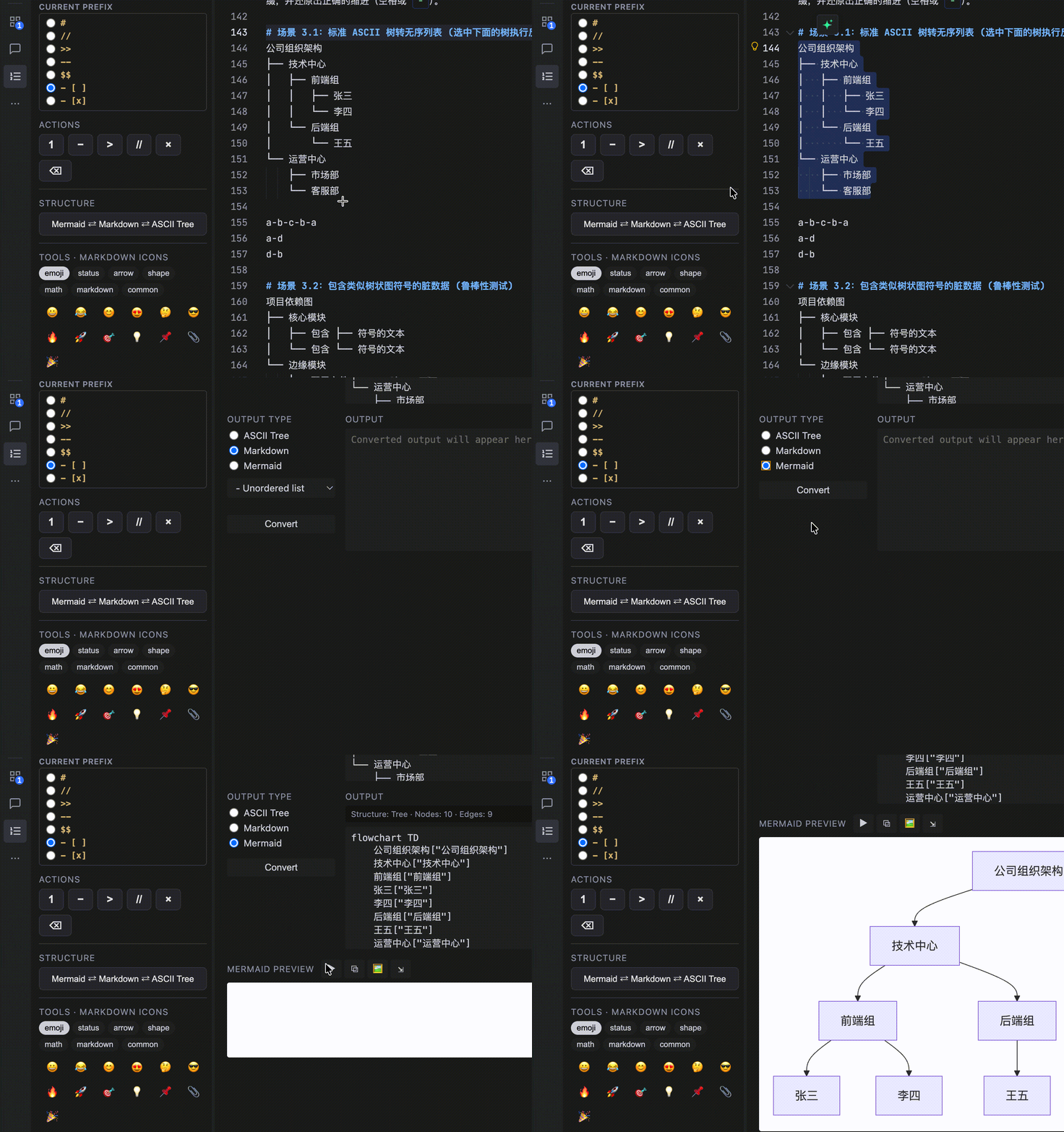
- Structure Tools: convert Markdown structure ⇄ ASCII tree ⇄ Mermaid flowchart — visualize hierarchy and relationships at a glance.
-
- File Outline: turn any text/code file (SQL / Python / JS / CSS / TXT…) into a navigable and editable Markdown-style outline —
-- # Section, // ## Sub.
-
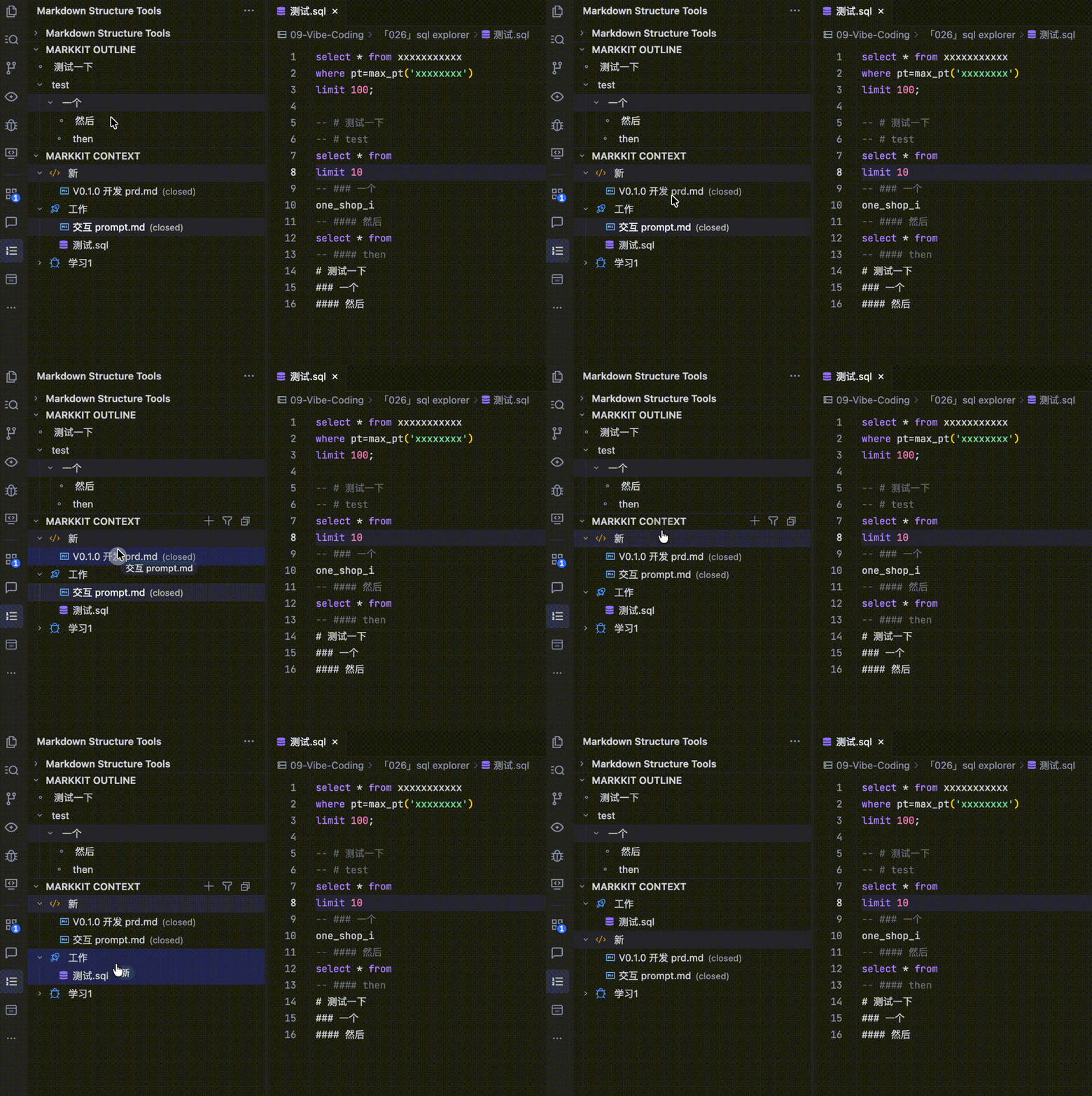
- Context / Tab Groups: organize the files you're working on into named groups — close a tab without losing the group, drag & drop to reorder.
-
- Context Snapshot: save & restore your whole working context — groups, file order, and workspace roots — as a portable
.markkit-context.json. Survives closing VS Code and even moving the project to a new path.
-
- Markdown Icons: click-to-copy symbol palette (emoji, kaomoji 颜表情, arrows, math, …) inside the sidebar.
💡 Workflow: Write → Select → Mark → Chain the structure ↔ back to cleaner Markdown.
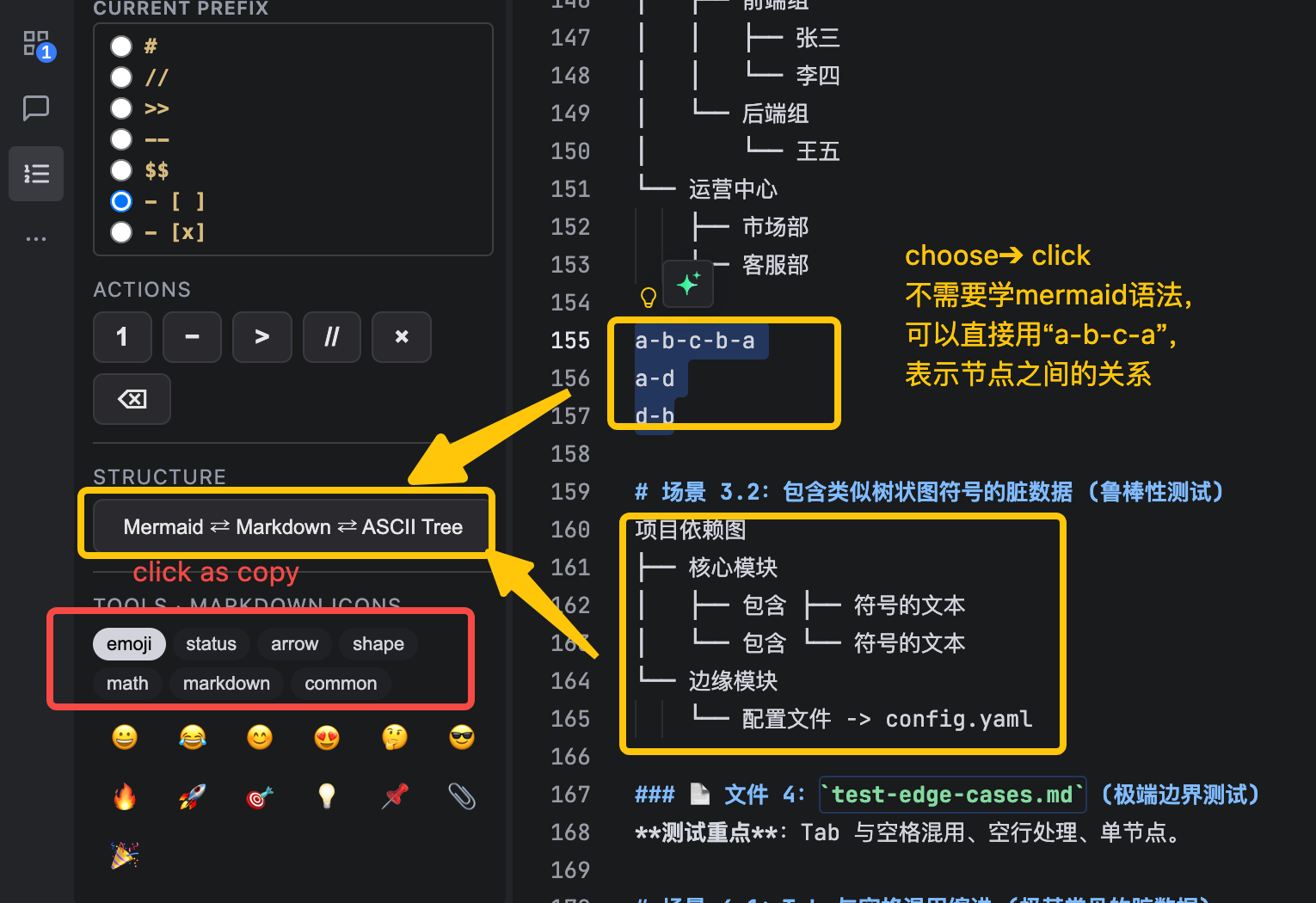
💡 Example: You can customize the prefix "- [ ]" for to‑do items. To express a graph without learning Mermaid, write plain chain syntax and it becomes a flowchart (不用学 mermaid 的语法):
LR
a-b-<xxx>-c-b-a
d-b
【中文版介绍请见底部】
30-second understanding
Open any Markdown (or SQL / JS / TXT)
        ↓
Mark lines: Ordered / Unordered / Quote / Custom / Delete blank line
        ↓
Convert structure ⇄ ASCII tree ⇄ Mermaid — or copy its outline
        ↓
Navigate any file via File Outline (# / ## / ###) / drag / edit
        ↓
Group related files in Context / Tab Groups 【like Edge/Google tag groups】
        ↓
Copy / Replace in place — done in seconds
            MarkKit Marker Tools
                 │
   ┌─────────────┼─────────────┬───────────┐
   ↓             ↓             ↓           ↓
 Ordered      Unordered      Quote      Custom
   │             │             │           │
 1. a. i.       - * + •         >        // -- $ # -[x]
 8 formats     4 formats      single    any prefix you define
                 │
                 │    Numbering: auto / continuous / perBlock
                 ↓
       Apply / Toggle / Strip (layer by layer)
   Markdown (unordered / ordered / heading)  ⇄  ASCII Tree  ⇄  Mermaid flowchart
                  │                                                │
                  ↓                                                ↓
         parse hierarchy                                     copy / preview / replace
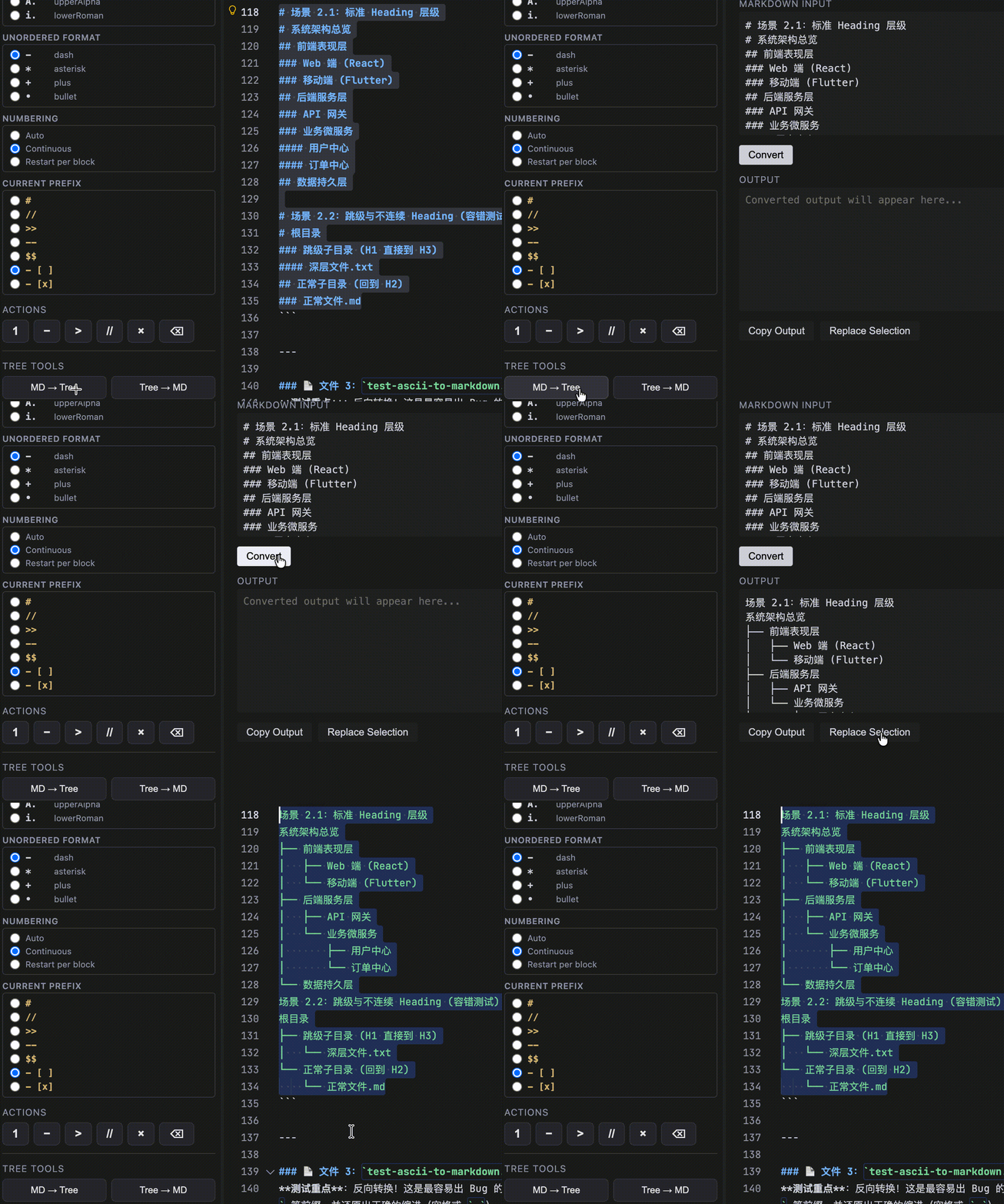
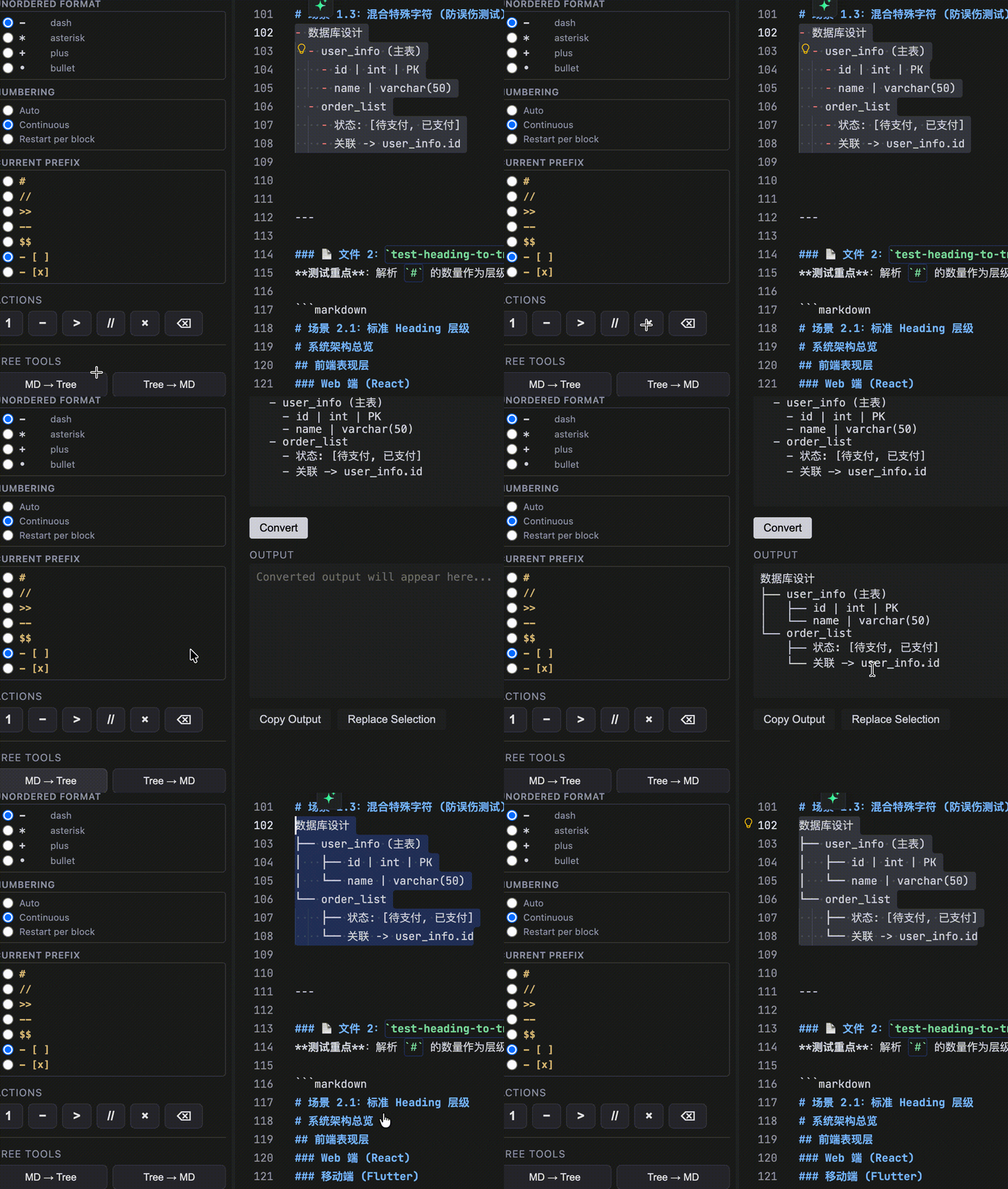
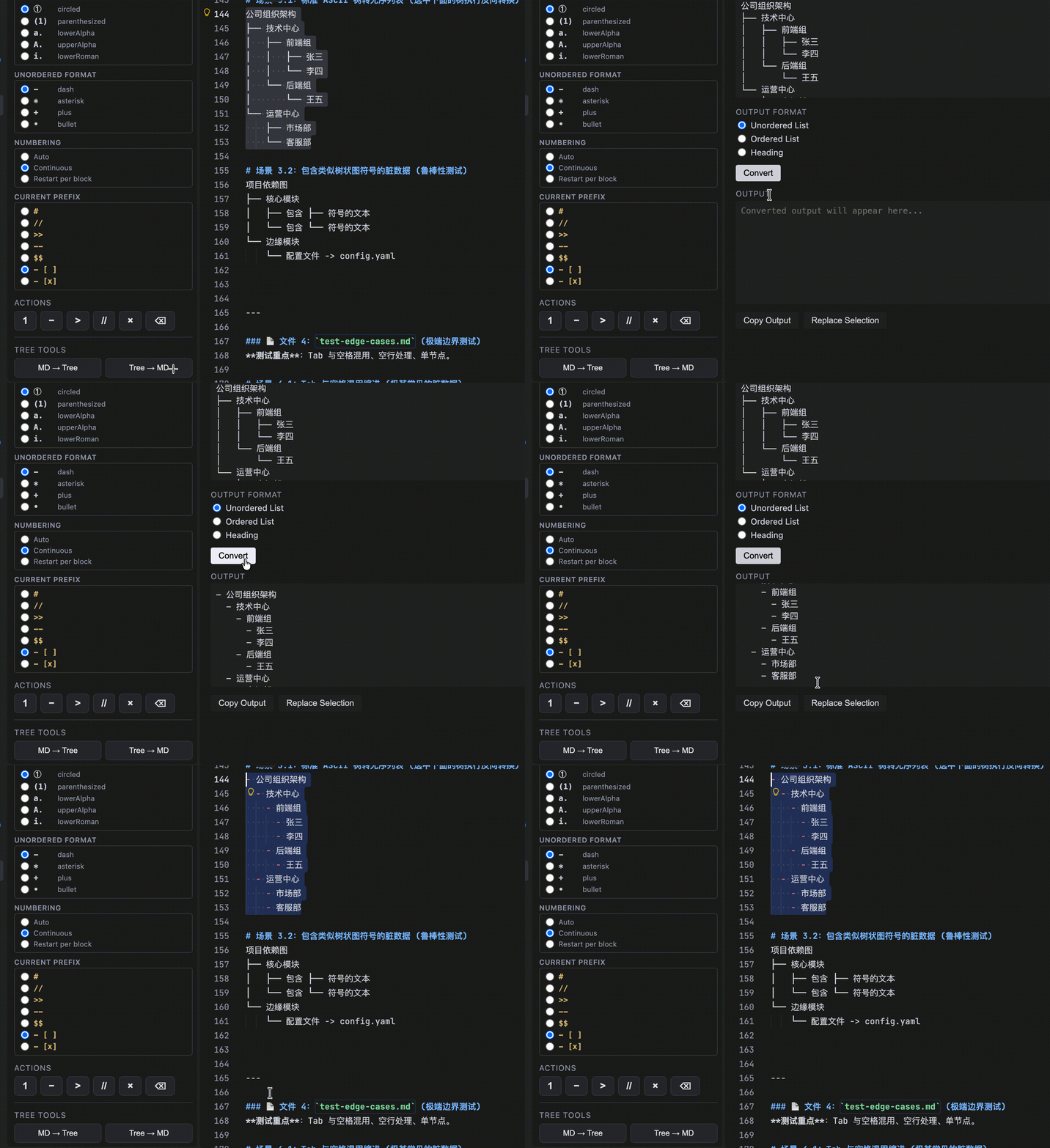
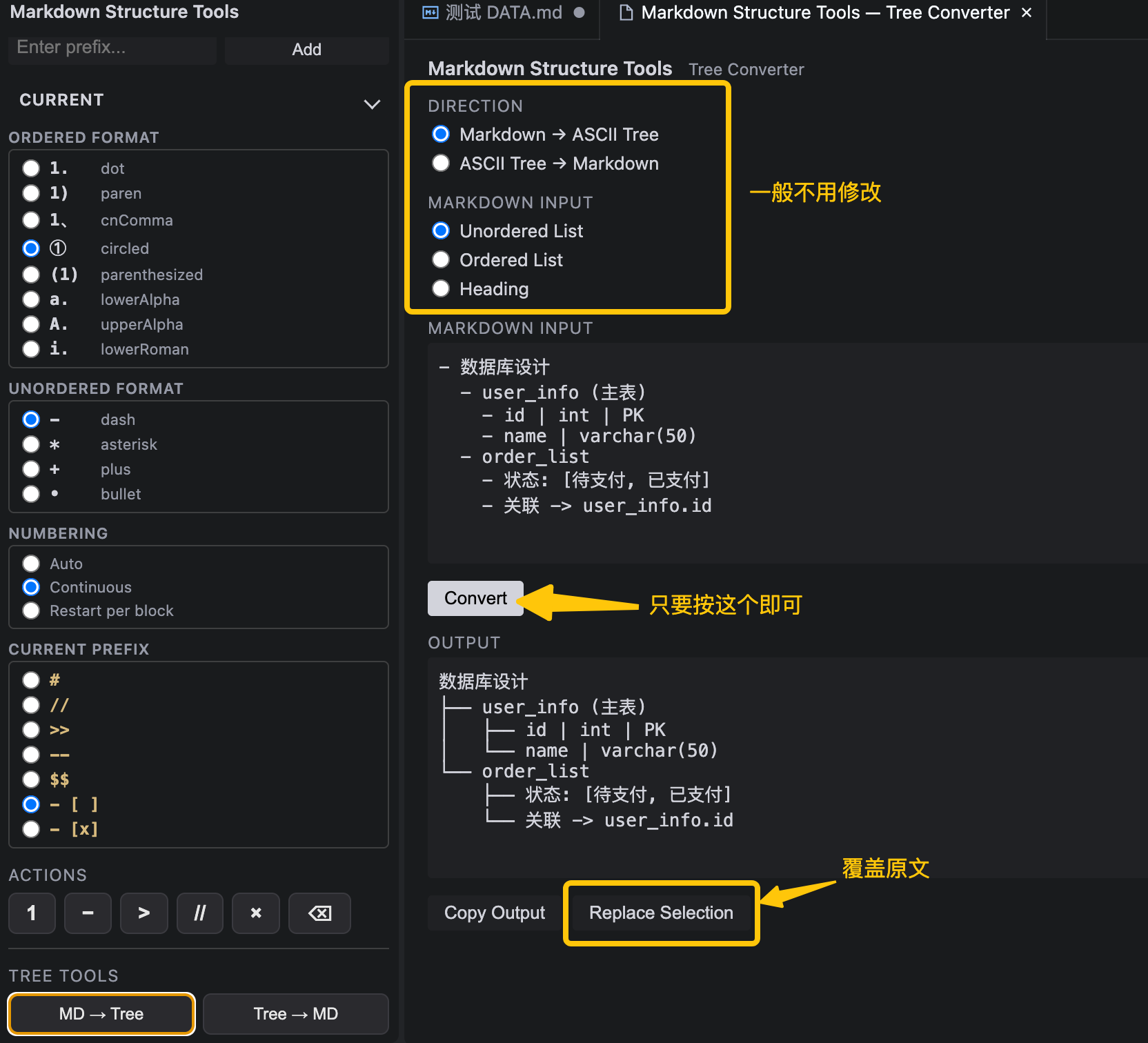
The Structure Converter panel (sidebar STRUCTURE entry) is a single three-way switch:
- Input type —
Auto by default detects whether your selection is Markdown / ASCII tree / Mermaid / graph syntax; a Manual folder lets you force one if auto-detection ever guesses wrong.
- Output type — ASCII Tree, Markdown, or Mermaid. When Markdown is chosen, pick the form you want:
- unordered list, 1. numbered list, or ## headings.
- Select text, open the converter, and it auto-fills the input; converting, previewing, and replacing the selection (single undo) work the same as before.
3. File Outline: navigate any text/code file
MarkKit gives any text file a Markdown-style section outline. Inside your file, define hierarchy with # / ## / ### behind your language's comment prefix — the MarkKit Outline TreeView lists it as a navigable tree. Click a node to jump to its exact line.
-- # 用户分析
-- ## 注册用户
-- ### 新用户
-- ### 老用户
-- ## 活跃用户
| Language |
Comment prefix |
Outline example |
| SQL |
-- |
-- # 用户分析 |
| Python |
# |
# # 数据加载 |
| JavaScript / TypeScript / TSX |
// |
// # API |
| CSS / SCSS (single-line block) |
/* */ |
/* # Layout */ |
| Java / Go / Rust |
// |
// # Service |
| Shell |
# |
# # Deploy |
| Markdown |
(none) |
# 标题 |
| Plain text / custom prefix |
@ |
@# 数据分析 |
- Default syntax is language comment; switch to custom prefix (
@, MK, …) via markdownStructureTools.outline.syntax.
- Levels 1–6, level jumps allowed (
# A → ### C nests C under A, no phantom nodes).
- Same
# language feeds back into Structure: Outline → ASCII / Mermaid, and ASCII → Outline (to SQL/Python/JS/CSS comments).
3a. Outline Editor — edit the file structure from the tree (v0.4)
MarkKit Outline is no longer read-only. Rename, reparent and delete sections from the tree; MarkKit writes the change back to the source file.
| Action |
What it changes |
Rename (F2) |
The title only |
| Promote |
Marker level − 1 only — does not move the Section Block |
| Demote |
Marker level + 1 only — does not move the Section Block |
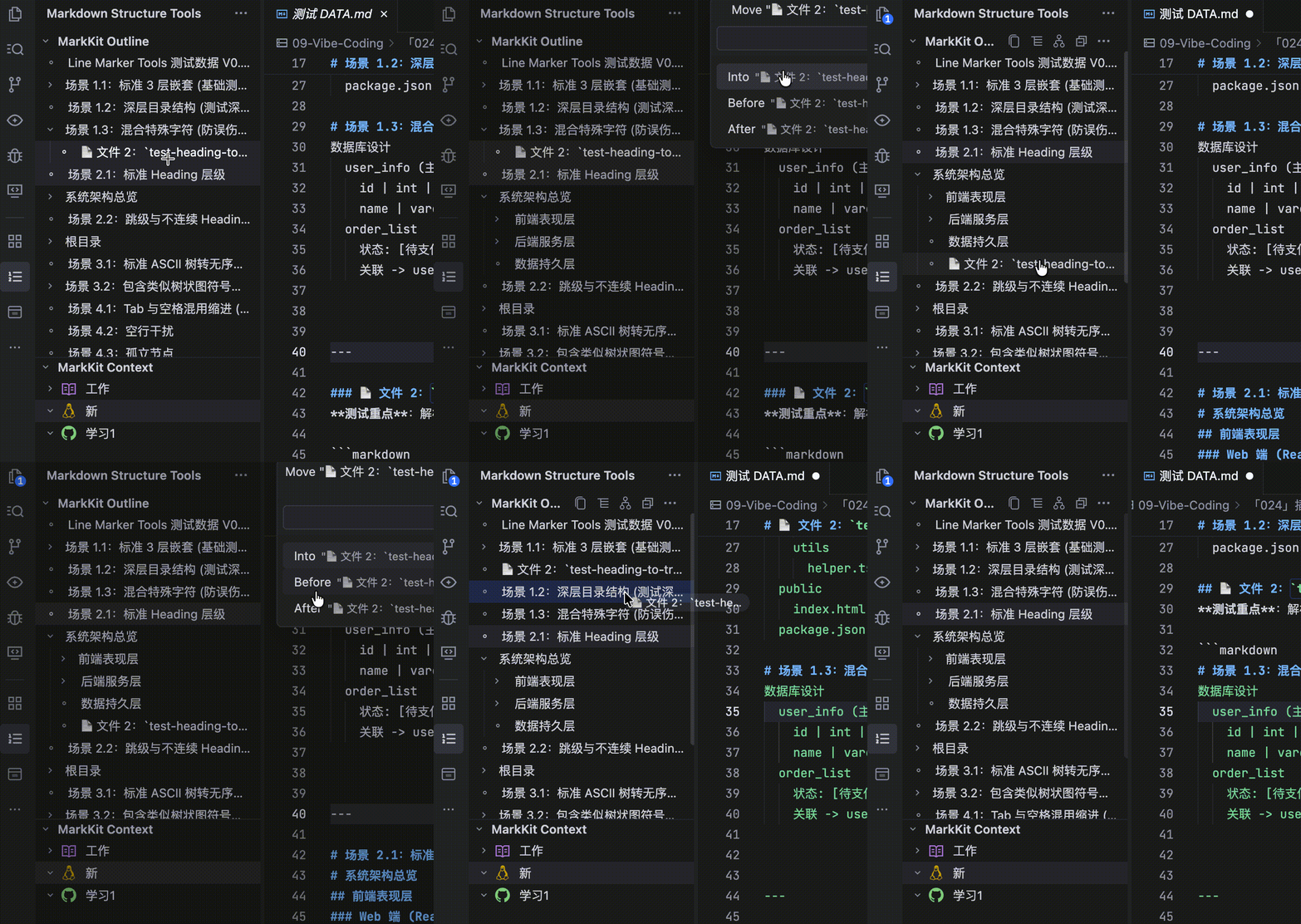
| Move Here… / drag → Into / Before / After |
Reparent / reorder the whole section |
| Remove Outline Marker |
Drops the # marker, keeps the comment prefix and body |
| Delete Section |
Removes the whole section + children (asks first) |
| Convert to Explicit Outline (Auto nodes only) |
Writes the markers into the file so an Auto Outline (SQL CTE) becomes editable — idempotent, body untouched |
One tree node = one Section Block, not one line of marker. A node owns from its marker line down to the next marker of the same or higher level — so dragging a node drags its entire section and code block with it. This is what makes reshaping a SQL CTE chain painless: drag user_base and its whole select … block travels.
-- # 用户分析
-- ## 注册用户        ← drag this node…
select ...             ← …this body comes along
-- ## 活跃用户
- Promote / Demote = level change only — they rewrite just that node's marker (
### → ##) and never move the Section Block or touch its children (# B + ### C stays legal after promoting B).
- Move = reparent / reorder — this is the one that actually relocates things. Dropping
B Into D rebases the whole subtree so relative depth is preserved (B = target + 1, children shift by the same delta).
- Drag is same-document only, and refuses to drop a node into its own descendant.
- Every action is one undo (
Ctrl/Cmd+Z). MarkKit never reformats the file — indentation, blank lines, trailing whitespace and EOL are preserved byte-for-byte.
- Auto Outline nodes (SQL CTE, e.g.
Query / user_base) are read-only until you materialize them: right-click → Convert to Explicit Outline writes -- # Query / -- ## <cte> into the file, and they become editable. It's idempotent — already-marked entries are skipped, so running it again is safe. Your SQL body is never modified, only marker lines are inserted (one undo).
4. Context: Tab Groups for your working set
The MarkKit Context view groups the files you're currently working on into named, persistent collections — a lightweight "what am I focusing on" layer, not a file-manager replacement.
📊 Revenue Analysis
   user.sql
   revenue.sql
   dashboard.tsx

💻 Auth Refactor
   auth.ts
   login.tsx
- Create / rename / delete / reorder groups; expand several groups side by side.
- One file → one group; drag files across groups, reorder files within a group, and drag groups to reorder them.
- Multi-select — Ctrl/Cmd+click several files, then right-click → Remove from Group / Move to Group, or just drag the whole selection to another group.
- Closing a tab ≠ removing from the group — the file stays in the group (shown as
closed), and only returns to Ungrouped when you explicitly remove it.
- All / Active filter and Focus one or several groups (right-click any group → Focus Group → tick the ones you want); auto-detected
missing files (moved/deleted outside VS Code) show a ⚠ and can be re-linked via Locate File.
- Group icon & color — each group takes a Codicon (folder / database / rocket / …) plus one of 9 distinct pastel theme colors.
- Same-name files are disambiguated — since a group is a work topic, not a project, it can hold several
index.html. MarkKit appends the shortest path that tells them apart (A/ vs B/src/) as a secondary description; unique files stay uncluttered. Configure via ⚙ Context Settings → Same-name files only (default) / All files / Never.
- Everything persists to
workspaceState, and file renames/moves are tracked automatically — display paths are always re-derived from the live URI, never stored.
- Snapshot your whole working context (v0.4.4) —
workspaceState is keyed to the current window, so reopening VS Code (or switching machines) loses your groups. Save Context Snapshot... writes a portable .markkit-context.json (plus a companion .code-workspace) next to your project; Import Context Snapshot... restores the workspace roots, every group with its icon/color/order, file membership and order, and the File Path Display setting. Files are re-located via workspace folder + relative path, so even moving the whole project from /old/project to /new/project still works. See FAQ 5.
Why MarkKit?
Structural editing in Markdown is repetitive: typing - , 1., > by hand is slow, inconsistent, and error-prone. MarkKit solves both directions of that problem.
| Value |
What it means |
| Any text file, not just Markdown |
Line markers work in Markdown, SQL, JS, TXT — prefix lines as lists, quotes, comments, or TODO. |
| 9 ordered formats |
1. 1) 1、 ① ❶ (1) a. A. i. — switch the whole list style in one gesture. |
| 4 unordered styles |
- * + • — consistent bullets everywhere. |
| Custom prefix = your grammar |
// -- $ # or even task list - [ ] — define any marker for your own language. |
| Smart numbering |
auto / continuous / perBlock — decide how numbering behaves across blank lines. |
| Visualize hierarchy |
Convert Markdown lists or headings to an ASCII tree or a Mermaid flowchart — see the structure. |
| Express graphs in plain text |
Write A-B-C or A-B-C-A and get a flowchart TD — cycles, no Mermaid learning required. |
| Outline any file |
-- # Section in SQL, # # Section in Python, // # Section in JS — navigate long files via a native tree. |
| Organize your working set |
Group related files; close a tab without losing the group; drag & drop to reorder across groups. |
| Idempotent toggling |
Apply → Toggle → Strip layer by layer, preserving indentation and blank lines. |
| One-click cleanup |
Delete blank lines in the selection, single undo. |
| Symbol palettes |
Click-to-copy emoji, kaomoji (颜表情), status, arrows, shapes, math, and common symbols — no leaving the editor. |
Product map
MarkKit
├─ Marker Tools (any text file)
│  ├─ Ordered   (1. 1) 1、 ① ❶ (1) a. A. i.)
│  ├─ Unordered (- * + •)
│  ├─ Quote     (>)
│  └─ Custom    (// -- $ # - [ ]  … any prefix)
│     └─ Numbering: auto / continuous / perBlock
├─ Structure Tools (Tree + Mermaid)
│  ├─ Markdown ⇄ ASCII Tree (list / ordered / heading)
│  ├─ Markdown ⇄ Mermaid (flowchart TD)
│  └─ Graph syntax A-B-C / A-B-C-A
├─ Outline — File Outline (any text / code file)
│  ├─ MarkKit Outline native TreeView
│  ├─ Syntax: language comment (-- #) / custom prefix (@#)
│  ├─ Levels 1–6, level jump, click-to-jump, auto refresh
│  └─ Outline ⇄ Structure ⇄ ASCII / Mermaid
├─ Context — Tab Groups (working set)
│  ├─ MarkKit Context native TreeView + D&D
│  ├─ Manual groups: create / rename / delete / reorder
│  ├─ One file → one group; close tab ≠ remove from group
│  ├─ All / Active filter + Focus + missing reconcile
│  └─ workspaceState persistence + rename/move tracking
├─ Sidebar panel
│  ├─ Available Styles + Prefixes
│  ├─ Current formats
│  ├─ STRUCTURE (three-way Structure Converter)
│  │  ├─ Input: Auto (detect) / Manual (force type)
│  │  ├─ Output: ASCII / Markdown (- 1. ##) / Mermaid
│  │  ├─ Copy text / Copy PNG / Preview / Replace
│  └─ TOOLS — Markdown Icons palette
├─ Structure Converter panel (Copy / Preview / Replace)
└─ Entry points: context menu / lightbulb / command palette / shortcuts
Keyboard shortcuts (can be customized)
Active in Markdown files with a selection (editorLangId == markdown && editorHasSelection).
| Shortcut |
Command |
Action |
Shift+Cmd+1 |
markdownStructureTools.toggleOrdered |
Toggle Ordered |
Shift+Cmd+2 |
markdownStructureTools.toggleUnordered |
Toggle Unordered |
Shift+Cmd+3 |
markdownStructureTools.toggleQuote |
Toggle Quote |
Shift+Cmd+4 |
markdownStructureTools.toggleCustom |
Toggle Custom |
Shift+Cmd+5 |
markdownStructureTools.removeMarker |
Remove Marker |
Shift+Cmd+6 |
markdownStructureTools.deleteBlankLines |
Delete Blank Lines |
Customize: Cmd+K Cmd+S → search "MarkKit", or edit keybindings.json via Preferences: Open Keyboard Shortcuts (JSON):
{
  "key": "ctrl+alt+1",
  "command": "markdownStructureTools.toggleOrdered",
  "when": "editorLangId == markdown && editorHasSelection"
}
No Mermaid required. To draw a graph, just write the connections as plain chains:
To add a label on an edge, wrap the text in <...> between the hyphens: write a-b-<1.复制>-c to get a b -->|1.复制| c edge. Plain - edges remain unlabeled; mix freely in one line.
To control the layout direction, put a single line TD / LR / RL / BT / TB before the chain:
LR
a-b-<xx>-c-d-a
a-d
Open the Structure Converter (STRUCTURE) with a chain like this selected — input Auto recognizes it and converts straight to a flowchart. No need to learn Mermaid.
Supported files & limitations
| Item |
Note |
| Supported files |
Any text document (Markdown, SQL, JS, TXT…); tree tools are Markdown-aware |
| Language detection |
Based on document.languageId (respects custom language associations) |
| Local-first |
No account, no backend, no cloud sync, no AI API — all local |
🌟FAQ
1.How do I focus several groups at once, and how do I leave focus?
Right-click any group → Focus Group → a checklist appears. Tick the groups you want to work on together; untick one to drop it. Unfocused groups stay visible but greyed out at the bottom, so you can always right-click another one to add it. To leave focus entirely: right-click → Clear Focus, or Shift+Cmd+P → Clear Focus.
2.What does "Add Active Tabs" do (right-click a group)?
It collects all currently open editor tabs into that group at once — no dragging one by one.
Example: with user.sql / revenue.sql / dashboard.tsx open, right-click a group → Add Active Tabs → all three files land in the group.
3.How do I remove several files from a group at once?(Same as Move to Group)
Ctrl/Cmd+click to select multiple files, then right-click → Remove from Group.
Ctrl/Cmd+click to select multiple files, then right-click → Move to Group, or drag directly into the new group.
3b.Several files in one group have the same name — how do I tell them apart?
A group is a work topic (e.g. todolist, bug-fix), not a project, so it can easily hold several index.html or 交互 prompt.md. MarkKit appends a secondary path after the file name:
todolist
├── index.html    A/            ← A/index.html
├── index.html    B/            ← B/index.html
├── index.html    「028」…/      ← 「028」行业热点分析/…/index.html
└── app.ts                      ← unique, no path shown
Click the ⚙ settings button in the MARKKIT CONTEXT view title bar → pick a File Path Display preference:
- Same-name files only — the default. The path appears only for files whose name collides inside the same group, using the shortest path that tells them apart. Unique files stay clean.
- All files — every file also shows its folder.
- Never — only the file name, even when ambiguous.
The path is always the shortest one that disambiguates: A/x + B/x → A/ B/; but A/src/x + B/src/x → A/src/ B/src/ (because src/ alone would be identical). Multi-root workspaces fall back to the workspace folder name (Frontend/src/) when relative paths still collide. The setting is per-workspace.
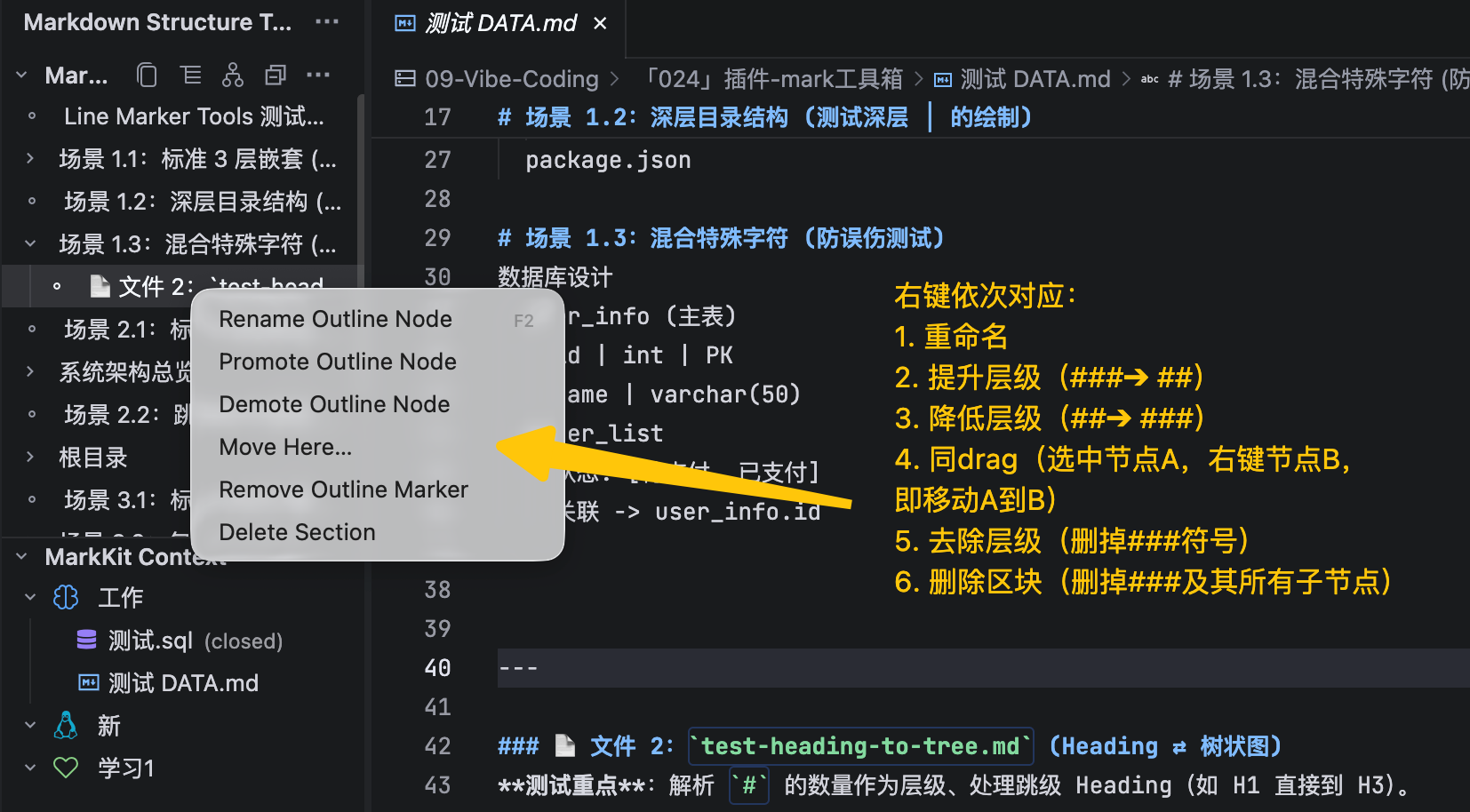
4.What do the right-click actions on an Outline node mean?
Click a node to select it, then right-click it:
| Menu item |
Meaning |
Rename (F2) |
Change the title only |
| Promote |
level − 1 — e.g. -- ### ARPU → -- ## ARPU. Only the marker changes; the section does not move. |
| Demote |
level + 1. Same — marker only. |
| Move Here… |
Select node A, then right-click node B → Move Here… — moves A to B. Equivalent to 🌟dragging A onto B. = reparent / reorder siblings |
| Remove Outline Marker |
Drops the level marker so the node becomes plain body text |
| Delete Section |
Deletes that node and all its children (asks first) |
| Convert to Explicit Outline |
Auto nodes only. Writes -- # Query / -- ## <cte> into the file so the Auto Outline (SQL CTE) becomes editable. Idempotent — already-marked entries are skipped; if nothing is missing it just says already up to date. Only marker lines are inserted; your SQL is never modified (one undo) |
Rule of thumb: Promote / Demote change a node's depth. Move changes a node's parent or sibling order.
Auto nodes can't be edited directly — run Convert to Explicit Outline first, then they behave like any other node.
5.How do I back up and restore my whole working context (groups + workspace roots)?
First, Save Context Snapshot... (💾 in the MARKKIT CONTEXT view title bar).
There are two ways to restore:
【Method 1】 — Restore the workspace roots too (recommended)
Save Context Snapshot...
        ↓
Double-click (or right-click → Open with VS Code / Trae) my-work.code-workspace
        ↓
The Explorer immediately shows all your workspace roots — before any extension runs
        ↓
In MARKKIT CONTEXT, click the Import icon
        ↓
Groups are restored
【Method 2】 — Import only (groups without roots)
In MARKKIT CONTEXT, click the Import icon directly
        ↓
MarkKit asks you to pick each workspace root folder by hand
        ↓
Pick them all → both workspace roots and groups are restored
   — or —
Click Cancel → the Explorer workspace is left untouched,
               but the group context is still restored
Notes:
- Files that can't be found (deleted, renamed, or on a machine that doesn't have them) stay in their group and show
⚠ missing — membership and ordering are preserved, so nothing shifts around.
- Restoring is a replace: the current groups are swapped for the snapshot's. If groups already exist, MarkKit asks for confirmation first (it can't be undone).
- A snapshot that was saved on an older layout still resolves, because files are identified by
workspace folder + relative path, not by absolute path.
Feedback
Found a bug or have a feature request? Open an issue in the extension repository, or reach me via WeChat (Yvonne1ru, please state your issue in the verification message).
MarkKit 中文说明
中文说明(附录)
🌟把 Markdown 变成结构清晰的内容只需几秒 —— Marker + Structure + Outline + Context。
- Marker Tools:给任意选区行加/切/剥列表标记(有序、无序、引用、自定义前缀),Markdown / SQL / JS / TXT 都适用。
- Structure Tools:把 Markdown 结构(列表/标题)⇄ ASCII 树 ⇄ Mermaid 流程图转换,一眼看清层级与关系。
- File Outline:任意文本/代码文件(SQL/Python/JS/CSS/TXT…)都能获得 Markdown 式章节大纲导航&拖拽&编辑 ——
-- # 章节、// ## 子节。
- Context / Tab Groups:正在关注的文件收纳进命名分组 —— 关 Tab 不丢分组、拖拽重排。
- Context Snapshot(新):整套工作上下文可保存 / 恢复 —— 分组、文件顺序、workspace 根目录,全部装进一个可迁移的
.markkit-context.json。关掉 VS Code、甚至把项目搬到新路径,都能恢复。
💡工作流:写 → 选中 → 打标记 → 结构 ⇄ 树双向转换。
💡示例:你可以自定义 "- [ ]" 作为待办条目前缀。要表达图而不用学 Mermaid,直接写链式语法,即可变成 flowchart:
LR
a-b-<xxx>-c-b-a
d-b
30 秒理解
打开任意 Markdown(或 SQL / JS / TXT)
        ↓
选中要改的行
        ↓
打标记:有序 / 无序 / 引用 / 自定义前缀 / 删除空行
        ↓
结构 ⇄ ASCII 树 ⇄ Mermaid 转换 —— 或复制其大纲
        ↓
用 File Outline(# / ## / ###)导航任意文件
        ↓
用 Context / Tab Groups 分组收纳相关文件
        ↓
复制 / 就地替换,几秒完成
            MarkKit Marker Tools
                 │
   ┌─────────────┼─────────────┬───────────┐
   ↓             ↓             ↓           ↓
 有序         无序          引用        自定义
   │             │             │           │
 1. a. i.       - * + •         >        // -- $ # -[x]
 8 种格式     4 种格式       单级      任意前缀
                 │
                 │    编号:auto / continuous / perBlock
                 ↓
       应用 / 切换 / 逐层剥离
   Markdown(无序 / 有序 / 标题)  ⇄  ASCII 树  ⇄  Mermaid 流程图
                  │                                 │
                  ↓                                 ↓
         解析层级                             复制 / 预览 / 替换
Structure Converter 面板(侧边栏 STRUCTURE 入口)三向自由切换:
- Input Type —— 默认
Auto 自动识别选区是 Markdown / ASCII 树 / Mermaid / 图语法;Manual 折叠可在误判时强制指定类型。
- Output Type —— ASCII 树、Markdown、Mermaid。选 Markdown 时再挑形式:
- 无序列表、1. 有序列表、## 标题。
- 选中文本点开即自动填充;转换、预览、替换选区(单次撤销)。
3. File Outline:任意文本 / 代码文件的章节导航
MarkKit 让任意文本文件获得 Markdown 式大纲。在文件里用各语言注释前缀 + # / ## / ### 定义层级 —— MarkKit Outline TreeView 会列出可导航的树,点一个节点即跳到对应行。
-- # 用户分析
-- ## 注册用户
-- ### 新用户
-- ### 老用户
-- ## 活跃用户
| 语言 |
注释前缀 |
大纲示例 |
| SQL |
-- |
-- # 用户分析 |
| Python |
# |
# # 数据加载 |
| JavaScript / TypeScript / TSX |
// |
// # API |
| CSS / SCSS(单行 block) |
/* */ |
/* # Layout */ |
| Java / Go / Rust |
// |
// # Service |
| Shell |
# |
# # Deploy |
| Markdown |
(无) |
# 标题 |
| 纯文本 / 自定义前缀 |
@ |
@# 数据分析 |
- 默认语法是 语言注释;可在
markdownStructureTools.outline.syntax 切换到 自定义前缀(@、MK…)。
- 层级 1–6,允许跳级(
# A → ### C 会把 C 挂在 A 下,不造虚拟节点)。
- 同一套
# 语言回灌 Structure:Outline → ASCII / Mermaid,以及 ASCII → Outline(转成 SQL/Python/JS/CSS 注释)。
3a. Outline Editor —— 直接在 Outline 里改文件结构(v0.4)
MarkKit Outline 不再只是导航。改标题、换层级、换父节点、删章节都能在树里直接完成,MarkKit 把改动写回源文件。
源文件 ←→ Outline 树 (源文件始终是唯一事实来源)
| 操作 |
改的是什么 |
Rename(F2) |
只改标题 |
| Promote |
只改 marker 层级 − 1 —— 不移动 Section Block |
| Demote |
只改 marker 层级 + 1 —— 不移动 Section Block |
| Move Here… / 拖拽 → Into / Before / After |
换父节点 / 调 sibling 顺序 |
| Remove Outline Marker |
去掉 # 标记,保留注释前缀与正文 |
| Delete Section |
删掉整个 Section 及其子节点(先确认) |
| Convert to Explicit Outline(仅 Auto 节点) |
把 marker 写进文件,让 Auto Outline(SQL CTE)变成可编辑 —— 幂等、不动业务代码 |
一个 Outline 节点 = 一个 Section Block,而不是一行 marker。 节点从自己的 marker 行开始,到下一个「同级或更高层级」的 marker 之前结束 —— 所以拖一个节点,就是拖整个章节 / 代码块一起走。这正是调 SQL CTE 结构最省事的地方:拖 user_base,它那一整段 select … 跟着走。
-- # 用户分析
-- ## 注册用户        ← 拖这个节点…
select ...             ← …这段正文跟着走
-- ## 活跃用户
- Promote / Demote = 只改层级:只重写这一个节点的 marker(
### → ##),不移动 Section Block、不递归子节点(# B + ### C 在 Promote B 之后依旧合法)。
- Move = 换父节点 / 调整 sibling 顺序:这才是真正「搬运」的操作。把
B 拖到 D 的 Into,整棵子树的相对层级差保持不变(B = 目标 + 1,子节点同比平移)。
- 拖拽仅限同一文件;且拒绝把节点拖进自己的子孙(避免环)。
- 每个操作都是一次 Undo(
Ctrl/Cmd+Z)。MarkKit 从不重新格式化文件 —— 缩进、空行、尾随空白、EOL 全部逐字节保留。
- Auto Outline 节点(SQL CTE,如
Query / user_base)为只读,直到你把它物化:右键 → Convert to Explicit Outline,MarkKit 会把 -- # Query / -- ## <cte> 写进源文件,之后这些节点即可编辑。该操作幂等 —— 已标注的会跳过,重复执行安全。只插入 marker 行,不改动任何业务代码(一次 Undo 可整体撤销)。
4. Context(Tab Groups):工作上下文
MarkKit Context 视图把正在关注的文件收进命名分组,是一层轻量「我现在在做什么」,不是文件管理器。
📊 Revenue Analysis
   user.sql
   revenue.sql
   dashboard.tsx

💻 Auth Refactor
   auth.ts
   login.tsx
- 建 / 改名 / 删 / 重排 group,多组同时展开对照。
- 一文件一组;跨组拖拽移动、组内拖拽重排、拖拽重排 group 顺序。
- 多选 —— Ctrl/Cmd+点击多选文件,右键 Remove from Group / Move to Group 批量操作,或直接把整个选区拖到另一个组。
- 关 Tab ≠ 移出分组 —— 文件仍留在组里(显示
closed),只有显式移除才回到 Ungrouped。
- All / Active 过滤 + Focus 一个或多个 group(右键任意 group → Focus Group → 勾选要一起工作的);VS Code 外被删/移的文件自动标
⚠ missing,可右键 Locate File 重新绑定。
- 组图标与颜色 —— 每个组可选一个 Codicon(folder / database / rocket / …),配 9 种可区分的淡色主题色。
- 同名文件自动消歧 —— group 是工作主题而不是项目,所以一个组里可能有多个
index.html。MarkKit 在文件名后追加足以区分它们的最短路径(A/ 与 B/src/);不冲突的文件保持干净不显示路径。可在 ⚙ Context Settings 里切换 Same-name files only(默认)/ All files / Never。
- 全部持久化到
workspaceState,文件重命名/移动自动追踪 —— 显示路径始终从当前 URI 实时派生,从不存储。
- 快照备份整套工作上下文(v0.4.4) ——
workspaceState 与当前窗口绑定,关掉 VS Code 重开(或换台机器)分组就没了。Save Context Snapshot... 把可迁移的 .markkit-context.json(外加一份配套的 .code-workspace)写到项目旁边;Import Context Snapshot... 恢复 workspace 根目录、每个 group 的 icon/color/顺序、文件成员与顺序、以及 File Path Display 设置。文件靠 workspace folder + relative path 重新定位,因此整个项目从 /old/project 搬到 /new/project 也能恢复。详见常见问题 5。
为什么值得装?
结构化编辑很重复:手打 - 、1.、> 慢、不一致、易错。MarkKit 双向解决。
| 价值 |
说明 |
| 不止 Markdown |
行标记适用于 Markdown、SQL、JS、TXT —— 给行加列表、引用、注释或 TODO |
| 9 种有序格式 |
1. 1) 1、 ① ❶ (1) a. A. i. —— 一键切换整列表样式 |
| 4 种无序样式 |
- * + • |
| 自定义前缀 = 你的语法 |
// -- $ #,甚至任务列表 - [ ] |
| 智能编号 |
auto / continuous / perBlock,空行间如何编号由你定 |
| 可视化层级 |
列表/标题 ⇄ ASCII 树 ⇄ Mermaid 流程图,一眼看清层级 |
| 纯文本表达图 |
直接写 A-B-C / A-B-C-A(或 a-b-c-b-a 多行链)就得到 flowchart,无需学 Mermaid;边标签写 a-b-<1.复制>-c,方向写 LR 单行 |
| 任意文件大纲 |
SQL 里 -- # 章节、Python 里 # # 章节、JS 里 // # 章节 —— 用原生树导航长文件 |
| 治理工作上下文 |
文件按任务分组收纳;关 Tab 不丢分组;拖拽跨组重排 |
| 符号面板 |
点即复制 emoji、颜表情(kaomoji)、状态、箭头、形状、数学、常用符号 —— 不用离开编辑器 |
| 幂等切换 |
应用 → 切换 → 逐层剥离,保留缩进与空行 |
| 一键清理 |
删除选区空行,单次撤销 |
Product map
MarkKit
├─ Marker Tools(适用于任意文本文件)
│  ├─ 有序   (1. 1) 1、 ① ❶ (1) a. A. i.)
│  ├─ 无序   (- * + •)
│  ├─ 引用   (>)
│  └─ 自定义 (// -- $ # - [ ]  … 任意前缀)
│     └─ 编号:auto / continuous / perBlock
├─ Structure Tools(Tree + Mermaid)
│  ├─ Markdown ⇄ ASCII 树(无序 / 有序 / 标题)
│  ├─ Markdown ⇄ Mermaid(flowchart TD)
│  └─ 图语法 A-B-C / A-B-C-A
├─ Outline —— File Outline(任意文本 / 代码文件)
│  ├─ MarkKit Outline 原生 TreeView
│  ├─ 语法:语言注释(-- #)/ 自定义前缀(@#)
│  ├─ 层级 1–6、跳级、点击跳转、自动刷新
│  └─ Outline ⇄ Structure ⇄ ASCII / Mermaid
├─ Context —— Tab Groups(工作上下文)
│  ├─ MarkKit Context 原生 TreeView + 拖拽
│  ├─ 手动分组:建 / 改名 / 删 / 重排
│  ├─ 一文件一组;关 Tab ≠ 移出分组
│  ├─ All / Active 过滤 + Focus + missing 恢复
│  └─ workspaceState 持久化 + 重命名/移动追踪
├─ 侧边栏面板
│  ├─ 可用样式 + 前缀
│  ├─ 当前格式
│  ├─ STRUCTURE(三向 Structure Converter)
│  └─ Actions + TOOLS(Markdown Icons)
├─ Tree Converter 面板(复制 / 就地替换)
└─ 入口:右键菜单 / 灯泡 / 命令面板 / 快捷键
核心界面
| 界面 |
适合场景 |
主要能力 |
| 侧边栏(Activity Bar) |
配置一切 |
勾选可用样式、管理前缀、选当前格式、运行 Actions 与 STRUCTURE |
| 编辑器右键 / 灯泡 |
即时打标 |
右键或灯泡给选中内容加/去标记 |
| 命令面板 |
一切操作 |
所有命令都能到达 |
| Structure Converter 面板 |
结构 ⇄ 树 ⇄ Mermaid |
转换、预览、复制、就地替换 —— 单次撤销 |
| MarkKit Context(Activity Bar) |
治理工作上下文 |
分组收纳文件、跨组拖拽、过滤/聚焦,关 Tab 不丢分组 |
1. 侧边栏面板:配置与操作
打开 Activity Bar 的 MarkKit 图标,含两个子项:
- Custom Prefixes & Available Styles —— 勾选可用标记样式;增删自定义前缀(取消勾选的前缀仍留在列表)。
- Current —— 选具体的有序格式、无序格式、编号模式、当前前缀。
- Actions —— 水平图标按钮:有序 → 无序 → 引用 → 自定义 → 移除标记 → 删除空行。
- STRUCTURE —— 单按钮(
Mermaid ⇄ Markdown ⇄ ASCII Tree)打开三向 Structure Converter,自动填入当前选区。
| 任务 |
用法 |
| 收紧可用标记 |
在 Available Styles 取消勾选,Actions 与命令里随即消失 |
| 加自定义前缀 |
输入后点 Add;勾选使其可用,点 × 删除 |
| 选有序格式 |
Ordered Format 里的单选项(如 1.、1、、a.、i.) |
| 给选区打标 |
点 Actions 图标,或用快捷键 |
任意文本文件选中行后选一种标记:
Apple        →  有序    →  1. Apple
Banana          无序       - Banana
                引用       > Orange
             自定义前缀    // Pear
- 切换=没有就加,全有就剥。
- 剥离=逐层去掉:
> - 1. Apple → - 1. Apple → 1. Apple → Apple。
- 智能识别,不误判:
1.5、-5、x-y、C++ 都不是标记。
按缩进层级编号 —— 有序编号按行首缩进分层,子层从 1 重新计数:
aaa          →  1. aaa
    bbb             1. bbb
    ccc             2. ccc
ddd             2. ddd
层级编号(1.1 / 1.2 / 2.1)—— 独立命令 Toggle Hierarchical Numbering,按缩进把父子序号拼接:
aaa          →  1. aaa
    bbb             1.1 bbb
    ccc             1.2 ccc
ddd             2. ddd
多级引用 —— 引用跟着缩进走:> aaa / >> bbb / >>> ccc;再次切换逐层剥掉一个 >。
| 方向 |
输入 |
输出 |
| Markdown → ASCII 树 |
无序列表 / 有序列表 / 标题 |
制表符 ASCII 树 |
| ASCII 树 → Markdown |
制表符树 |
无序 / 有序 / 标题 |
- 兼容 Tab/空格混用、空行、单节点、多层嵌套。
- 复制输出或就地替换,替换保持单次撤销。
快捷键(可自定义)& 语法
仅在有选中的 Markdown 文件生效(editorLangId == markdown && editorHasSelection)。
| 快捷键 |
命令 |
动作 |
Shift+Cmd+1 |
markdownStructureTools.toggleOrdered |
切换有序 |
Shift+Cmd+2 |
markdownStructureTools.toggleUnordered |
切换无序 |
Shift+Cmd+3 |
markdownStructureTools.toggleQuote |
切换引用 |
Shift+Cmd+4 |
markdownStructureTools.toggleCustom |
切换自定义 |
Shift+Cmd+5 |
markdownStructureTools.removeMarker |
移除标记 |
Shift+Cmd+6 |
markdownStructureTools.deleteBlankLines |
删除空行 |
自定义:Cmd+K Cmd+S → 搜 "MarkKit",或改 keybindings.json。
无需学 Mermaid。 要画图,直接写连接即可(纯链式语法):
给边上加标签,用 <...> 包住文字:a-b-<1.复制>-c → b -->|1.复制| c。控制布局方向,在链前单独写一行 TD / LR / RL / BT / TB。
LR
a-b-<xx>-c-d-a
a-d
选中这段链式语法,打开 Structure Converter(STRUCTURE 入口)——input Auto 自动识别,直接转成 flowchart(缺省 TD)。
🌟常见问题
1.怎么同时聚焦多个 group?怎么退出?
右键任意 group → Focus Group → 弹出勾选列表。勾上要一起工作的 group,取消勾选即移出。未聚焦的 group 仍然可见(压灰、置底),所以随时能右键另一个加进来。想全部退出:右键 → Clear Focus,或 Shift+Cmd+P → 搜 Clear Focus。
2.group 右键的 “Add Active Tabs” 是干嘛的?
把当前所有打开的标签页一次收进这个 group,不用逐个拖。
例:开了 user.sql / revenue.sql / dashboard.tsx → 右键 group → Add Active Tabs → 三个文件全进组。
3.怎么一次从 group 移除多个文件?(move to group一样)
Ctrl/Cmd+点击多选文件,再右键 → Remove from Group。
Ctrl/Cmd+点击多选文件,再右键 → Move to Group 或直接拖拽到新 group。
3b.一个 group 里有好几个同名文件(比如多个 index.html),怎么区分?
group 是工作主题(todolist / bug-fix),不是一个项目,所以很容易同时放着多个 index.html 或 交互 prompt.md。MarkKit 会在文件名后面追加一段路径:
todolist
├── index.html    A/            ← A/index.html
├── index.html    B/            ← B/index.html
├── index.html    「028」…/      ← 「028」行业热点分析/…/index.html
└── app.ts                      ← 不冲突,不显示路径
点开 MARKKIT CONTEXT 视图标题栏的 ⚙ 设置按钮,选择路径展示偏好:
- Same-name files only —— 默认。 只有「同一个 group 内文件名冲突」时才显示路径,且取最短可区分路径;不冲突的文件保持干净。
- All files —— 所有文件都额外显示所在目录。
- Never —— 一律只显示文件名,即使重名也不加路径。
路径永远取足以区分的最短那段:A/x + B/x → A/ B/;而 A/src/x + B/src/x → A/src/ B/src/(因为单看 src/ 两边一样)。Multi-root 下若相对路径仍相同,会自动补上 WorkspaceFolder 名(Frontend/src/)。该设置按 Workspace 独立保存。
4.Outline 节点右键的这些操作分别是什么意思?
点击某个节点选中 ➔ 右键:
| 菜单项 |
含义 |
Rename(F2) |
只改标题 |
| Promote |
level - 1,如 -- ### ARPU → -- ## ARPU。只改 marker,不移动 Section Block。 |
| Demote |
level + 1。同样只改 marker。 |
| Move Here… |
选中 A 节点 ➔ 到 B 节点右键 Move Here…,即把 A 移动到 B = 🌟直接拖拽某个节点去另一个 = 换父节点 / 调整 sibling 顺序 |
| Remove Outline Marker |
去掉层级,变成正文文本 |
| Delete Section |
删掉该节点及其所有子节点(会先确认) |
| Convert to Explicit Outline |
仅 Auto 节点。把 -- # Query / -- ## <cte> 写进文件,让 Auto Outline(SQL CTE)变成可编辑。幂等 —— 已标注的会跳过,若没有缺失就提示 already up to date。只插入 marker 行,不改动你的 SQL(一次 Undo) |
一句话区分:Promote / Demote 改的是「这个节点的层级」;Move 改的是「这个节点的父节点 / 兄弟顺序」。
Auto 节点不能直接编辑 —— 先跑一次 Convert to Explicit Outline,之后它就和其他节点一样了。
5.怎么备份 / 恢复整套工作上下文(group + workspace 根目录)?
先 Save Context Snapshot...(MARKKIT CONTEXT 视图标题栏的 💾)。
恢复有两种方式:
【方法一】连 workspace 根目录一起恢复(推荐)
Save Context Snapshot...
         ↓
双击 my-work.code-workspace(或右键 →「用 VS Code / Trae 打开」)
         ↓
资源管理器立刻显示全部 workspace 根目录 —— 在扩展启动之前就已就位
         ↓
在 MARKKIT CONTEXT 点 Import 图标
         ↓
group 上下文恢复
【方法二】只 import,不动根目录
在 MARKKIT CONTEXT 直接点 Import 图标
         ↓
MarkKit 提示你手动选择全部根目录文件夹的路径
         ↓
都选上 → 资源管理器 workspace 和 group 上下文一起恢复
   —— 或者 ——
点「取消」→ 资源管理器 workspace 不恢复,
             但 group 上下文依旧会恢复
几点说明:
- 找不到的文件(被删、改名、或这台机器上根本没有)会留在原组、显示
⚠ missing,成员关系和顺序都保留,后面的文件不会前移。
- 导入是 Replace:当前分组会被快照里的整体替换。若当前已有分组,会先弹确认(此操作不可撤销)。
- 在老路径下保存的快照依然能恢复,因为文件是按
workspace folder + relative path 认的,不是按绝对路径。
反馈&建议
发现 Bug 或者有功能建议?请到插件代码仓库提交 Issue,也可以添加我的微信(Yvonne1ru,好友申请验证信息请写明你的问题)