Claude Standby Cockpit (VS Code)
Pure UI over claude-standby:
a status bar item and a small action menu for the workspace's auto-resume
task. All reads come from ~/.claude/auto-resume/state.json; all writes go
through the claude-standby terminal CLI. The extension never spawns
or parses Claude Code itself.
Features
- Onboarding / setup — first run opens a setup checklist (terminal CLI
installed · Claude Code detected · state file healthy) with an inline
Install action; once the CLI is present it hands off to the dashboard.
Reachable later via the header "Setup" link.
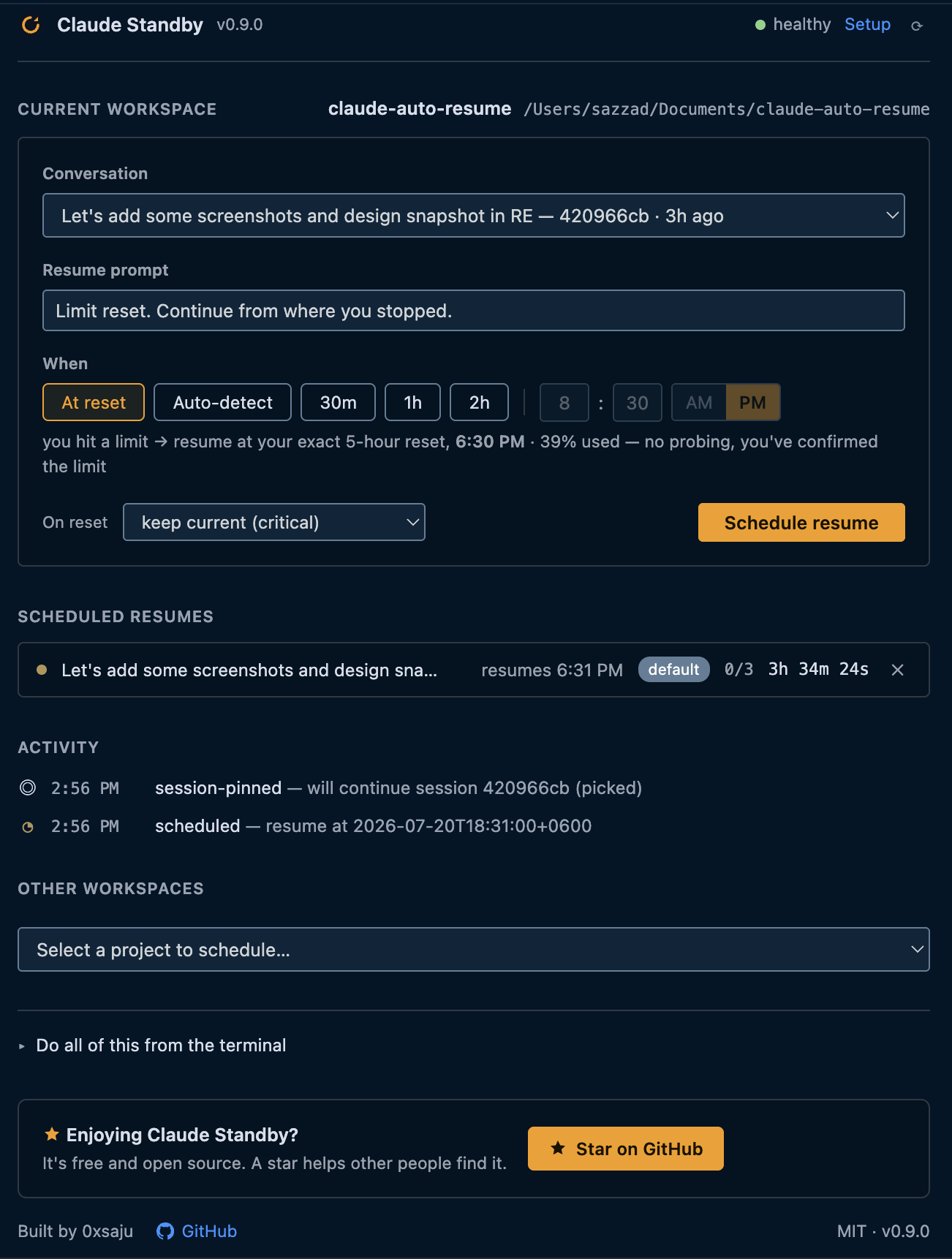
- Full-page dashboard — clicking the activity-bar logo opens the
dashboard as an editor tab: a schedule composer for the current
workspace (which conversation to continue, a resume prompt prefilled to
the default, an AM/PM time picker plus At reset / Auto-detect / 30m / 1h /
2h, importance tier), a list of scheduled resumes with live countdowns, an
Other-workspaces picker that opens the same composer for any project,
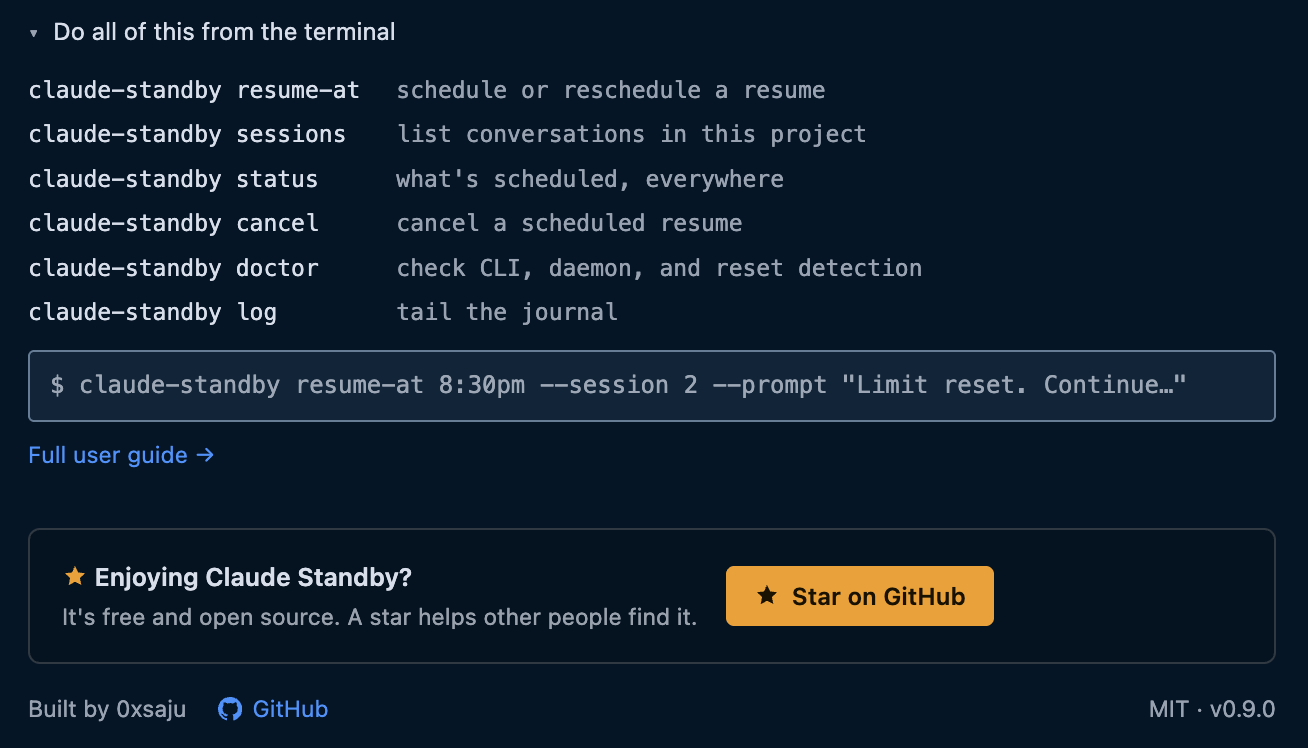
an activity timeline, a collapsible CLI reference, and an About row.
- Exact reset time — when your live usage data is available locally
(streamed to Claude Code's status line), the dashboard and status bar show
the real reset moment and usage (
resets 6:00 PM · 54% used) instead of a
guess, and auto-detect schedules to it. Works with zero setup when a cache
already exists; otherwise claude-standby setup-statusline adds a tiny
sensor. The resume fires a short safety buffer after the reset, not on the
exact instant.
- Status bar — the tool's live state for the open workspace
(
waiting · resumes 8:30 PM, armed · resets 6:00 PM, resuming…,
done, failed, …). Hovering shows a rich tool-status card (resume
time, pinned session, attempts, Open-dashboard / Cancel), and flags a
resume interrupted by a dead daemon. Refreshed on state-file changes plus
a 5-second fallback poll.
- Menu / commands — Schedule Resume, Show Status, Cancel Task, Open
Log, Install Terminal Tool, Check for CLI Update.
- Keeps the CLI current — a quiet once-a-day check compares your
installed
claude-standby against the latest release; when a newer one
ships, a notification offers a one-click Update (it runs the CLI's own
update, a download-validate-swap). Silent when offline or up to date; you
can also trigger it from the menu ("Check for CLI update") anytime.
- About links — set
claudeStandby.author.github / .linkedin /
.buyMeACoffee in settings; each link shows only when its URL is set.
Requirements
- VS Code 1.85+
- The
claude-standby terminal tool (the extension offers to install
it on first activation). Auto-detected from PATH or ~/.local/bin;
override with the claudeStandby.cliPath setting.
Install
- From the Marketplace — search "Claude Standby" in the Extensions
view, or install the packaged
.vsix via "Extensions: Install from
VSIX…". The extension drives the claude-standby terminal tool, so
install that too (the extension offers to on first run, or run the
one-line installer from the main repo).
Running from source
- Open this folder (
vscode-extension/) in VS Code.
- Press F5 (Run Extension) — an Extension Development Host window
opens with the cockpit active.
- Open any workspace folder in that window; the
Standby status bar
item appears bottom-left.
To package a .vsix: npx @vscode/vsce package.
Design
See the main repo's docs/ARCHITECTURE.md (Cockpit section) and
docs/DECISIONS.md D21. Deliberately no bundler, no dependencies, plain
JavaScript — this is a thin shell and should stay one.
| |

