Group Code for VS Code


Group Code Navigation
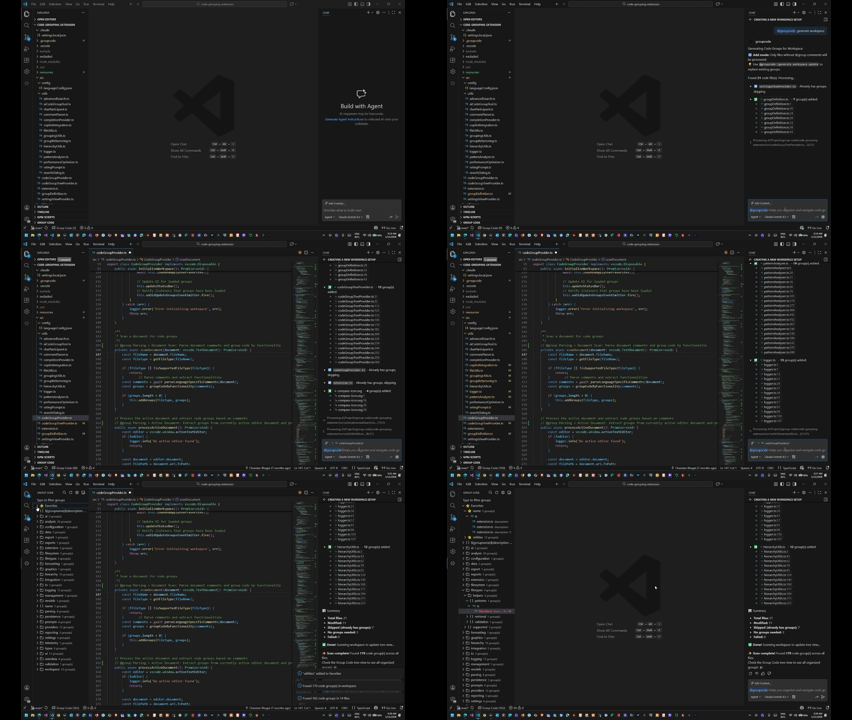
Generate Groups from github copilot
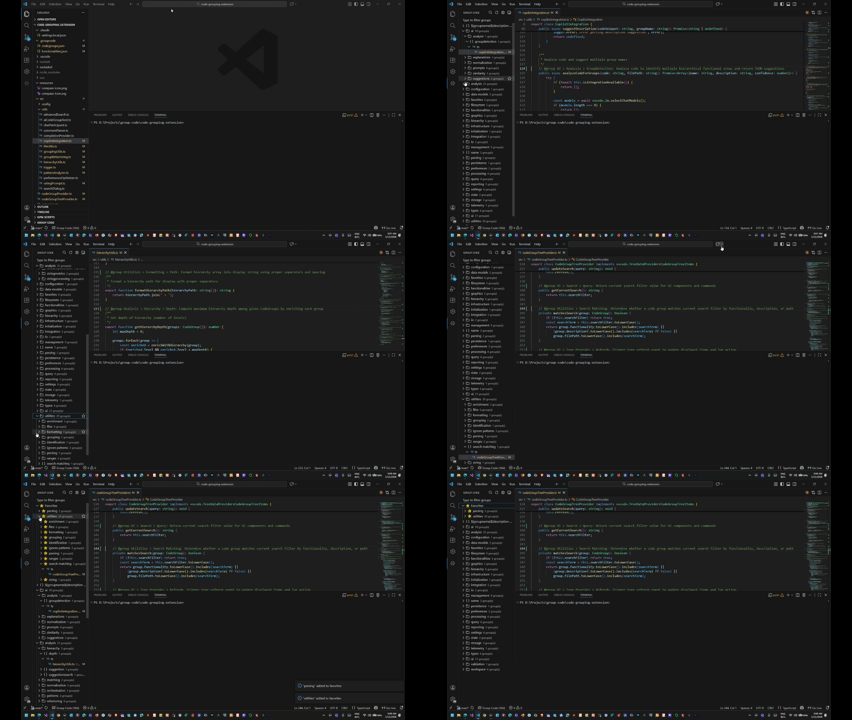
This Visual Studio Code extension helps you navigate and organize your codebase based on functionality rather than just files. Using special comments to tag related code sections across multiple files and languages, it creates a unified view that makes it easier to understand and work with your project's different functional components.
Features
- Rename Code Groups: Rename groups directly from the tree view with F2 keyboard shortcut
- Favorites System: Mark important code groups as favorites with star icons for quick access
- User Profile Storage: Personal preferences stored per-user in OS profile, preventing Git conflicts
- Tree State Persistence: Tree expansion/collapse state automatically saved and restored
- Cross-File Code Organization: Group related code blocks from different file types under a common functionality
- Unified View: Access all related code sections through the dedicated Group Code Explorer
- Settings UI: Easy-to-use settings panel for configuring preferences and AI model selection
- AI-Powered Code Organization: Automatically generate code groups using GitHub Copilot integration
- Chat Participant Integration: Interact with code groups directly through GitHub Copilot Chat
- Language Model Tool: AI tool that analyzes and generates group comments for your entire codebase
- Extensive Language Support: Works with 40+ programming languages including JavaScript, TypeScript, Python, C#, Java, Go, HTML, CSS, Ruby, PHP, Rust, and many more
- Quick Navigation: Jump between related code sections with a single click
- Automatic Scanning: Automatically detects code groups in your workspace
- Status Bar Integration: Quick access to code groups from the VS Code status bar
- Smart Code Completion: Get intelligent suggestions for @group tags and existing group names
- Git-Aware Scanning: Automatically respects .gitignore patterns and common ignore rules
- Inline Documentation: See where each code group is used while typing
- Block Comment Support: Improved detection of groups in block comments across all languages
- Performance Optimizations: Smart file filtering and efficient workspace scanning
- Quick Add Group: Quickly add code groups to selected code via right-click context menu
- AI-Assisted Group Creation: Get AI-powered suggestions for group names and descriptions
- Hover Annotations: Rich hover cards on
@group comments showing hierarchy, description, file counts, and sub-groups
- File-Based View: Alternative "By File" tree view that organizes groups by file location, sorted by line number
- Advanced Filter UI: Visual search/clear filter buttons in view title bars with real-time filter status, synchronized across all views
Core Features
Hierarchical Grouping & Organization
- Multi-level nested group hierarchies using
> separator (e.g., @group Auth > Login > Validation)
- Smart tree view with collapsible nodes, folder icons, and group counts
- Hierarchy autocomplete with intelligent path suggestions
- Real-time sidebar refresh when editing @group comments
- Breadcrumb navigation in chat responses
AI-Powered Code Organization
- Automatic code group generation using GitHub Copilot integration
- Workspace-wide or single-file processing
- Smart format detection and correction
- Semantic similarity detection for consistent naming
- Duplicate detection with consolidation suggestions
Scanning & Generation Modes
- Safe Mode: Preserves existing groups, adds only missing ones
- Update Mode: Regenerates all groups with confirmation prompt
- Smart Scanning: Scan current file (
@groupcode /scan) or entire workspace (@groupcode /scan workspace)
- Git-Aware: Respects .gitignore patterns and common ignore rules
Chat Participant Commands
Use @groupcode in GitHub Copilot Chat with these commands:
@groupcode generate - Auto-generate group comments for current file@groupcode generate workspace - Generate groups for entire workspace@groupcode /scan - Scan current file for existing code groups@groupcode /scan workspace - Scan entire workspace for code groups@groupcode suggest - Get AI suggestions for selected code@groupcode list - Show all code groups in workspace@groupcode find <name> - Search for specific code groups (supports hierarchical queries)@groupcode navigate to <name> - Jump to a specific group@groupcode refresh - Rescan all files for updates@groupcode help - Show all available commands
The extension includes a language model tool (groupcode_generate) that can be invoked by GitHub Copilot for:
- Analyzing code structure and identifying logical groupings
- Generating complete code with @group comments inserted
- Suggesting group names and descriptions for code snippets
Installation
From VS Code Marketplace
- Open VS Code
- Go to Extensions view (Ctrl+Shift+X / Cmd+Shift+X)
- Search for "Group Code"
- Click Install
From Open VSX Registry
- Visit Open VSX Registry
- Click "Install" or download the extension
- Compatible with VS Code, VSCodium, and other Open VSX-based editors
Manual Installation
- Download the
groupcode-1.8.0.vsix file
- In VS Code, open the Command Palette (Ctrl+Shift+P / Cmd+Shift+P)
- Run "Extensions: Install from VSIX..." and select the downloaded file
Requirements for AI Features
To use the AI-powered features, you need:
- VS Code: Version 1.90.0 or higher
- GitHub Copilot: Installed and active
- GitHub Copilot Subscription: Active subscription required
Getting Started
After installing the extension, you'll see a new Group Code icon in your Activity Bar. The extension will automatically scan your workspace for code groups when you open a folder.
Quick Start with AI
- Open a code file or workspace
- Open GitHub Copilot Chat
- Type:
@groupcode generate
- The AI will analyze your code and add @group comments
- Groups automatically appear in the Group Code tree view
Usage
Creating Code Groups
Manual Method
Add special comments to your code using the @group tag:
@group GroupName: Description of functionality
For hierarchical organization, use the > separator:
@group Parent > Child > Grandchild: Description
Examples:
// @group Authentication: User login process
// @group Auth > Login > Validation: Email validation
// @group Features > Dashboard > Charts: Sales chart component
Note: Use a colon (:) after the group name, not a dash (-).
AI-Assisted Method
Use the chat participant to automatically generate groups:
@groupcode generate              # Generate for current file
@groupcode generate workspace    # Generate for entire workspace
The AI will analyze your code and add appropriate @group comments in the correct format.
The extension automatically recognizes different comment formats based on the file type:
JavaScript/TypeScript/C#/Java/C++
// @group Authentication: User login process
function login(username, password) {
    // Your code here
}

// Inline comments also work
const userData = getUserData(); // @group UserData: Access user information
HTML/XML/SVG
<!-- @group Authentication: Login form layout -->
<form class="login-form">Ks
    <!-- Your HTML here -->
</form>

<div class="user-panel"><!-- @group UserPanel: User interaction area --></div>
CSS/SCSS/Less
/* @group Authentication: Login form styling */
.login-form {
    /* Your CSS here */
}

.avatar { border-radius: 50%; } /* @group UserInterface: Profile picture styling */
Python/Ruby/Shell/YAML
# @group Authentication: User authentication backend
def authenticate_user(username, password):
    # Your Python code here

user_role = get_user_role(user_id) # @group Authorization: User permission check
Smart Code Completion
The extension provides intelligent code completion for group tags:
- Type
@ in a comment to trigger the group completion
- Get suggestions for the
@group tag format
- After typing
@group, see suggestions of existing group names
- Get inline documentation showing where each group is used
- Maintain consistent naming with smart filtering and sorting
- Works in both line comments and block comments
- Supports case-insensitive matching
The completion provider is language-aware and only activates inside valid comments for each language.
The extension detects code group patterns in inline comments:
const apiKey = process.env.API_KEY; // @group Security: API authentication
fetchUserData(userId); // @group UserData: Fetch user information
updateUI(userData); // @group UserInterface: Update display with user data
Viewing & Navigating Code Groups
Using the Explorer
Open the Group Code Explorer:
- Click on the Group Code icon in the Activity Bar
- Find "Group Code" in the Explorer view
- Command Palette: "View: Show Group Code"
Expand a functionality group to see all related code sections
Click on any code section to navigate directly to that file and line
Using the Status Bar
- Click on the Group Code indicator in the status bar (or press
Ctrl+Shift+G / Cmd+Shift+G)
- Select a functionality from the dropdown
- Choose which specific code section to navigate to
Using Chat Participant
Open GitHub Copilot Chat and use:
@groupcode list                    # Show all groups
@groupcode find authentication     # Search for groups
@groupcode navigate to auth        # Jump to a group
Available Commands
Access these commands through the Command Palette (Ctrl+Shift+P / Cmd+Shift+P):
- Group Code in Current File: Scan only the active file for code groups
- Group Code in Workspace: Scan all supported files in the workspace
- Scan External Project Folder: Scan code in a folder outside your workspace
- Show Code Groups: Display the quick picker to navigate between groups
- Refresh Code Groups: Perform a complete rescan of all files
- Suggest Code Group with AI: Get AI-powered suggestions for selected code
AI Features Deep Dive
Automatic Code Group Generation
The extension can analyze your code and automatically add @group comments:
For a single file:
@groupcode generate
For entire workspace:
@groupcode generate workspace
The AI will:
- Analyze your code structure
- Identify logical functional groups
- Generate appropriate group names and descriptions
- Add @group comments in the correct format
- Automatically scan and update the tree view
If you have existing @group comments with incorrect format (using dash instead of colon), the AI generation will automatically detect and fix them:
// Old format (dash) - will be detected
// @group Authentication - User login

// Correct format (colon) - what AI generates
// @group Authentication: User login
Simply run @groupcode generate workspace and it will update all files with incorrect formats.
The groupcode_generate tool is available for GitHub Copilot to invoke when you ask questions like:
- "Can you organize this code with group comments?"
- "Add @group comments to help organize this file"
- "Analyze this code and suggest functional groups"
The tool supports three actions:
- analyze: Identify groups without modifying code
- generate: Create code with @group comments inserted
- suggest: Get quick suggestions for selected code
Supported Languages
This extension supports code grouping for 40+ programming languages including:
JavaScript, TypeScript, HTML, CSS, Python, C#, Java, Go, PHP, Ruby, C/C++, Rust, Swift, Kotlin, Dart, Haskell, Lua, R, SQL, YAML, Markdown, Shell/Bash, PowerShell, and many more.
Each language uses its native comment syntax to define code groups.
Tips & Best Practices
General
- Consistent Naming: Use the same group name across different files
- Descriptive Groups: Choose meaningful group names that reflect functionality
- Correct Format: Always use colon (:) not dash (-) after group name
- Regular Refreshing: The extension auto-refreshes, but you can manually refresh after major changes
- External Code: For monorepos or multi-project setups, use "Scan External Project Folder"
With AI Features
- Review Before Applying: Always review AI-generated groups before accepting
- Start Small: Try AI generation on a single file first to see how it works
- Iterative Approach: Generate, review, adjust, and regenerate if needed
- Use Explicit Commands: Use
@groupcode generate workspace for clarity
- Trust the Format: AI now generates correct format (colon) automatically
Code Organization
- Inline Comments: Use inline code group comments for pinpointing specific functionality
- Mixed Approaches: Combine standalone comments for major blocks with inline comments for important lines
- Hierarchical Groups: Use
> separator for nested organization (e.g., @group Auth > OAuth > Google)
- Consistent Hierarchy: Keep hierarchy naming consistent across files for better organization
Troubleshooting
General Issues
- If groups aren't appearing, try the "Refresh Code Groups" command
- Ensure comments follow the exact pattern:
@group GroupName: Description (with colon)
- For inline comments, make sure there's a space after the comment marker
- Check the Output panel (View → Output → Group Code) for detailed logs
- For large workspaces, the initial scan may take a moment to complete
AI Feature Issues
- No AI suggestions: Ensure GitHub Copilot is installed, enabled, and you have an active subscription
- Wrong format generated: Update to latest version (1.3.0+) which uses correct colon format
- Tree view not updating: The extension now auto-refreshes; if issues persist, try manual refresh
- Chat participant not showing: Make sure VS Code is version 1.90.0 or higher
- Hierarchical groups not showing: Ensure you're using the correct
> separator with spaces
If you have old groups with dash format (@group Name - Description):
- Run
@groupcode generate workspace
- The AI will detect and regenerate with correct format
- Tree view will update automatically
Data Storage
Code group metadata is stored in the .groupcode folder in your workspace root. This folder contains JSON files with:
- Group definitions and descriptions
- File locations and line numbers
- Functionality mappings
You can add .groupcode/ to your .gitignore if you don't want to commit this metadata.
Privacy & Security
- AI features require GitHub Copilot and use its language models
- Code is processed according to GitHub Copilot's privacy policy
- No code is stored or transmitted except through GitHub Copilot's standard API
- The extension respects your .gitignore and doesn't scan ignored files
Contributing
Found a bug or have a feature request? Please open an issue on the GitHub repository.
Changelog
See CHANGELOG.md for a detailed version history of all changes, additions, and fixes.
License
This project is licensed under the MIT License. See the LICENSE file for details.
Support
For questions, issues, or feature requests:
Enjoy organizing your code with AI-powered intelligence!

