vscode-stylelint

The official Visual Studio Code extension for Stylelint.
Currently tested against Stylelint 14-17. Untested versions may still work, but are not guaranteed to do so. See Stylelint Version Support for details.
Table of Contents
Installation
You can install the extension from the Command Palette:
- Execute the
Extensions: Install Extensions command
- Type
@id:stylelint.vscode-stylelint into the search form
- Install the topmost one with the verified publisher mark.
For more details, you can read the VS Code's extension installation guide.
Disable VS Code's Built-In Linters (optional)
You can disable VS Code's built-in linters either in the user or workspace settings.
For example, to disable the built-in CSS, Less, and SCSS linters:
  "css.validate": false,
  "less.validate": false,
  "scss.validate": false

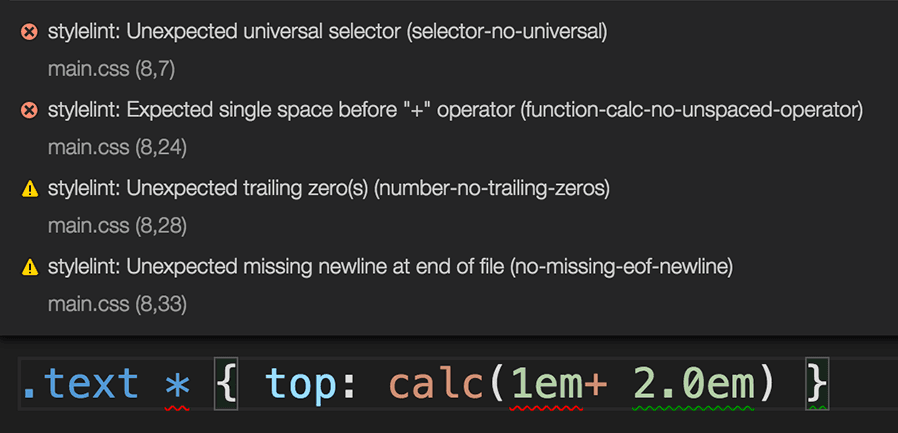
An example of duplicate error messages emitted by both the built-in linter and vscode-stylelint.
Usage
See the Stylelint getting started guide for more information.
The extension will automatically lint CSS and PostCSS documents (those with language identifiers css and postcss, respectively) once you create a Stylelint configuration file (or configure the Stylelint extension's settings) and install Stylelint.

You can see or change the current document's language in the bottom-right corner of the editor window.
You can use the stylelint.validate extension setting to lint additional languages.
For example, to additionally lint SCSS:
"stylelint.validate": ["css", "postcss", "scss"],
Or to additionally lint CSS-in-JS in JSX and TSX:
"stylelint.validate": ["css", "postcss", "javascriptreact", "typescriptreact"],
The extension first looks for a copy of Stylelint installed in the open workspace folder, then for a globally installed version if it can't find one. If neither can be found, it will not lint any documents.
Commands
The extension adds the following commands to the command palette:
Fix all auto-fixable Problems - apply fixes to all automatically fixable problemsLint All Files - lint all files matching the stylelint.lintFiles.glob pattern in every workspace folderLint Workspace Folder - lint all matching files in a single workspace folderClear All Problems - clear all Stylelint diagnosticsRestart Stylelint Server - restart the Stylelint LSP and runtime serverShow Output Channel - open the Stylelint output panel
Actions
The extension provides an action that you can use with VS Code's editor.codeActionsOnSave setting.
editor.codeActionsOnSave
You can automatically fix all auto-fixable problems on save by setting the source.fixAll.stylelint property to explicit:
  "editor.codeActionsOnSave": {
    "source.fixAll.stylelint": "explicit"
  }
Or turn on auto fix for all providers, not just Stylelint:
  "editor.codeActionsOnSave": {
    "source.fixAll": "explicit"
  }
You can also selectively disable Stylelint:
  "editor.codeActionsOnSave": {
    "source.fixAll": "explicit",
    "source.fixAll.stylelint": "never"
  }
You can also selectively enable and disable specific languages using VS Code's language-scoped settings. For example, to disable codeActionsOnSave for HTML files, use the following:
  "[html]": {
    "editor.codeActionsOnSave": {
      "source.fixAll.stylelint": "never"
    }
  }
Problem Matchers
The extension contributes problem matchers that can be used to parse Stylelint CLI output from VS Code tasks into the Problems panel.
Two problem matchers are available, corresponding to a selection of Stylelint's formatters:
$stylelint-compact for the compact formatter$stylelint-unix for the unix formatter
For example, to lint all CSS files using a task with the compact formatter, set up a task like so:
// .vscode/tasks.json
{
  "version": "2.0.0",
  "tasks": [
    {
      "type": "npm",
      "script": "lint:stylelint",
      "problemMatcher": "$stylelint-compact"
    }
  ]
}
where lint:stylelint is a script running Stylelint with the compact formatter:
// package.json
{
  "scripts": {
    "lint:stylelint": "stylelint --formatter=compact \"**/*.css\""
  }
}
[!NOTE]
Stylelint's default formatter uses multiline output, which VS Code's problem matcher system does not fully support. This is why you must use either the compact or unix formatter to use the problem matchers.
Extension Settings
Though relying on a Stylelint configuration file in your project is highly recommended, you can instead use the following extension settings:
stylelint.enable
Type: boolean
Default: true
Controls whether this extension is enabled or not.
stylelint.run
Type: "onSave" | "onType"
Default: "onType"
Controls when the linter runs.
onType: Runs on each change as you type.onSave: Only runs after you save a document.
stylelint.logLevel
Type: "error" | "warn" | "info" | "debug"
Default: "info"
Controls the log level used by the Stylelint extension and language server. Restart the extension host or the window after changing the setting, since it's picked up at initialization.
stylelint.runtime
Type: string | null
Default: null
The location of the node binary to run Stylelint under. By default, the extension uses the Node.js runtime bundled with VS Code. Set this to use a different Node.js version on your system.
For example:
"stylelint.runtime": "/usr/local/bin/node"
Changing this setting requires a server restart to take effect.
stylelint.execArgv
Type: string[] | null
Default: null
Additional exec argv arguments passed to the Node.js runtime.
For example:
"stylelint.execArgv": ["--max_old_space_size=8192"]
Changing this setting requires a server restart to take effect.
stylelint.validate
Type: string[]
Default: ["css", "postcss"]
An array of language identifiers specifying which files to validate.
stylelint.snippet
Type: string[]
Default: ["css", "postcss"]
An array of language identifiers specifying which files to enable snippets for.
stylelint.stylelintPath
Type: string
Default: ""
Used to supply a custom path to the Stylelint module.
stylelint.packageManager
Type: "npm" | "yarn" | "pnpm"
Default: "npm"
Controls the package manager to be used to resolve the Stylelint library. This setting only has an effect if the Stylelint library is resolved globally. Valid values are "npm" or "yarn" or "pnpm".
stylelint.rules.customizations
Type: object[]
Default: []
An array of rule customizations that let you override the severity level of Stylelint rules. This is useful for downgrading errors to warnings, upgrading warnings to errors, or completely suppressing specific rules in the editor.
Each customization object has the following properties:
rule: A string pattern matching the rule name. Supports wildcards and negation patterns:
- Exact match:
"color-named" matches only the color-named rule.
- Wildcard:
"color-*" matches all rules starting with color-.
- Negation:
"!color-*" matches all rules except those starting with color-.
severity: The severity level to apply.
"error": Show as error (red underline)."warn": Show as warning (yellow underline)."info": Show as information (blue underline)."off": Don't show the diagnostic."default": Use the original severity from Stylelint."downgrade": Convert errors to warnings, warnings to info messages."upgrade": Convert info to warnings, warnings to errors.
Customizations are applied in order, with later rules taking priority over earlier ones. This means that more general patterns should come before more specific ones for the specific rules to override the general ones.
Example:
{
  "stylelint.rules.customizations": [
    {
      "rule": "font-*",
      "severity": "info"
    },
    {
      "rule": "!color-*",
      "severity": "info"
    },
    {
      "rule": "declaration-block-*",
      "severity": "default"
    },
    {
      "rule": "comment-word-disallowed-list",
      "severity": "off"
    },
    {
      "rule": "color-named",
      "severity": "warn"
    }
  ]
}
stylelint.config
Type: Object
Default: null
Sets the Stylelint config option. Note that when this option is enabled, Stylelint doesn't load configuration files.
stylelint.configFile
Type: string
Default: ""
Sets the Stylelint configFile option. Path to a JSON, YAML, or JS file that contains your configuration object. Use this option if you don't want Stylelint to search for a configuration file.
stylelint.configBasedir
Type: string
Default: ""
Sets the Stylelint configBasedir option. The path to the directory to which relative paths defining "extends" and "plugins" are relative. Only necessary if these values are relative paths.
stylelint.customSyntax
Type: string
Default: ""
Sets the Stylelint customSyntax option, which points to a PostCSS syntax module. Must be either the package name or an absolute path to the module.
e.g.
"stylelint.customSyntax": "sugarss"
You can use ${workspaceFolder} to refer to the folder opened in VS Code.
e.g.
"stylelint.customSyntax": "${workspaceFolder}/custom-syntax.js"
stylelint.ignoreDisables
Type: boolean
Default: false
Sets the Stylelint ignoreDisables option. If true, Stylelint ignores stylelint-disable (e.g. /* stylelint-disable block-no-empty */) comments.
stylelint.ignorePath
Type: string
Default: ""
Sets the Stylelint ignorePath option. Path to a file containing patterns describing files to ignore. Use to override automatic .stylelintignore detection.
You can use ${workspaceFolder} to refer to the folder opened in VS Code.
e.g.
"stylelint.ignorePath": "${workspaceFolder}/.gitignore"
stylelint.lintFiles.glob
Type: string
Default: "**/*.css"
The glob pattern used by the "Lint All Files" and "Lint Workspace Folder" commands to discover files. Adjust this if you lint SCSS, Less, or other file types.
e.g.
"stylelint.lintFiles.glob": "**/*.{css,scss}"
stylelint.reportDescriptionlessDisables
Type: boolean
Default: false
Sets the Stylelint reportDescriptionlessDisables option. If true, Stylelint reports stylelint-disable comments without a description.
stylelint.reportNeedlessDisables
Type: boolean
Default: false
Sets the Stylelint reportNeedlessDisables option. If true, Stylelint reports errors for stylelint-disable comments that are not blocking a lint warning.
stylelint.reportInvalidScopeDisables
Type: boolean
Default: false
Sets the Stylelint reportInvalidScopeDisables option. If true, Stylelint reports errors for stylelint-disable comments referring to rules that don't exist within the configuration object.
Stylelint Version Support
We support all Stylelint versions that work without active maintenance burden. We drop support when maintaining compatibility causes bugs, blocks features, or adds meaningful complexity. Versions not listed above as tested may still work but are not officially supported.
When we do decide to drop support for a version, we will provide at least 3 months' notice with a deprecation warning before removal, giving users a predictable window to migrate.
Migrating
See the migration guide for instructions on how to migrate from older versions of the extension.
Troubleshooting
vscode-stylelint writes logs to the VS Code output panel:
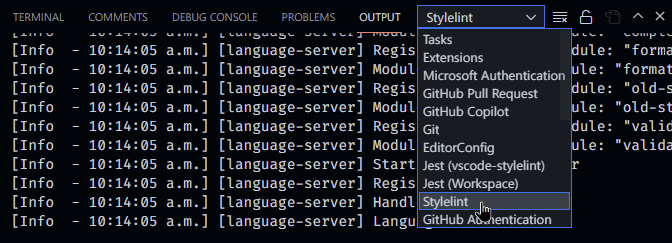
You can enable more verbose log output by setting the logLevel extension setting or by running VS Code with the NODE_ENV environment variable set to development. You can do this on macOS and *nix by running:
NODE_ENV=development code
And on Windows by running:
cmd /C "set NODE_ENV=development&&code"
Contributing
Contributions are welcome! Please see the CONTRIBUTING.md file for details.
Licence
MIT


