The go-to VS Code extension for C# developers - A comprehensive toolkit for .NET development featuring Solution Explorer, NuGet management, advanced testing, file templates, and powerful developer tools.
Features
C# Language Server
Analyzers and refactorings
Roslyn-powered analyzers and quick fixes surface code cleanup opportunities and refactoring actions directly in the editor.
Hovers
Rich hover tooltips show types, signatures, docs, and navigation links without leaving the current file.
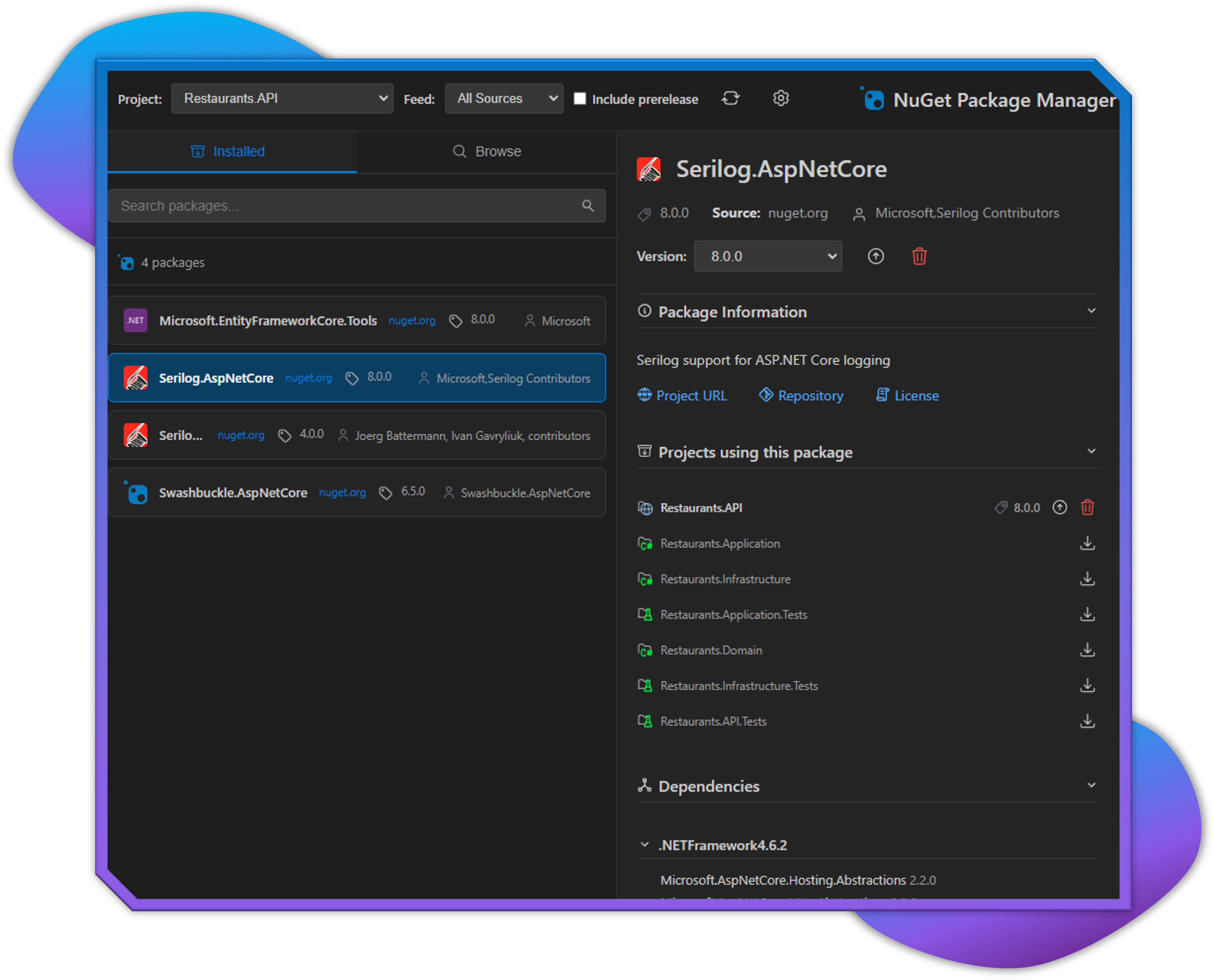
NuGet Management
The built-in NuGet Package Manager allows you to easily browse, install, update, and manage NuGet packages directly within VS Code.
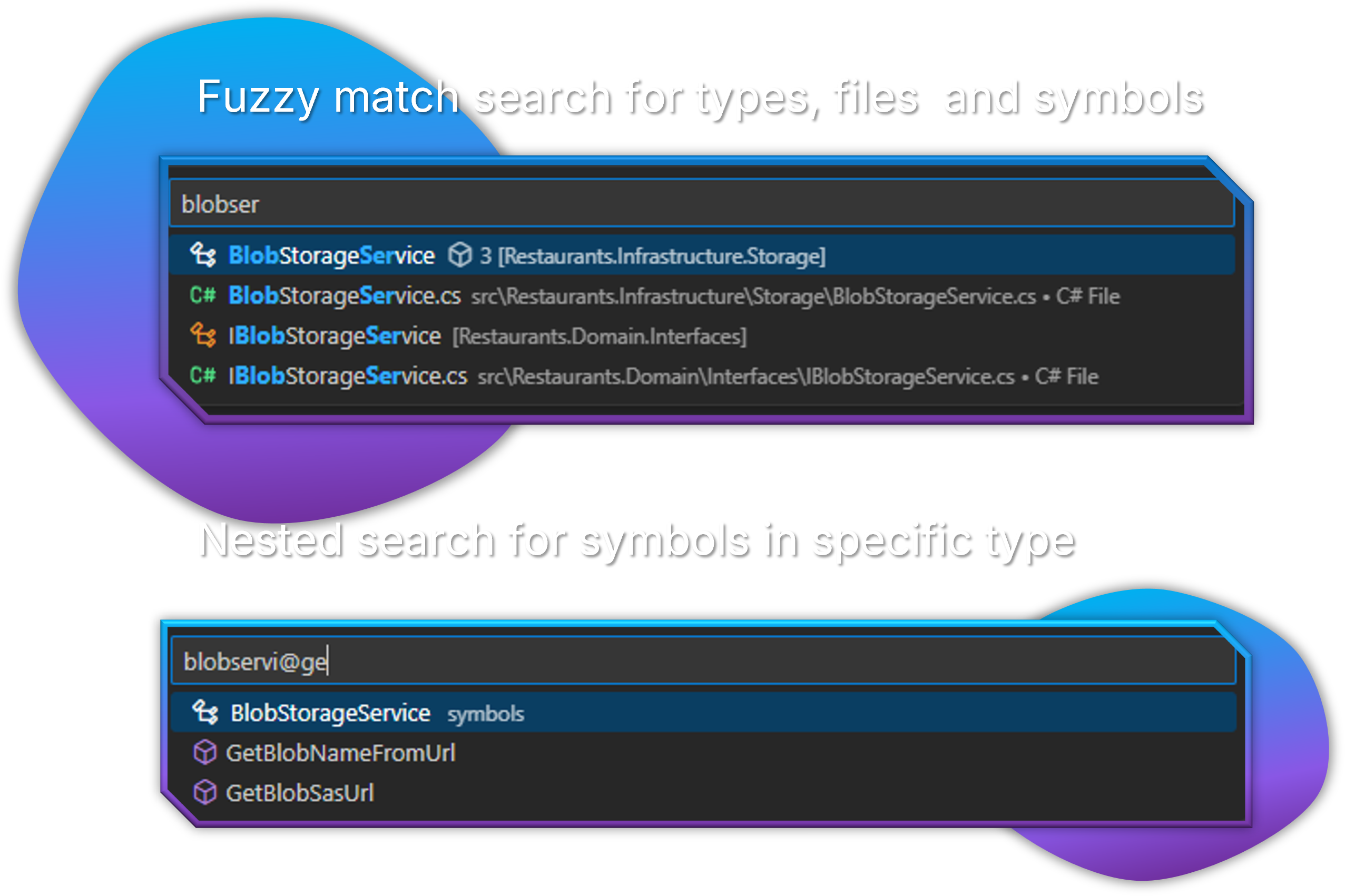
Advanced Search
Solution Explorer
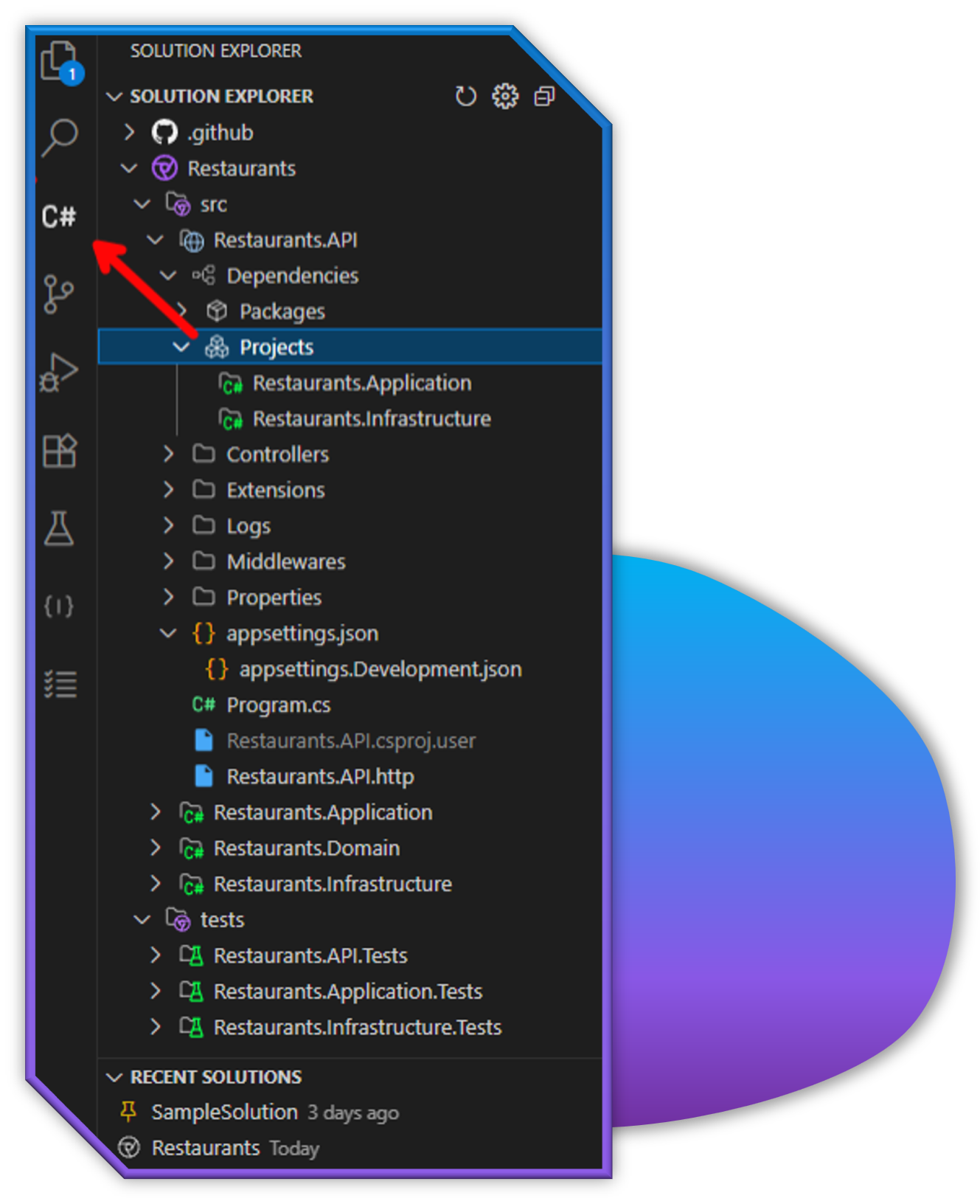
- Browse .NET solutions (.sln(x) files) with a familiar tree structure
- View projects, folders, and files in a hierarchical view
- Support for solution folders and nested projects
- Drag and drop functionality for moving files
- Drop a
.csproj project on another project to add a reference in the target, with Yes, Yes, always, and Cancel confirmation options. Duplicate and circular references are blocked, including indirect dependencies. Dependency checks parse project XML and literal imports without running MSBuild, conservatively including all conditional references. Unresolved property-based or wildcard paths are reported as errors rather than skipped. The .NET CLI is used only to add the reference.
Code Analysis
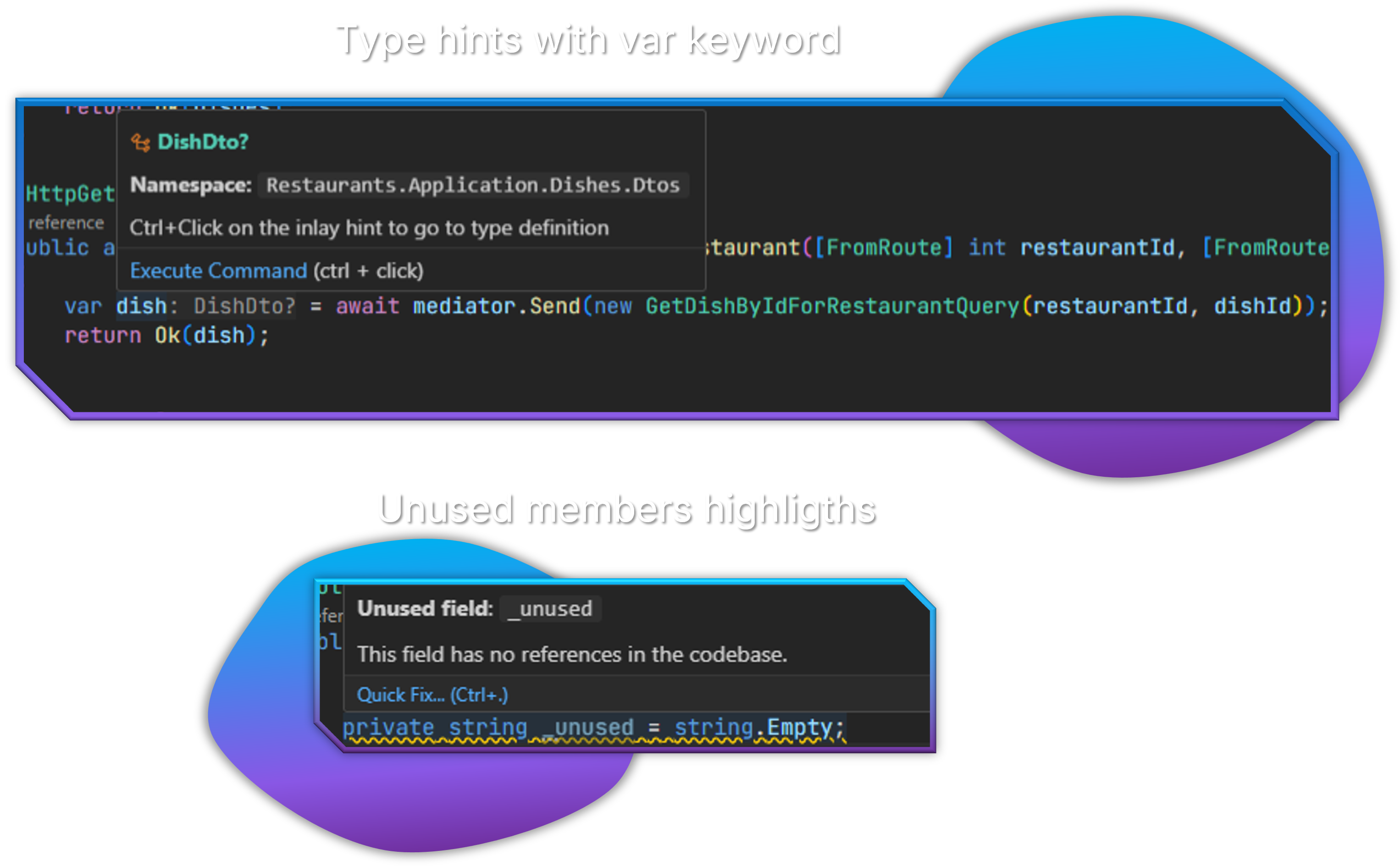
Unused Symbol Highlighting
The extension automatically detects and highlights unused properties, methods, and fields in C# files by:
- Instant Feedback - Uses C# language server diagnostics for immediate response (same speed as IDE0051 warnings)
- Visual Indication - Unused symbols are greyed out with reduced opacity
- Hover Information - Hover over unused symbols to see detailed information about why they're marked as unused
- Real-time Analysis - Updates instantly as the C# analyzer detects changes
- Configurable - Customize the opacity level and toggle the feature on/off
- Smart Detection - Public methods are excluded from unused detection (they might be API endpoints or library methods)
- Performance Optimized - Primary analysis uses language server diagnostics, with fallback to reference checking
Supported Symbol Types:
- Properties (public and private)
- Methods (private only - public methods are excluded)
- Fields (public and private)
- Events (public and private)
Debugger Hints
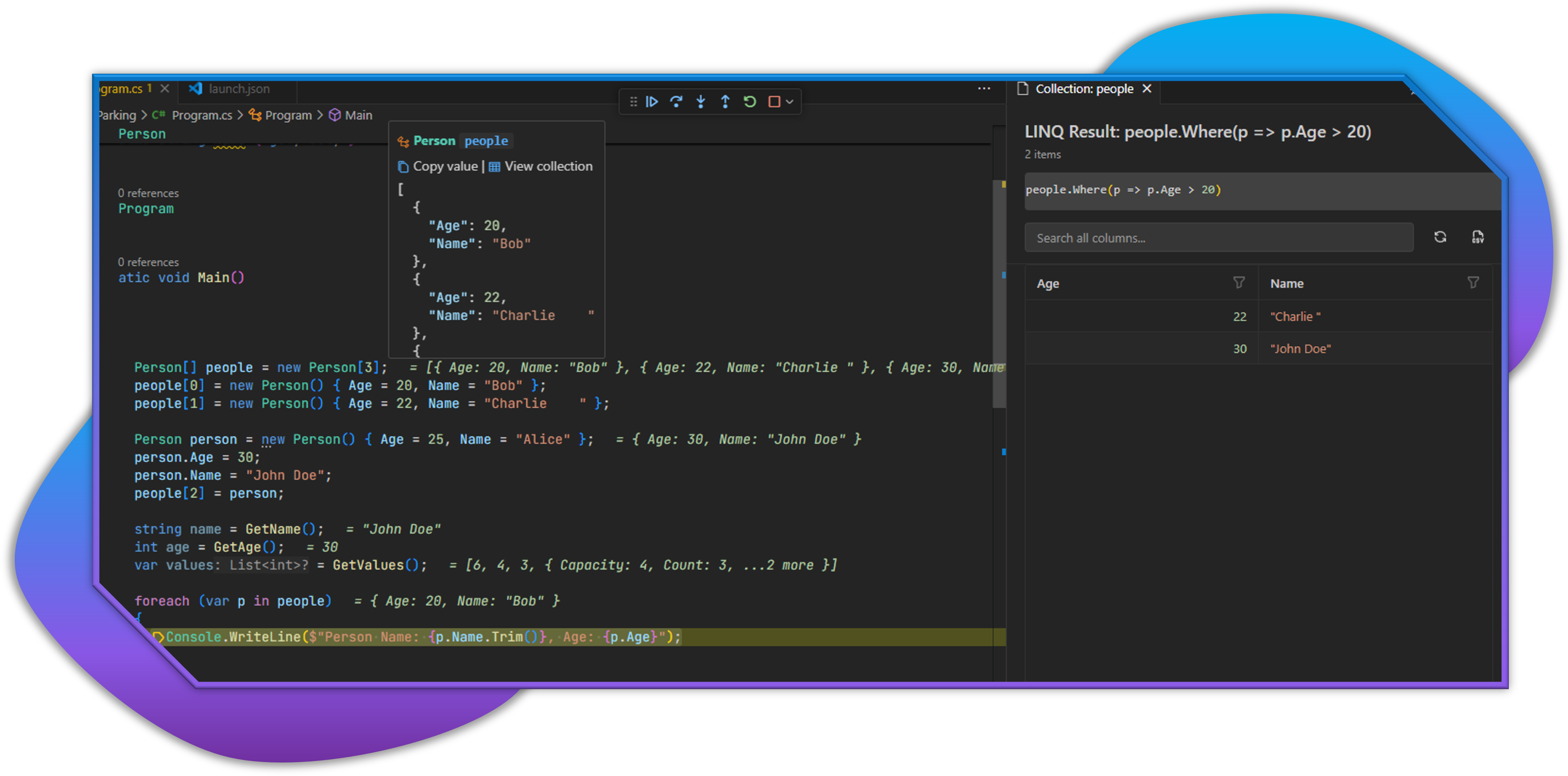
The extension provides advanced debugging features that enhance your debugging experience:
Inline Debug Values
- Real-time Variable Display - Shows variable values inline at the end of lines where variables are declared or used during debugging sessions
- Change Highlighting - Optional highlighting of changed variables in red/orange (can be disabled), unchanged variables shown in blue for easy identification
- Smart Detection - Automatically finds variable declarations, assignments, loop variables, and method parameters
- Complex Object Support - Displays summaries for objects, arrays, and collections with expandable hover tooltips
- Collection Viewer - Advanced data table with LINQ query execution, sorting, filtering, and CSV export for inspecting collections
- Monaco Editor Integration - Professional C# code editor with IntelliSense for writing and executing LINQ expressions
- Performance Optimized - Debounced updates and efficient refresh logic for smooth debugging experience
- Fully Configurable - Comprehensive settings to customize display behavior, color highlighting, array limits, and object property display
- Multi-file Support - Works seamlessly across all C# files in your workspace during debugging sessions
Key Features:
- Toggle on/off via command palette or settings
- Automatic activation during .NET debug sessions
- Rich hover tooltips with variable type and full value information
- Intelligent handling of large collections and complex objects
- Professional data exploration with LINQ query capabilities
File Templates
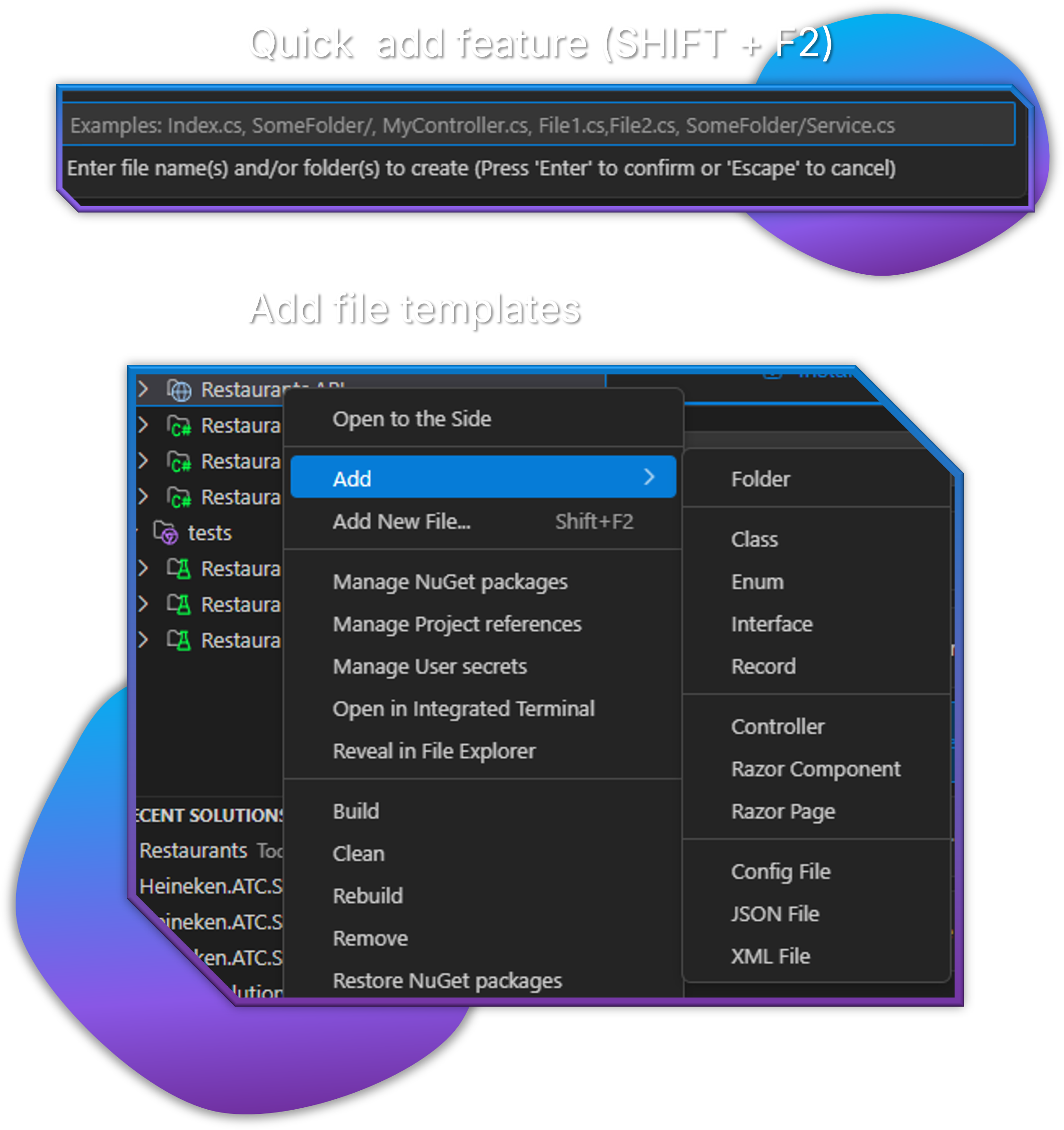
Right-click on any project or folder in the Solution Explorer to access the "Add -> New Item" menu with the following templates:
Test generation
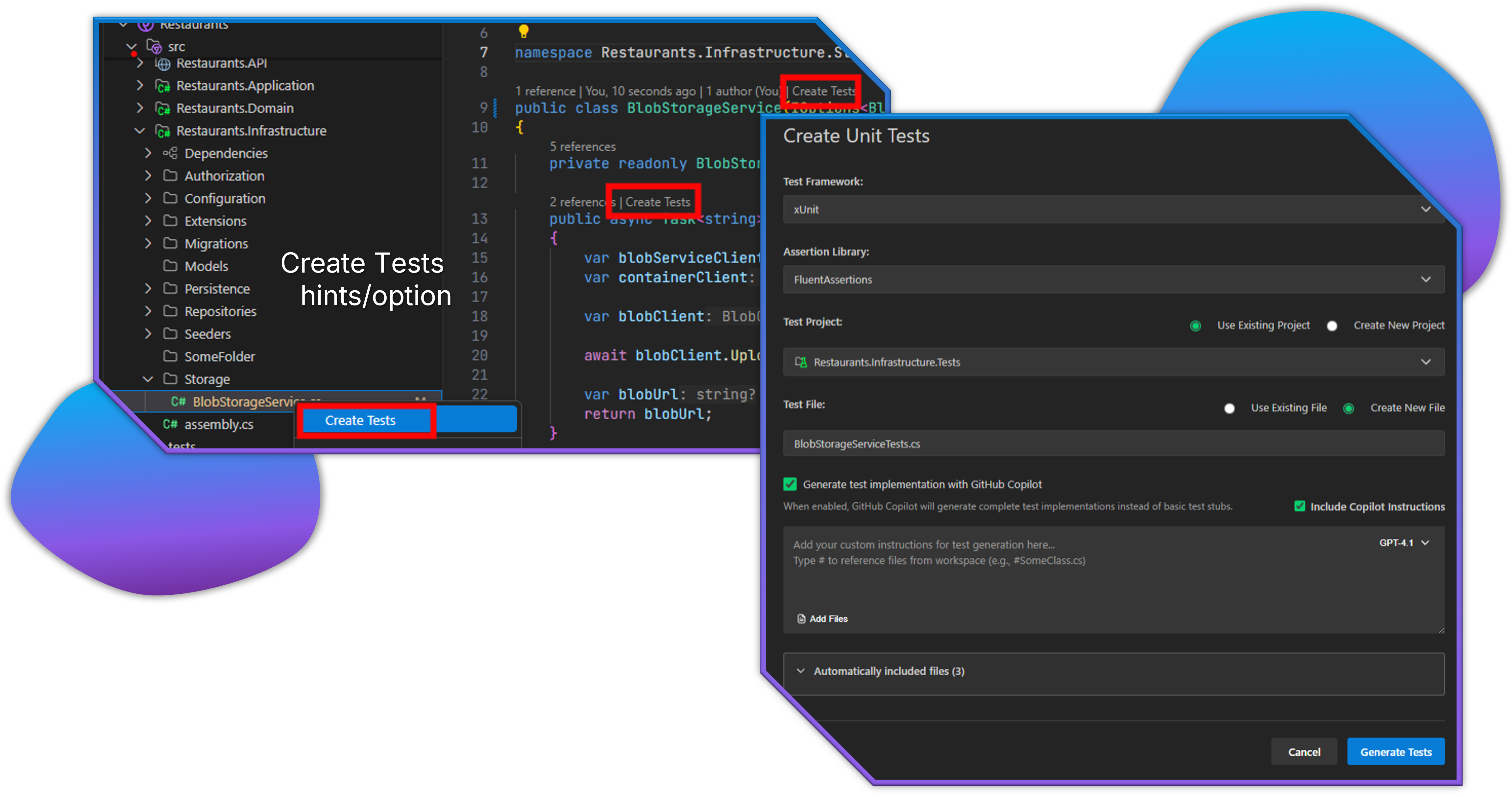
Use the 'Create Tests' code lens to quickly generate test methods for your code.
Bookmarks
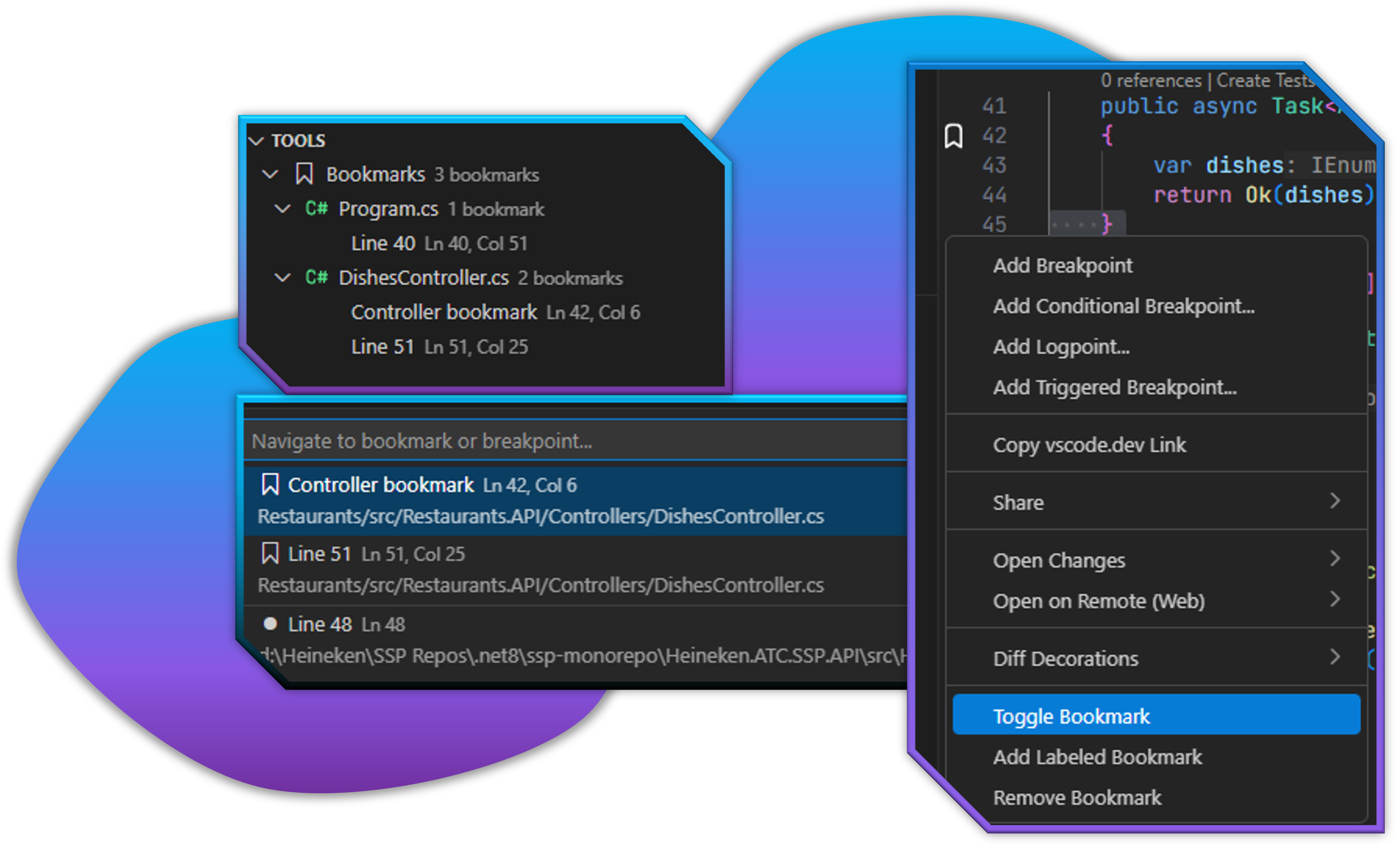
Use SHIFT + ALT + DOWN to toggle bookmarks in your code. Bookmarks are saved per file and can be used to quickly navigate to important sections of your code.
SHIFT + ALT + LEFT and SHIFT + ALT + RIGHT can be used to navigate between bookmarks.
SHIFT + ALT + UP can be used to quick pick from all bookmarks in the current workspace.
C# Templates
- Class - Creates a new C# class file
- Interface - Creates a new C# interface with proper naming (IInterface)
- Enum - Creates a new enumeration
- Record - Creates a new C# record type
Web Development Templates
- Controller - Creates an ASP.NET Core API controller
- Razor Page - Creates a new Razor page (.cshtml) with its code-behind file (.cshtml.cs)
- Razor Component - Creates a new Blazor component (.razor)
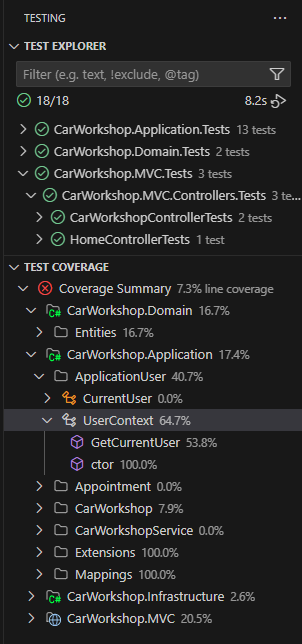
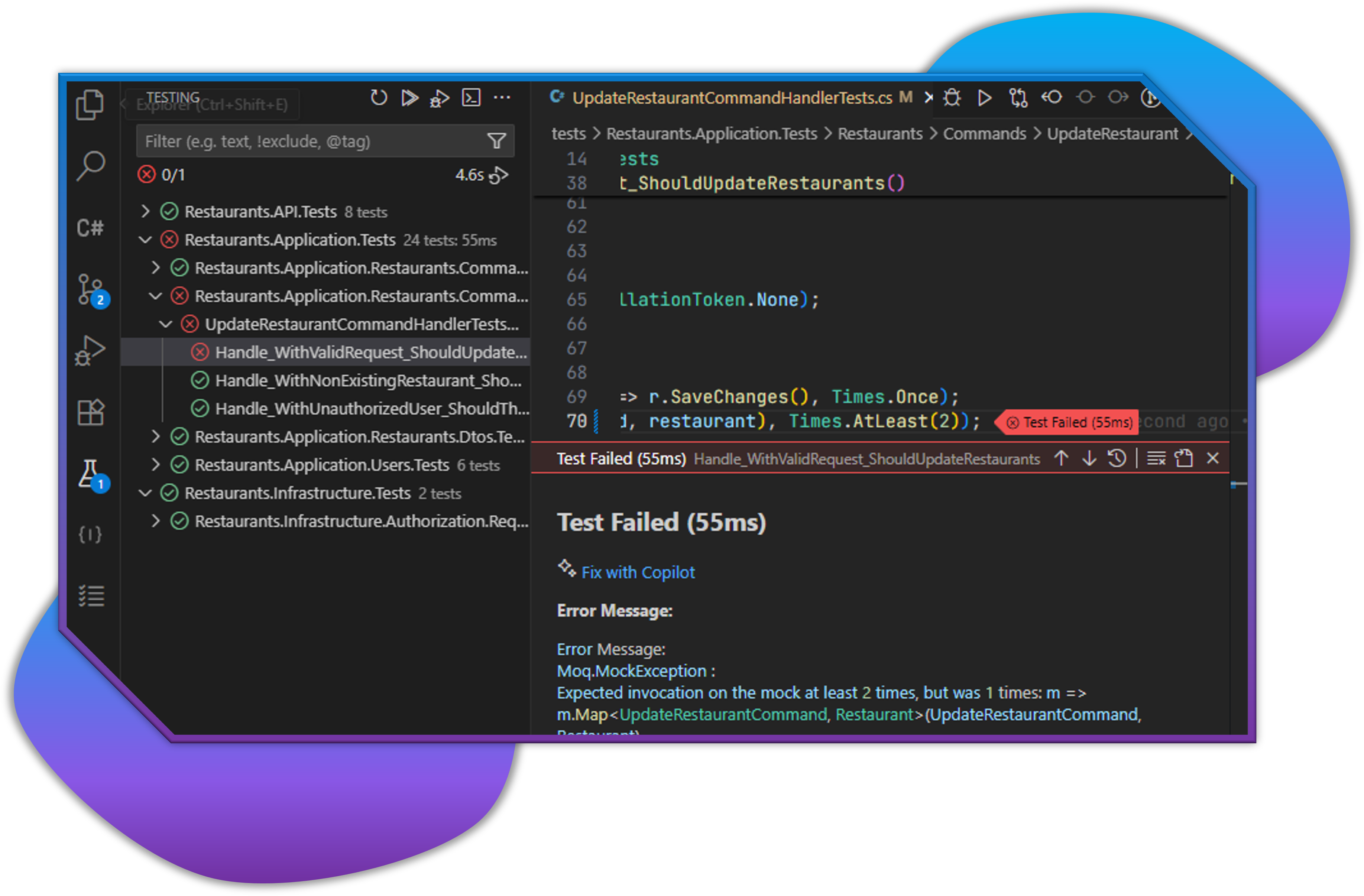
Testing Integration
The extension provides comprehensive test support through the VS Code Testing API:
Native Test Explorer - Tests appear in VS Code's built-in Test Explorer
Automatic Discovery - Automatically finds test projects and methods using MSTest, xUnit, and NUnit
Hierarchical Organization - Tests organized by Project → Namespace → Class → Method
Run and Debug - Run or debug individual tests, classes, or entire projects
Real-time Results - See test results with detailed error messages and stack traces
File Navigation - Click on any test to jump to its source code
Test Framework Support - Supports MSTest, xUnit, NUnit, and ASP.NET Core testing
Entity Framework Support
Enhanced Entity Framework Core development with integrated migration management and database reverse engineering:
Scaffold Database (Reverse Engineer)
Right-click a solution or project and select Entity Framework > Scaffold Database (Reverse Engineer), or run Entity Framework: Scaffold Database (Reverse Engineer) from the Command Palette.
Select the target and startup projects, choose a database provider (SQL Server, SQLite, PostgreSQL, MySQL, Oracle, or a custom provider assembly), enter a connection string, and optionally specify the models directory relative to the target project. Leave the directory empty to use the project root. Cancelling any prompt stops the operation.
The command runs dotnet ef dbcontext scaffold in a VS Code task terminal. The extension checks for the .NET SDK and EF tools and offers to install missing EF tools. Install the chosen provider package in the target project and Microsoft.EntityFrameworkCore.Design in the startup project beforehand, using versions compatible with your EF Core tools and runtime.
Connection input is masked, is not saved in extension preferences or telemetry, and can use Name=ConnectionStrings:MyDatabase to resolve application configuration. Command echo is disabled. The command uses --no-onconfiguring to keep the connection string out of generated source; configure the generated context through dependency injection or application configuration. Raw connection strings are still passed to the EF process, so prefer named connections for sensitive credentials. Existing generated files are not overwritten automatically.
Add Migration Dialog
- Interactive Migration Creation - User-friendly dialog for creating new migrations
- Smart Project Selection - Dropdowns with project icons and automatic test project filtering
- Preference Memory - Remembers your project selections per solution for faster workflow
- Visual Project Indicators - Real SVG icons showing project types (web, console, library, test, etc.)
- DbContext Configuration - Specify DbContext class name for multi-context scenarios
- Custom Migration Folders - Configure output folder for migration files
- Command Preview - See the generated
dotnet ef command before execution
- One-Click Execution - Execute migrations directly from VS Code
Features:
- Right-click on solution or project → Entity Framework → Add Migration
- Automatic project discovery and validation with proper SVG project icons
- Smart defaults and preference persistence per workspace
- Visual project type identification using the same icons as Solution Explorer
- Terminal integration for command execution
- Support for complex multi-project solutions
- Test projects automatically excluded from selections
Configuration Templates
- JSON File - Creates a new JSON configuration file
- XML File - Creates a new XML file
- Config File - Creates an appsettings.json style configuration file
Smart Features
- Automatic Namespace Generation - Templates automatically generate appropriate namespaces based on folder structure and project context
- Icon Support - All file types display with appropriate icons from the extensive icon library
- File Name Validation - Ensures valid file names and prevents conflicts
Usage
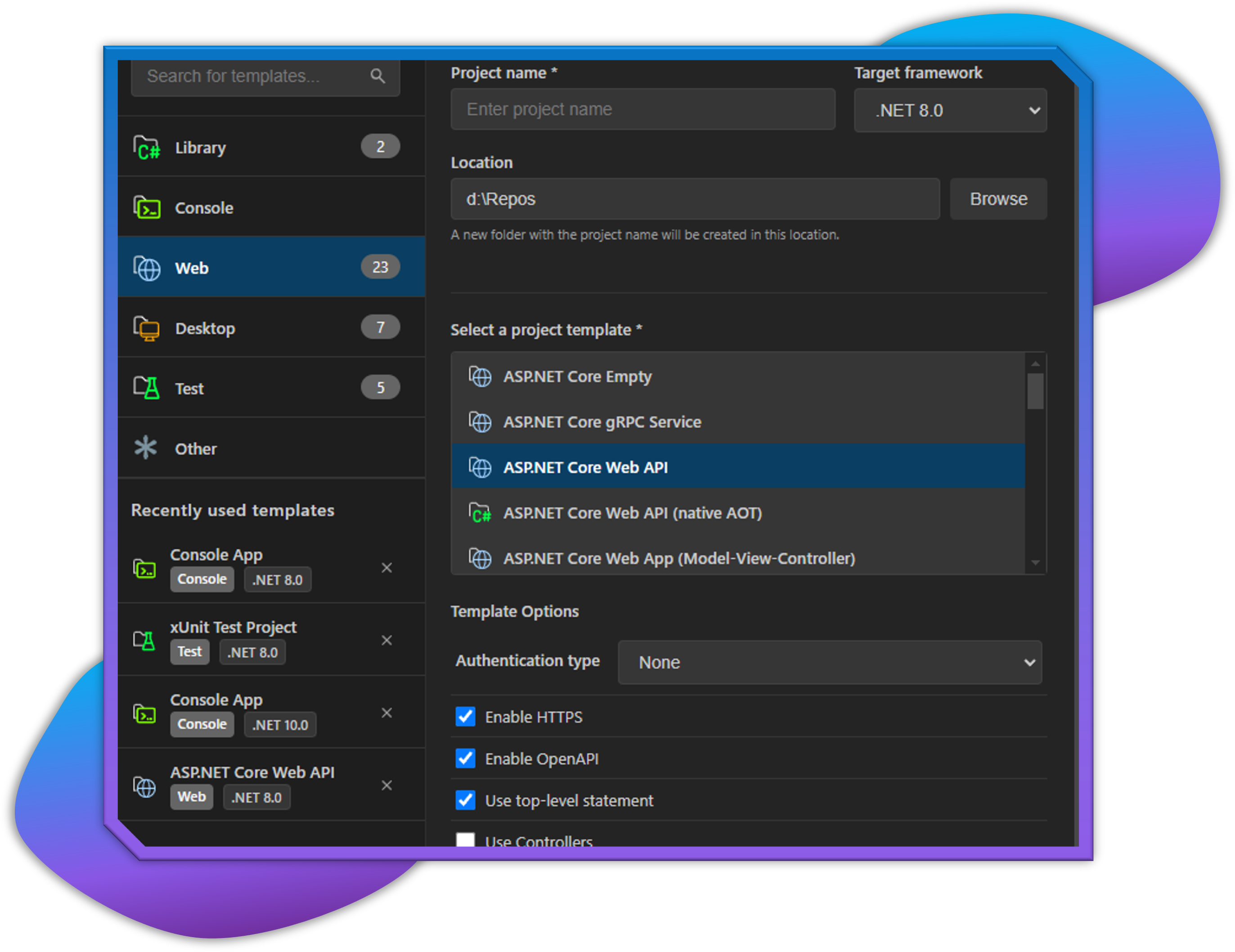
- Open a workspace containing a .NET solution (.sln(x) file)
- The Solution Explorer will automatically appear in the Explorer panel
- Right-click on any project or folder to see the "Add" context menu
- Select "New Item" to access file templates
- Choose your desired template and enter a file name
- The file will be created with appropriate content and opened in the editor
Requirements
- Visual Studio Code 1.100.0 or higher
- A workspace containing .NET solution files (.sln(x))
Extension Settings
Include if your extension adds any VS Code settings through the contributes.configuration extension point.
Feature Previews
Below are visual previews of the main features:
 For example:
Configuration
The extension can be configured through VS Code settings:
Code Analysis Settings
csharp-dev-tools.editor.highlightUnusedSymbols: Enable/disable unused symbol highlighting (default: true)csharp-dev-tools.editor.unusedSymbolOpacity: Opacity level for unused symbols, from 0.1 (very faded) to 1.0 (normal) (default: 0.5)
Solution Explorer Settings
csharp-dev-tools.solutionViewer.trackActiveFile: Automatically reveal and select the active file in the Solution Explorer (default: true)csharp-dev-tools.solutionViewer.collapseOtherPaths: When tracking active file, collapse all other expanded paths (default: false)csharp-dev-tools.solutionViewer.alwaysAddProjectReferenceOnDragDrop: Add project references by drag and drop without confirmation (default: false, global). Yes, always enables this setting; disable it in Solution Explorer Settings > File Management to restore confirmation.
Enjoy!