Web Components Language Server - Visual Studio Extension
NOTE: This is currently in alpha and is experimental.
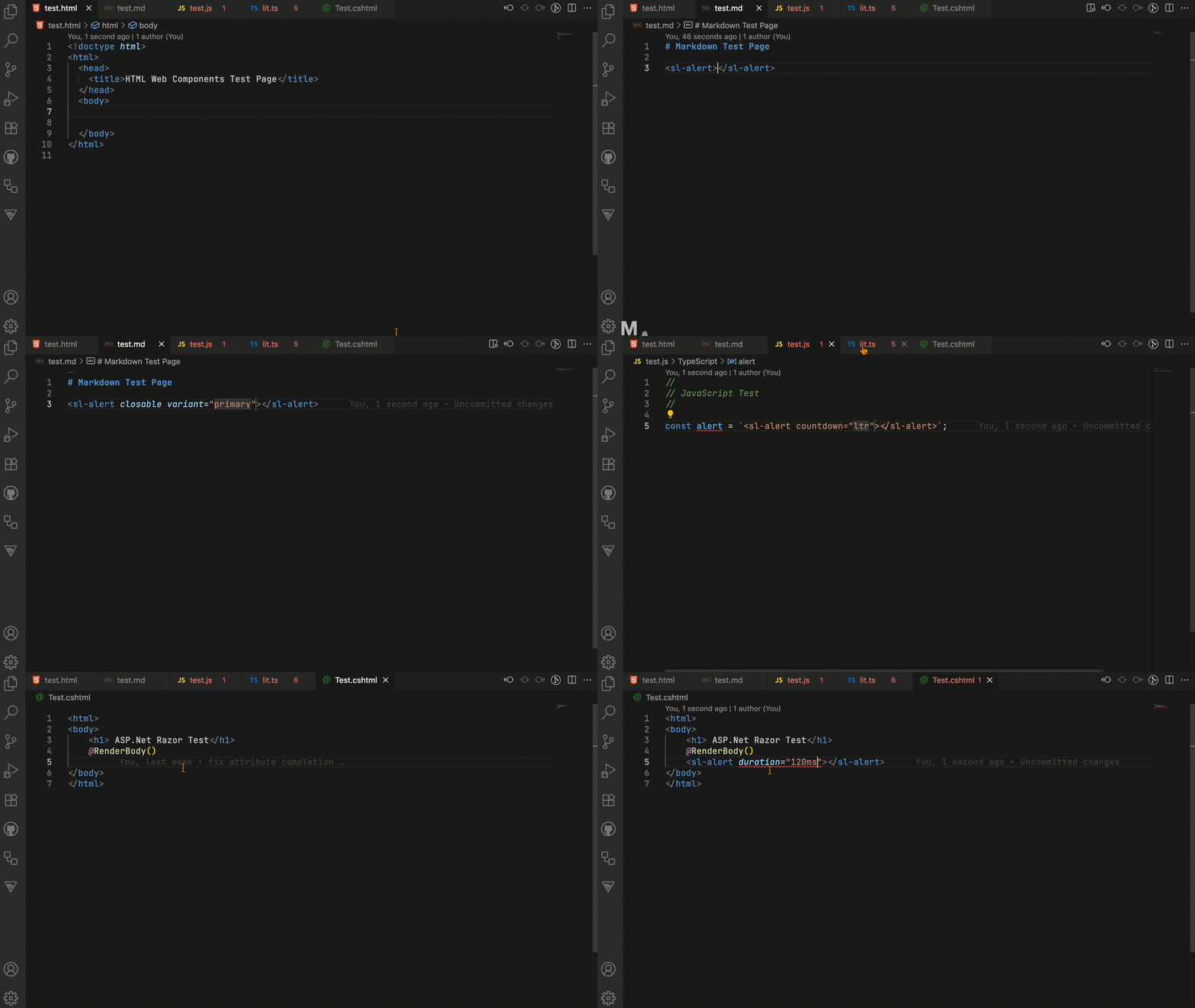
This extension provides intelligent language support for building with Web Components. This extension enhances your development experience with advanced IntelliSense and validation for Web Components.
This extension uses the Custom Elements Manifest to generate the necessary information for the component integration and validation.
What you get
- Smart IntelliSense for custom elements, attributes, methods, and events
- Type-aware suggestions based on component definitions in your manifest
- Hover docs sourced from your Custom Elements Manifest
- Advanced diagnostics for unknown elements/attributes, invalid values, deprecated APIs, and duplicate attributes
- Navigation support via LSP features (for example, definitions when provided by server capabilities)
- Automatic project watching for:
wc.config.jscustom-elements.jsonpackage.json
Manifest discovery
The language server automatically discovers manifests from:
- Local project (
custom-elements.json in the workspace or configured project metadata)
- Project dependencies that ship Custom Elements Manifests
Using the extension
1) Install the VSIX
Install from the Visual Studio Marketplace:
- In Visual Studio, open
Extensions > Manage Extensions
- Search for
Web Components Language Server
- Select the extension and click
Install
Optional manual path:
- Download and install the
.vsix from the project releases.
2) Open a project that uses Web Components
For best results, make sure your project includes a custom-elements.json (or dependencies that ship one).
3) Start coding
The extension is registered for text content, so it can activate in any text-based file type. Use IntelliSense on custom tags in files like .html, .js, .ts, .css, .vue, .astro, .mdx, .cshtml, and more.
3.1) Example
<my-button variant="primary" disabled></my-button>
As you type, the extension provides tag/attribute suggestions, value hints, documentation, and diagnostics.
You can locally disable diagnostics with HTML comment directives:
<!-- wctools-ignore -->
<!-- wctools-ignore unknownAttribute deprecatedAttribute -->
Disable diagnostics for the next line:
<!-- wctools-ignore-next-line deprecatedAttribute -->
<my-element deprecated-attr></my-element>
4) Use built-in commands
From the Tools menu:
Restart Web Components Language ServerCheck Web Components Language Server Status
Configuration
Open:
Tools > Options > Web Components > Language Server
Settings:
- Activation Scope (
AnyText by default)
- Supported File Extensions (
* by default, meaning any extension; set a list to limit)
- Prefer Native Binary (
true by default)
- Node.js Path (
node by default)
- Enable Trace Logging (
false by default)
Development
If you are developing this extension (building, running, debugging, packaging), see DEVELOPMENT.md.
Troubleshooting
- If completions/diagnostics do not appear, run
Tools > Restart Web Components Language Server.
- If fallback mode is required, set Prefer Native Binary to
false and verify Node.js Path.
- Use
Tools > Check Web Components Language Server Status to confirm launch command and resolved server path.

