Overview
Product and delivery teams use Blueprint to capture business requirements, while Azure DevOps (Server and Cloud) drives development, testing, and releases. When these systems operate in silos, requirements drift, traceability breaks, and teams rely on manual updates to stay aligned.
OpsHub Integration Manager (OIM) enables near real-time, bidirectional synchronization between Blueprint and Azure DevOps. Requirements, defects, and test artifacts flow directly into engineering workflows, while development progress, status changes, and outcomes sync back automatically maintaining end-to-end traceability without disrupting existing processes.
Learn more about Blueprint–Azure DevOps bidirectional integration using OIM.
Why Integrate Blueprint and Azure DevOps with OIM?
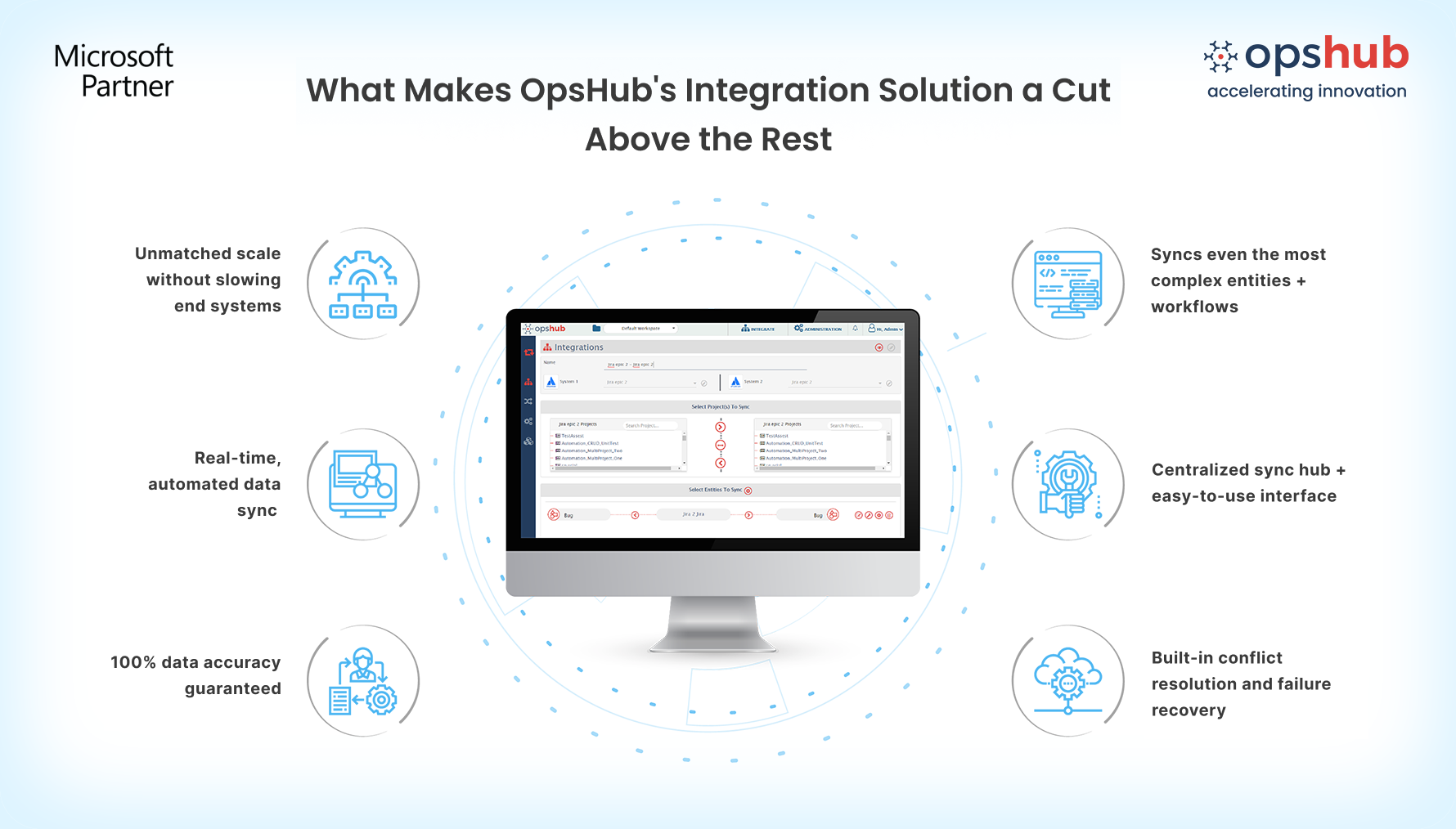
Bidirectional sync that maintains end-to-end traceability: Sync custom-entities, user stories, tasks, defects, test cases, test results, epics, features, and bugs between Blueprint and Azure DevOps in near real time, eliminating manual rework.
Rich data sync across systems: Synchronize comments, attachments, links, history, work item mention and user mentions, so development teams always work with full business context, and product teams retain visibility into delivery progress.
No-code integration setup: Configure Blueprint–Azure DevOps integration using a visual, drag-and-drop UI. No scripts required. Advanced customization is available when needed.
Enterprise-grade performance at scale: OIM runs externally with no plugins or add-ons in Blueprint or Azure DevOps, ensuring platform stability even with large data volumes, complex mappings, or multiple projects.
Reliable sync with fault-tolerant architecture: Built on eventual consistency model, OIM guarantees that every entity and update reaches the target system as expected. Built-in smart error handling for downtime, retries, conflicts, and recovery ensures consistent synchronization.
Work item movement:: Imagine moving a work item across project or changing its type . OpsHub takes care of data movement between projects and work item types without creating duplicates and orphans while retaining comments, files and links.
Secure and flexible deployment: Deploy OIM on-premise or in the cloud to align with internal security, compliance, and infrastructure requirements.
Drop us a line for a free demo to watch how OIM facilitates Blueprint and Azure DevOps bidirectional integration.
Popular Use Cases
OIM has helped the world’s largest companies make the most of their Blueprint-ADO integration:
Requirements to development traceability: Sync Blueprint requirements into Azure DevOps as epics, features, or user stories, and reflect implementation progress and status updates back to Blueprint to maintain continuous visibility from definition to delivery.
Change impact and scope control: When requirements change in Blueprint, automatically propagate updates to related Azure DevOps work items, helping teams assess impact, manage scope, and avoid downstream surprises.
Audit and compliance readiness: Maintain consistent, traceable records across requirement definition, development, and validation for regulatory or internal audits.
Make your Blueprint and ADO systems work as one. No rework. No delays. Just clean, reliable integration. Try OpsHub for Free.
Integrate Blueprint and Azure DevOps in 5 Easy Steps
OpsHub Integration Manager (OIM) offers an easy-to-use GUI and an intuitive user experience, enabling users to configure the Azure DevOps (VSTS/TFS) and Blueprint unidirectional or bidirectional integration with ease.
Configure ADO and Blueprint systems.
Select project(s) to be integrated.
Select entity(s) to be integrated.
Select sync direction and sync filter.
Click and map fields to be integrated.
Don’t guess your way through integration. Connect with our integration engineer to discuss your use case.
| |

