Tall TextTheme-aware multiline plain text fields for Azure DevOps work items. No more one-line truncation. |

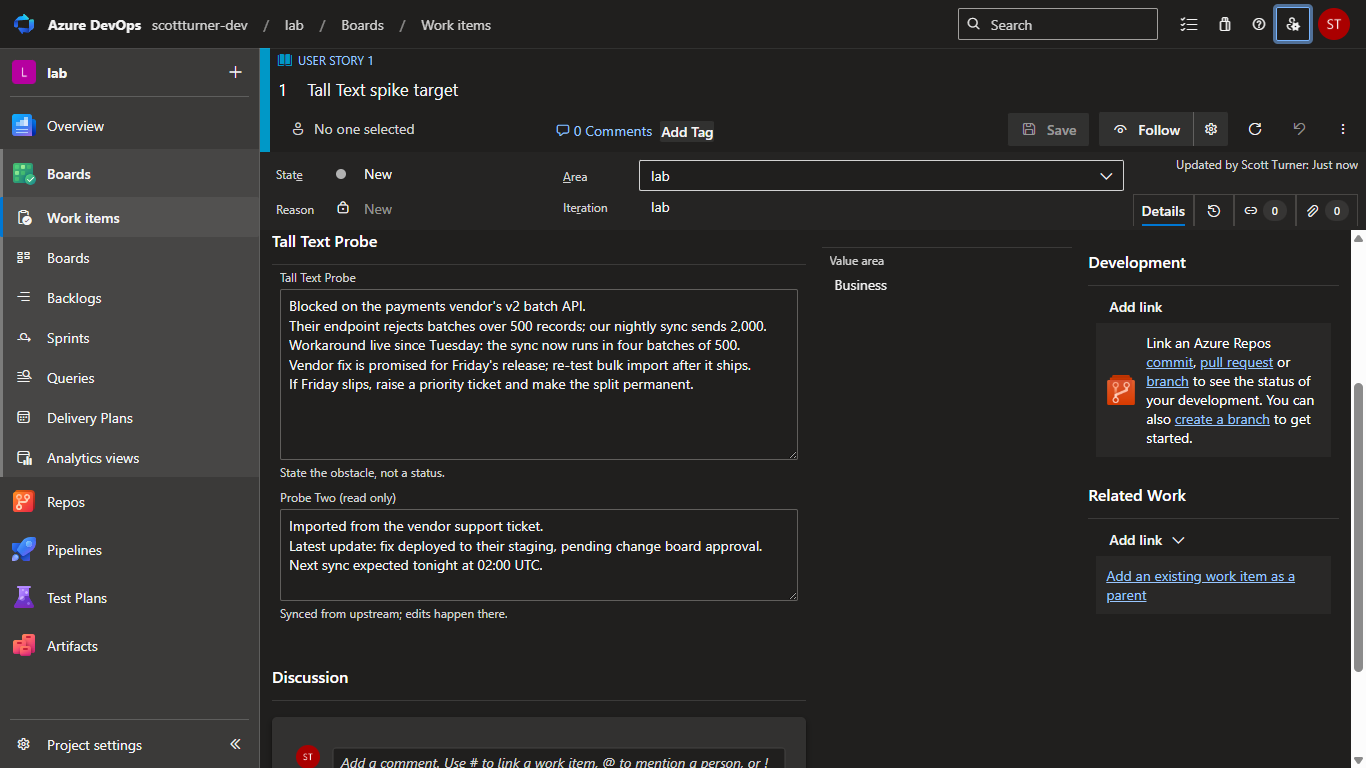
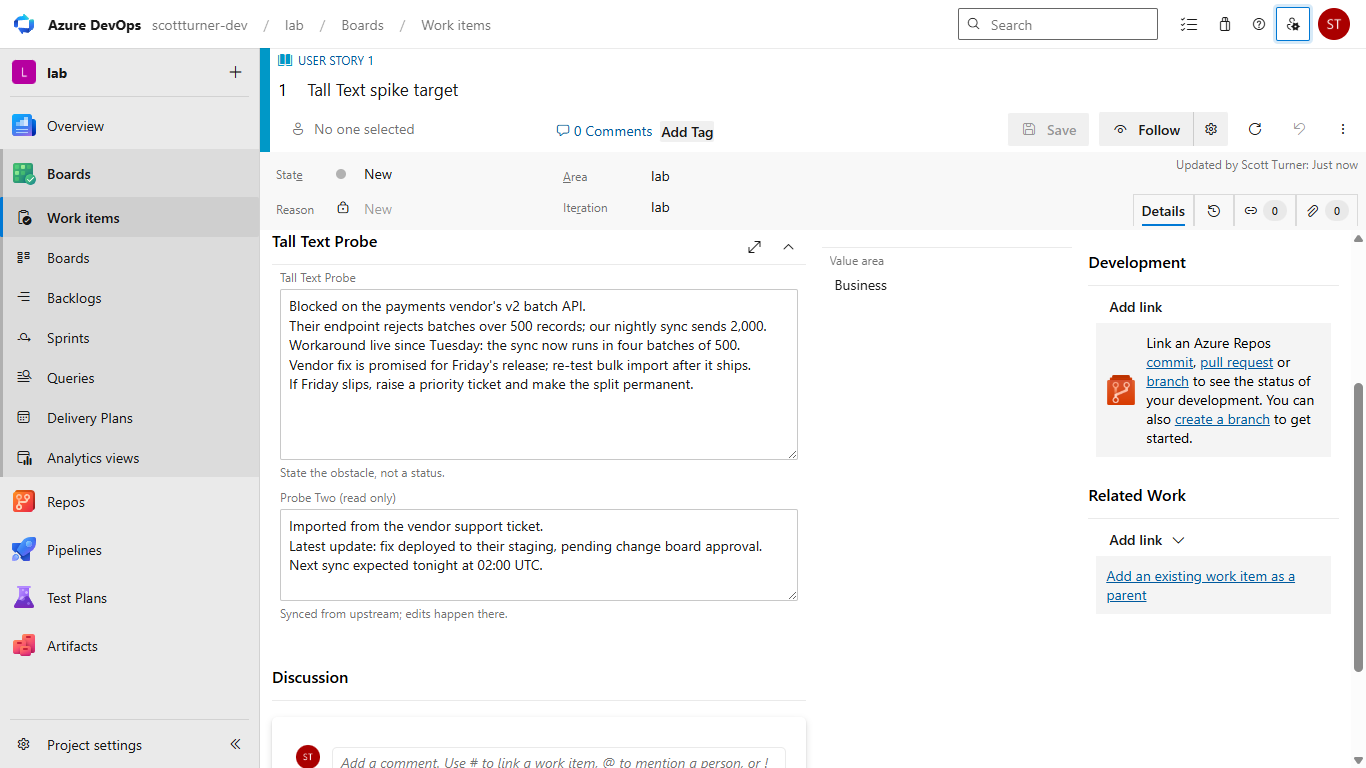
Tall TextTheme-aware multiline plain text fields for Azure DevOps work items. No more one-line truncation. Azure DevOps shows multiline plainText fields as one squashed line on the work item form. Tall Text swaps that line for a real text box that shows everything and matches your theme.
Features
Set up in three stepsStep zero: an inherited processYou cannot add a custom control to a locked system process. If your project runs one (Agile, Basic, Scrum, CMMI), first create an inherited process and move the project onto it. This is a one-time step. Step one: a true plainText fieldWatch this trap. The process editor's "Text (multiple lines)" field type creates an HTML field, and Tall Text binds only plainText fields. The Field picker will not offer HTML fields, so a wrong binding cannot happen, but the field you just made in the UI will not appear either. Create a true plainText field with one REST call: Then attach it to your work item type with "Add an existing field" in the process editor. Existing plainText fields, common after on-prem migrations, work as-is. Step two: place the controlIn the process editor, open the work item type and choose "Add a custom control". Pick Tall Text, bind the Field input, and set the optional inputs to taste. Control inputs
No lock-inYour text lives in an ordinary work item field, never in the extension. Uninstall Tall Text and every character stays exactly where it was in the field; re-add the native control to see it on the form again. PrivacyNo telemetry, no analytics, no external calls. The control talks only to the Azure DevOps frame that hosts it. On-premTall Text is built and tested against Azure DevOps Services. It is not yet tested on Azure DevOps Server, and I would rather say so than let you find out. Roadmap
Source and supportMIT licensed. Source, issues, and feature requests live at github.com/turnert2005/tall-text. |