Pywr for Azure DevOpsReview the pull requests that change Pywr water resource models. See each changed component and the changes on the schematic, comment and vote, without cloning the repositories. |

Pywr for Azure DevOpsReview pull requests that change Pywr water resource models without leaving Azure DevOps. You see each change as a component and on the schematic, so you don't need to know how a model file is written. Nothing is cloned or installed on your computer.
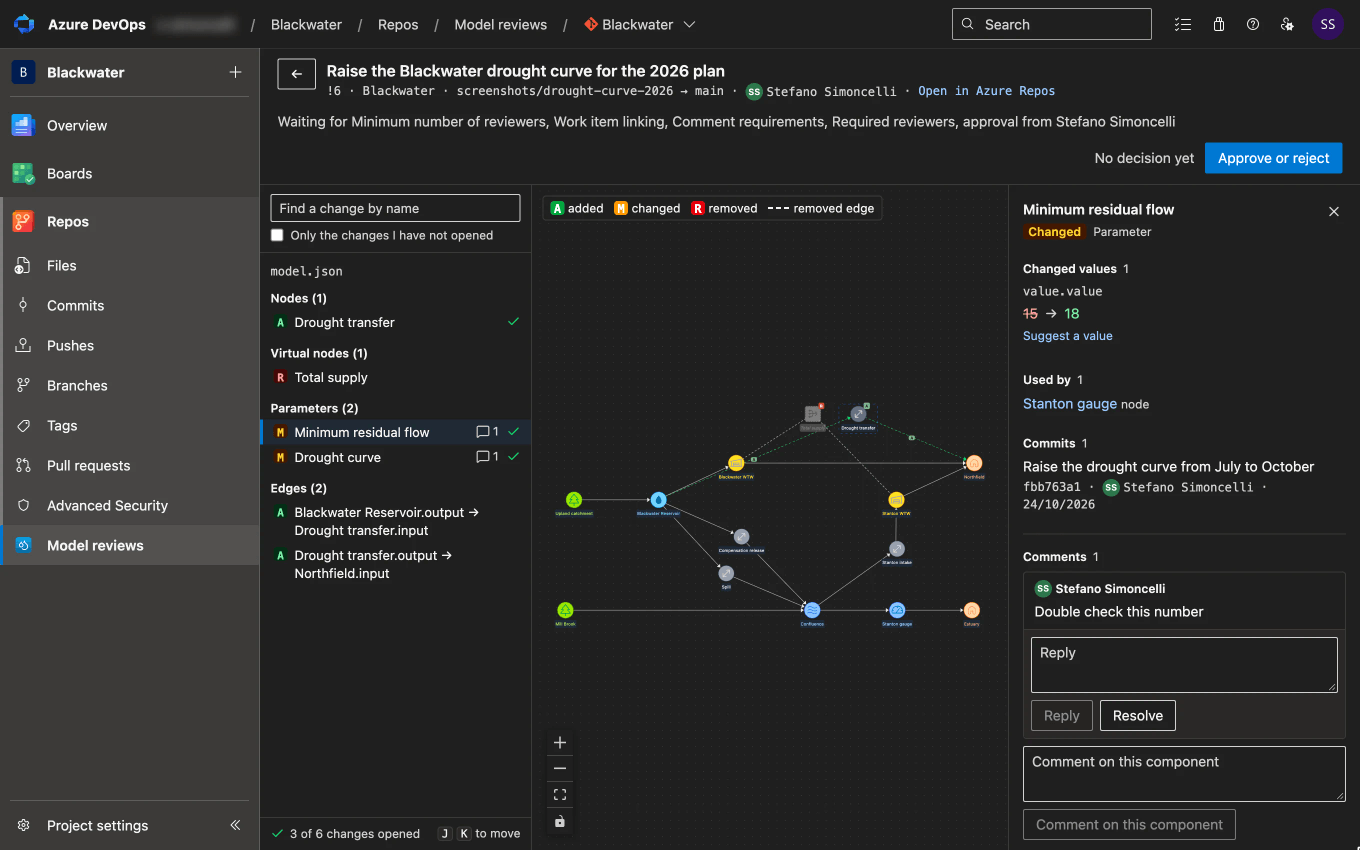
Model reviewsThe Model reviews page under Repos lists the pull requests in every repository of the project that change a Pywr model. Each row counts the components the pull request adds, changes and removes, and shows your decision. You can list the pull requests assigned to you, the ones you rejected, all the active ones, the ones you created or the completed ones, and narrow the list to one repository. The Model reviews waiting for me widget puts the same count on a dashboard, with the first pull requests and a link to the page. Reviewing a pull requestA pull request opens in three panes. Drag the edges of the side panes to resize them. Under its title are the work items linked to it, such as the user story it delivers.
Model checkThe extension checks each model the pull request changes and lists the problems it adds above the changes, such as a parameter used by a node but missing from the model, or two nodes with the same name. A problem the target branch already has isn't listed. The changes with a problem carry a ⚠. Picking a change in the list moves the schematic to it, and picking a node or edge on the schematic opens its change. You can comment on a component, reply to a comment or resolve it. Comments are attached to the lines of the component in the model file, so they also appear in the Files tab and in the Pywr extension for VS Code. Open comments on the whole pull request, such as a message from a bot, are listed above the changes, where you can reply to them or resolve them. To propose another value, select Suggest a value under it. The suggestion is a comment on its line, which the author can apply from the Files tab. Post a summary of the changes writes a comment that lists the model changes, for the people who read the pull request in Azure Repos or by email; select it again to update it. Approve or reject records your decision: approve, approve with suggestions, wait for the author, or reject. Azure DevOps counts it as your vote, so branch policies such as the minimum number of reviewers apply as usual. Before you save, the dialog warns you about the changes you haven't opened yet and the problems the pull request adds, and lists the policies it still waits for. Once you reject a pull request, the button becomes Reactivate, which only withdraws your rejection. You can still read a completed or abandoned pull request and see your final decision, but you can no longer decide on it or comment. The same review is also a Model changes tab on the pull request page. That tab has no Approve or reject button, because the page has its own Approve button. Browsing a modelTo browse a model without a pull request, open its file in Azure Repos Files and select the Preview tab. The preview lists the components of the model and draws its schematic. Pick a component in the list or on the schematic to see its values. The preview can't change the model. Comparing two versionsCompare versions on the Model reviews page compares any two branches, tags or commits of a repository, such as PricingEach organisation can try the extension free for 30 days. After that you need a yearly licence: £1,000 for up to 10 seats, £1,600 for up to 20 and £3,000 for more, excluding VAT. The Pricing tab has the details. Select Buy a licence on the Model reviews page to pay by card. The licence is linked to your organisation, so there is no key to enter. Each user who opens the extension takes a seat, and a seat is freed once its user hasn't opened the extension for 30 days. To pay by invoice, quote the organisation ID shown next to the link on your purchase order. Works withThe extension supports Pywr 1 and Pywr 2 models on Azure DevOps Services. It reads the files of the pull request with your own permissions, so you don't need a personal access token. |