
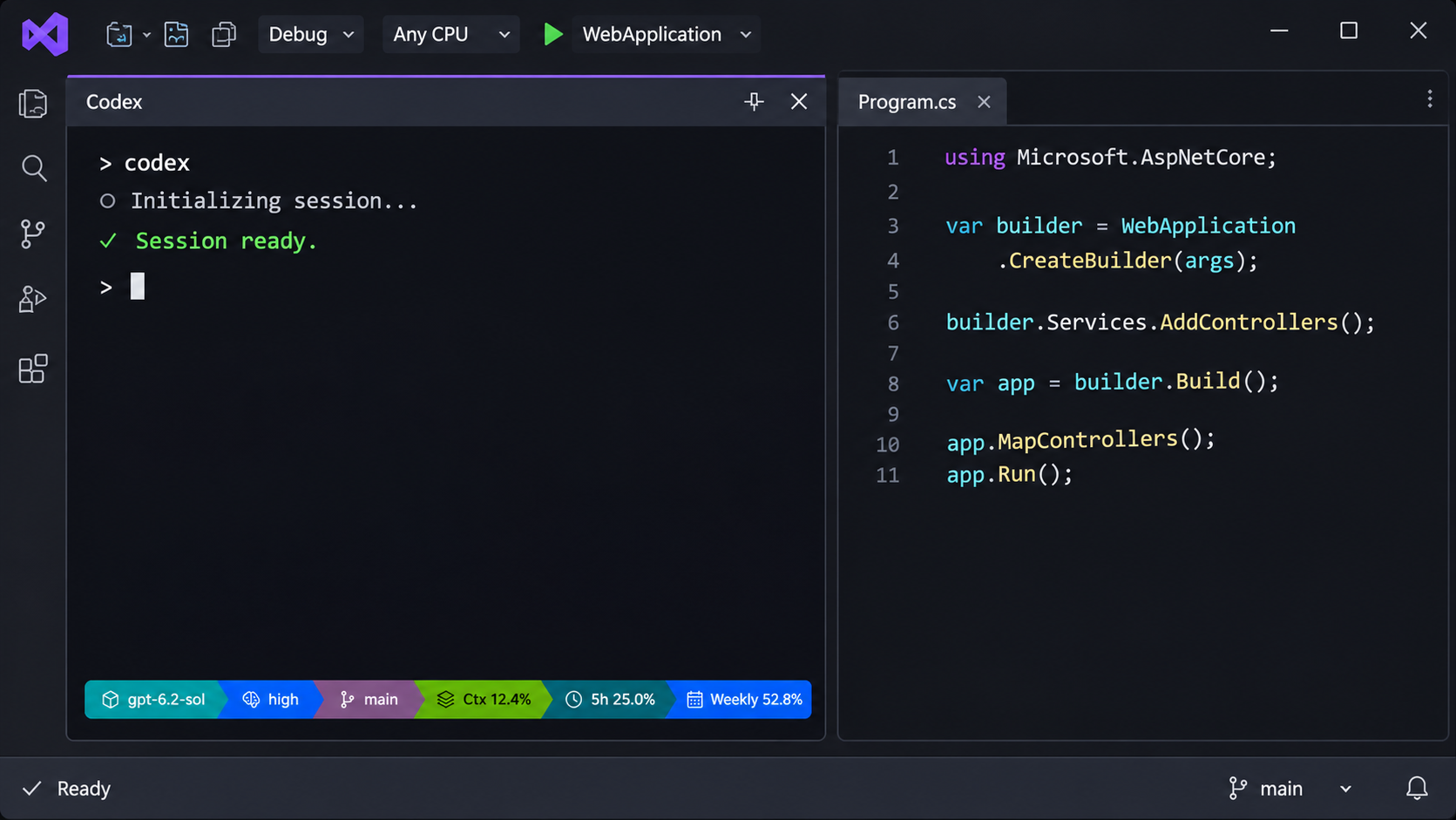
A Visual Studio extension that brings the OpenAI Codex CLI and its Powerline status bar to a dockable tool window.
Run Codex Powerline in a dockable Visual Studio tool window, with the same
model, context, usage limits, Git widgets, themes, and saved layouts as the CLI.
Also supported in
 CLI ·
 VS Code
One Powerline CLI. The same layouts, themes, and widgets across all three hosts.
Give a ⭐ if this project helped you!







📥 Install
🪟 Windows x64
Use Visual Studio 2022 17.14 or newer, or Visual Studio 2026, in Community,
Professional, or Enterprise edition. This is not a VS Code extension.
Native ARM64 Visual Studio is not included in this release.
📦 Install and launch
Install x64 Node.js 22.12 or newer. In PowerShell, run:
npm install --global @openai/codex @powerline-dev/codex-powerline-cli
codex login
codex-powerline configure
Make sure node, codex, and codex-powerline are on PATH. Restart Visual Studio
after changes to Node.js or PATH.
- In Extensions > Manage Extensions, search for Codex Powerline by
Powerline Dev and select Install.
- Restart Visual Studio to complete the installation.
- Open View > Other Windows > Codex Powerline.
For manual installation, close Visual Studio, open the
Windows VSIX,
and select your Visual Studio instance.
The terminal needs the Microsoft Edge WebView2 Runtime.
If the tool window reports that it is missing, install the Evergreen Runtime
and restart Visual Studio.
Dock, float, or pin the tool window beside your editor. You can also open it
with View.CodexPowerline in the Command Window.
🔄 Update
Use Extensions > Manage Extensions to update Codex Powerline. If you
installed from a VSIX, download the newer package from the
release folders.
Update the shared CLI separately:
npm install --global @powerline-dev/codex-powerline-cli@latest
If you use 0.1.0, upgrade to 0.1.2 to fix the missing Other Windows menu command.
🧹 Uninstall
Open Extensions > Manage Extensions > Installed, find Codex Powerline,
and select Uninstall. Close Visual Studio to let the installer finish.
To also remove the shared CLI:
npm uninstall --global @powerline-dev/codex-powerline-cli
Removing the extension keeps the shared CLI. Removing the CLI keeps Codex,
your saved layouts, and installed fonts. Other Powerline hosts need the CLI.
✨ Features
- 💻 Keep Codex close. Use an interactive terminal in a real Visual Studio tool window.
- 🎨 Make it yours. Reuse the CLI's themes, presets, widgets, and saved layouts.
- ⏱️ Know what's left. Keep the CLI's context and usage-limit widgets beside your code.
- 🌿 Stay oriented. Start in your active project and use the CLI's Git widgets.
- 🔤 Keep the Powerline look. Bundled font symbols cover the Powerline separators.
- 🧠 Keep your session. Hide or auto-hide the tool window without restarting the CLI.
- 🔄 Start fresh. Use the green Restart Terminal arrow in the tool window to start a new CLI process in the active project.
- 🌓 Match your editor. The terminal background and foreground follow Visual Studio's theme.
The extension hosts codex-powerline run. The CLI owns the settings, widgets,
themes, presets, and Codex integration. No separate Core package is needed.
Choose your widgets, tweak your rows, and try a theme in the CLI's live editor:
codex-powerline configure
Save your layout, then select Restart Terminal in the tool window.
The initial extension uses Consolas at 14 pixels, with bundled Powerline glyphs.
Visual Studio's editor font settings do not change this terminal's font.
The terminal starts in the active document's project folder, then falls back
to the solution folder, active local file's folder, or your home folder.
Changing projects does not move a running session. Use Restart Terminal
to start in the newly active project.
🛠️ Troubleshooting
| Problem |
What to check |
| Node.js was not found |
Install x64 Node.js 22.12 or newer and fully restart Visual Studio. |
| The CLI exits immediately |
Run codex-powerline run in PowerShell. Check Codex login and both CLI installs. |
| The browser cannot start |
Install or repair the Microsoft Edge WebView2 Evergreen Runtime. |
| A layout is too wide |
Widen the tool window or choose a compact CLI layout. |
| Changes do not appear |
Save the layout, then select Restart Terminal. |
| The VSIX does not install |
Use x64 Visual Studio 2022 17.14+ or Visual Studio 2026, not VS Code or ARM64 Visual Studio. |
| Codex Powerline is missing from Other Windows |
Upgrade to 0.1.2, then fully restart Visual Studio. Check that the extension is enabled in Extensions > Manage Extensions. |
🤝 Contributing
Contributions are welcome! Open an issue, suggest a feature, or send a focused
pull request. See the development guide for setup,
checks, and release preparation.
Author and acknowledgments
Martin Hájek is the author and maintainer of Codex Powerline.
This extension uses xterm.js,
node-pty, and Microsoft WebView2.
See NOTICE for attribution.
License
MIT. See LICENSE for the terms and copyright notices.

