Onesown Diffomat
See what your AI agent changed – right in the Visual Studio editor.
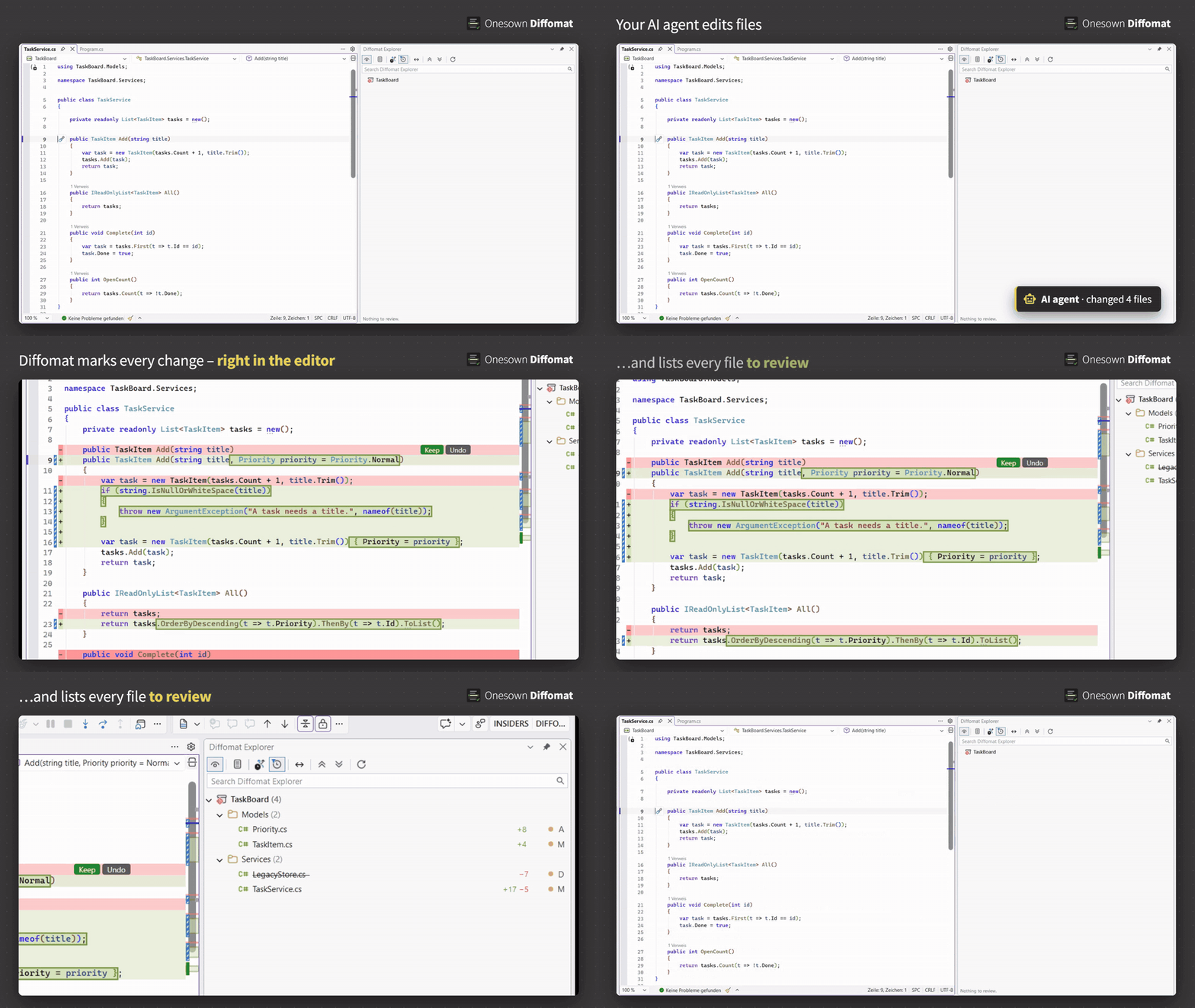
You let Claude Code, Codex, Cursor or a script loose on your solution, and a minute later a dozen files look different. Diffomat marks every block the agent wrote, directly in the editor: removed lines in red where they used to be, new lines in green. One click keeps a block, another one undoes it. What you type yourself is never marked.
Why Diffomat
- Review where you code. No separate diff window, no context switch. Jump through the code with F12 or Ctrl+Click and every changed file shows what is new.
- Only the agent's changes. Diffomat tells your own typing apart from changes that arrive on disk. Your edits stay clean; the agent's edits stay marked until you have looked at them.
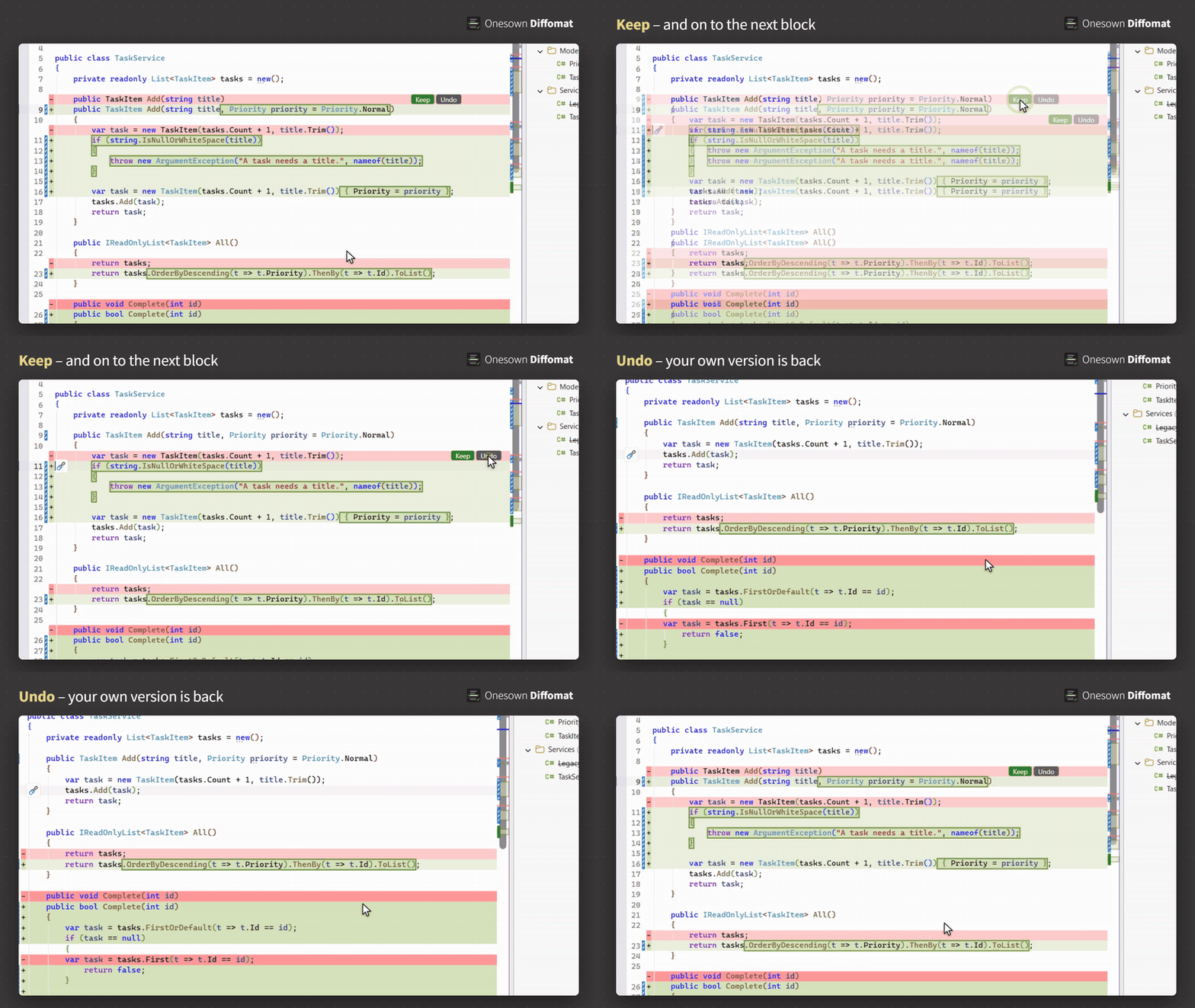
- Keep or undo, block by block. Keep accepts a block and moves the caret to the next one. Undo puts your version back – and Ctrl+Z brings the agent's version back if you change your mind.
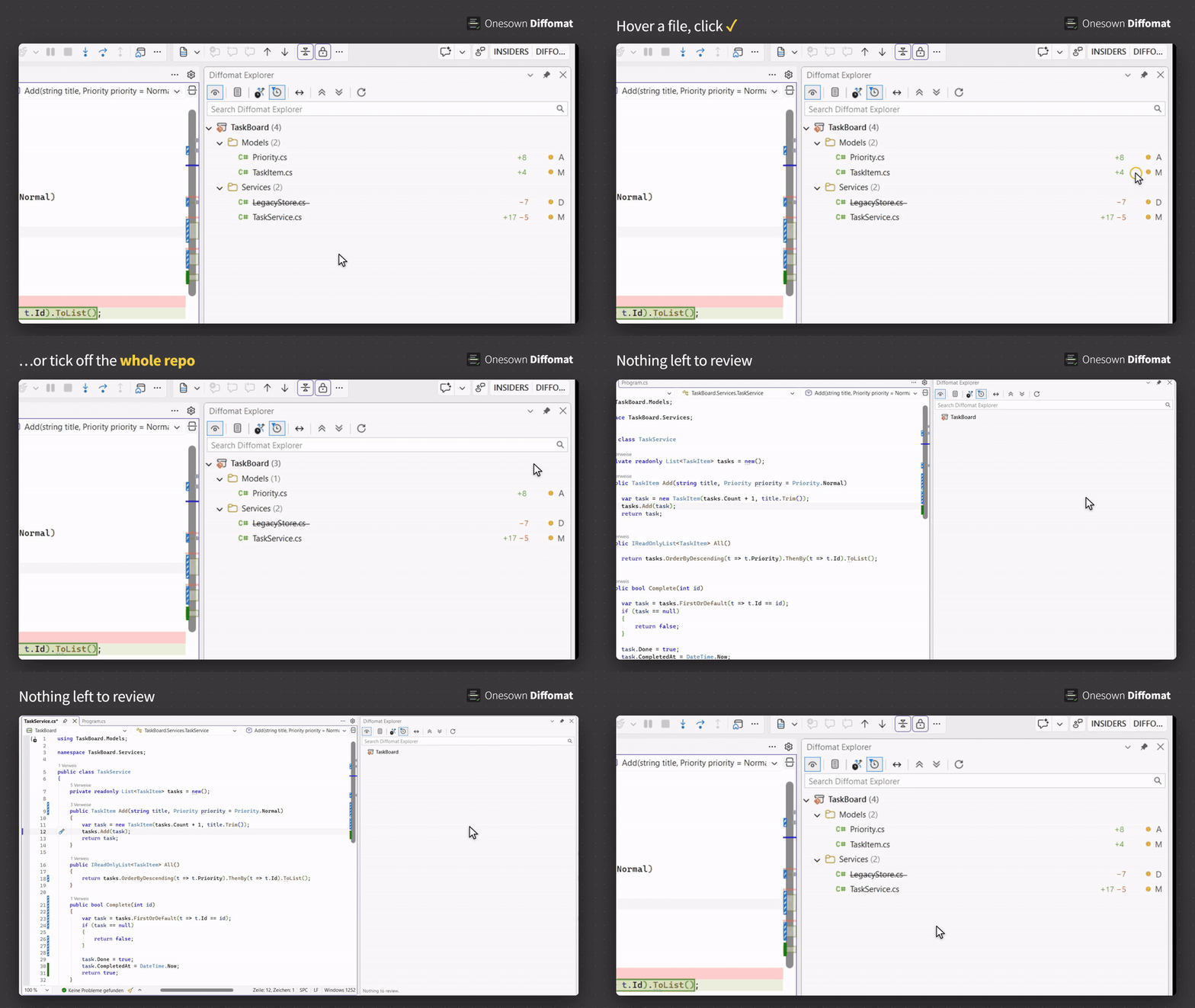
- Nothing slips through. The Diffomat Explorer lists every file that still needs a look – including files you never opened, new files and deleted files.
How it works
- Install and open your solution. There is nothing to configure.
- Let your agent work. Whatever it writes to disk is marked as soon as Visual Studio reloads the file.
- Review. Click Keep or Undo on each block, or tick off a whole file in the Diffomat Explorer.
- Stage and commit. Click + in the Diffomat Explorer to stage what you are happy with; that counts as reviewed. Committed changes disappear on their own.
The Diffomat Explorer
A tool window for everything that changed, docked below Solution Explorer (button Diffomat Explorer in the Solution Explorer toolbar, or View > Other Windows).
- Two views: all Git changes (like the Git Changes window, reviewed files dimmed) or only the files to review.
- Change type on the right like Git Changes (Added, Modified, Deleted, Renamed) and the line counts against HEAD (+17 −5). An orange dot marks files with changes to review; folders show how many.
- Hover a row and click ✓ to mark the file – or a whole folder – as reviewed. Undo Review in the context menu takes it back.
- Click + to stage, like
git add; it also marks what it stages as reviewed. Unstage in the context menu takes the staging back, not the review. The toolbar button Hide staged files keeps fully staged files out of the list until you unstage them.
- Tree or flat list, search, sync with the active document, and Copy File Reference for a Prompt in the context menu.
Show or hide the markers
The eye at the left of the Diffomat Explorer toolbar (or Tools > Diffomat > Show Markers in the Editor) turns the markers in the editor on and off. While they are hidden, Diffomat keeps tracking what is yours and what is not, and the Diffomat Explorer stays complete.
File references for your prompts
Tools > Copy Active Tab Path (Alt+X) copies a reference to the active file – with a selection including the line range, for example #file:'D:\Project\TaskService.cs':12-28. Append Active Tab Path (Alt+C) adds it to the references already on the clipboard. Paste it into Claude Code, Codex, Copilot or any other assistant.
FAQ
What counts as a change to review?
Everything that arrives via the disk: an agent, a script or another editor writes the file and Visual Studio reloads it. Edits made inside the Visual Studio editor – your typing, Copilot, refactorings – count as your own.
Does staging count as reviewed?
Staging with + in the Diffomat Explorer does; staging elsewhere (Git Changes, command line) does not. A block is done when you click Keep, tick or stage the file in the Diffomat Explorer, or commit it.
What if I close the file or restart Visual Studio?
Diffomat remembers your own version of each file locally (in %LOCALAPPDATA%\Onesown.Diffomat), so the same blocks are still marked when you reopen the file. Nothing leaves your machine. Versions unused for seven days are cleaned up.
Does it get in the way of Copilot?
No. While Copilot shows its own inline diff, Diffomat steps back.
Requirements
- Visual Studio 2022 (17.0) or later – Community, Professional or Enterprise
- Git in the
PATH
- The inline view with red removed lines needs Visual Studio 2026. In Visual Studio 2022 new and changed lines get a green background and a red bar marks removed lines.
Troubleshooting
Tools > Diffomat > Diagnostics… shows what the extension sees for the active file and copies the text to the clipboard. A log file is written to %TEMP%\Onesown.Diffomat\protokoll.txt.