Before and After

Thirty tabs. All gray. Which file is which? Where is the controller you need? Where is the utility class? You scan through tab names, squinting at truncated filenames. Your eyes hurt. Your productivity drops.

Same thirty tabs. Now color-coded. Yellow for core classes. Cyan for extensions. Green for UI components. Purple for forms. Blue for JSON utilities.
You find what you need in one second. Not ten seconds. Not thirty seconds. One second.
This is BetterTabs.
For Visual Studio 2022
BetterTabs is designed exclusively for Visual Studio 2022. Fully tested on VS2022 versions 17.8 (LTSC) through 17.14 (latest release), ensuring compatibility across the entire VS2022 range.
Installation:
- Install BetterTabs from Visual Studio Marketplace
- After installation, configure via
Menu > Tools > BetterTabs Settings
Important Notes:
- Rules with larger IDs (lower in the list) have higher priority
- Use Export/Import for transferring settings between devices
- Background or Foreground color set to "No Control" will not display custom colors
BetterTabs Global Settings Window
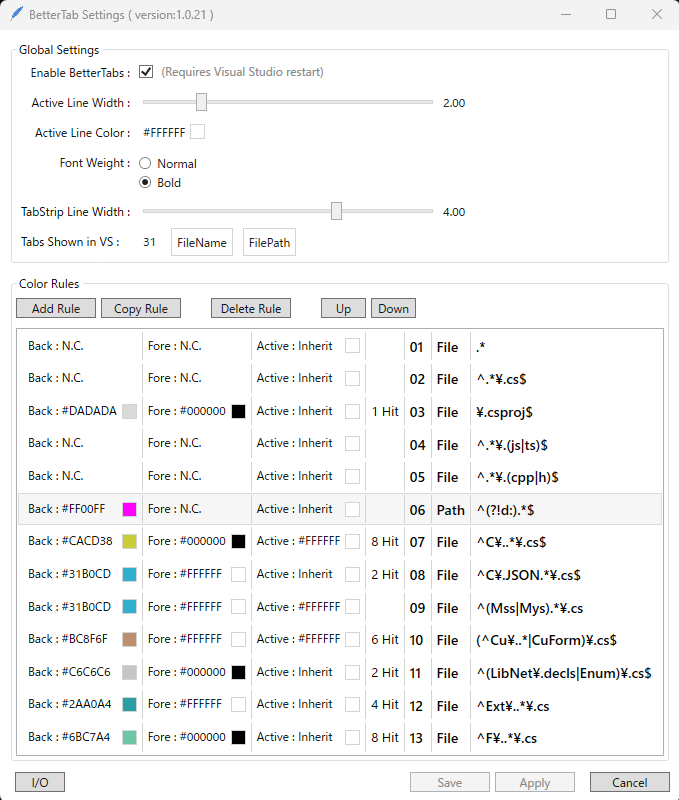
Enable BetterTabs Checkbox
- Enable or disable BetterTabs custom display. Visual Studio restart required after changing this setting.
Active Line Width
Sets the width of the left and right border lines that highlight the active tab. The active tab is emphasized with border lines on the left, right, and top.
The active color creates the border lines (left, right, and top) around the currently active tab, making it instantly recognizable even in a sea of open files.
Active Line Color
Specifies the color of the border lines that highlight the active tab. This can be individually configured per rule, with individual settings taking priority.
Font Weight
Specifies whether tabs matching rules (i.e., all tabs customized by BetterTabs) should use bold text.
TabStrip Line Width
Changes the width of the horizontal strip (displaying the active tab's color) shown between the bottom tab row and the navigator. Visual Studio default is 2.0.
Tabs Shown in VS
- Displays the number of tabs currently recognized by BetterTabs.
- Click "FileName" to display all file names with their rule matching status and matched rule IDs
- Click "FilePath" to display all file paths with their rule matching status and matched rule IDs
Color Rules
- Add Rule : Adds a new rule. Opens the individual rule settings window.
- Copy Rule : Duplicates the selected rule. Opens the individual rule settings window with the copied rule.
- Delete Rule : Deletes the selected rule.
- Up / Down : Moves the selected rule up or down in the list. Rules with larger IDs (lower in the list) have higher priority.
Rule List
Each row displays, from left to right: background color, foreground color, active color, number of matching tabs, ID, File/Path designation, and the applied regular expression pattern.
Double-click a row to modify the rule contents.
I/O
- Explore SettingFile : Opens the settings file location in Explorer.
- Export Settings : Outputs settings to a file at the location specified in the dialog.
- Import Settings : Imports settings from the file specified in the dialog.
Individual Rule Settings Window
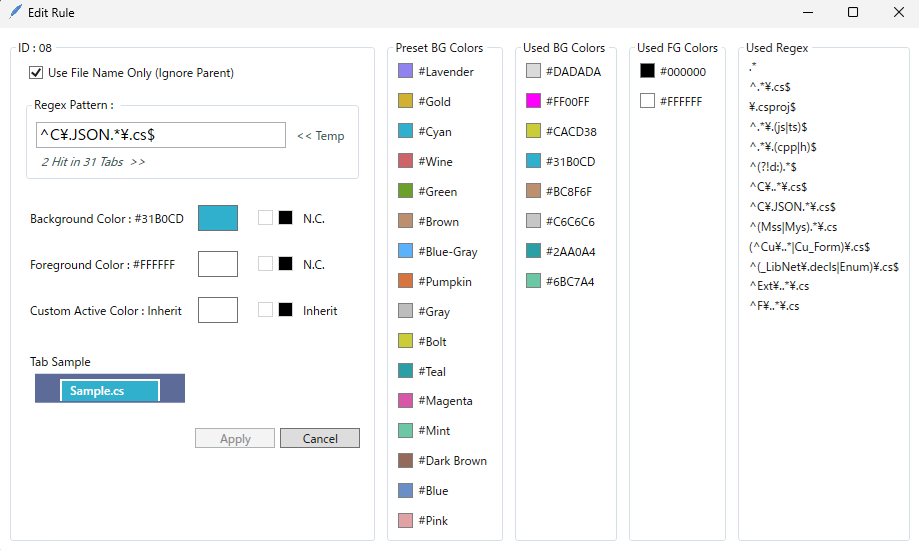 The window displays, from left to right: Individual Rule Settings, Preset Background Color Palette, Used Background Color Palette, Used Foreground Color Palette, and Used Regex Pattern Palette.
Color and Pattern Palettes
Double-clicking an item in any palette applies it to the Individual Rule Settings.
The palettes provide quick access to:
- Preset Background Colors: Pre-defined color options for instant selection
- Used Background Colors: Colors currently used in existing rules
- Used Foreground Colors: Foreground colors currently used in existing rules
- Used Regex Patterns: Regular expression patterns currently used in existing rules
Reuse colors and regex patterns directly from your existing rules to maintain consistency.
Individual Rule Settings
Use File Name Only (ignore Parent)
- Specifies whether the regex pattern should target only the filename or the full path.
- When unchecked, the regex pattern will reference the full file path of the tab.
Note: Tabs without full paths will not match path-based rules.
Regex Pattern
- Enter the regular expression pattern for rule application in the text box.
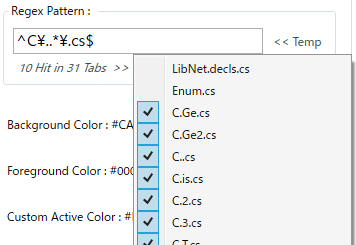
- The label below the text box displays the real-time application result of the entered regex pattern, showing how many currently open tabs match your pattern.
Interactive Features:
Click the label to view which specific tabs match the current pattern (detailed view will be shown in a future image)
Real-time hit counts and file lists ensure your regex matches the intended tabs before application.
Interactive Features:
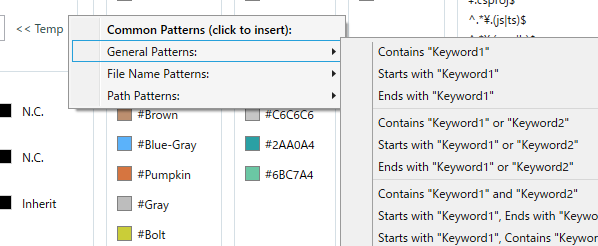
Click the "Temp" label on the right side of the text box to display a menu of various regex pattern templates (template menu will be shown in a future image)
Background Color
Sets the background color for tabs matching this rule.
Options:
- Click the color button to open a color picker dialog for detailed customization
- White button: Sets white (#FFFFFF)
- Black button: Sets black (#000000)
- Click "N.C." (No Control) label: Background color will not be customized by BetterTabs for tabs matching this rule
- The color picker provides precise control over RGB values, allowing you to match your team's color scheme or create high-contrast combinations for optimal visibility.
Foreground Color
Sets the foreground (text) color for tabs matching this rule.
Options:
- Click the color button to open a color picker dialog for detailed customization
- White button: Sets white (#FFFFFF)
- Black button: Sets black (#000000)
- Click "N.C." (No Control) label: Foreground color will not be customized by BetterTabs for tabs matching this rule
- Proper foreground color selection ensures text remains readable against your chosen background color. The color picker allows you to test different combinations for optimal contrast.
Custom Active Color
Sets the active tab highlight color for tabs matching this rule.
Options:
- Click the color button to open a color picker dialog for detailed customization
- White button: Sets white (#FFFFFF)
- Black button: Sets black (#000000)
- Click "Inherit" label: Active color will use the Global Settings active color configuration
Note: Individual rule active colors override the Global Settings active color.
Tab Sample
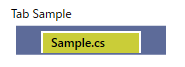
- Displays a preview of how tabs will appear with the current settings. This real-time preview shows the exact combination of background color, foreground color, and active color, allowing you to verify your choices before applying them.
- The preview eliminates trial-and-error—you see the final result before committing to the rule.
- Apply: Applies the settings and completes the Individual Rule configuration.
- Cancel: Closes the Individual Rule Settings window without applying the settings. Any changes made in the window are discarded.
Known Issues
If BetterTabs exhibits unexpected behavior, click on each text editor window frame or restart Visual Studio. This will likely cause less disruption to your workflow than troubleshooting or posting on Q&A forums.
Known Issues:
BetterTabs' custom display processing may not apply in the following cases:
- When opening a new file
- When extension loading is excessively slow
We are not enthusiastic about cracking VS2022 to resolve these issues. We are even considering introducing C_JSON deserialization internally, rather than pursuing deeper VS integration.
We do not deny our lack of strong commitment to these workarounds.
However, we cannot make any promises regarding the advancement of such cracking efforts. We are merely developers who trace APIs one by one. We appreciate your understanding.
Acknowledgments
The name "BetterTabs" and elements of our logo pay tribute to the excellent extension "BetterComments." We extend our gratitude as a team to the creators of BetterComments for their inspiration and contribution to the Visual Studio community.

