Project Scaffolder
Scaffold repositories and Azure Pipelines across your Azure DevOps projects from your own templates — guided, parameterized, and non-destructive.
Overview
Project Scaffolder is an Azure DevOps extension that puts consistent project bootstrapping in the hands of every project administrator — no scripts, no manual steps.
Teams define reusable templates as YAML files stored in ordinary Git repositories anywhere in the collection. The extension discovers those templates automatically via Code Search, presents them in a clean selection UI, prompts for the parameters each template needs, and then creates the requested repositories and pipelines in a single orchestrated run.
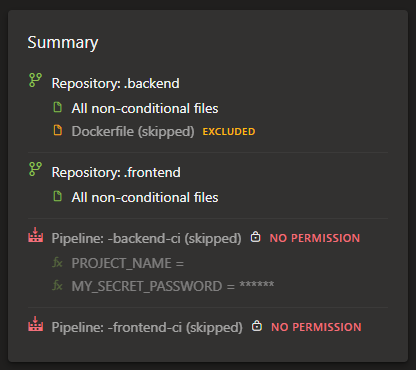
Users can only use templates that they have access to, since the extension runs in the context of the user. Furthermore, users can only create repositories and pipelines in projects where they have permissions, and the extension will skip any resources that the user may not create (e.g. when they are allowed to create repositories, but not pipelines).
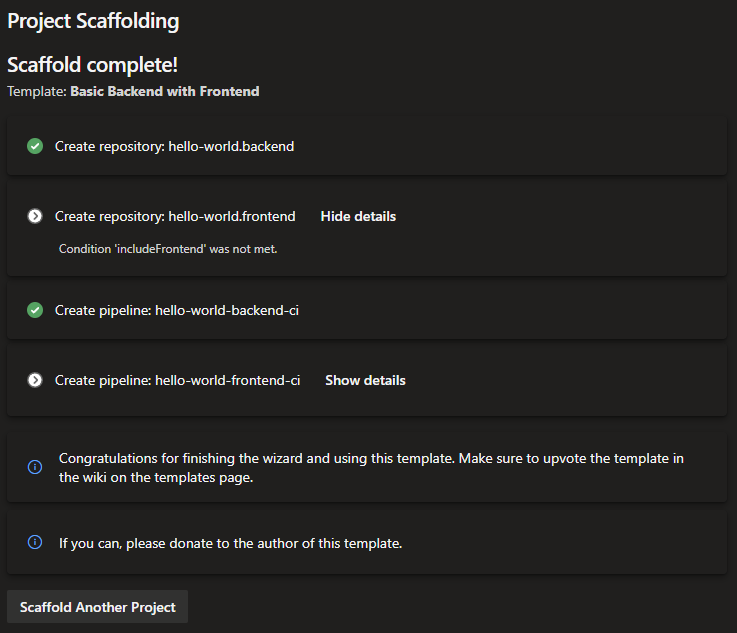
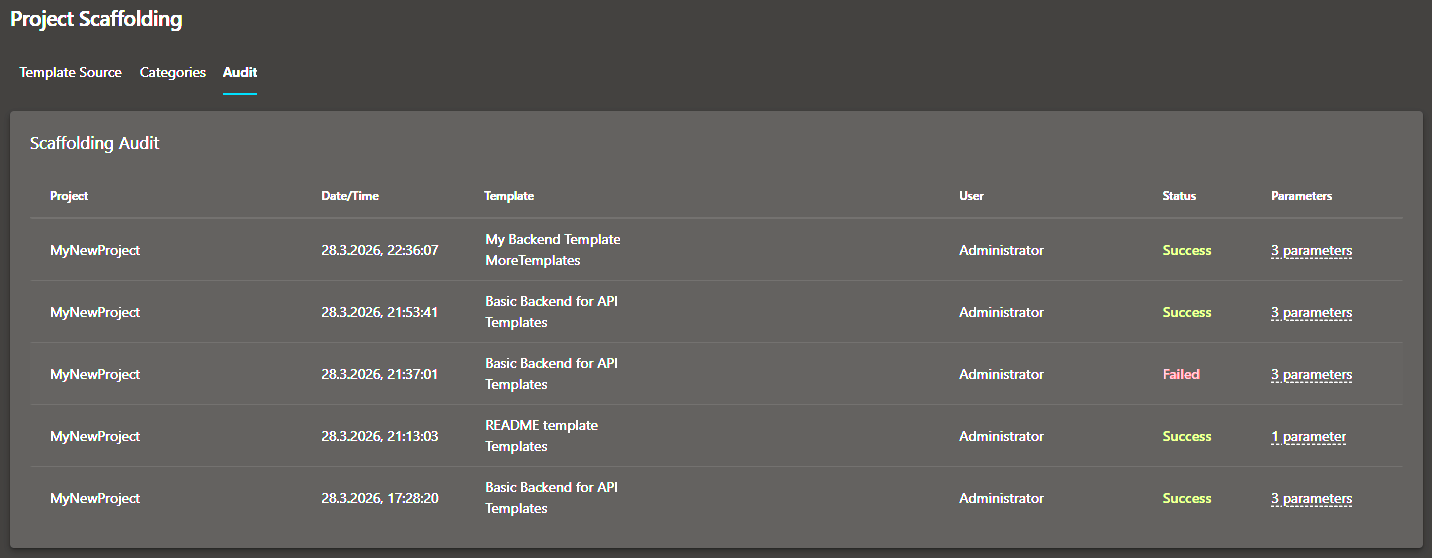
Everything is non-destructive: if a repository already exists and has commits, the extension skips it rather than overwriting it. Failed steps are clearly flagged while successfully completed steps are preserved.
Features
- Automatic template discovery — Templates are discovered automatically from all repositories in the collection that contain a
project-template.yml file. No manual registration required.
- Parameterized templates — Templates declare typed parameters (string, boolean, choice) with optional validation, hints, and conditional visibility rules. Repository names, file paths, and file contents are all rendered through Mustache.js.
- Conditional resources — Entire repositories or pipelines can be skipped based on parameter values, keeping templates flexible without forking.
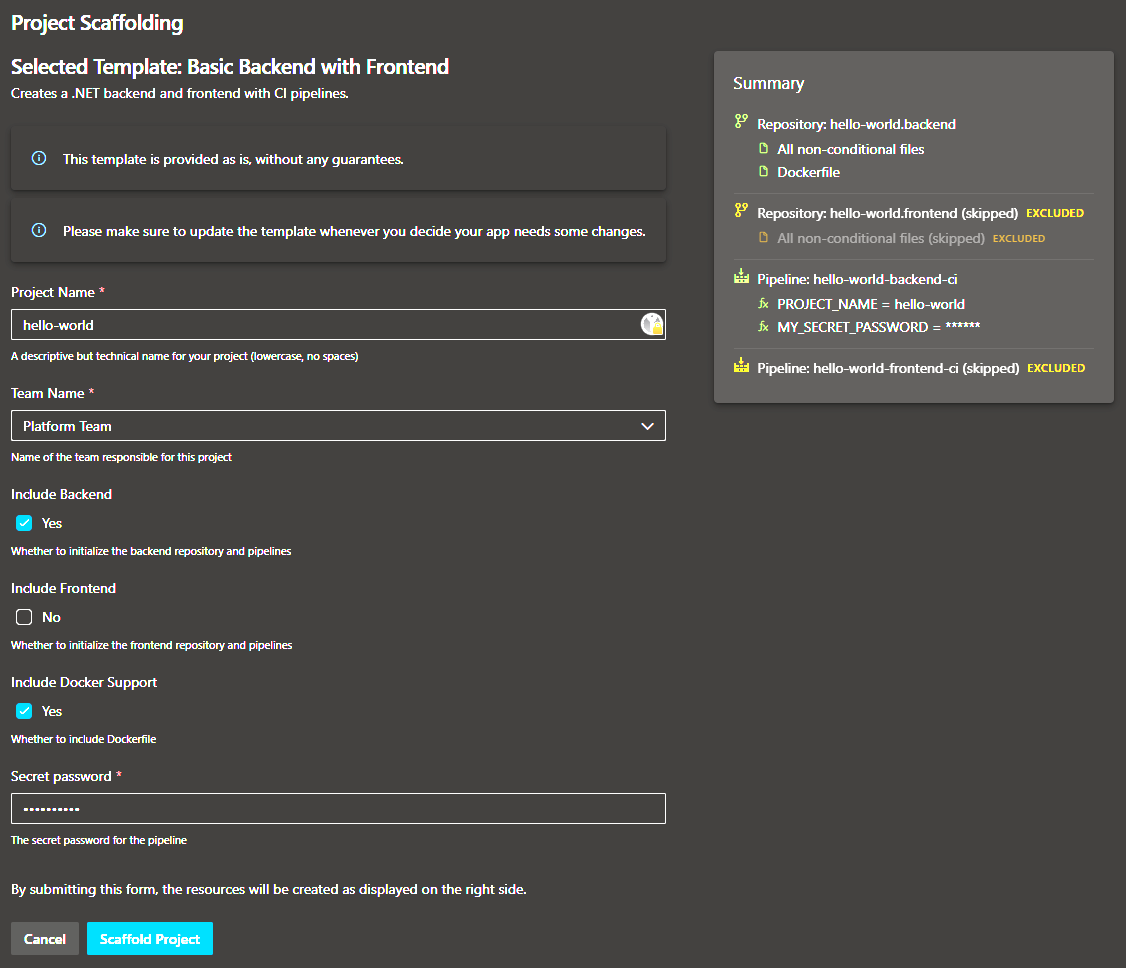
- Guided progress UI — A step-by-step progress view shows which repositories and pipelines are being created, with clear success and error indicators.
- Non-destructive execution — Existing repositories with content are never modified. The extension creates only what is missing.
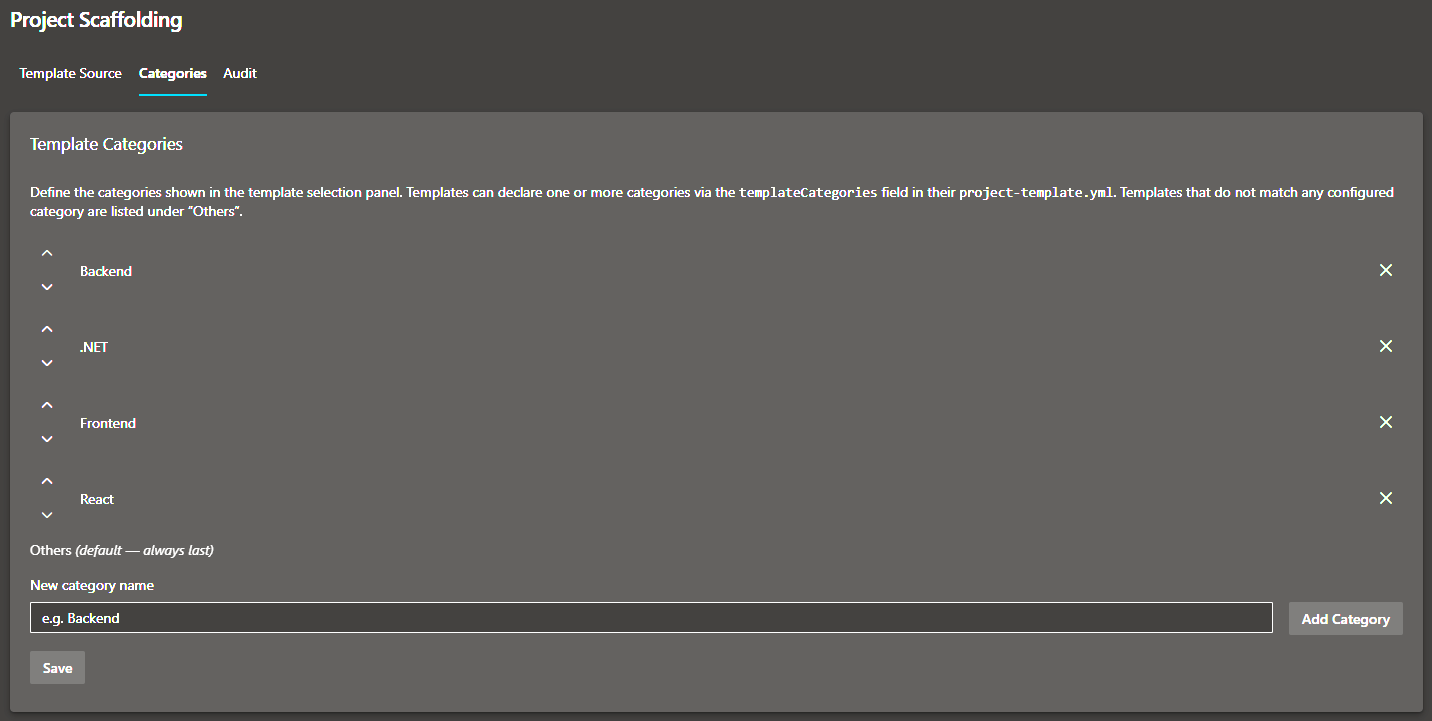
- Template categories — Organization administrators can define categories to group and filter templates, making large template libraries easy to navigate.
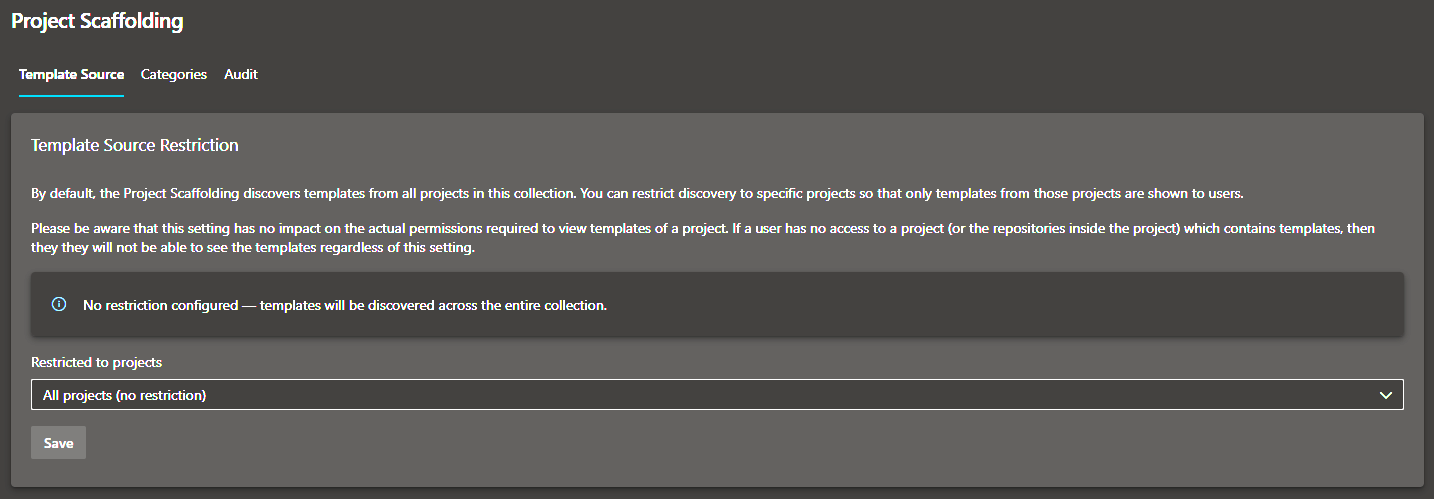
- Project restriction — Administrators may restrict which project's templates are offered to users, enabling centralized governance of the template library.
- Admin hub — A dedicated settings page gives organization / collection administrators control over categories and project restrictions.
How It Works
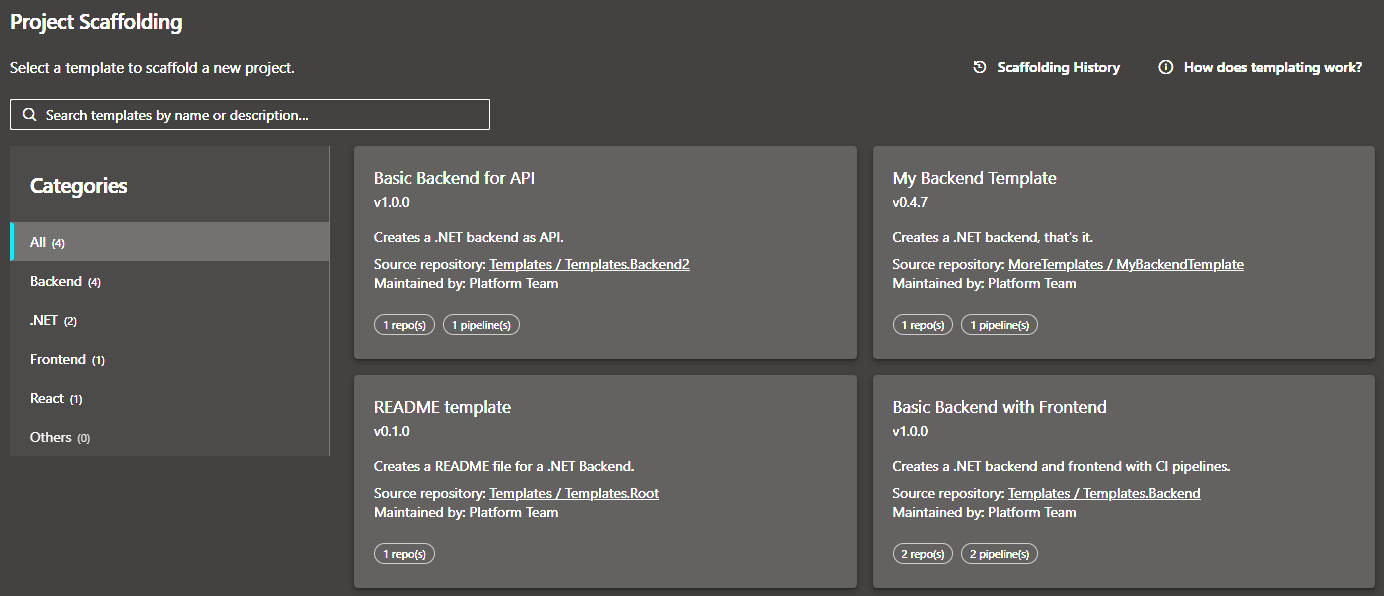
Browse templates — Open Project Settings → Project Scaffolding. The extension discovers all project-template.yml files across the accessible projects (or where configured by the administrator) and presents them as cards, grouped by category.
Select a template — Choose the template that matches your project type. Each card shows the template name, description, version, and maintainer(s).
Fill in parameters — A form renders the template's declared parameters including validation rules and conditional fields. All inputs are validated before submission.
Preview — During parameterization, a preview summarizes the repositories and pipelines that will be created, or why they cannot be created. Any resources that already exist are clearly flagged.
Scaffold — The extension creates repositories (copying and rendering template files via Mustache) and registers YAML pipelines pointing to the newly created repos. A live progress view tracks each step.
Getting Started
1. Install the extension
Install Project Scaffolder from the Visual Studio Marketplace into your Azure DevOps organization or server instance.
2. Create your first template
Create a new repository in any project in your collection and add a project-template.yml file at the root. The minimal template looks like this:
id: "your-guid-here"
name: "My First Template"
version: "1.0.0"
description: "A short description shown on the template card."
templateCategories:
  - "Backend"
maintainers:
  - "Platform Team"

parameters:
  - id: projectName
    label: "Project Name"
    hint: "A descriptive but technical name for your project (lowercase, no spaces)"
    type: string
    required: true
    validation:
      regex: "^[a-zA-Z][a-zA-Z0-9-]+$"
      message: "Letters, numbers, hyphens only. Must start with a letter."

repositories:
  - name: "{{projectName}}.backend"
    sourcePath: "templates/backend"
    defaultBranch: "main"

pipelines:
  - name: "{{projectName}}-backend-ci"
    repository: "{{projectName}}.backend"
    yamlPath: "pipelines/ci.yml"
Place the files you want to copy into the templates/backend subfolder. File names and file contents can use Mustache expressions like {{projectName}}.
3. Open Project Scaffolding
Navigate to any project → Project Settings → Project Scaffolding. Your template will appear in the list (Code Search indexes new files within a few minutes).
For the full template schema and authoring guide, see the Template Authoring Guide.
Admin Configuration
Organization administrators have access to a dedicated Project Scaffolding page under Organization Settings:
- Template categories — Define custom category names. Template authors assign one or more of these categories to their template via the
templateCategories field in project-template.yml. An All tab and an Others fallback are always present.
- Project restriction — Optionally restrict template discovery to one or more projects. This is useful when you maintain one or more dedicated "template" projects and want to prevent ad-hoc templates from appearing organization-wide.
Permissions
The extension requests the following OAuth scopes on behalf of the signed-in user:
| Scope |
Reason |
vso.code_manage |
Read template files from source repositories and create new repositories in the target project |
vso.build_execute |
Read existing pipeline definitions and create new YAML pipelines |
vso.agentpools |
Read available agent queues so pipelines can be registered against the correct pool |
vso.project |
Read the list of projects (used in the admin restriction dropdown) |
All API calls are made directly from the browser using the user's own OAuth token — no server-side component or service principal is required.
Screenshots