Debugging via MCP
Let your AI agent debug in Visual Studio, and keep your hand on the brake.
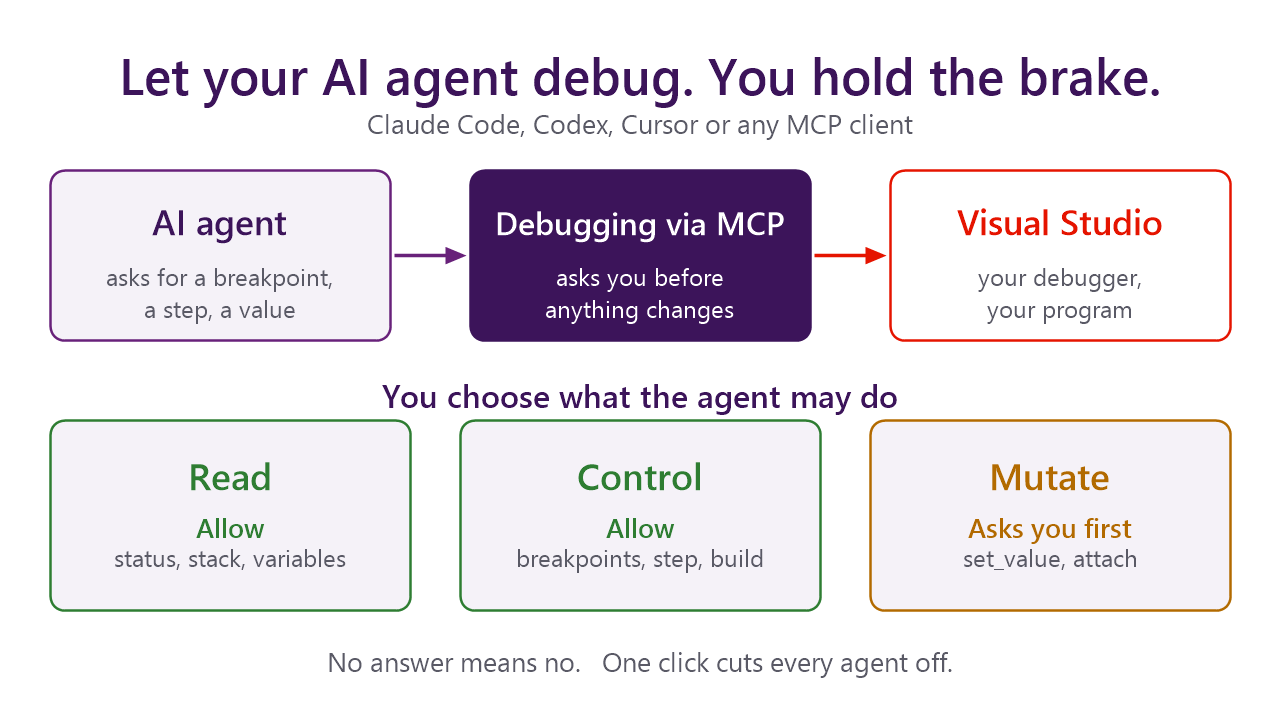
Ask Claude Code, Codex or Cursor to chase a bug and it can set breakpoints, step through your code, read variables and
evaluate expressions in the real debugger. Anything that would change your program waits for your OK.
"Break in OrderService.Submit when total > 1000 and show me the order."
Here is what happens:
- The agent sets a conditional breakpoint. The condition runs inside your program, so Visual Studio asks you first:
Allow once, Allow for session or Deny.
- It starts debugging and waits for the hit.
- It reads the call stack and the order, and tells you what it found.
Why you'll like it
- The real debugger. Your solution, your breakpoints, your Output window and Error List. No guessing from logs.
- You decide. Read, Control and Mutate are each set to Allow, Ask or Deny. By default the agent may look and steer
freely and has to ask before it changes anything.
- Nothing leaves your machine. A per-user local pipe. No network, no telemetry.
- Bring your own agent. Any MCP client works. A setup window gives you the exact command for Claude Code, Codex and Cursor.
Get started
Install the extension and restart Visual Studio. You need Visual Studio 2022 17.14+ or 2026, and the
.NET 10 runtime (the MCP server that ships inside the extension is a .NET program).
Open Extensions → Debugging via MCP → Set Up AI Agent…, pick your client and copy the command it shows. For Claude Code:
claude mcp add --scope user debugviamcp -- "%LOCALAPPDATA%\DebugViaMcp\debugviamcp.cmd" serve
Open your solution (the Output pane Debugging via MCP Log says ready) and ask your agent for something to debug.
Visual Studio only for now; Visual Studio Code support is planned.
You stay in control
| Tier |
What it covers |
Default |
| Read |
status, threads, call stack, variables, evaluation without side effects, the current exception, Output window, Error List |
Allow |
| Control |
breakpoints without conditions, start, stop, continue, pause, step, run to, Visual Studio builds |
Allow |
| Mutate |
set_value, evaluation with side effects, breakpoint conditions and tracepoints (they run in your program), attaching to a process |
Ask |
Change them in Tools → Options → All Settings → Debugging → Debugging via MCP. Visual Studio enforces them; the agent cannot.
- Consent bar. A question appears as an info bar in Visual Studio. No answer within the timeout (60 s by default) means deny.
- Audit trail. Every state change is logged with a call id in View → Output → Debugging via MCP Audit and in a file.
- Disconnect AI. Extensions → Debugging via MCP → Disconnect AI (Ctrl+Alt+Shift+F12) denies pending questions and cuts
every agent off at once. Reconnect AI lets them back in.
What the agent can do
27 tools in a few groups:
- Breakpoints: set, list, enable, remove. File and line or function, conditions, hit counts, tracepoints.
- Execution: start (the startup project or a named one), continue, pause, step, run to a line, wait for the next break, attach to a process, stop.
- Inspection: status, threads, call stack, frame selection, locals and arguments with drill-down, evaluation, the current exception.
- IDE state: Visual Studio builds, the Error List, Output window panes.
- Changes:
set_value and side-effect evaluation, always with your approval.
- Several Visual Studios: list, select, release.
- Diagnostics: the MCP server's own log.
It also warns the agent when the built program is older than the sources, and Visual Studio offers an optional Build bar.
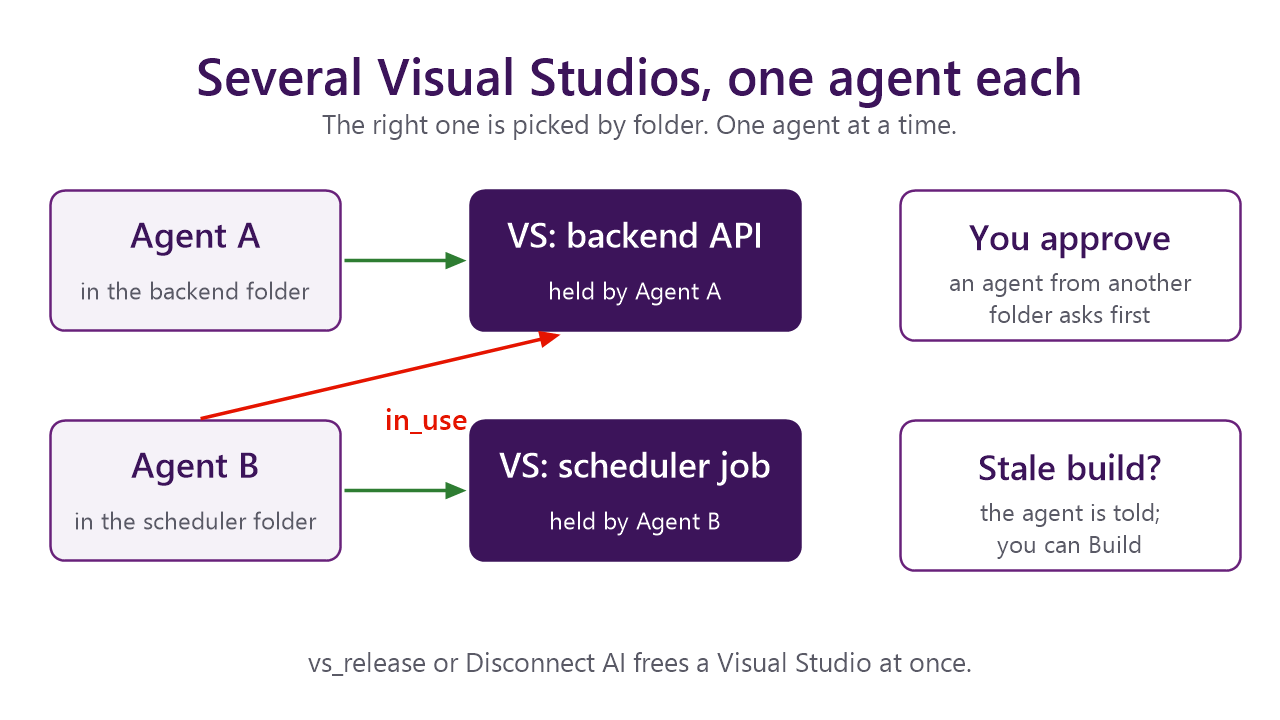
Several Visual Studios, one agent each
With more than one Visual Studio open, the agent uses the one whose solution folder matches the folder it runs in. An agent from an
unrelated folder needs your approval once, and a second agent gets in_use until the first lets go.
Troubleshooting
| Symptom |
What to check |
| The agent says no Visual Studio instance is running |
Visual Studio must be open with a solution loaded and this extension installed. The Debugging via MCP Log pane shows ready when it started. |
| The agent cannot start the server |
Check the .NET 10 runtime (dotnet --list-runtimes), start Visual Studio once so the extension installs the server, and confirm %LOCALAPPDATA%\DebugViaMcp\debugviamcp.cmd exists. Set Up AI Agent… reports both. |
ai_disabled |
Someone chose Disconnect AI. Choose Reconnect AI, then retry. |
version_mismatch or unsupported |
Visual Studio runs an older extension than the server in use, or the reverse. Restart Visual Studio after updating, and restart the agent session. |
in_use |
Another agent holds that Visual Studio. Ask it to call vs_release, or use another instance (vs_instances). |
A consent question ended as denied or timeout |
Visual Studio asks in an info bar at the top of its main window and waits for the consent timeout (Tools → Options → All Settings → Debugging → Debugging via MCP). No answer means deny. Its taskbar button flashes when it is in the background. |
eval says a type or namespace does not exist |
The evaluator only sees assemblies the program has already loaded. Use the type in the code before the breakpoint, or evaluate something else. |
eval says Evaluation timed out |
Visual Studio stops an evaluation after about 5 s. Evaluate something smaller (Take(1000)) or read a field. Code that waits for another thread cannot finish while the program is stopped. |
| An out-of-date warning after editing files outside Visual Studio |
Visual Studio notices external edits late. Build in Visual Studio (or call vs_build) before debugging. The warning is a hint and never blocks. |
| Uninstalling the extension hangs |
Close every Visual Studio window and any other VSIXInstaller, then try again. A running agent does not block removal. |
| Something else |
Call the diag tool for the server log, and look at Debugging via MCP Log and Debugging via MCP Audit in View → Output. |
Documentation, security model and source: github.com/msx752/DebugViaMcp
| |

