Plot native C++ signal buffers while the Visual Studio debugger is stopped. Point it at a std::vector, an array or a raw pointer. The plots are recalculated from the buffer's current memory at every break.
You don't change any code, add probes or rebuild your project.
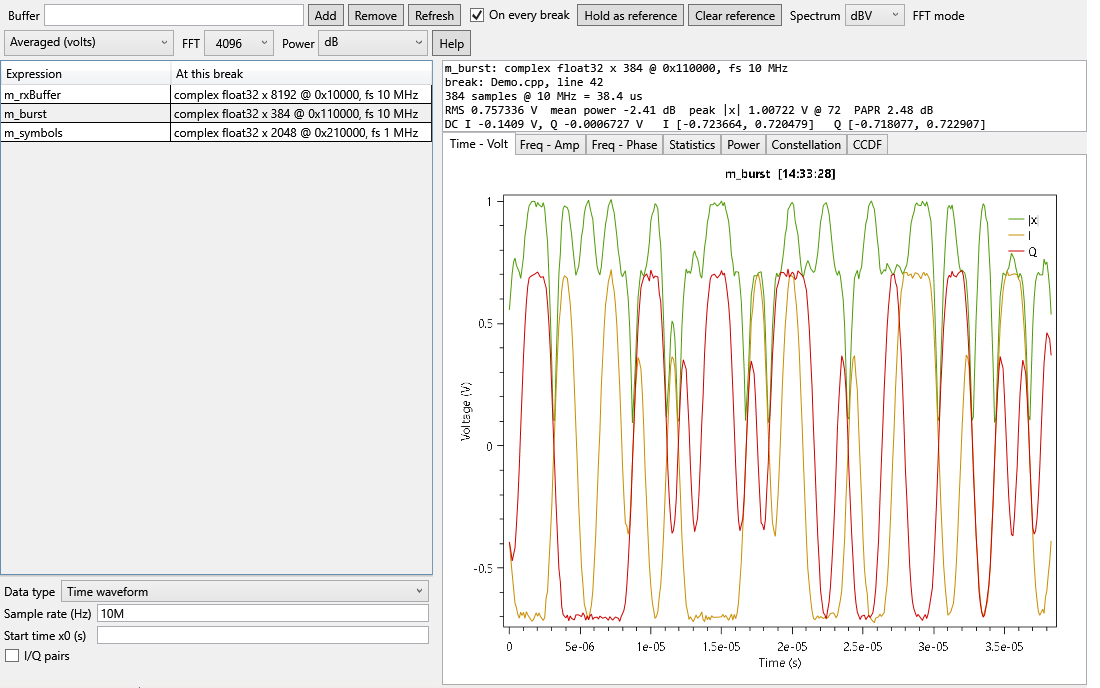
Quick start
Say your program has a buffer of samples:
std::vector<std::complex<float>> samples(4096);
// ... fill samples ...
__debugbreak();   // or set a normal breakpoint on the next line
- Debug the program (F5) and let it stop after the buffer is filled.
- Right-click
samples in the code editor and choose Plot in Waveform Watch Lite. You can also open Tools > Waveform Watch Lite and type samples in Buffer.
- Under the watch list, enter the Sample rate (Hz), for example
30.72M, and press Enter.
- Continue or step. The plots update at every break.
- Click Hold as reference to keep a snapshot. It is drawn in grey under later breaks, so you can compare before and after.
Click Help in the window, or choose Tools > Waveform Watch Lite Help, for the full guide.
What you can plot
| Expression |
Use for |
samples |
std::vector, std::array or a C array |
ptr, count |
A raw pointer, for example m_I_buffer, m_blockSize |
iPtr, n ; qPtr, n |
Separate real I and Q buffers |
spec |
A struct holding the data with its start and spacing. Waveform Watch finds the members by name. |
- Real:
float, double, 8/16/32-bit integers.
- Complex:
std::complex<float>, std::complex<double>, Ipp32fc, Ipp64fc, Ipp16sc, Ipp32sc.
- I/Q pairs: a real array whose values alternate I and Q.
Number fields take plain numbers, suffixes (30.72M, 1u, 2.4 GHz) or debugger expressions such as m_sampleRate.
Views
| Tab |
What it shows |
| Time - Volt |
I, Q and |x| in volts against time. Long buffers keep their peaks. |
| Freq - Amp |
Amplitude spectrum in dBV or V. Averaged (Welch) mode, or one unscaled FFT as the LabVIEW probe plots it. |
| Freq - Phase |
Phase against frequency |
| Statistics |
RMS, peak, PAPR, mean power, DC offset, I/Q ranges and the sample values |
| Power |
Instantaneous power in dB or dBm (50 ohm), with the mean as a dashed line |
| Constellation |
I against Q on equal axes |
| CCDF |
Probability that power exceeds the average by x dB, with a Gaussian reference |
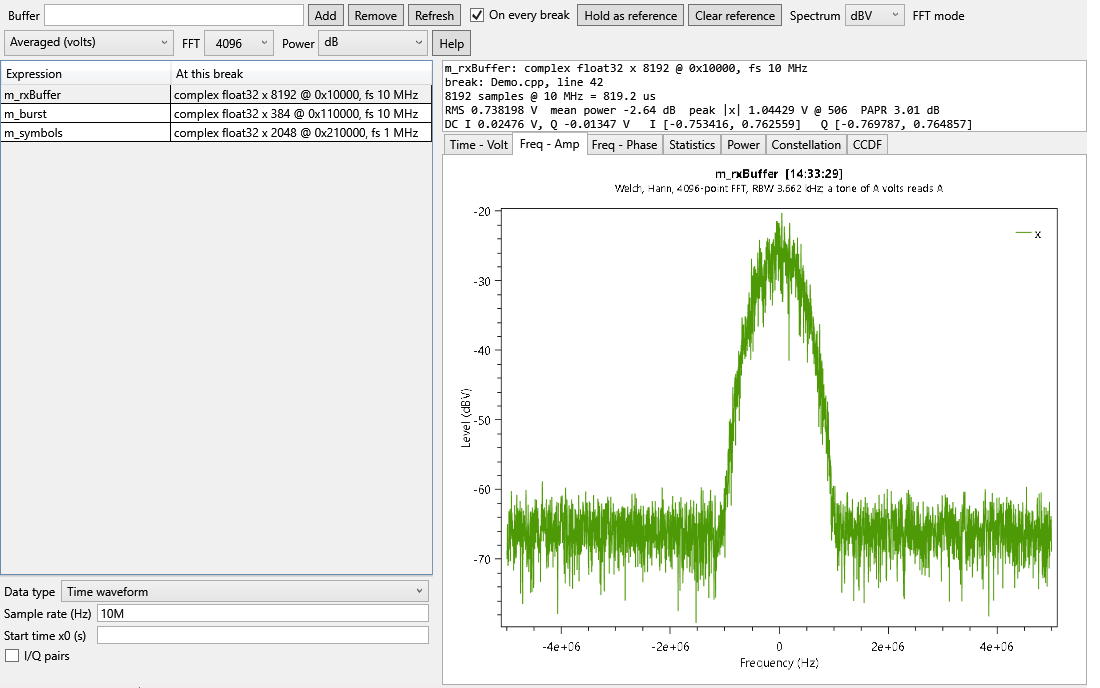
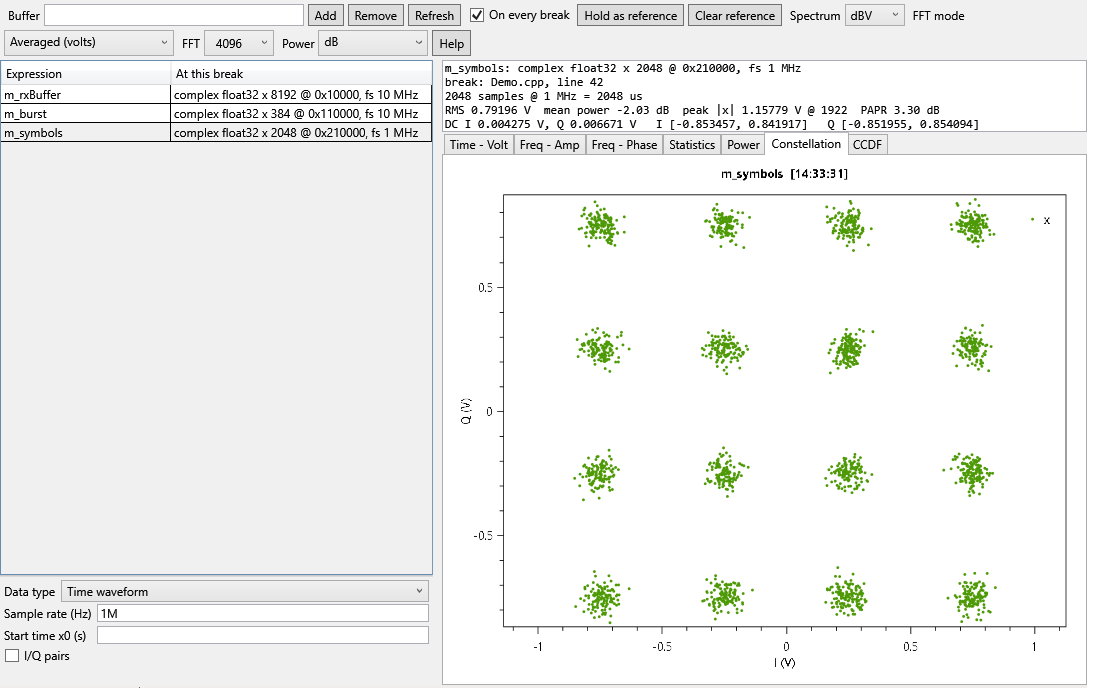
Zoom with the mouse wheel, pan by dragging, and zoom into a region with the right mouse button.
Good to know
- The program must be debugged on the same machine. Remote debugging isn't supported.
- Each plot shows the buffer exactly as it was at that break. If code processes a signal in blocks, you see only the current block.
- Buffers are read up to 16,777,216 samples and shown as 32-bit float volts (peak).
std::vector is read straight from memory, so no code runs in your program.- Child rows in Watch, Locals and Autos, such as
[0], can't be plotted with right-click. Type the full expression instead.
- If the menu items are missing, close Visual Studio, run
devenv /updateconfiguration from a Developer PowerShell and start it again.
Waveform Watch Lite can be installed next to the full Waveform Watch extension. The full version adds:
- plot controls for axis ranges, locks, draw mode and markers
- overlays and a difference trace to compare watches
- trend and capture history across breaks, with capture export and import
- recipes that save and reload a complete setup
Requirements
- Windows x64 with Visual Studio 2022 (17.x, any edition) and the C++ workload.
Release notes
1.0.2
- Added in-product help (Help button and Tools > Waveform Watch Lite Help) and a hint in the empty window.
- Fuller Marketplace overview with a quick start and troubleshooting.
1.0.1
- Menu entries are named Waveform Watch Lite so they can be told apart from the full version.
1.0.0
| |

