
RefShiftTest locally built DLLs in your .NET projects without manually editing reference paths. Switch selected references to local builds, apply changes in batches, and safely restore the originals. |

|

| Feature | Why it matters | |
|---|---|---|
| 01 | Switch individual references | Use a local DLL for only the library you're testing, leaving the rest of the project alone. |
| 02 | Search and filter instantly | Find a reference by name or DLL path, even in projects with dozens or hundreds of references. |
| 03 | Stage changes, apply once | Toggle several references, review what's pending, and update the .csproj in one batch. |
| 04 | Per-project DLL folders | Start with the project's bin folder; choose a different folder whenever you need to. |
| 05 | Restore with confidence | Undo local switches with Restore All and Apply Changes, backed by snapshots and safety checks. |
| 06 | Clean Restore | When safe, restore the original .csproj bytes exactly, avoiding unnecessary Git changes caused by XML reformatting. |
Find the reference you need, not the one hundred you don't
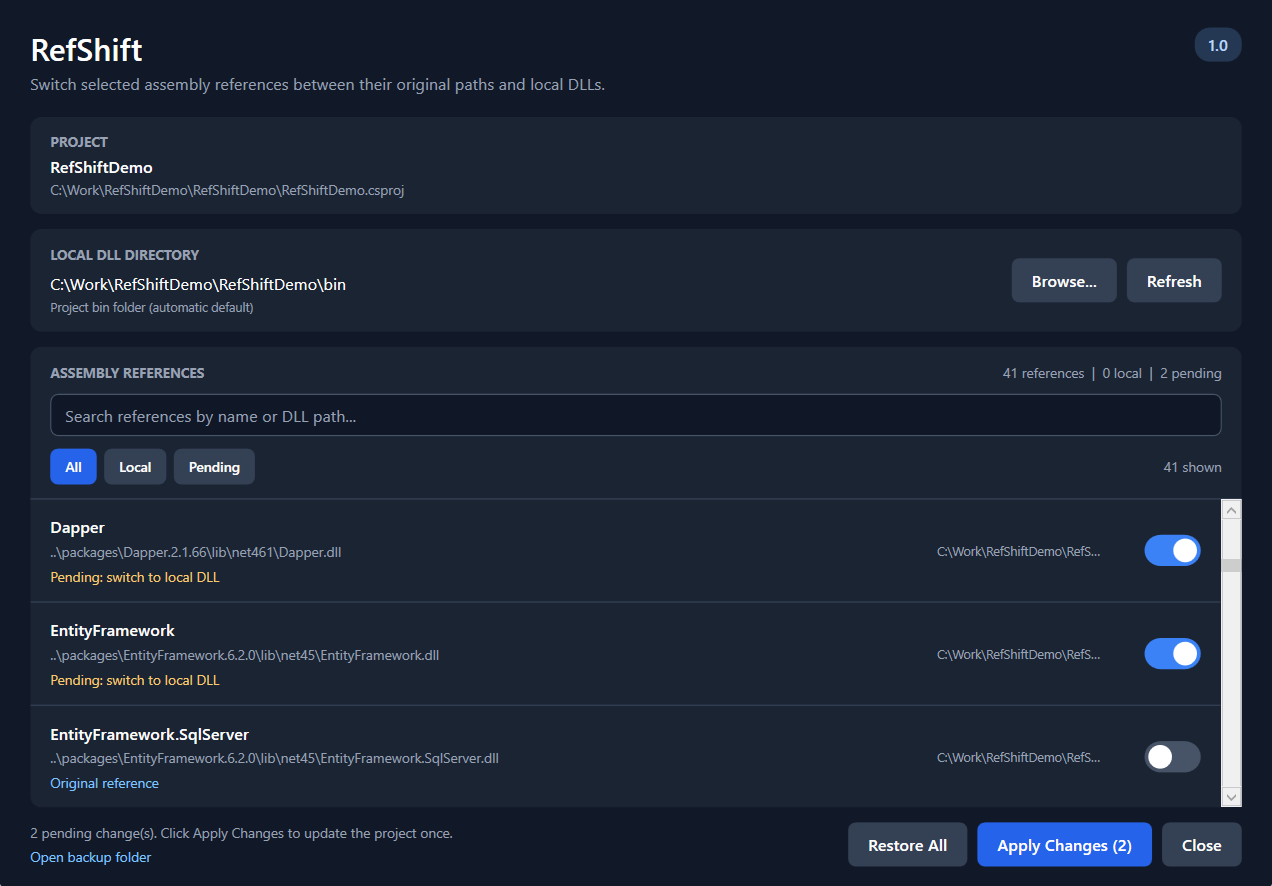
Search by reference name or path, then narrow the list using All, Local, and Pending. Your staged selections remain available when you change the filter.
How it works
1. Open RefShift from your project
In Solution Explorer, right-click a supported project and select RefShift – Manage local DLLs....
RefShift automatically starts with that project's bin directory. Use Browse... to select the folder containing your locally compiled libraries. The choice is remembered per project.
2. Choose what to test
Search for the DLL, then turn on its switch. Choose as many references as you need.
Nothing is written to the project file yet. Your changes are staged until you click Apply Changes.
3. Apply, build, test
Select Apply Changes. RefShift validates the requested DLLs, makes one project-file update, and saves a backup. If Visual Studio asks to reload the project, reload it and continue testing.
4. Switch back safely
Select Restore All, then Apply Changes. RefShift restores the managed references to their original paths. Clean Restore can also recover the original project-file bytes when it is safe to do so.
Tip: Check Git Changes before committing. RefShift does not automatically run
git restoreor discard unrelated changes.
What changes under the hood?
RefShift updates classic assembly references with a HintPath in a .csproj file.
Before — package-installed DLL
<Reference Include="MyCompany.Contracts">
    <HintPath>..\packages\MyCompany.Contracts.1.4.0\lib\net472\MyCompany.Contracts.dll</HintPath>
</Reference>
During local testing
<Reference Include="MyCompany.Contracts">
    <HintPath>C:\Dev\SharedLibraries\MyCompany.Contracts.dll</HintPath>
</Reference>
When you restore, the original reference information is reinstated. NuGet packages and packages.config are not uninstalled or edited.
Safety is part of the workflow
- Automatic backups: RefShift keeps a copy of your project before writing changes.
- All-or-nothing batch validation: Missing or ambiguous DLLs prevent a batch from being applied.
- Conflict protection: Unexpected external changes are not silently overwritten.
- Resolve Conflict: If Visual Studio or Git changes a project while local references are active, RefShift can resynchronize supported states after validation.
- Clean Restore: Original project-file bytes are reinstated only when the safety checks permit it.
If the project contains edits that RefShift cannot safely reconcile, it stops and asks you to review the conflict rather than overwrite them.
Compatibility
| Support in RefShift 1.0 | |
|---|---|
| Visual Studio 2026 on Windows | Supported |
Classic .csproj assembly references with a HintPath |
Supported |
.NET Framework projects with packages.config and eligible direct references |
Supported |
| Project-specific local DLL folders | Supported |
SDK-style NuGet PackageReference switching |
Not yet supported |
ProjectReference, GAC-only, and native references |
Not supported |
RefShift 1.0 is intended for simple, unique, unconditional Reference entries with a HintPath. The local file must match the expected DLL filename and managed assembly name. Projects with complex reference conditions or unsupported reference types are outside this release's scope.
What's next
Modern PackageReference support and optional Git/build warnings are planned for future releases. These features are not included in 1.0.
Install and get started
- Install RefShift for Visual Studio 2026 using its VSIX package or its Visual Studio Marketplace listing once published.
- Restart Visual Studio if prompted.
- Open a solution that contains a supported classic
.csprojproject. - Right-click the project in Solution Explorer and open RefShift – Manage local DLLs....
- Pick your DLL directory, switch the references you need, and click Apply Changes.
Options: In Visual Studio, open Tools → Options → RefShift to enable searching for DLLs in subdirectories. If multiple candidates match ambiguously, RefShift refuses the switch rather than choosing one unexpectedly.
Frequently asked questions
Does RefShift change my NuGet packages? No. Version 1.0 redirects eligible classic assembly references to local DLL paths; it does not install, uninstall, or update NuGet packages.
Why does Visual Studio ask me to reload the project?
Visual Studio may detect the .csproj update and request a reload. That's expected for project files edited on disk.
Will restoring remove the project from Git Changes? When all managed references are restored and the file can safely be reconstructed byte-for-byte, Clean Restore can return it to the original state. Other edits or Git configuration may still produce changes.
What if I use Git Undo while local DLLs are active? Use Resolve Conflict if RefShift detects that the project changed externally. It verifies the managed reference states and only resynchronizes when safe.
Where are backups stored?
Use Open backup folder from the RefShift window. For compatibility with earlier development versions, saved state and backups are kept under %LocalAppData%\ReferenceFlip, outside your repository.
Less reference management. More time building.
RefShift is an independent Visual Studio extension for developers who work with shared .NET libraries.

