Azure DevOps pipeline notifications, right where you code.
Complete a pull request. Get back to coding. Let Pipellum keep you informed.
Pipellum brings Azure DevOps pipeline status notifications directly into Visual Studio 2026. From the moment a monitored pipeline is queued to its final result, a small, unobtrusive notification keeps you informed without interrupting your workflow.
No browser tabs to keep checking. No dashboard to open. No pipeline changes.
Built to stay out of your way
Know when a pipeline starts
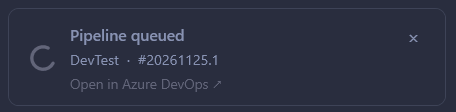
As soon as Pipellum detects a new queued or running build, a compact notification appears in the bottom-right corner of Visual Studio. It shows the pipeline name and build number, so you know exactly what is running.
Keep coding while it runs
The notification automatically collapses into a small animated indicator. A subtle spinner keeps the pipeline status visible while you work, without covering your editor or requiring a separate tool window.

Know the outcome at a glance
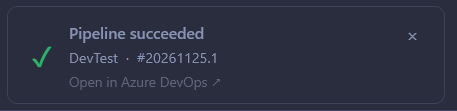
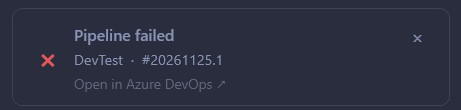
When the pipeline finishes, Pipellum displays the result in a dedicated notification. A green checkmark confirms success, while a contrasting cross highlights a failure or other non-successful result. Click the notification to open the corresponding run in Azure DevOps.
Designed for your everyday workflow
- Automatic monitoring — watch selected Azure DevOps pipelines in the background while a solution is open.
- Pull request workflows — detect builds triggered after a PR is completed, even when the PR is merged in your browser.
- Pipeline and branch filtering — choose the pipelines you care about and optionally restrict monitoring to a target branch.
- One-click access — open the corresponding pipeline run directly in Azure DevOps.
- Quiet by design — active builds are recovered when monitoring starts, without replaying old completed runs.
Pipellum checks Azure DevOps periodically (every 15 seconds by default). It monitors actual pipeline executions rather than assuming a push or pull request completion has triggered a build.
Getting started
- Install Pipellum and open a solution in Visual Studio 2026.
- Navigate to Tools → Pipellum: Settings....
- Enter an Azure DevOps Personal Access Token (PAT) with Build (Read) permission.
- Click Connect, select the pipelines you want to monitor and click Save.
Pipellum can detect your Azure DevOps organization and project from the current Git repository. If automatic detection is unavailable, expand Connection details to enter them manually.
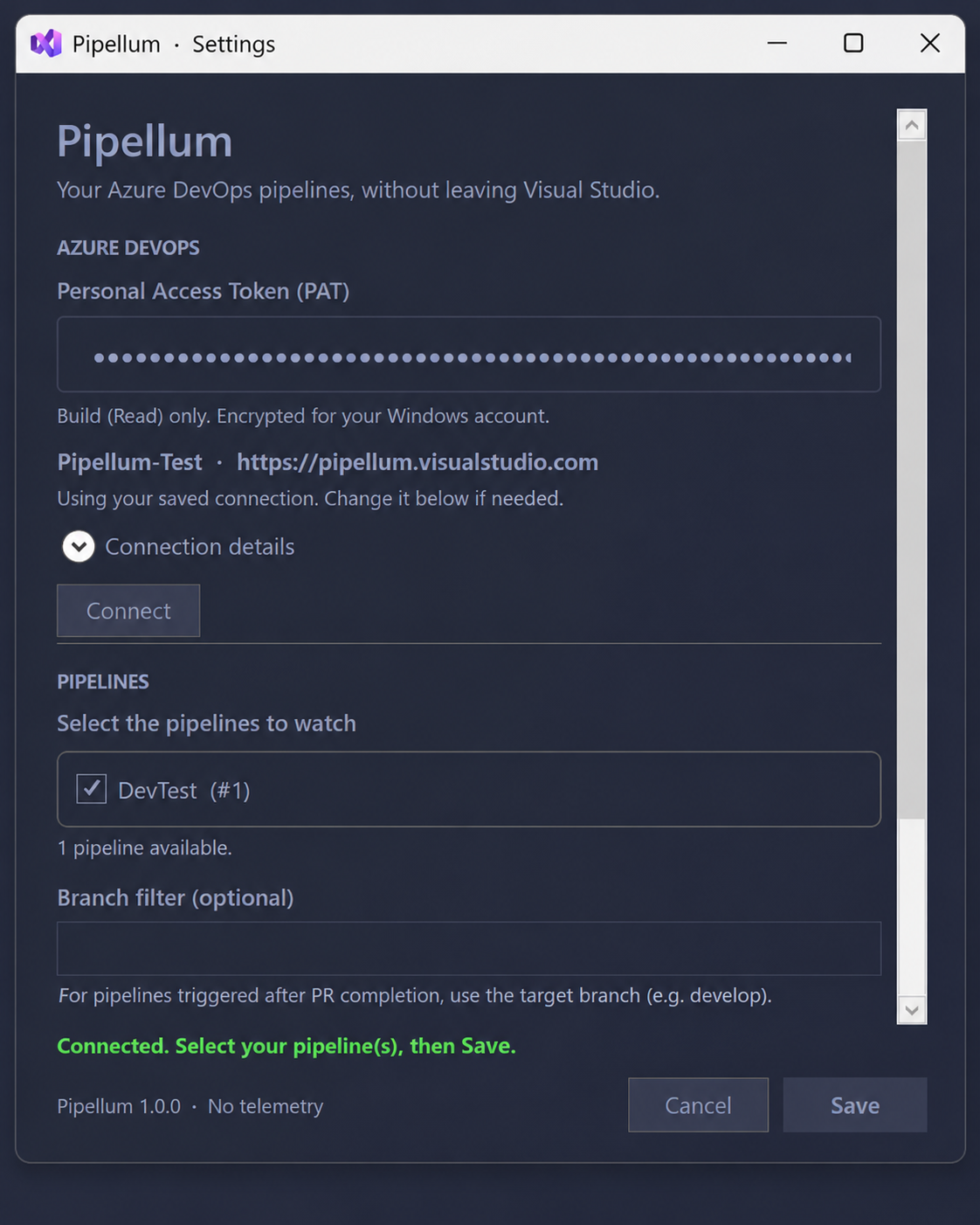
Tip: If your pipeline runs after a pull request is merged into dev or main, enter that target branch in the optional branch filter. Leave the filter empty to monitor all branches of your selected pipelines.
For an existing connection, use Connection details to change the organization or project when needed.
Privacy & security
- No telemetry or third-party monitoring service.
- Read-only access to Azure DevOps using the Build (Read) PAT scope.
- Your token is encrypted locally using Windows Data Protection (DPAPI) for your Windows account.
Requirements
- An Azure DevOps Services organization.
- A Personal Access Token with Build (Read) permission.
Pipellum monitors build and YAML pipelines available through the Azure DevOps Build API. Classic Release pipelines and on-premises Azure DevOps Server are not supported in this release. Monitoring requires Visual Studio to be open with a solution. Runs started by other team members may also appear if they match your selected pipelines and branch filter. When several pipelines are active, the compact indicator shows the most recently queued active run.
Feedback
Suggestions, feedback and bug reports are welcome through the Marketplace Q&A section when enabled.