Skip to content
| Marketplace
Sign in
Visual Studio>Tools>PathGlint
PathGlint

PathGlint

Joao Figueiras

|
3 installs
| (0) | Free
PathGlint adds a discreet, customizable footer to Visual Studio 2026 that displays the active file's path. Choose your preferred path format, copy file and folder paths, and open file locations direct
Download

PathGlint

Your file's location. Always in sight.

PathGlint is a lightweight extension for Visual Studio 2026 that displays the active document's path in a clean, unobtrusive footer at the bottom of the editor.

Whether you're working across multiple projects, navigating deeply nested folders, or switching between files with similar names, PathGlint helps you identify exactly which file you're editing—without leaving the editor.

PathGlint

Features

File location at a glance

  • Active document path: Keep the current file's location visible inside the editor.
  • Flexible path display: Choose between the full path, a solution-relative path, or just the file name.
  • Discreet design: A compact footer that fits naturally into your workspace.
  • Selectable text: Select and copy text directly from the footer.

Clickable path shortcuts

Interact directly with the displayed path to perform common actions:

Gesture Action
Click Copy the full file path.
Double-click Copy the file name.
Ctrl + Click Open the file's location in Windows File Explorer.

Each shortcut can be enabled or disabled independently in PathGlint's options.

PathGlint

Quick copy and navigation buttons

Four compact action buttons give you one-click access to:

  • Copy full path: Copy the complete path of the active file.
  • Copy file name: Copy only the file name.
  • Copy folder path: Copy the path of the containing folder.
  • Open in File Explorer: Open the file's location in Windows File Explorer.

The action buttons can be shown or hidden to suit your preferred layout.

PathGlint

Customizable to your workflow

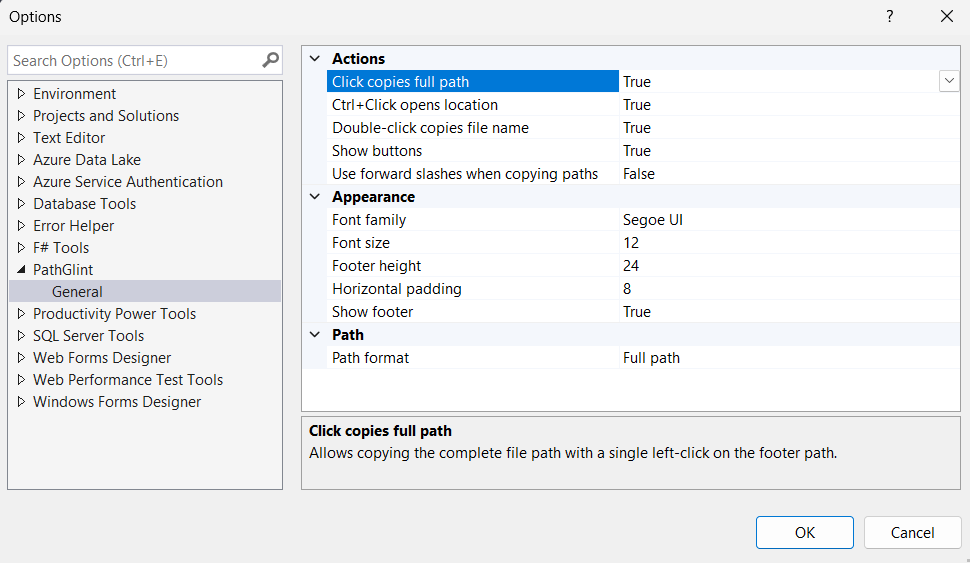
Open Tools > Options > PathGlint > General to configure how the extension looks and behaves.

Actions

  • Enable or disable click, double-click, and Ctrl + Click shortcuts.
  • Show or hide the footer action buttons.
  • Optionally copy file and folder paths with forward slashes (/) instead of backslashes (\).

Appearance

  • Choose the font family and font size.
  • Adjust the footer height and horizontal padding.
  • Show or hide the footer entirely.

Path format

  • Full path: Display the complete file path.
  • Relative to solution: Display the path relative to the solution.
  • File name: Display only the current file's name.

PathGlint

Multilingual interface

PathGlint includes UI text in 9 languages:

English, Portuguese, Spanish, Italian, French, German, Dutch, Chinese and Japanese

Getting started

  1. Install PathGlint and open a file in Visual Studio 2026.
  2. Find the active document's path in the footer at the bottom of the editor.
  3. Click the path or use the action buttons to copy file information or open its folder.
  4. Visit Tools > Options > PathGlint > General to personalize the behavior, appearance, and displayed path format.

Compatibility

Designed for Visual Studio 2026.


PathGlint — A clearer view of where you are in your code.


  • Contact us
  • Jobs
  • Privacy
  • Manage cookies
  • Terms of use
  • Trademarks
  • Your Privacy Choices
  • Consumer Health Privacy
© 2026 Microsoft