CommitMintWrite better Git commit messages in seconds. Choose from 11 ready-to-use Conventional Commit templates, format existing messages, and insert them directly into Git Changes. |

|

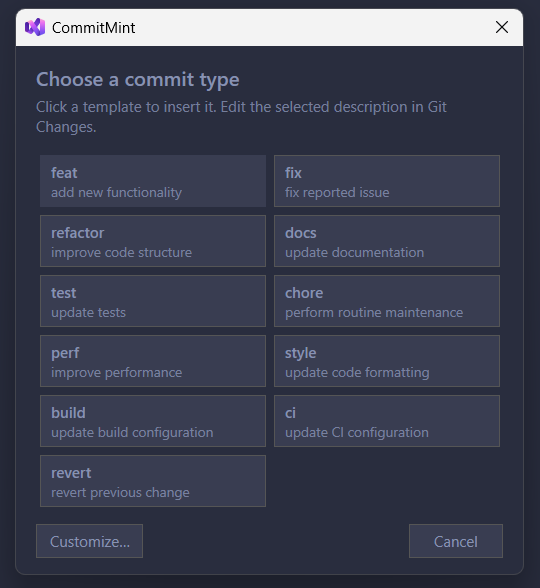
| Type | When to use it |
|---|---|
feat |
Introduce new functionality |
fix |
Fix a bug |
refactor |
Improve code structure |
docs |
Update documentation |
test |
Add or update tests |
chore |
Perform routine maintenance |
perf |
Improve performance |
style |
Change formatting without changing behavior |
build |
Update build configuration or dependencies |
ci |
Update continuous integration configuration |
revert |
Revert a previous change |
Each template provides an editable starting point, so you never have to remember the commit syntax or start with a blank page.
Already written your message? Keep it.
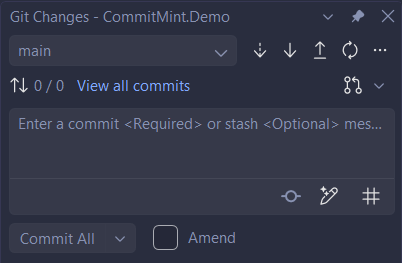
CommitMint works with your existing draft, too. Write a description in Git Changes, open CommitMint, and select a type.
Before
prevent login failure with expired tokens
After selecting fix
fix: prevent login failure with expired tokens
Existing recognized Conventional Commit drafts can also be reformatted without retyping their description or losing their scope, breaking-change marker, or remaining message text in the quick-template workflow.
More control when you need it
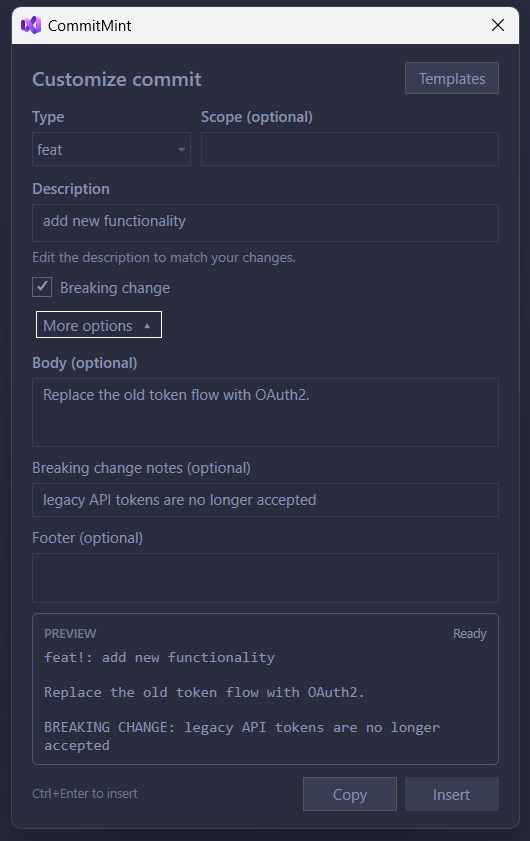
For changes that require a little more detail, select Customize…. Keep everyday commits simple while retaining the flexibility to create more expressive messages.
- Scope — identify the component, module, or area affected by the change.
- Live preview — see the formatted message as you type.
- Breaking changes — add the
!marker and optional breaking-change notes. - Body and footer — add context, migration instructions, issue references, or other trailers.
- Message validation — catch basic formatting problems before insertion.
For example:
feat(api)!: remove legacy authentication

Replace the old token flow with OAuth2.

BREAKING CHANGE: legacy API tokens are no longer accepted
Your workflow. Your control.
- No AI, subscriptions, accounts, or external services required.
- Works locally, with no telemetry from CommitMint.
- Does not stage files, create commits, push changes, or modify Git configuration.
- You always review the message and decide when to commit.
If the native Git Changes editor cannot be located, CommitMint offers a clipboard fallback so your message is still available to paste manually.
Getting started
Install CommitMint, open a Git repository in Visual Studio 2026, and launch it using one of these options:
| Access | Action |
|---|---|
| Git Changes | Click the CommitMint icon when available |
| Tools menu | Tools > Conventional Commit... |
| Keyboard | Ctrl + Shift + Alt + M (default binding) |
Inside the customization window, use Ctrl + Enter to insert your message or Esc to close the dialog.
If the keyboard shortcut conflicts with another command, assign your preferred binding under Tools > Options > Environment > Keyboard, using CommitMint.OpenComposer.
Compatibility
Designed for Visual Studio 2026 on Windows (x64). The Git Changes integration depends on the native editor controls and may vary between Visual Studio builds. The Tools command and clipboard fallback provide alternative access when direct integration is unavailable.