Object Explorer for MySQL

A MySQL object explorer for Visual Studio 2026, modeled on the built-in SQL Server Object Explorer.
Connect to your MySQL servers, browse every object in a tree, drag names into your code, and run queries in a MySQL editor with IntelliSense and execution plans. You can view and edit table data, script objects or a whole database, see what depends on what, generate documentation of a database and watch the sessions of a server. All without leaving Visual Studio.
It is an object explorer, not a full database management tool: there is no table designer and no schema compare.
Not affiliated with or endorsed by Oracle Corporation. MySQL is a trademark of Oracle and/or its affiliates.
Contents
Features
Connections
- Add as many servers as you need: host, port, user, default database, SSL mode and timeout, with Test Connection.
- Save the password encrypted for your Windows account, or let the explorer ask for it when you connect.
- Edit, remove and reorder connections. The server icon shows whether a server is connected, connecting or in error; the tooltip shows the host, user and server version.
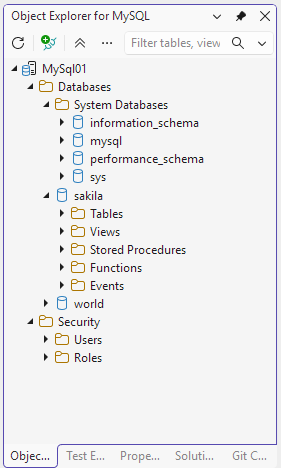
Object tree
- Databases, with the system databases in a separate folder.
- Per database: tables (columns, keys, constraints, triggers, indexes), views, stored procedures and functions (with parameters) and events.
- Security: users and roles with their grants, when your account may read them.
- Refresh any node with F5; expanded and selected nodes stay as they were.
- A filter box in the toolbar narrows the tree while you type.
Properties window
Select an object and the Visual Studio Properties window shows its details. For a column that is the full data type, nullability, default, key, character set, collation and comment; tables, views, routines, keys, indexes and the other objects have their own properties.
Drag and drop into the editor
- Drag a table, view or column into any code file and get its name, quoted only when needed.
- Select several columns with Ctrl or Shift and drag them as one list.
- Drag a stored procedure or function and get a call with its parameters.
- Drag a server or database and get a connection string for the file type, with a placeholder instead of the password.
- Ctrl+C copies the same text. Tools > Options > Object Explorer for MySQL > Drag & Drop sets the quoting, the database prefix and the list separator.
Script and view code
- View Code opens the definition of a view, routine, trigger or event.
- Script As creates CREATE, DROP, SELECT, INSERT, UPDATE, DELETE or CALL statements, in a new query window or on the clipboard, as in SQL Server Object Explorer.
- Script Database writes a complete script of a database, with or without data, in the background with progress and Cancel.
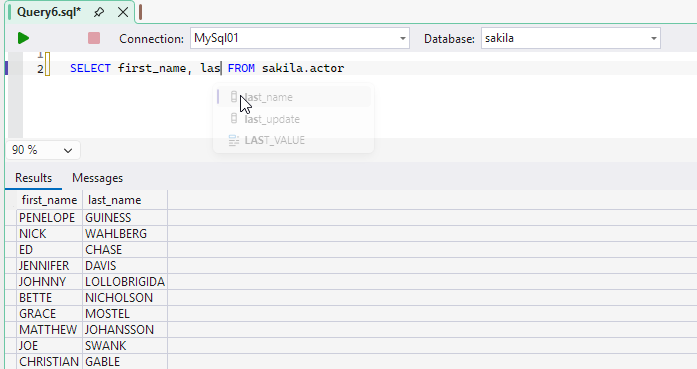
MySQL Query Editor
- New Query on a server or database opens a SQL document linked to that connection and database. The bar above the editor shows and changes them.
- MySQL syntax coloring in the colors of your Visual Studio theme.
- Execute the selection or the whole document with Ctrl+Shift+E; Alt+Break cancels. The session stays open between runs, so variables, temporary tables and transactions carry over.
- Results in grids below the editor (the first 1000 rows of each result) with messages, warnings and timings.
- Save Results As writes a result as CSV or JSON. For a SELECT with more rows than the grid shows, it can run the statement again and save every row, straight from the server to the file.
- IntelliSense: completion of keywords, databases, tables, views, columns (also through aliases), procedures and functions; parameter info for your own routines; quick info with type, key and comment when you hover a table or column.
Execution plans
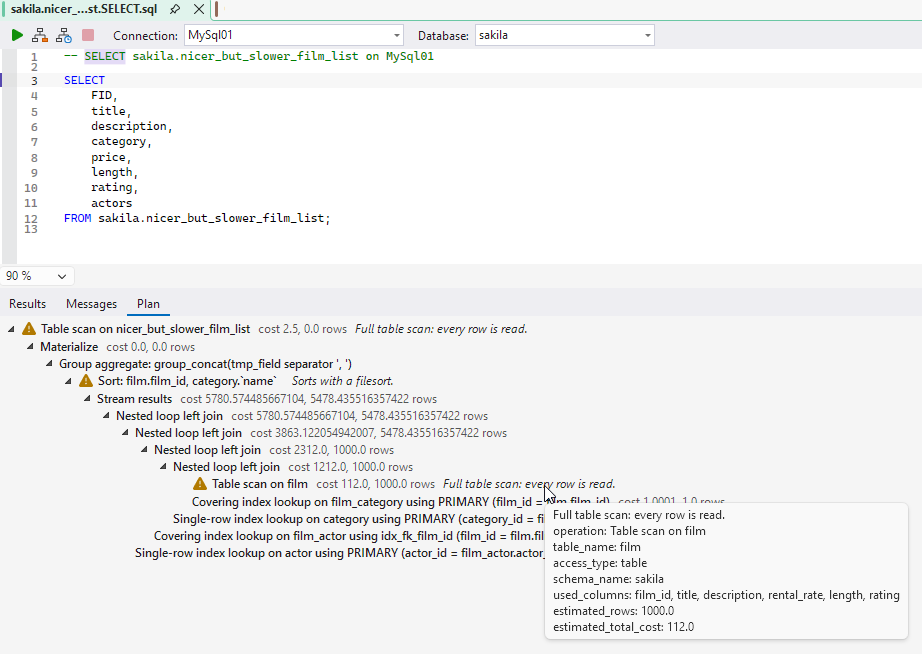
- Explain (Ctrl+L) shows the estimated plan of the statement at the caret as a tree, with a warning on full table scans, file sorts and temporary tables.
- Explain Analyze runs a SELECT and shows the actual rows, loops and times next to the estimates (MySQL 8.0.18 and later, MariaDB).
View and edit data
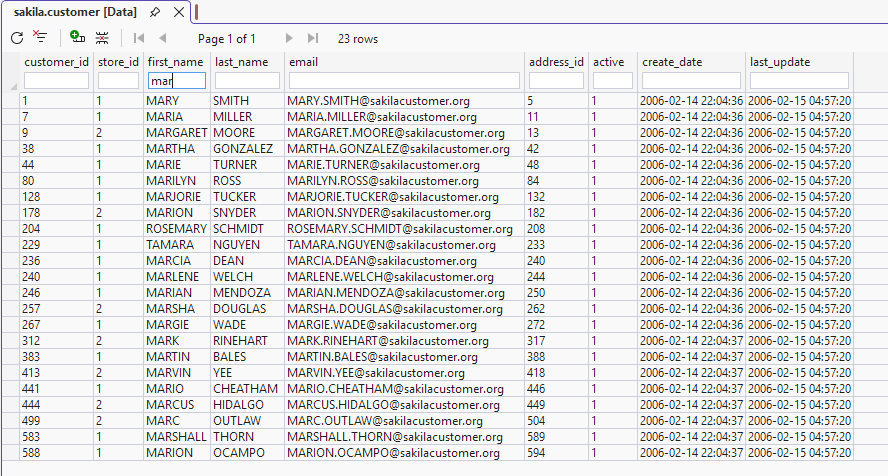
- View Data on a table or view opens its rows in a document tab, page by page, with sorting and a filter box per column. Filtering and sorting run on the server, so they cover all rows.
- In tables with a primary key you can edit cells, add rows and delete rows. A row is saved when you leave it; errors are shown on the row and the cell.
Create, rename and delete
- Create Database with character set and collation.
- New Table, New View, New Procedure and more open a query window with a template that you complete and run.
- Rename (F2) a table, view or column in the tree.
- Delete (Del) any object. The dialog shows the exact SQL, and Cancel is the default button.
Users and roles
When your account may manage users: create users and roles, change passwords, grant and revoke privileges on a database, and grant roles to users. Every action shows its SQL first; passwords are never shown.
Dependencies
View Dependencies on a table, view or routine lists what uses the object and what it uses: foreign keys, views, triggers, and routines whose source mentions the object. Double-click an entry to select it in the tree.
Documentation of a database
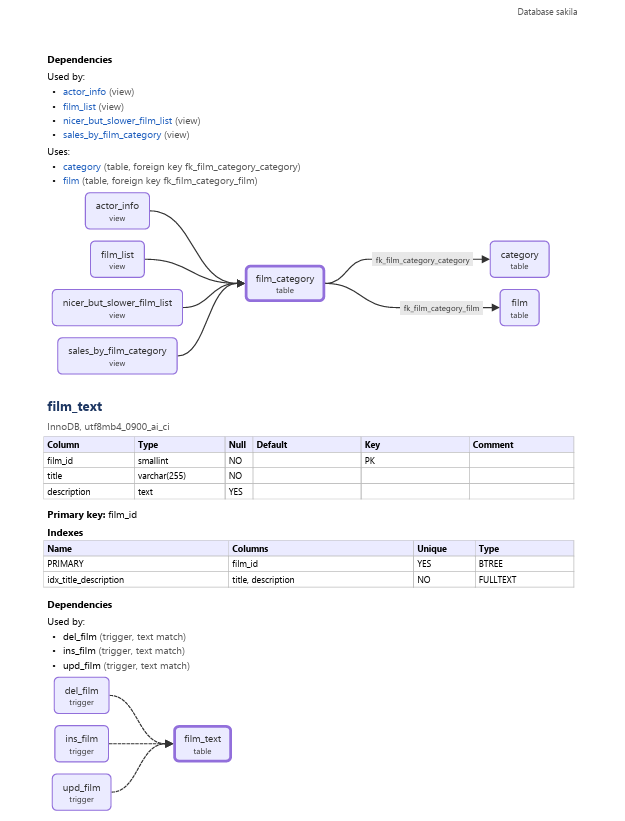
Generate Documentation on a database writes a document with all tables, columns, keys, indexes, views, routines and events, with their comments. Per object it lists what uses it and what it uses, with a small diagram. Choose:
- Markdown, with a table of contents and Mermaid diagrams, for a repository, a wiki or Obsidian;
- PDF, with page numbers, a table of contents and bookmarks, to print or to send.
Activity monitor
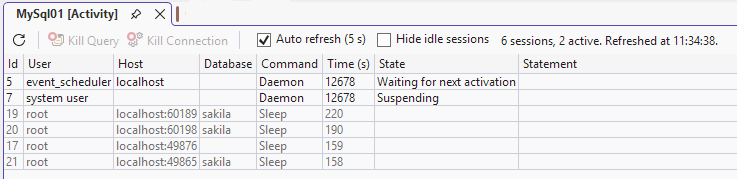
Activity Monitor on a server shows its sessions: user, host, database, command, time, state and statement, the longest running first. It refreshes every 5 seconds. Kill Query stops a statement and Kill Connection closes a session, both after a question.
Getting started
- Install the extension from the Visual Studio Marketplace (Extensions > Manage Extensions, search for Object Explorer for MySQL), or download the
.vsix from Releases and open it.
- Open View > Object Explorer for MySQL. It opens as a tab next to Solution Explorer.
- Click Add MySQL Server, fill in the host, user and password, and click Test Connection.
- Expand the server. Right-click a database for New Query, Script Database or Generate Documentation, or a table for View Data, Script As and View Dependencies.
A .sql file keeps the editor it already had. To open an existing file in the MySQL Query Editor, use Open With > MySQL Query Editor, optionally with Set as Default.
Keyboard shortcuts
| Where |
Key |
Command |
| Explorer |
F5 |
Refresh the selected node |
| Explorer |
F2 |
Rename |
| Explorer |
Del |
Delete |
| Explorer |
Ctrl+C |
Copy the name of the selected object(s) |
| MySQL Query Editor |
Ctrl+Shift+E |
Execute the selection or the document |
| MySQL Query Editor |
Alt+Break |
Cancel the running query |
| MySQL Query Editor |
Ctrl+L |
Explain |
| MySQL Query Editor |
Ctrl+Space |
Completion list |
| MySQL Query Editor |
Ctrl+Shift+Space |
Parameter info |
These keys only work in the explorer and in the MySQL Query Editor; elsewhere Visual Studio keeps its own commands. Explain Analyze has no default key; assign one to MySQL.ExplainAnalyze in Tools > Options > Environment > Keyboard.
Options
Tools > Options > Object Explorer for MySQL:
- Drag & Drop: quoting of names (when needed, always, never), database prefix, and the separator between dragged columns.
- Debug logging: extra lines in the Object Explorer for MySQL pane of the Output window, for troubleshooting.
Where your data is stored
- Connections:
%LOCALAPPDATA%\ObjectExplorerForMySql\connections.json. Passwords are encrypted with Windows DPAPI for your user account and never written as plain text.
- The connection and database of each query document:
documents.json in the same folder.
- The extension only talks to the MySQL servers you connect to. Passwords and connection strings are masked in the log.
Requirements
- Visual Studio 2026 or later, Community, Professional or Enterprise, on x64 or Arm64. The extension also installs in Visual Studio 2022 version 17.14 (the Marketplace does not accept 18.0 as the lowest version yet), but it is tested in Visual Studio 2026 only.
- MySQL 8.0 or later, including 8.4 LTS. MariaDB 10.6 and later works on a best-effort basis.
- Some features depend on the server: check constraints need MySQL 8.0.16+, Explain Analyze MySQL 8.0.18+, and the activity monitor and user management need the matching privileges (PROCESS, CONNECTION_ADMIN, CREATE USER).
Known limitations
- The user interface is in English.
- The results pane shows at most 1000 rows per result; use Save Results As or View Data for more.
- Dependencies found through the source text of views and routines are a text match: a name in a comment counts, a name built in dynamic SQL does not.
- No table designer and no schema compare; this is by design.
License
MIT. PDF output uses PDFsharp and MigraDoc (MIT); the MySQL connection uses MySqlConnector (MIT).
Source code, issues and the changelog: https://github.com/hnsoftwaredevelopment/ObjectExplorerForMySQL.
| |

