Simple Tree Picker
An Azure DevOps work item form control that turns a flat list of paths into a tree you can pick from, and stores the full path of the node you pick.
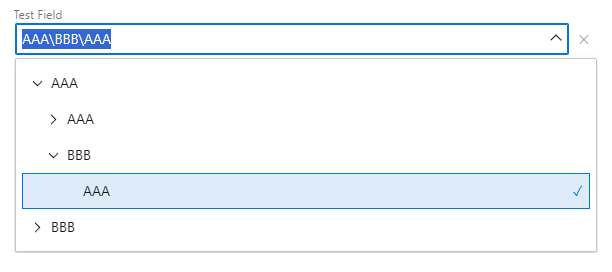
Azure DevOps ships exactly two tree fields — Area Path and Iteration Path — and you cannot create a third one. Any other hierarchical classification (module, product line, cost center, service catalog) ends up as a flat picklist where ErpCloud\Web App\Treasury sits next to forty siblings and the shape is left for the reader to reconstruct. This control gives that shape back without inventing a new field type: you keep a perfectly ordinary text field, and the hierarchy lives in the values themselves.
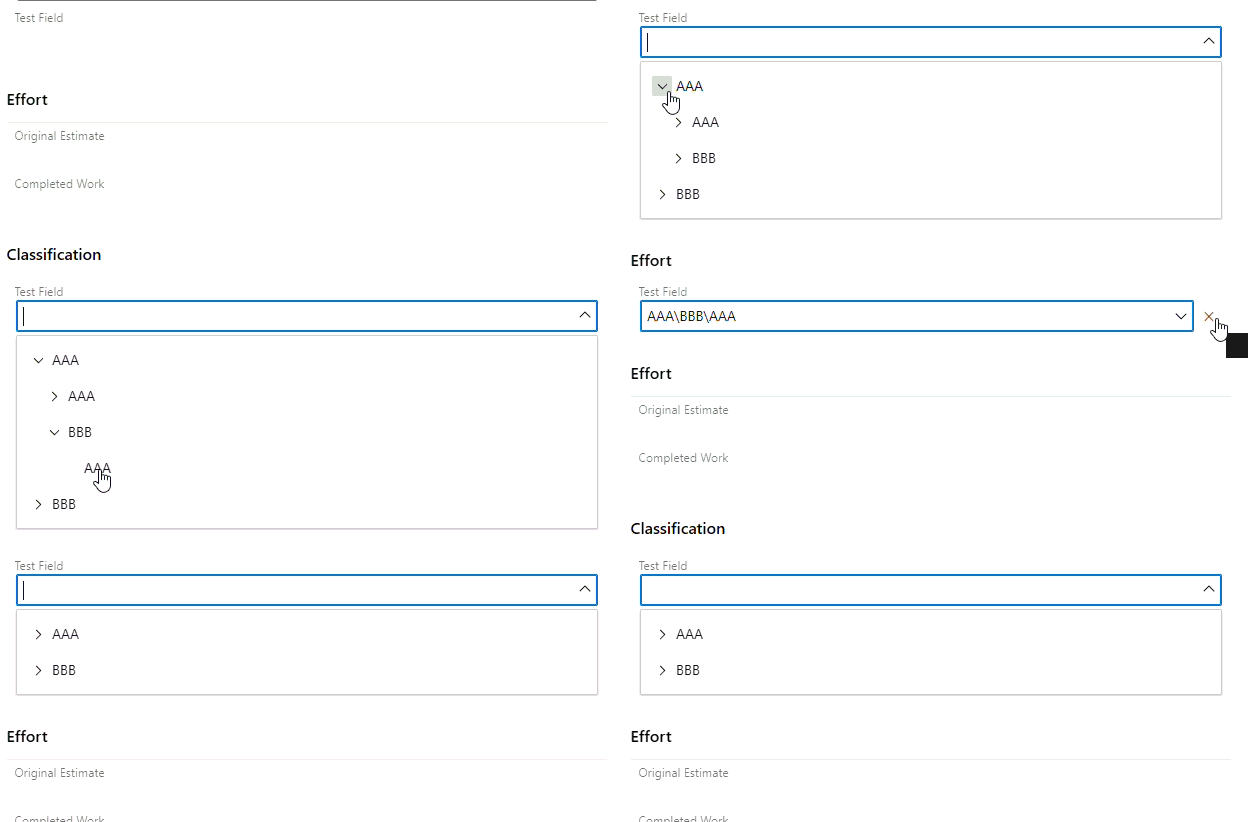
See it in action
The model
Define the tree by writing paths, one per value, with \ between segments — the same separator Area Path uses:
A
A\B
A\B\C
A2
A3
A3\B\C
renders as:
A
  B
    C
A2
A3
  B          <- grouping only, not selectable
    C
Two rules carry the whole design:
- Only declared paths are selectable.
A3\B above appears because A3\B\C has to hang somewhere, but it was never declared as a value, so it groups without being pickable. The control is therefore incapable of writing a value the field would reject.
- Source order is preserved. Whoever curates the list decides how siblings sort; the control never reorders them.
Setup
- Install the extension in your organization.
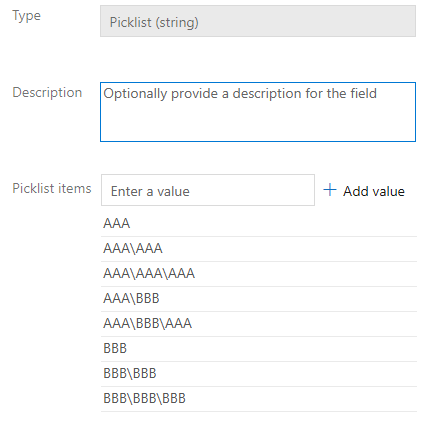
- Create the field in your process (Organization settings → Process → your process → work item type → New field). Use type Picklist (string) and enter the paths as its allowed values. A picklist is strongly recommended over a plain text field: the tree is read straight from it, and the server then validates the value for every path into the work item — REST, CSV import, bulk edit — not just this control.
- Add the control to the layout (same work item type → Layout tab → + on a group → Custom control → Simple Tree Picker), set its Field input to the field you just created, and save. If the field is already on the layout as a normal dropdown, remove that copy so the field has one editor.
The field is an ordinary picklist whose values happen to be paths — nothing about it is special:
| Input |
Required |
What it does |
FieldName |
yes |
The field the control edits, and the field whose picklist the tree is read from. |
PickerStyle |
no |
inline (default) or dialog — see below. Anything unrecognized means inline. |
Paths |
no |
A fallback list — semicolons or new lines — used only when the field has no picklist. Handy for a quick trial on a plain text field; a picklist is the real setup. |
Two ways to open
Closed, the control is a single line either way. What differs is where the tree appears:
inline — the tree expands under the field and pushes the form's content down; picking a node closes it and gives the space back. Least ceremony, best for small and medium trees.dialog — the tree opens in a dialog the host draws over the form, so nothing on the form moves. Better for large taxonomies, at the cost of feeling like a dialog.
Why there is no third option, anchored and floating like the Area Path picker: that picker is part of Azure DevOps itself, drawn in the page. A custom control lives in an iframe, which clips its contents, and the only surfaces the platform offers an extension for escaping it are a dialog and a side panel — nothing anchored to a field. So inline pushes and dialog floats, and neither is a true dropdown.
Which picklist becomes a tree?
Nothing marks the field. A picklist field stays an ordinary picklist field; what turns it into a tree is a Simple Tree Picker control on the layout pointing at it through FieldName. Every other picklist on the form, with no control pointing at it, renders as the usual Azure DevOps dropdown.
Three consequences worth knowing:
- The binding is per work item type, because layouts are. The same field can be a tree on User Story and a plain dropdown on Bug — add the control to one layout and not the other.
- Drop the field's normal control if it is already on the layout, or the form ends up with two editors for one field.
- The field staying indistinguishable from any other picklist is the point. It is what lets the value degrade gracefully everywhere the control does not render. Were the tree a property of the field, that would be lost.
A picklist whose values contain no \ renders as a flat list of roots — a harmless degenerate case.
Behavior
Opens and closes on demand — closed, the control is a single line showing the current value. Click it and the tree appears; pick a node and it closes again, as do Escape and clicking away. Which way it opens is the PickerStyle input, above.
Type in the field to filter — as the native picklist lets you, matching on a node's name or its full path, keeping the branches that lead to a hit, so typing A3\B narrows to that branch. What happens when you leave the control mid-search:
| You typed |
On leaving |
| Something that matches |
The first matching node becomes the value |
| Something that matches nothing |
Whatever was there before stands, untouched |
| Nothing — you emptied it |
The value is cleared, same as pressing ✕ |
So the field always ends up holding a real node or nothing at all; typed text that means nothing never survives. Escape cancels instead, restoring the previous value, because losing a value to a stray keystroke would be a nasty surprise. This is also why typing can only ever pick — never write free text. A picklist field rejects a value outside its list with a form-level error ("contains the value 'x' that is not in the list of supported values") that blocks saving the work item, and this control is built so it cannot put you there.
Keyboard throughout — landing on the control with Tab does not open it; ↓ or Enter does (also Space in dialog style), and so does typing. Open, ↓/↑ walk the rows, →/← open and close a branch, Enter and Tab take the highlighted node, Escape closes without committing. Closed, Tab walks on to the next field.
Opens where you left off, not where you were — each opening expands only the path down to the current value, so the tree never drifts towards permanently open.
A value outside the list — a path that was renamed or written by hand still shows up, selected and flagged not in list, rather than leaving the control blank while the field holds a value.
Clear — the ✕ next to the current value empties the field, for whenever the field is not required.
Read-only and required, as the form says — when the work item is read-only, the field is, or a rule locks it in the work item's current state, the control shows a lock and greys the value: nothing opens, nothing changes. A rule that applies only in some states is one the host never announces to an extension, so the control catches it the instant a write is refused, undoes the write and locks itself, and unlocks when another field changes and the rules are re-evaluated. Required and empty shows a red ! in the field, because the red mark the form puts beside its own labels lives outside the control's frame.
Theme — follows the user's Azure DevOps theme, light or dark, rather than the browser's.
What "Simple" means
It stores the path, not an ID. That is the whole trade, and it is worth stating plainly:
- You get values that are readable everywhere — queries, boards, Excel, Analytics, REST — with no lookup table to maintain and no second source of truth.
- You pay on renames: work items keep the old path, because the path is the value. Treat the tree as append-only, or run a bulk update when you do rename a node.
- Subtree queries are prefix matching. WIQL has no
STARTSWITH, and UNDER only works on real tree fields, so "everything under A\B" becomes CONTAINS 'A\B' — a substring match that can catch a sibling whose name embeds the same text. Analytics (OData) has startswith and does this properly.
If those trades do not suit you, an ID-based control is a different extension — not a setting of this one.
Limitations
- The control renders in the web work item form only. Boards cards, the mobile app, bulk edit, Excel and the REST API all show the raw string. That degrades well — the path is readable — but it is also why the picklist matters: it is the server, not this control, that keeps those paths valid.
- One value per field. A multi-select variant would need a different storage format.
- Depth and breadth are whatever your picklist holds; the control does not paginate. Azure DevOps caps a
String field at 255 characters, which is the real ceiling on how deep a path can go.
Development
npm install
npm test          # the tree logic — pure functions, no SDK
npm run build     # bundles dist/ with esbuild
npm run package   # builds, then produces the .vsix with tfx-cli
src/tree.js holds the domain (parsing, tree building, filtering) with no dependency on the SDK or the DOM, which is what makes it testable outside a browser. src/control.js is the glue to the work item form.
License
MIT
Credits
The icon for this extension is based on the Flaticon library: Organization icons created by Magnific - Flaticon
| |

