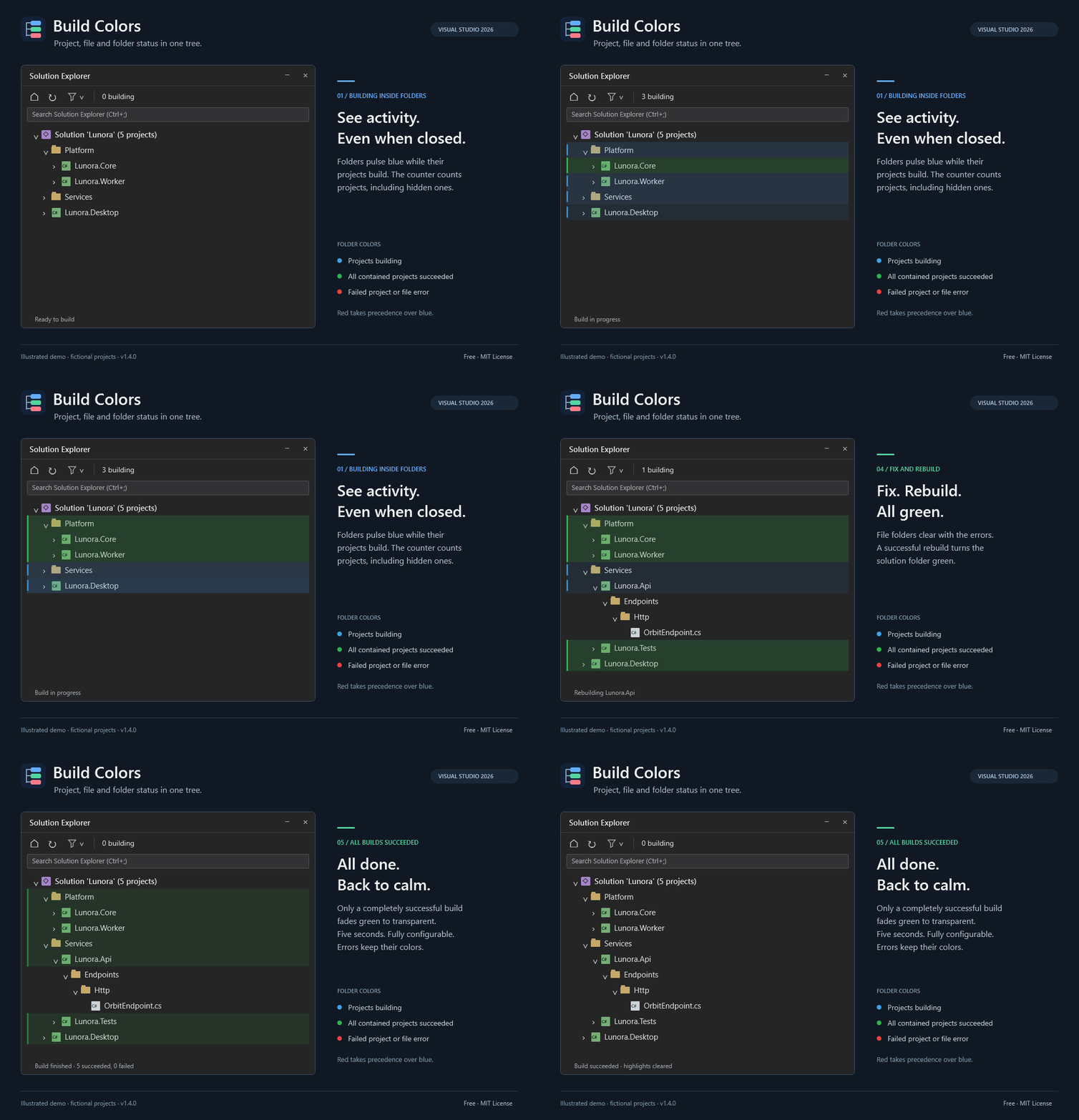
Build ColorsPreviewColor projects, files and folders in Solution Explorer with build results, error highlights, a blue build animation and filters. |

Build Colors for Visual Studio 2026See which projects are building, which succeeded, and where errors remain, directly in Solution Explorer, including their containing folders. Free to use, under the MIT License. Requires Visual Studio 2026 on Windows x64. Build Colors adds gentle background colors to project, file and folder rows. A blue breathing animation highlights active builds, while a live counter shows how many projects are compiling at the same time.
Illustrated demo with fictional projects, using the extension's actual row colors and animation. Project colors
Projects finish independently: each row changes color as that project's build completes. The activity counter includes projects inside collapsed folders and projects outside the visible part of the tree. Fade after a successful buildWhen the entire build succeeds, green project and solution-folder backgrounds gently fade to transparent over 5 seconds. The background and left edge fade together. Successful projects stay green until the overall build finishes; failed or cancelled builds retain their colors. Existing failed projects or file errors prevent the fade. Warnings do not count as failures. Set Tools → Options → Build Colors → General → Successful build fade duration (seconds) to a duration from 0 to 300. Set 0 to keep green visible. The fade respects the animation option and Windows motion preferences; green stays visible when motion is disabled. Build results and filters remain available after the colors disappear. Expanding a folder later resumes the same timeline instead of replaying the fade. Starting a new build restores normal highlighting. If file errors remain, green stays visible until those errors clear, then resumes the successful build's timeline. Find files with errorsFiles turn red when Visual Studio's Error List reports an error for them. Both build errors and live editor diagnostics are included, so opening a document in the editor does not remove its error color. Expand a project or folder after a build and the file colors appear as its rows become visible. Warnings and informational messages do not color files. A file returns to its normal background when Visual Studio removes its last error. Folder colorsFolders summarize their contents, including nested and collapsed folders:
File errors propagate through all containing folders. Folder membership follows Solution Explorer, including virtual folders and linked files, rather than physical directory paths. Moving or removing items and clearing diagnostics refresh the folder colors. Folder rows do not increase the concurrent-project counter. Filter build resultsUse the filter menu in the Solution Explorer toolbar to show projects whose builds failed or succeeded. Filters update as builds finish and retain the solution folders needed to navigate the matching projects. All commands and settings are in English:
Get startedIf you installed Build Colors from the previous publisher or a local package before the publisher migration, uninstall that copy from Extensions → Manage Extensions and restart Visual Studio first. Copies from the personal publisher faze79 can update normally.
To disable the animation, open Tools → Options → Build Colors → General → Animate building projects. Active projects keep a static blue background. Build Colors also respects Windows animation settings and disables motion in high contrast mode. The command Tools → Build Colors: diagnostics and refresh colors refreshes the colors and displays build, error and row counts. Compatibility and behavior
PrivacyBuild Colors processes build events and Error List entries inside Visual Studio. It has no telemetry, accounts or network calls and does not upload your source code. Release notes1.4.0: Green project and solution-folder backgrounds fade to transparent after the entire build succeeds. The default duration is five seconds and can be changed or disabled in Options. Failed or cancelled builds retain their colors. Filters and build results are preserved; late-expanded rows follow the same fade timeline. 1.3.0: Folder backgrounds now summarize nested project builds and file errors, including collapsed folders. Red takes precedence over blue; solution folders turn green only when all contained projects have successful build results. 1.2.4: All extension labels, tooltips, options and diagnostics are now in English. The animated demo uses fictional projects and the same English labels. Includes the blue build animation, concurrent project counter, build-result filters, file highlighting after expanding collapsed nodes, and error highlighting for documents open in the editor. |