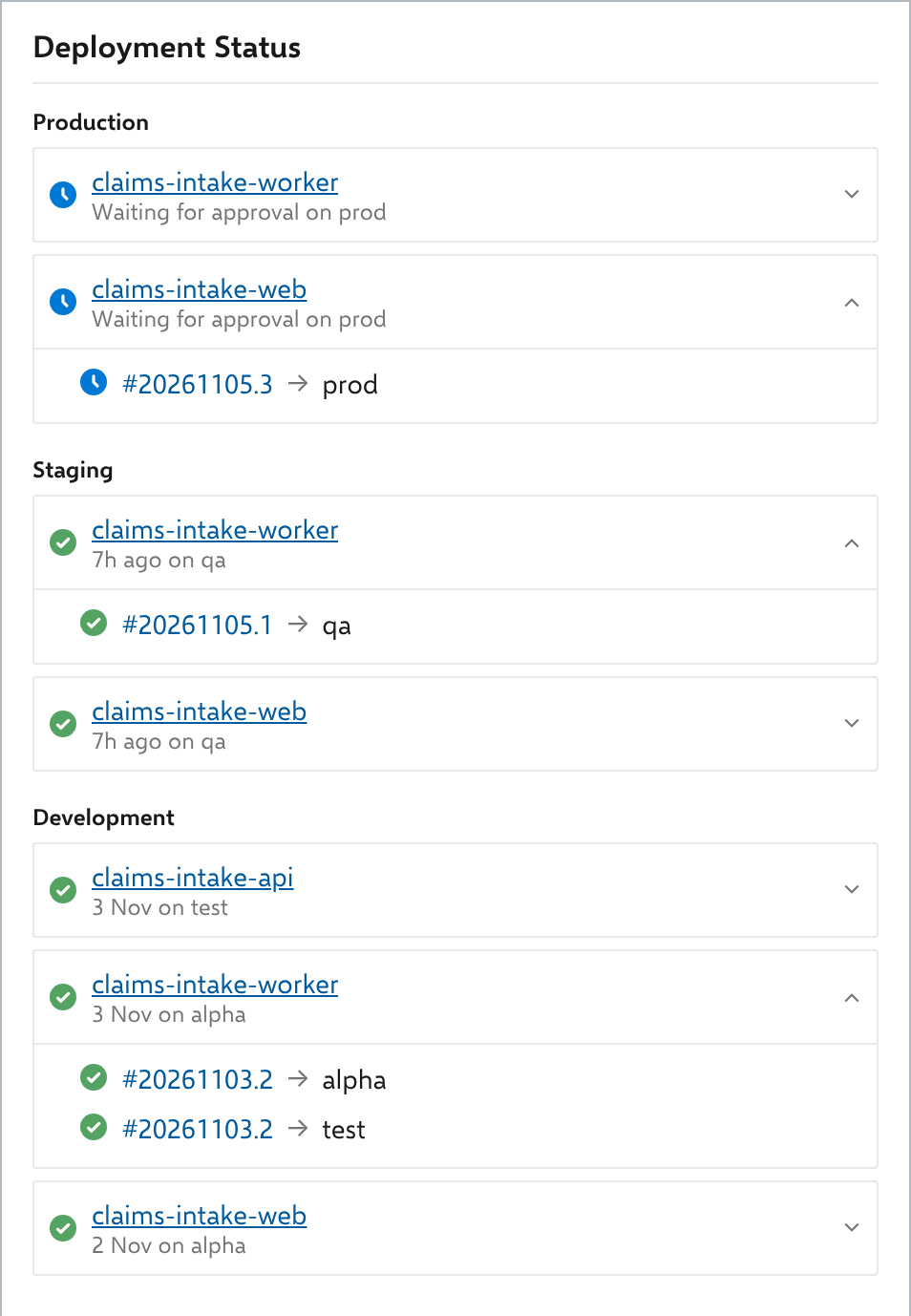
Deployment Status to Boards for YAMLThis extension brings the Classic release pipeline feature Automatically link work items to releases and report deployment status to a work item to YAML pipelines that deploy to Azure DevOps environments. The Azure DevOps team has this feature on the roadmap. But until there is built-in support for this, this extension can bridge the gap. The extension adds a custom control to Azure Boards work item forms that shows deployment status for YAML pipelines, in the same style as the classic Deployment control. Instead of relying on Integrated in release stage links, it finds the runs that belong to the work item and displays Deployment Jobs that target Environments. The extension does not write data to work items; it only reads existing links. Uninstalling it will not affect your work items or any existing data.
How it worksThe extension finds the pipeline runs that include the work item, and shows where each run was deployed. Runs are found through:
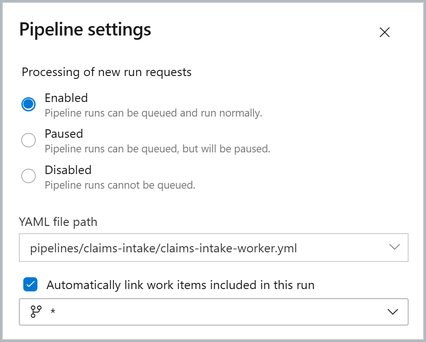
For each environment, the first deployment is shown. Get started1. Enable automatic work item linkingIn your pipeline, open Settings and turn on Automatically link work items included in this run. This is what creates the Integrated in build links on the work items.
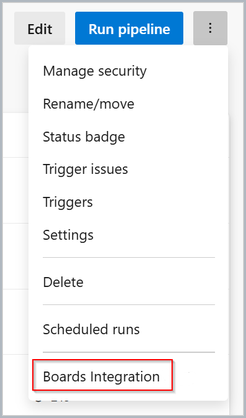
2. Configure Boards IntegrationIn pipeline menu, open ⋯ > Boards Integration.
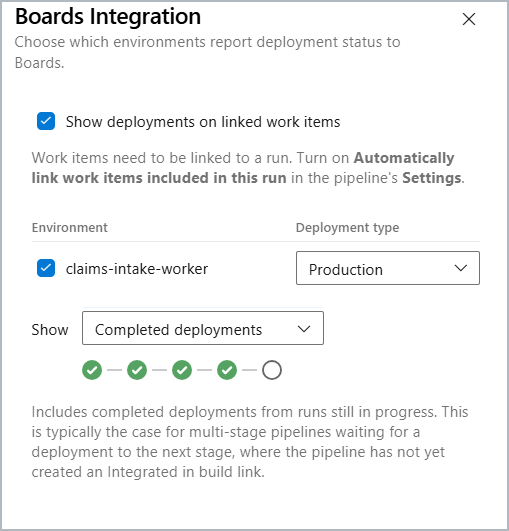
Choose a deployment type for each environment. A work item shows one deployment per environment: the first run that deployed it successfully, or, when none has, the earliest run that is running or waiting for an approval. Later runs of the same pipeline contain the change as well, but do not introduce it. Choose which deployments to show:
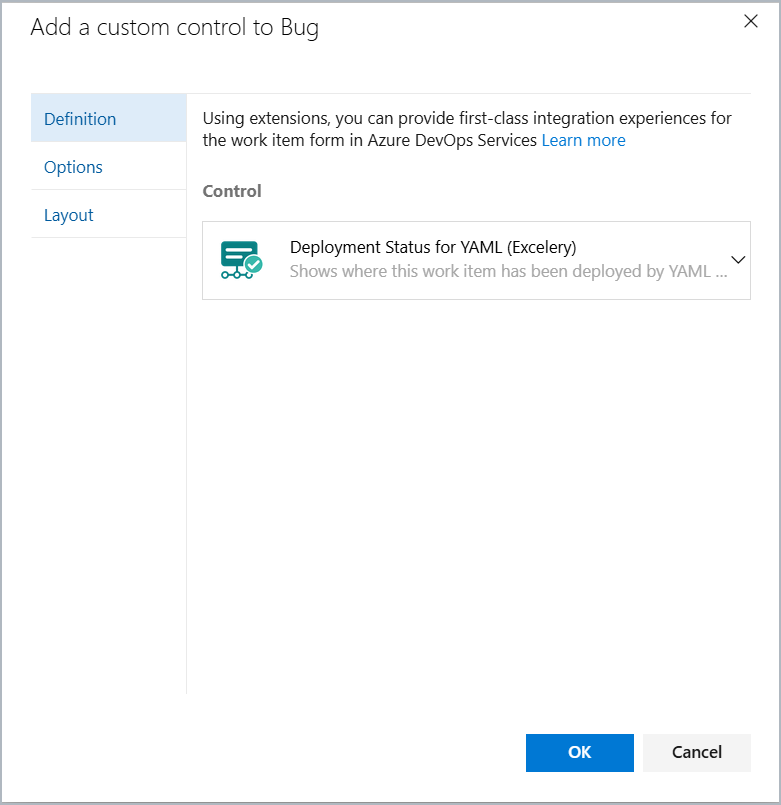
3. Add the new control to your work item formsOpen Organization settings > Process and select your process. For each work item type where you want deployment status displayed, open Layout. Add a new Deployment group, in the same column. Add the Deployment Status for YAML custom control to the group.
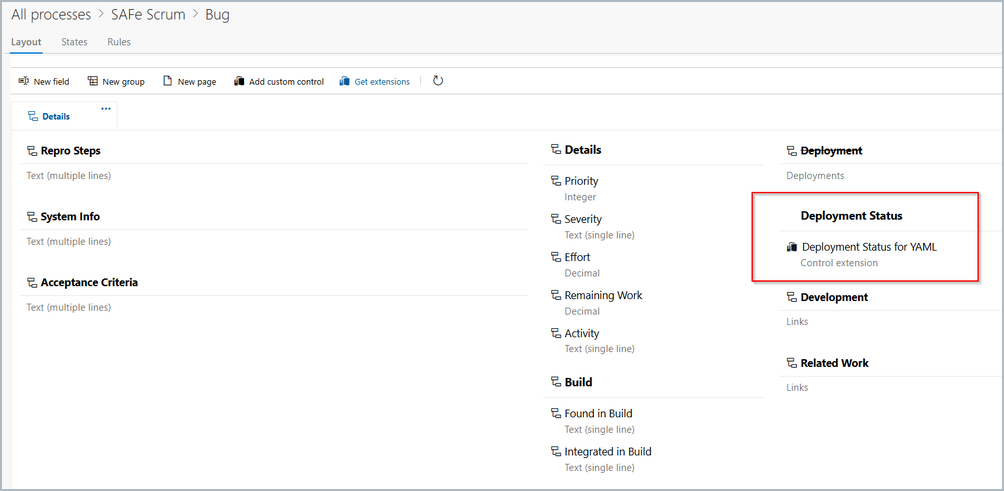
The Deployment group with the custom control appears in the layout, in the same column as the built-in sections.
If not needed for classic release pipelines, Hide the built-in Deployment section. Permissions and privacyThis extension requires read-only access to work items and builds. No data leaves your Azure DevOps organization. See PRIVACY.md. SupportReport bugs and request features through GitHub Issues. Work item linking is a fairly complex area. Before reporting a problem, check that the pipeline and the extension are configured as described above, and read SUPPORT.md, which lists the common causes. Please check existing issues before opening a new one. To report a vulnerability, follow SECURITY.md. ContributingSee CONTRIBUTING.md for contribution guidelines. |